

The Galaxy Z Fold 8 Ultra ships with One UI 9, and 15 settings make the biggest difference to how it feels day to day, from refresh rate to what the side button actually does. Samsung's defaults are perfectly fine for a regular phone, but a lot of what makes a foldable worth the money sits a few menus deep. After setting up mine, these are the toggles I went looking for first.
Before you start
Everything here was checked on a Galaxy Z Fold 8 Ultra running One UI 9.0 on Android 17 (build CP2A.260605.016.F976BXXS3AZIJ). Most of the display and gesture settings exist on other One UI 9 phones too, but the cover screen, aspect ratio and taskbar options are Fold-specific or behave differently on a regular slab phone.
Not sure whether your phone has the update yet? Our list of One UI 9 eligible devices has you covered, and our One UI 9 rundown explains what else is new.
Display and comfort
1. Motion smoothness
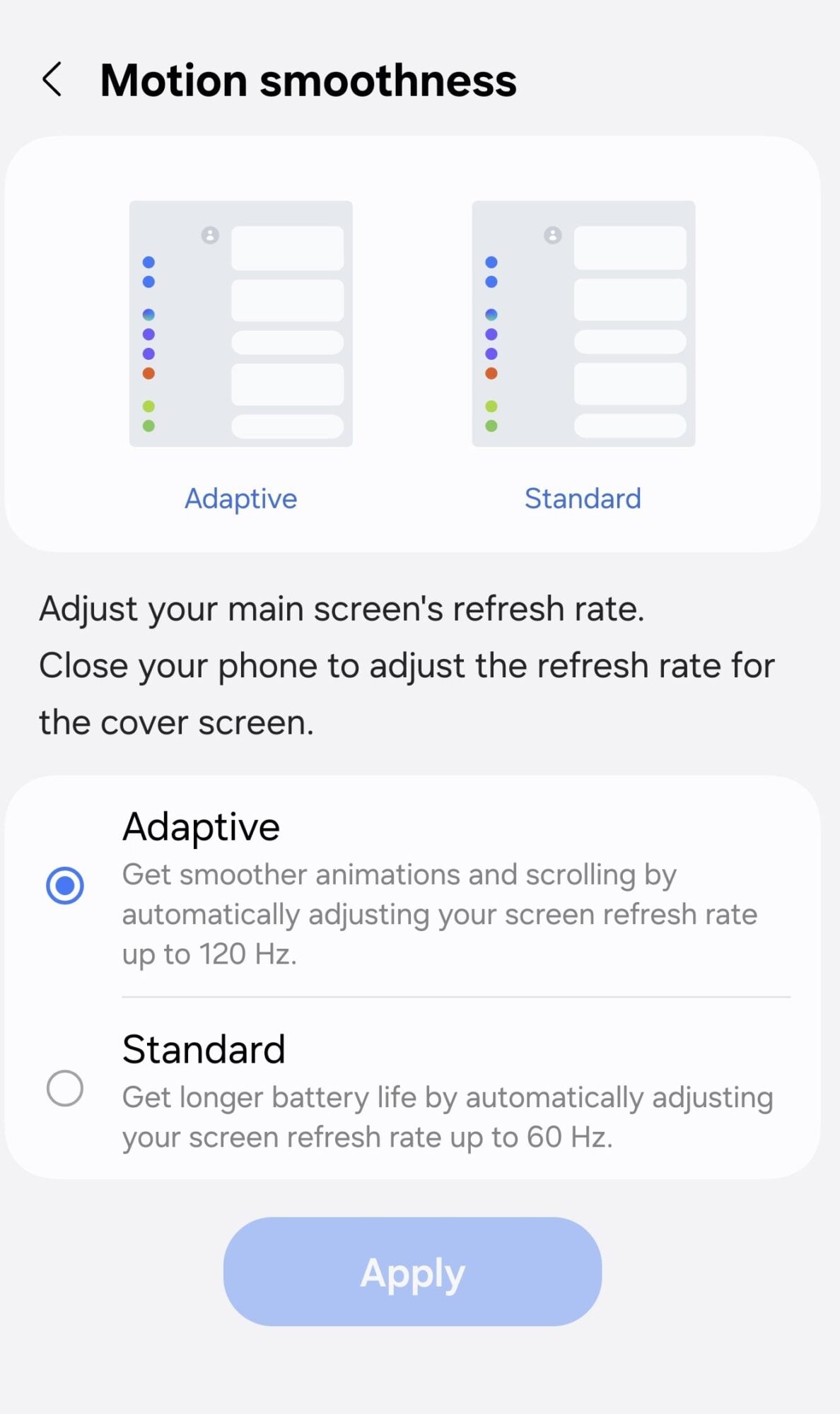
Motion smoothness decides whether the main screen runs at up to 120Hz or tops out at 60Hz, and it's the difference between scrolling that glides and scrolling that stutters. Feeds, web pages and system animations all look more fluid at the higher rate, and fast-paced games feel more responsive with less motion blur.
Head to Settings > Display > Motion smoothness and pick Adaptive, which automatically adjusts the refresh rate up to 120Hz depending on what's on screen. It only covers the main screen, so close the phone and repeat the change if you want the cover screen to match. Standard is only worth choosing if battery life matters more to you than smoothness.
2. Eye comfort shield
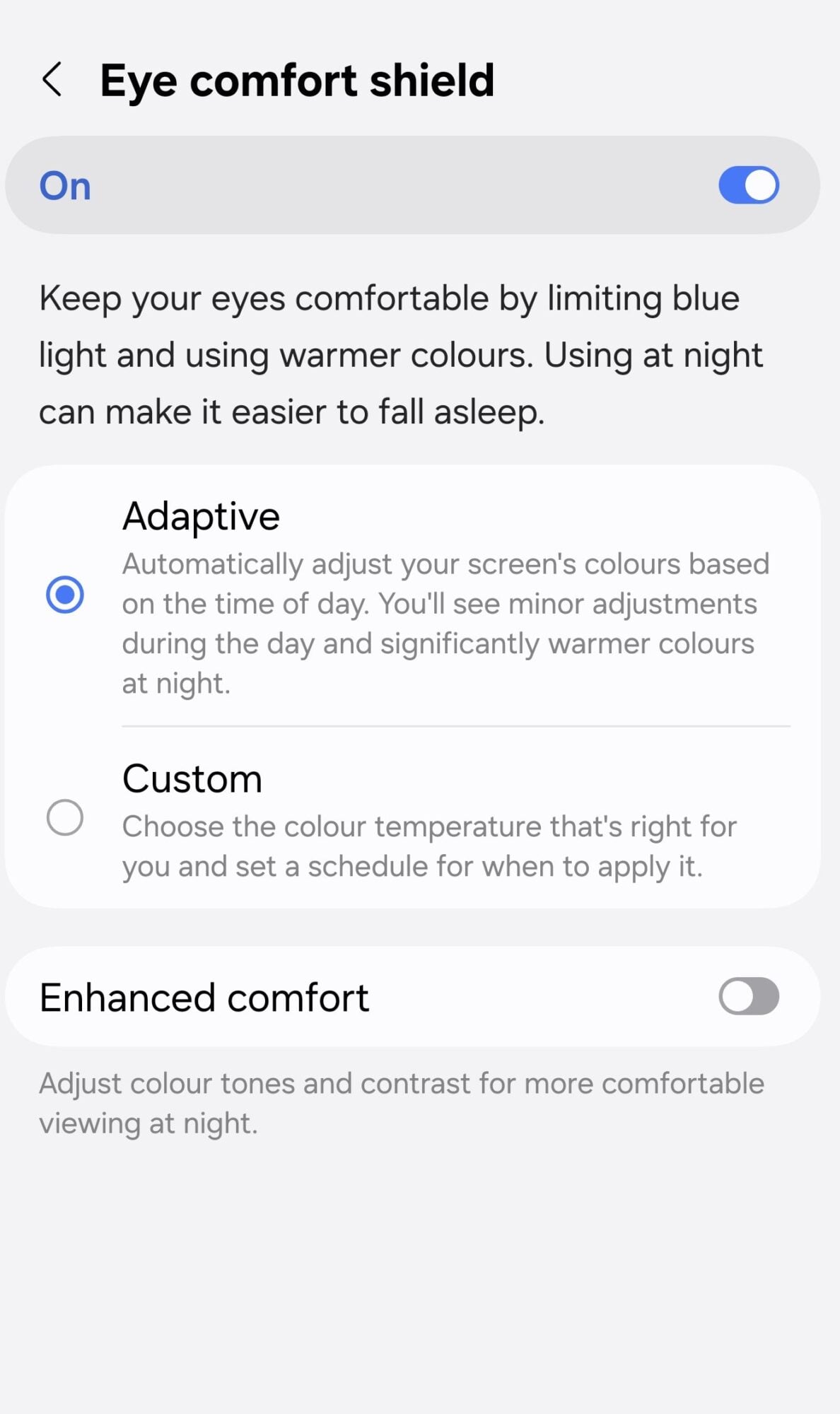
Eye comfort shield cuts down blue light and shifts the display toward warmer colors, which reduces eye fatigue and is kinder to your sleep cycle after dark. If your Fold doubles as a bedtime e-reader, this one earns its place.
You'll find it under Settings > Display > Eye comfort shield. Adaptive adjusts colors through the day, staying subtle in daylight and going noticeably warmer at night, while Custom lets you pick your own color temperature and schedule. There's also an Enhanced comfort toggle that tweaks color tones and contrast for night viewing, which I leave off, but it's worth a try if Adaptive alone doesn't do enough.
3. Screen mode and white balance
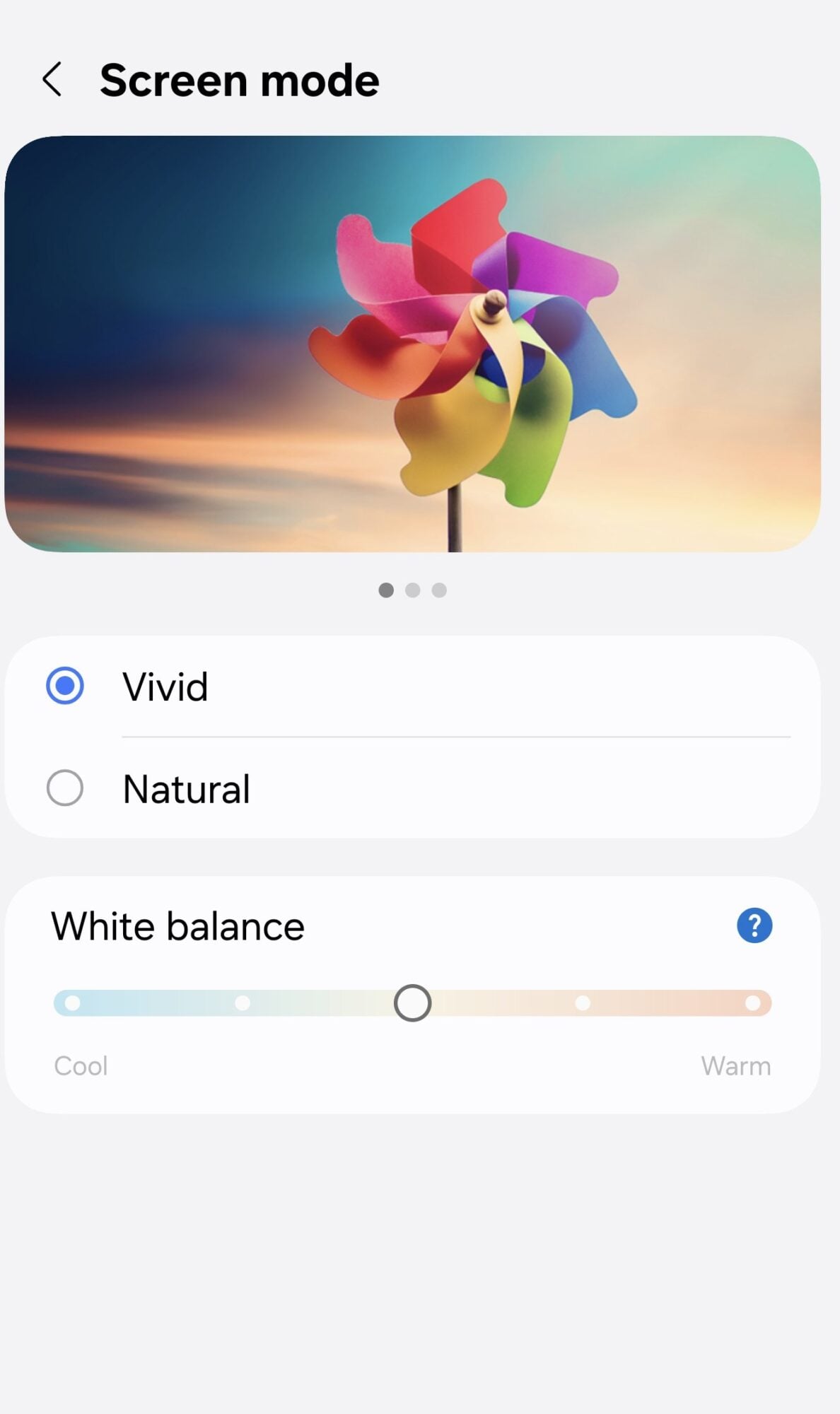
Samsung's Vivid mode is all about punchy, saturated colors, and that won't suit everyone. Screen mode lets you choose how saturated the display looks, while the white balance slider shifts the overall color temperature between cool and warm.
Go to Settings > Display > Screen mode and choose between Vivid and Natural. I stick with Vivid, then use the White balance slider to nudge things cooler or warmer to taste. If color accuracy matters, say for editing photos, Natural is the safer pick.
4. Font size and style
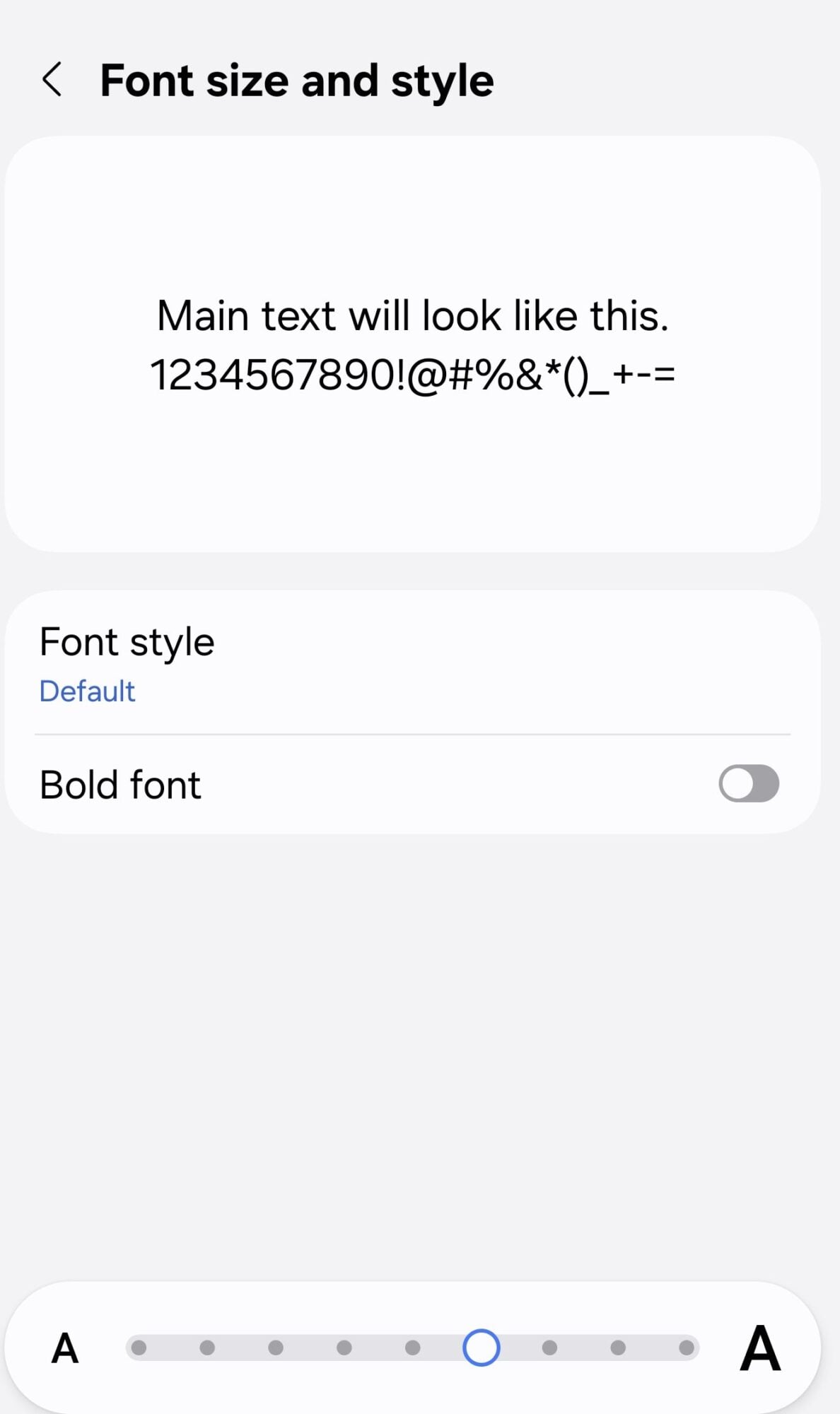
This is the quickest way to make One UI easier to read. The font size slider makes text bigger or smaller to suit your eyesight, and the Bold font toggle thickens letters so they're easier to read on the move.
Open Settings > Display > Font size and style. Font style swaps the default system font for SamsungOne, Gothic Bold, Roboto, Cool Jazz, Rosemary or Samsung Sans, and Download fonts adds more options. Going smaller packs more onto the screen, while going bigger gives you a cleaner layout with fewer accidental taps.
5. Screen zoom
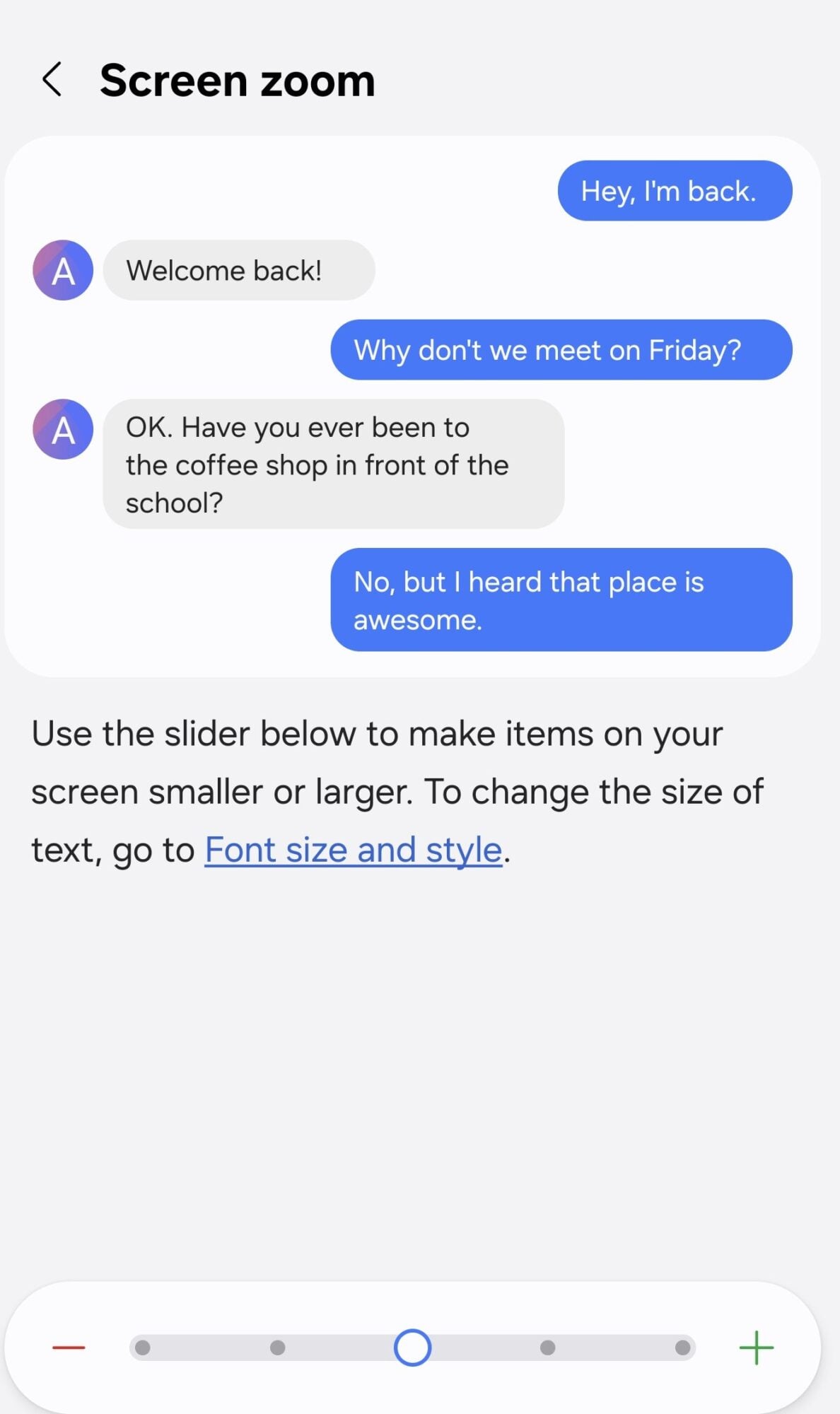
Screen zoom is font size's lesser-known sibling, and it scales everything else: buttons, icons and other interface elements. Zooming in makes the whole UI bigger and easier to hit, which reduces eye strain if you have low vision or just want a more relaxed view.
It lives at Settings > Display > Screen zoom, with a slider and a live preview above it. Zooming out does the opposite, fitting more emails, more of an article or more of a web page on screen at once. Since Samsung keeps the two settings separate, it's worth adjusting this one alongside font size.
Read: The Best Samsung Z Fold 8 Ultra Screen Protectors
Making the big screen work harder
6. Per-app aspect ratio
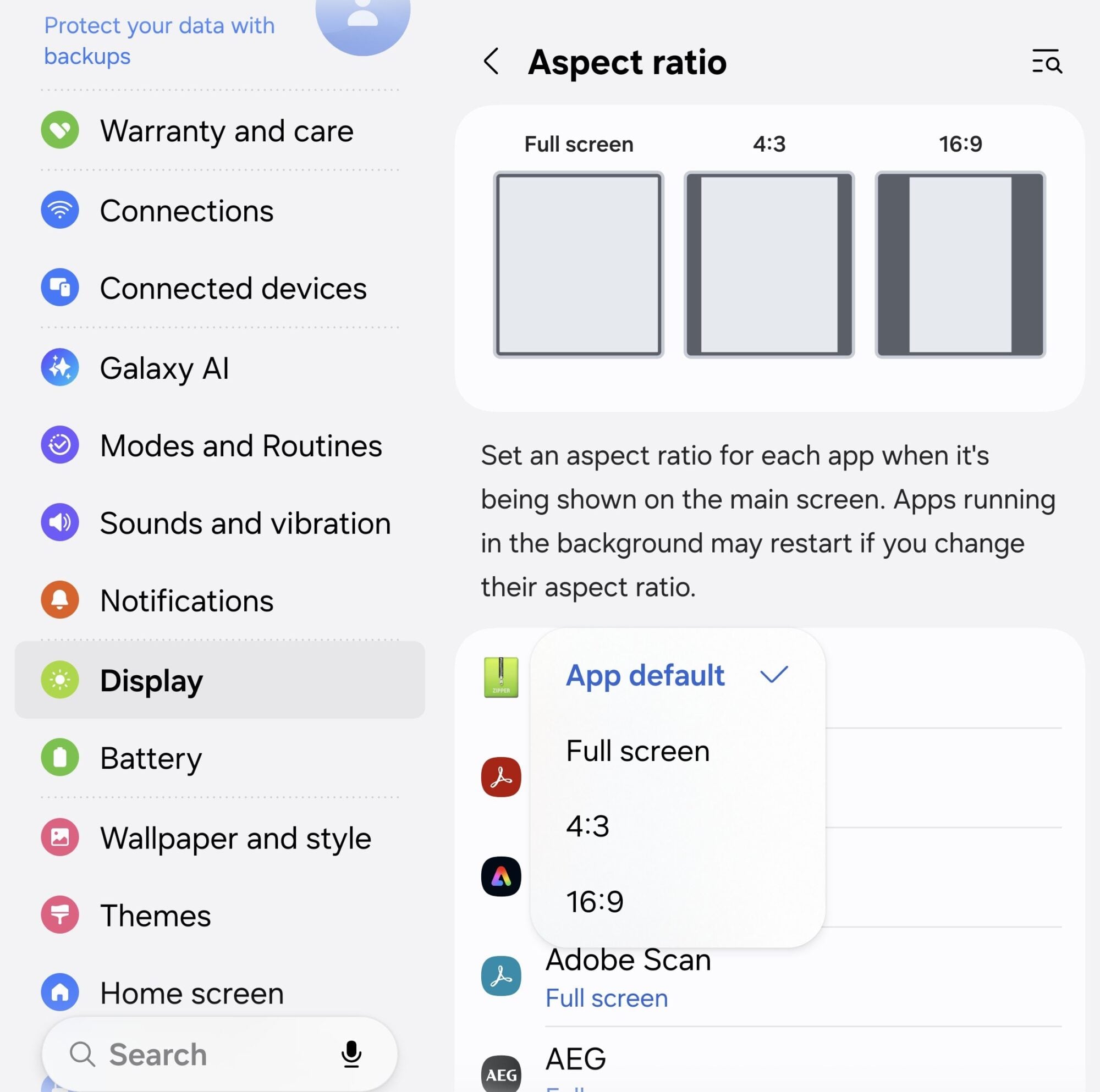
Plenty of apps, older games and some social media tools especially, still don't scale properly to a folding main display. Left alone, they can look stretched, warped or boxed in by chunky black bars.
Settings > Display > Aspect ratio lets you set each app to App default, Full screen, 4:3 or 16:9. Full screen gets rid of the black bars, 16:9 suits video and games, and a narrower ratio can pull buttons back from the awkward middle of the screen. Samsung warns that apps running in the background may restart when you change their ratio, so save anything important first.
7. Camera cutout
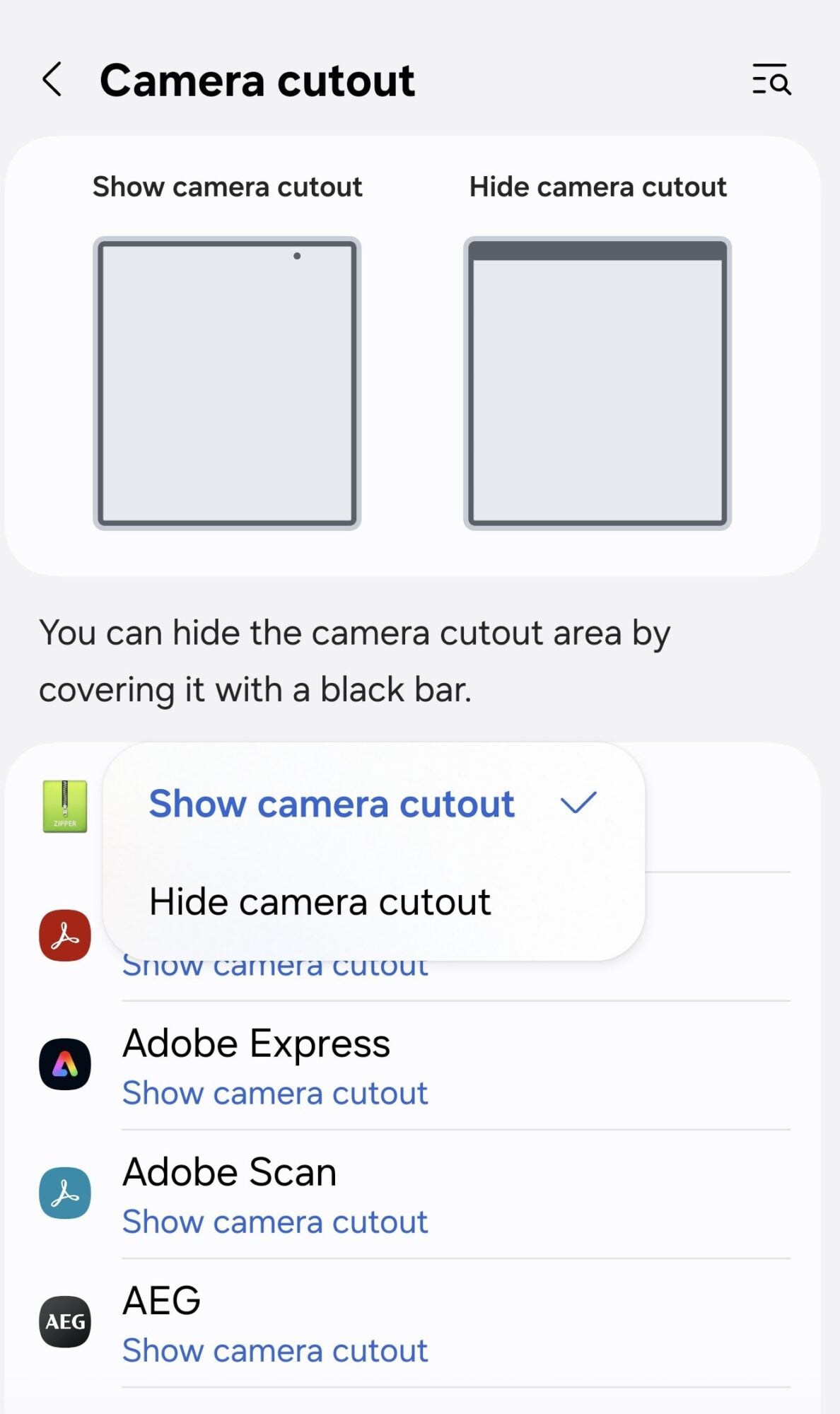
The inner screen's selfie camera punches a hole in the display, and Samsung gives you a per-app choice about how to handle it. Hide camera cutout covers that area with a black bar, while Show camera cutout lets the app use the full display around it.
Find it at Settings > Display > Camera cutout, then tap any app to switch. I keep my apps on Show camera cutout so videos and apps fill the whole screen rather than being letterboxed at the top. If one app hides important buttons under the camera, switch just that one to Hide.
8. Taskbar and recent apps
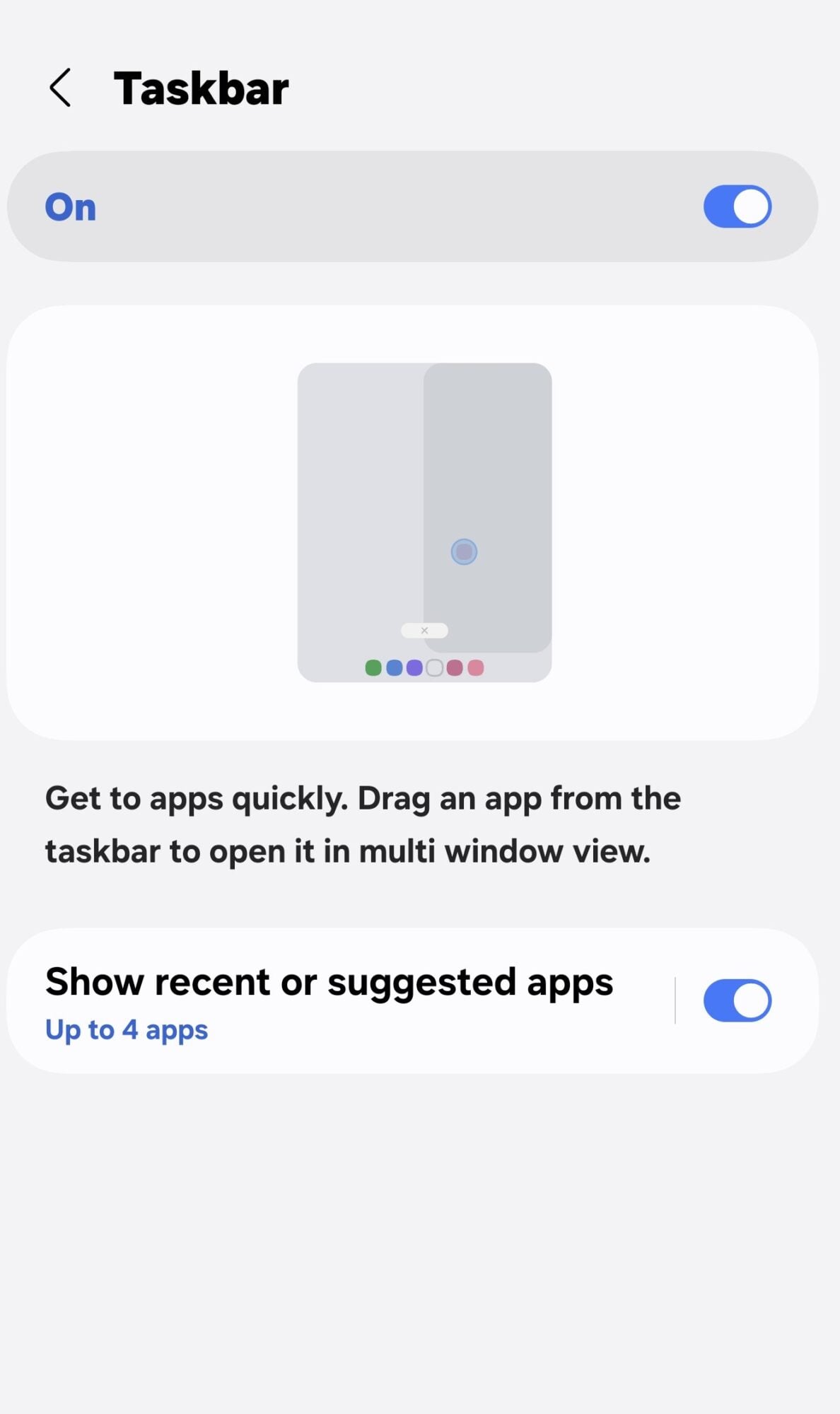
The taskbar is what makes the Fold feel more like a tablet than a big phone. It keeps your apps along the bottom of the main screen, and you can drag one straight from it to open in multi window view.
Switch it on at Settings > Display > Taskbar and leave Show recent or suggested apps on. Then go to Settings > Home screen > Recent or suggested apps and pick Up to 4 apps, which cuts the steps needed to jump between whatever you're actively using, like email, Slack and a browser. Samsung notes that fewer may appear if space is tight.
9. Multi window
Multi window is where the Fold's size pays off, and these toggles decide how quickly you can get two or three apps on screen at once. Get them right and you can skip a lot of slow menu tapping.
They're under Settings > Advanced features > Multi window. I keep Show app handle in full-screen view and Show app handles in split screen view switched on, since tapping a handle brings up the menu for splitting or popping out an app. I also turn on both swipe gestures, which skip the menu entirely.
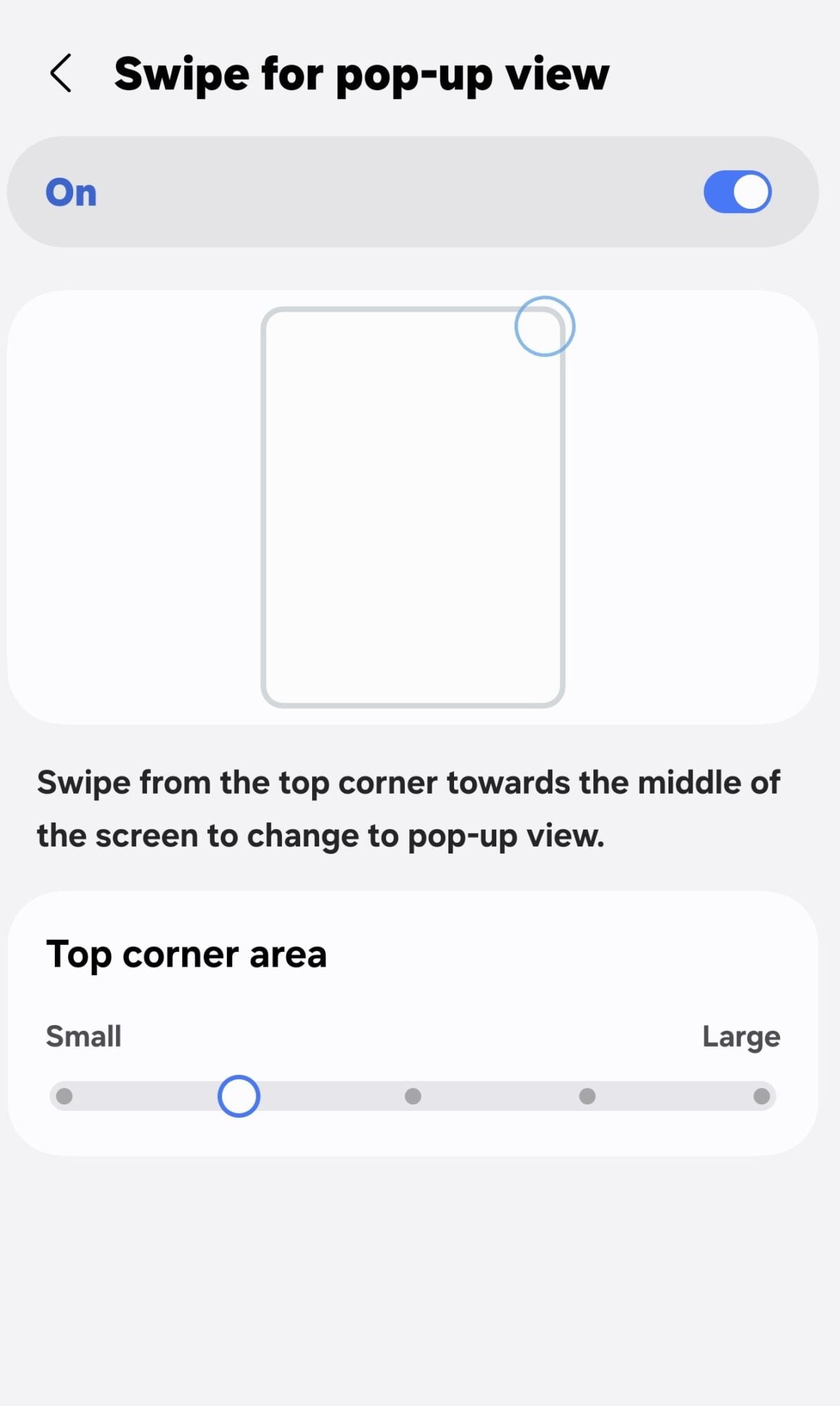
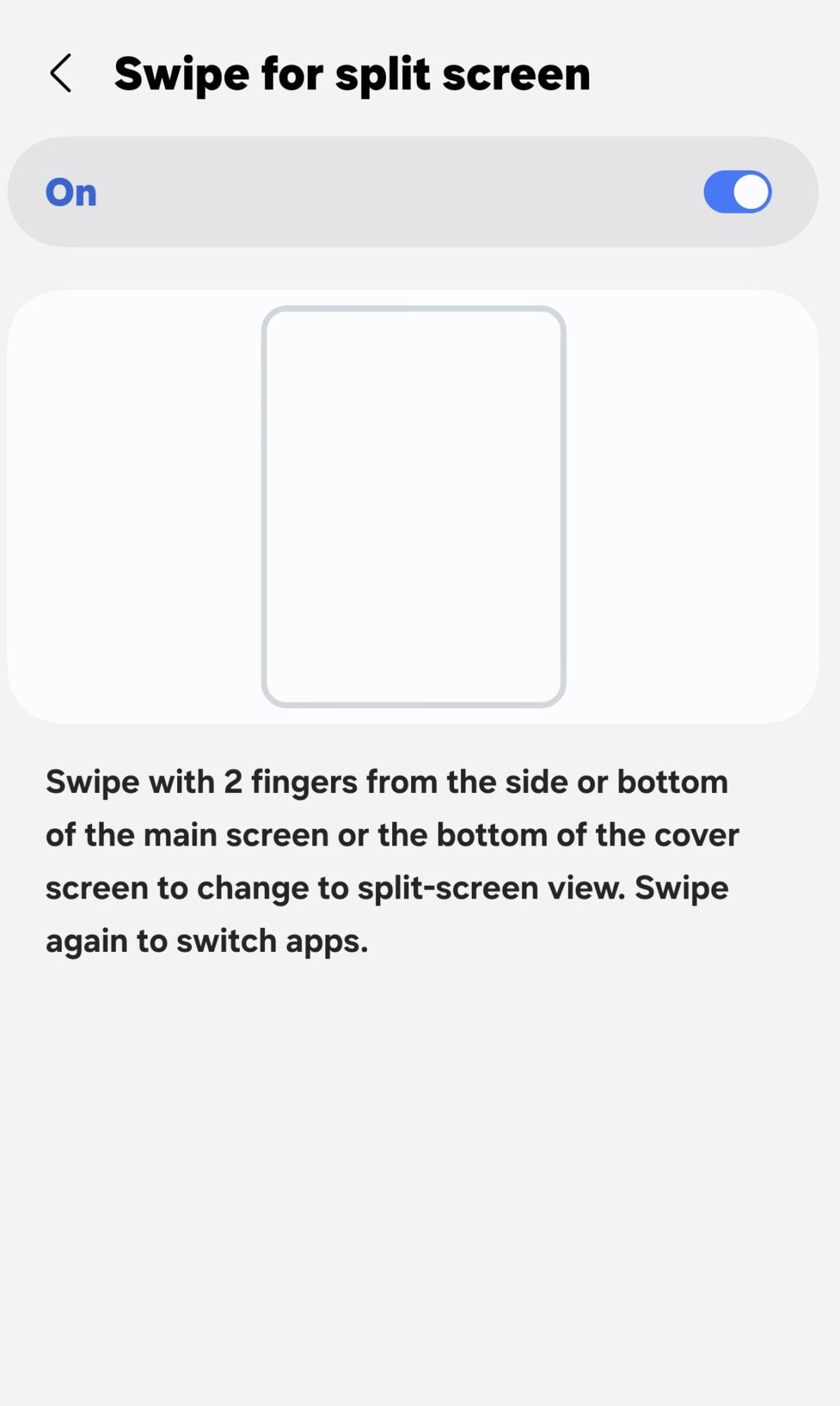
Swipe for split screen lets you swipe with two fingers from the side or bottom of the main screen, or the bottom of the cover screen, to jump into split-screen view, and swiping again switches apps. Swipe for pop-up view turns the current app into a floating window when you swipe from a top corner toward the middle, and a Top corner area slider sets how big that trigger zone is.
Cover screen and home screen
10. Continue apps on cover screen
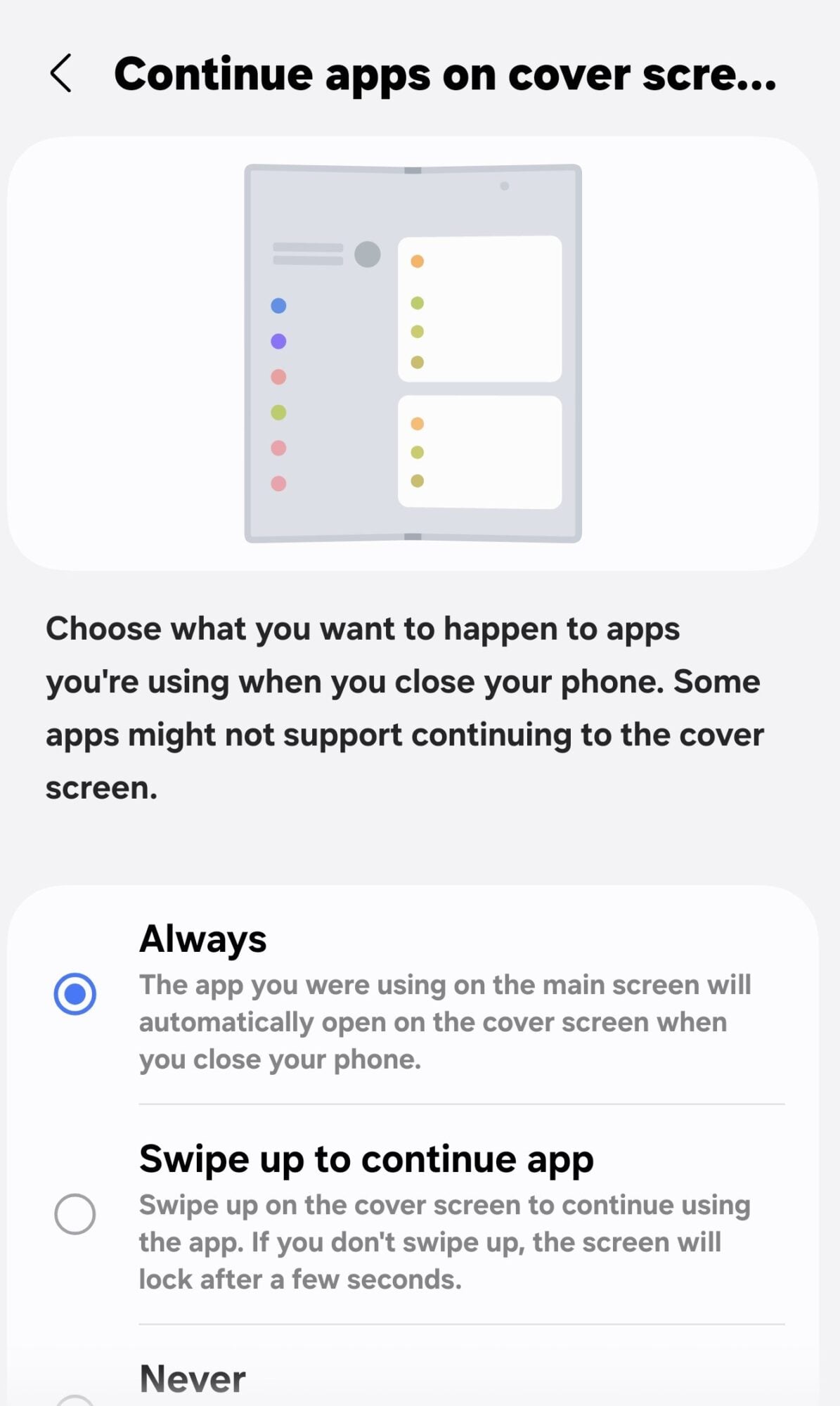
This setting controls what happens to the app you're using when you fold the phone shut. Set it up to suit how you work and you can carry on from the cover screen without constantly opening and closing the main display.
Go to Settings > Display > Continue apps on cover screen. Always opens the app you were using on the main screen on the cover screen as soon as you close the phone, which is how mine is set. Swipe up to continue app is the cautious middle ground, locking the screen after a few seconds unless you swipe up, while Never does exactly what it says.
11. Cover screen mirroring
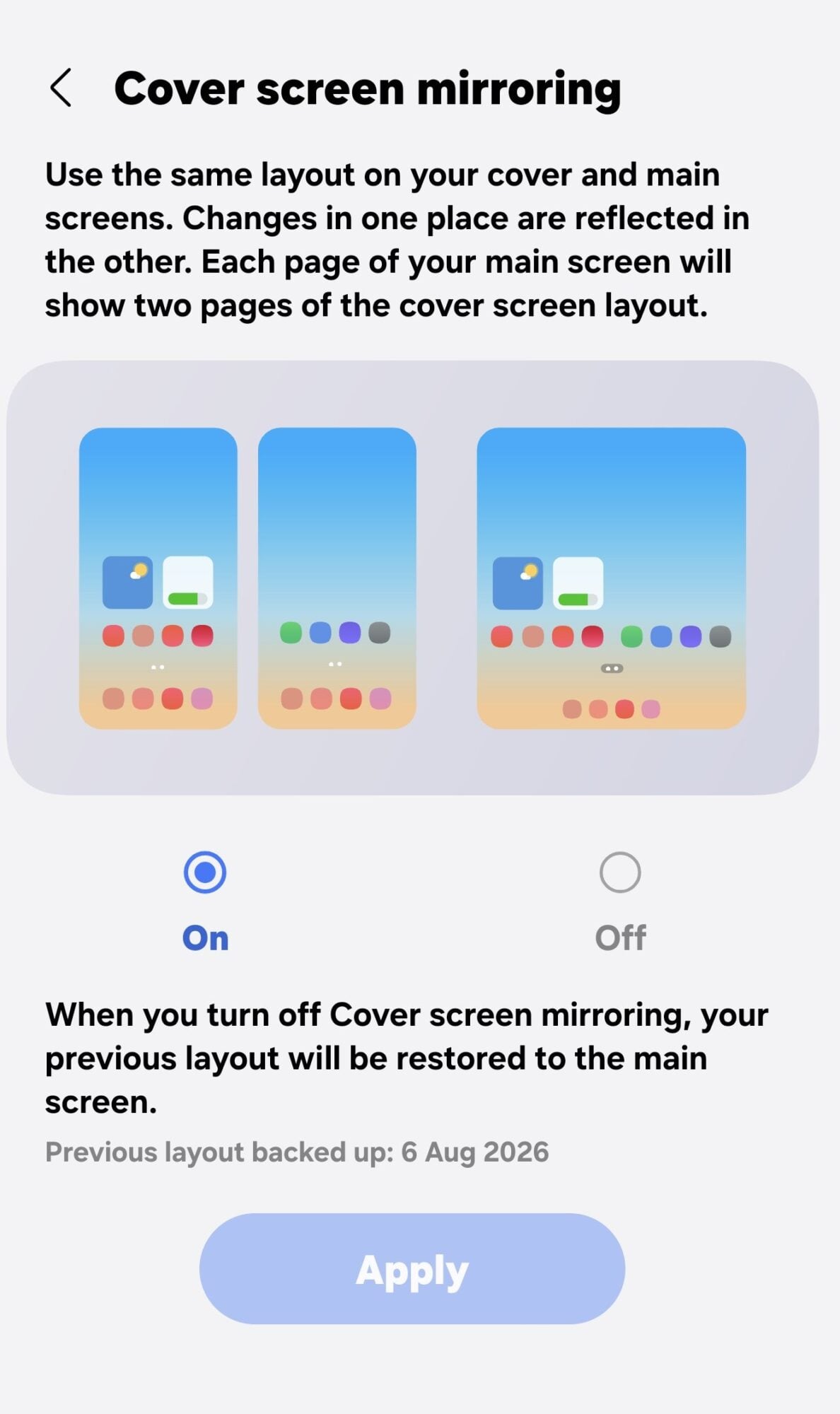
Cover screen mirroring keeps your outer and inner home screens in sync, so app icons, folders and widgets sit in the same places on both. Change something in one place and it's reflected in the other.
It's under Settings > Home screen > Cover screen mirroring, and I have it switched on. Each page of the main screen shows two pages of the cover screen's layout side by side. If you turn it off later, your previous main screen layout is restored from a backup.
12. Home screen grid
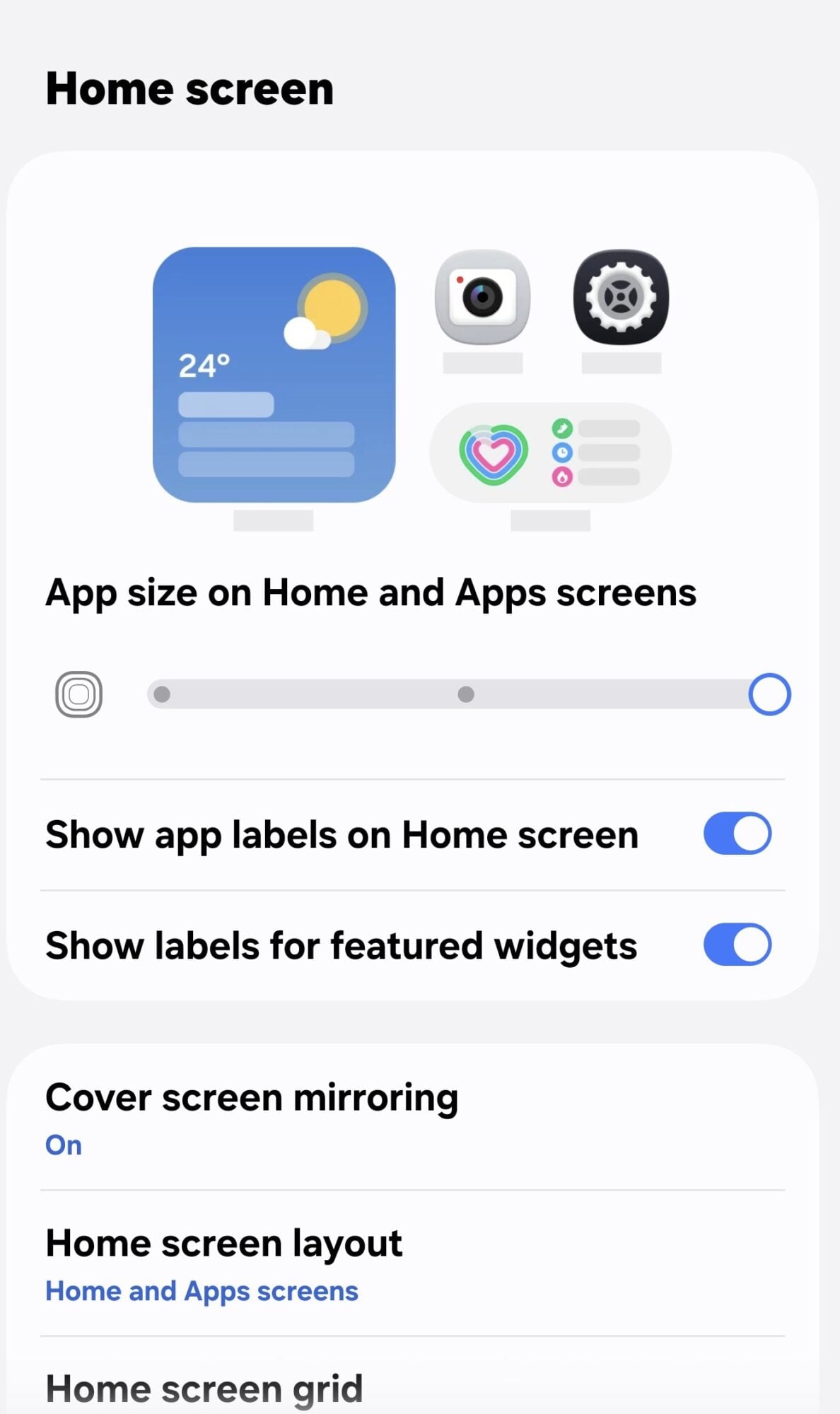
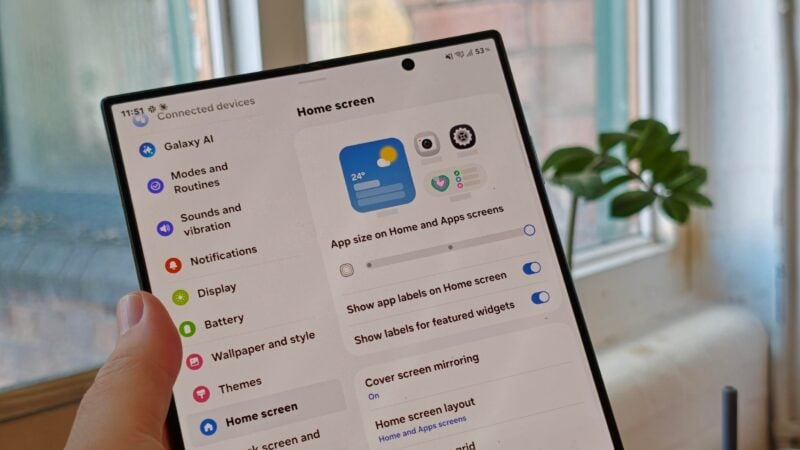
Switching the Home screen grid from 4×6 to 5×6 fits more apps and widgets onto a single page and makes icons look cleaner and more compact. On a screen this wide, the extra column doesn't feel cramped.
Go to Settings > Home screen > Home screen grid, pick 5×6 and preview it live before tapping Done. While you're there, the App size slider on the main Home screen page makes icons bigger or smaller, and Home screen layout lets you choose between separate Home and Apps screens or a Home screen only.
Buttons, gestures and the lock screen
13. Side button
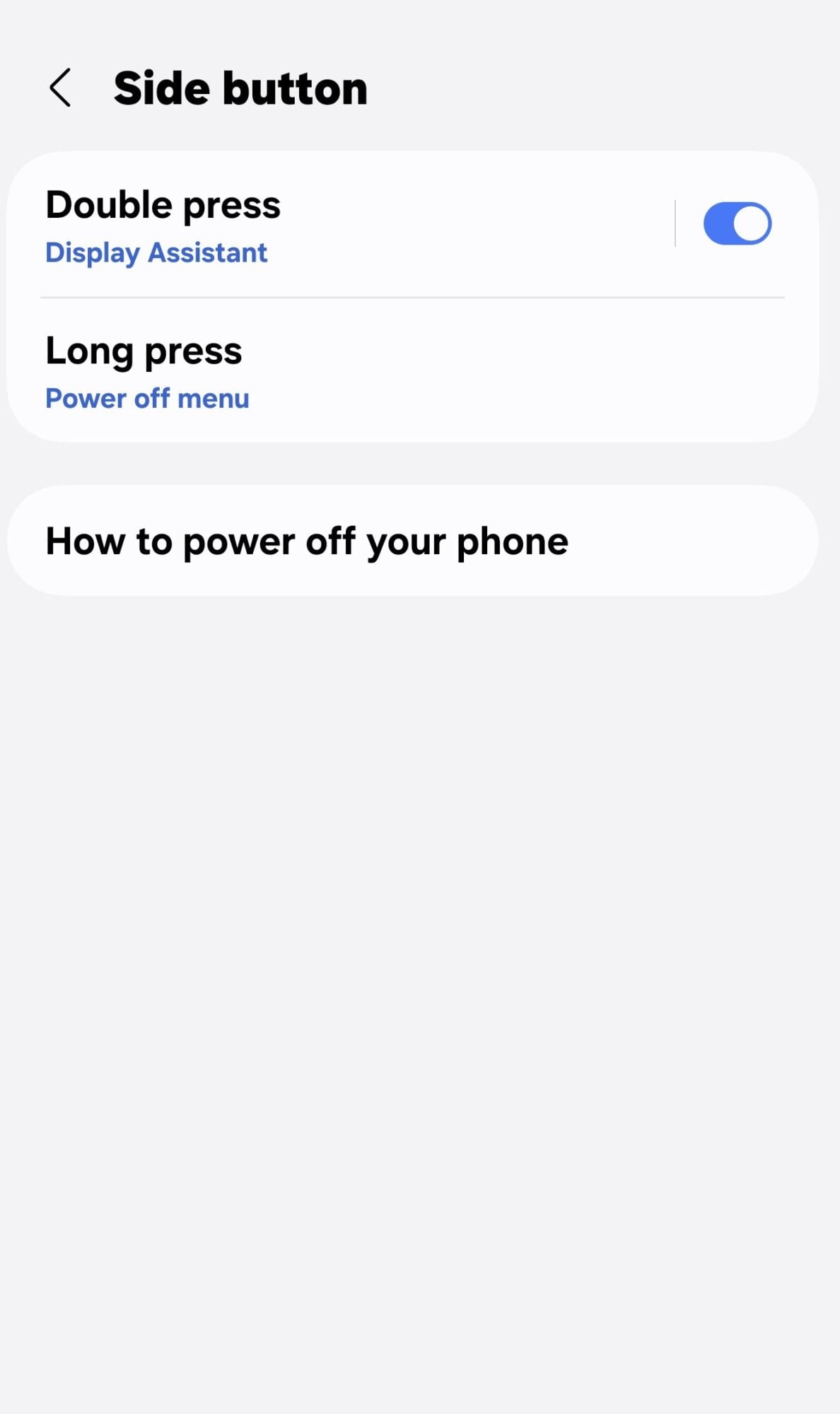
By default, a double press of the side button opens the camera and a long press wakes Bixby, Samsung's digital assistant. That means getting to the power menu takes more effort than it should, and two quick changes fix it.
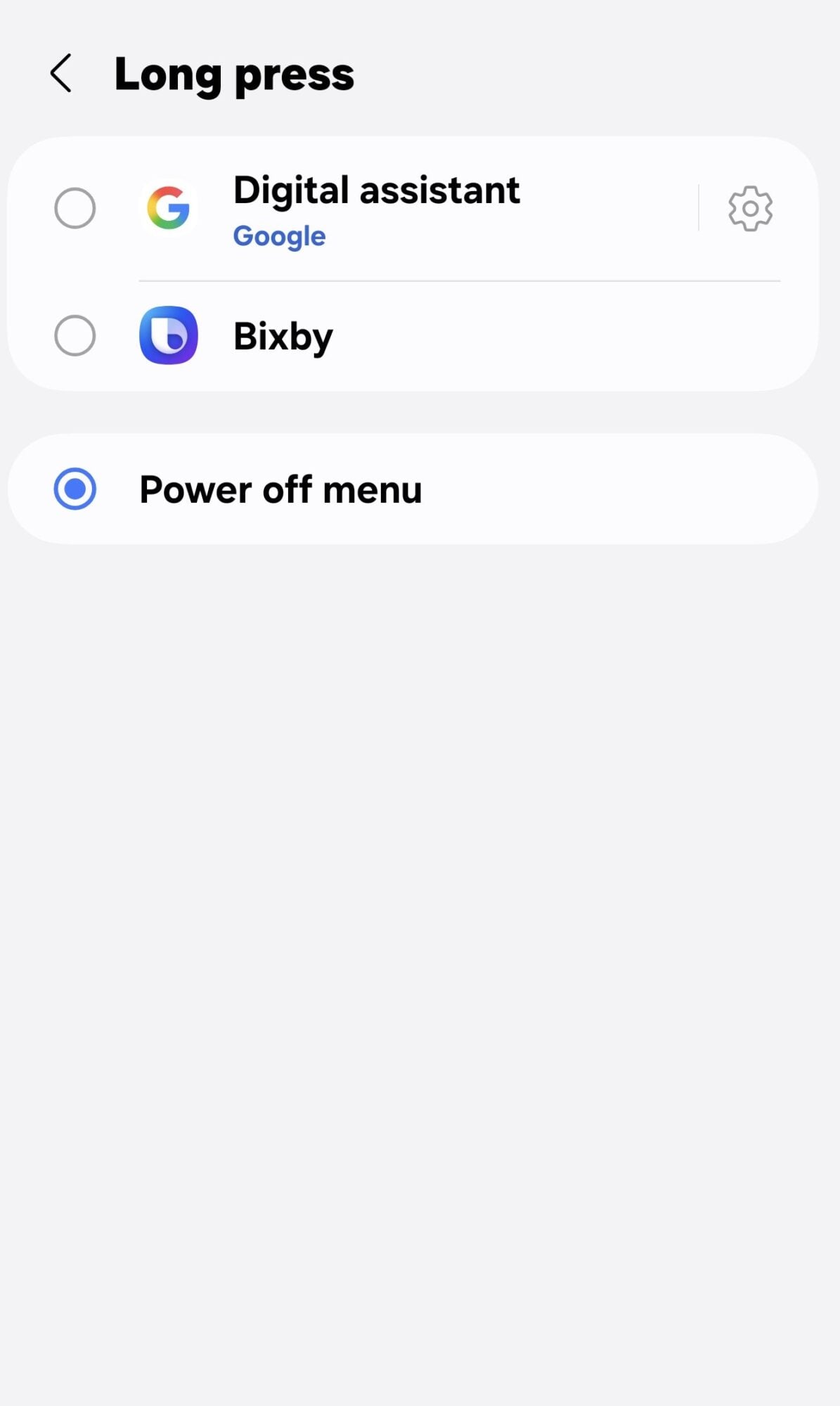
Open Settings > Advanced features > Side button. Long press offers three choices: Digital assistant (Google), Bixby or Power off menu. I've picked Power off menu, which brings back the classic Power off, Restart and Emergency SOS screen.
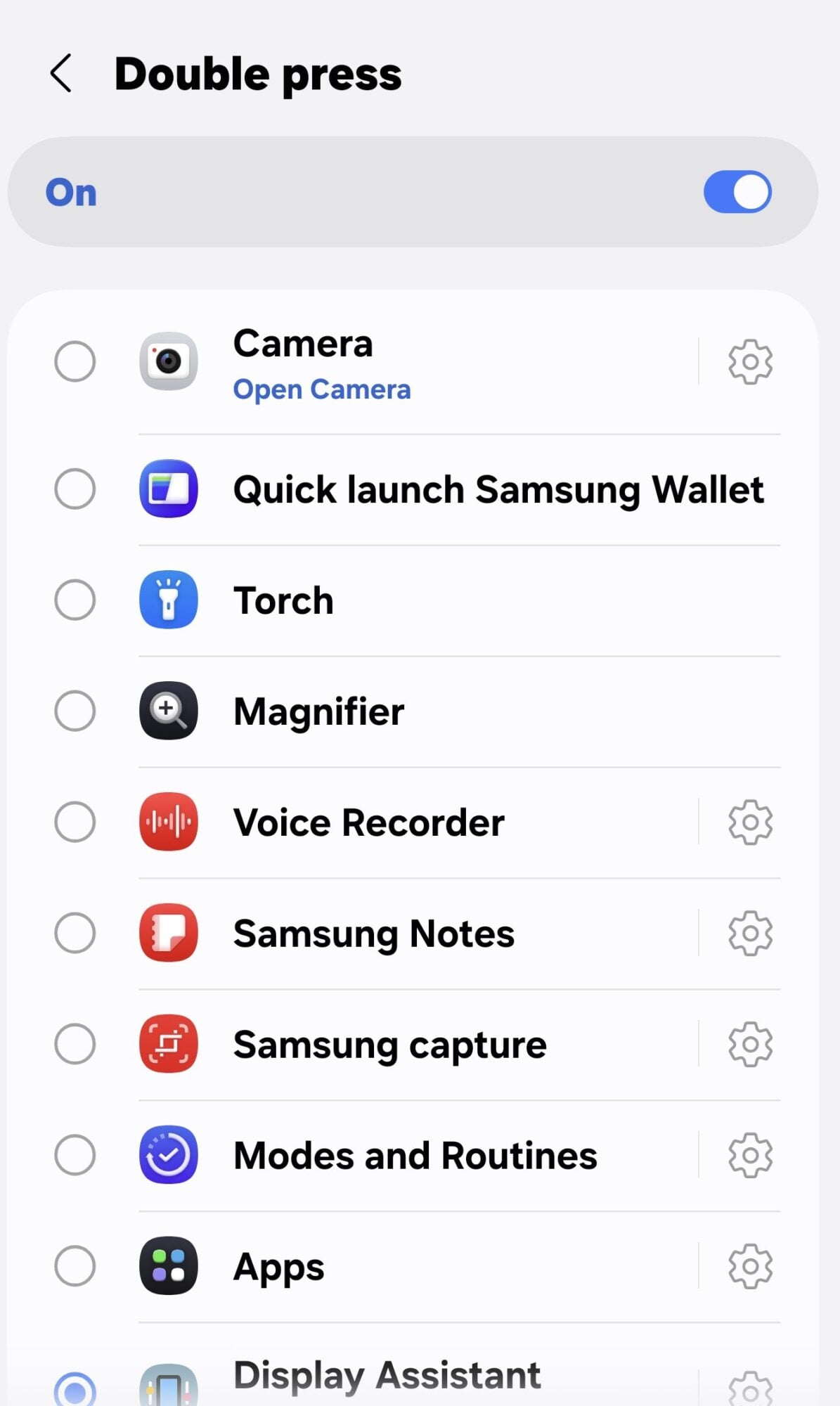
Double press is even more flexible, with Camera, Quick launch Samsung Wallet, the flashlight, Magnifier, Voice Recorder, Samsung Notes, Samsung capture, Modes and Routines or any app you choose. Mine opens Display Assistant, a Good Lock module that won't show up on a stock phone, and more on that in the bonus tip below.
14. Motions and gestures
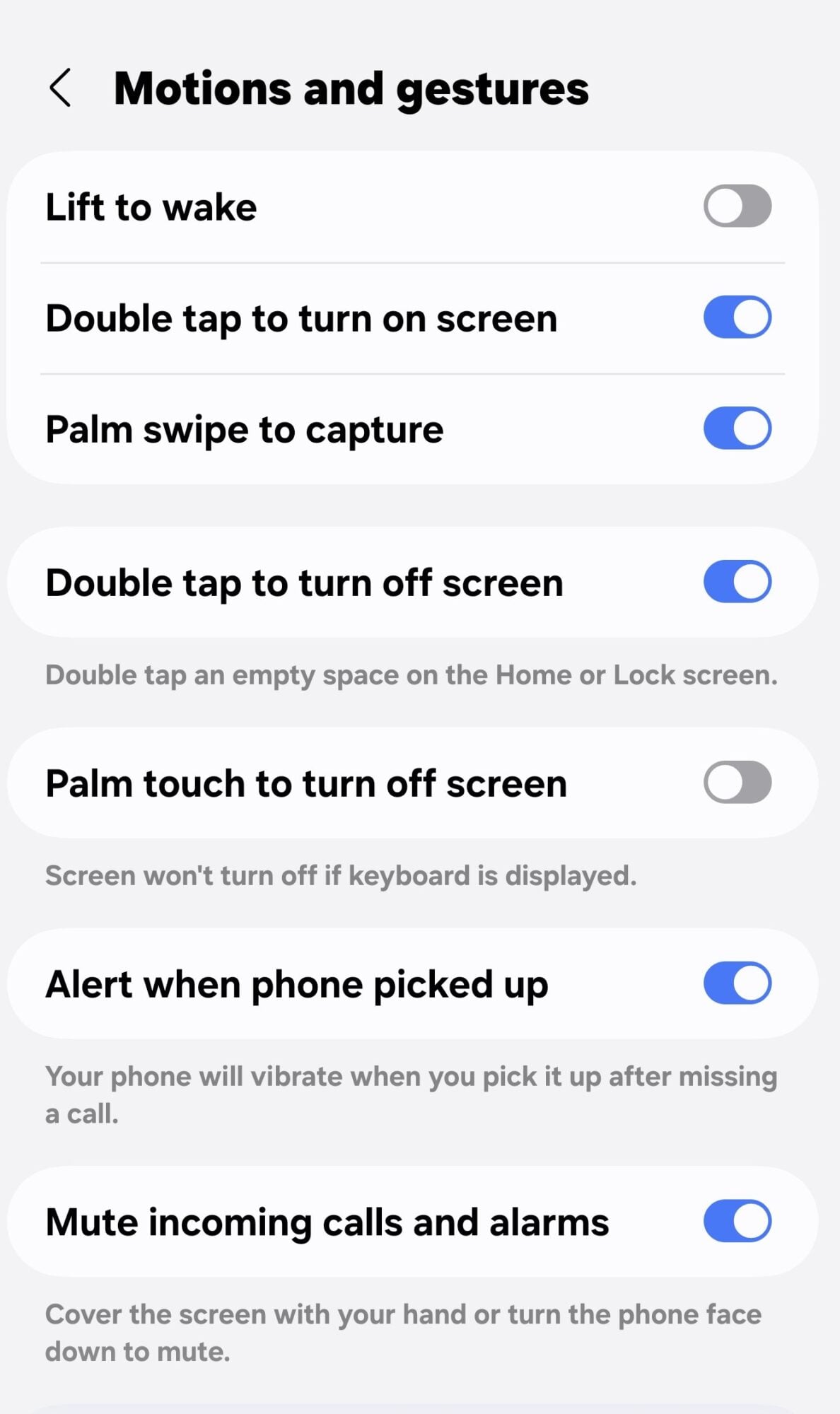
Samsung's gesture settings let you wake, lock and silence the phone without fumbling for the side button. That matters more on a phone you're often holding open with both hands.
Head to Settings > Advanced features > Motions and gestures. On my Fold, Double tap to turn on screen, Double tap to turn off screen, Palm swipe to capture, Alert when phone picked up and Mute incoming calls and alarms are all on, while Lift to wake and Palm touch to turn off screen are off. The mute gesture is the one worth knowing about, since covering the screen with your hand or turning the phone face down silences a call or alarm instantly.
15. Now bar
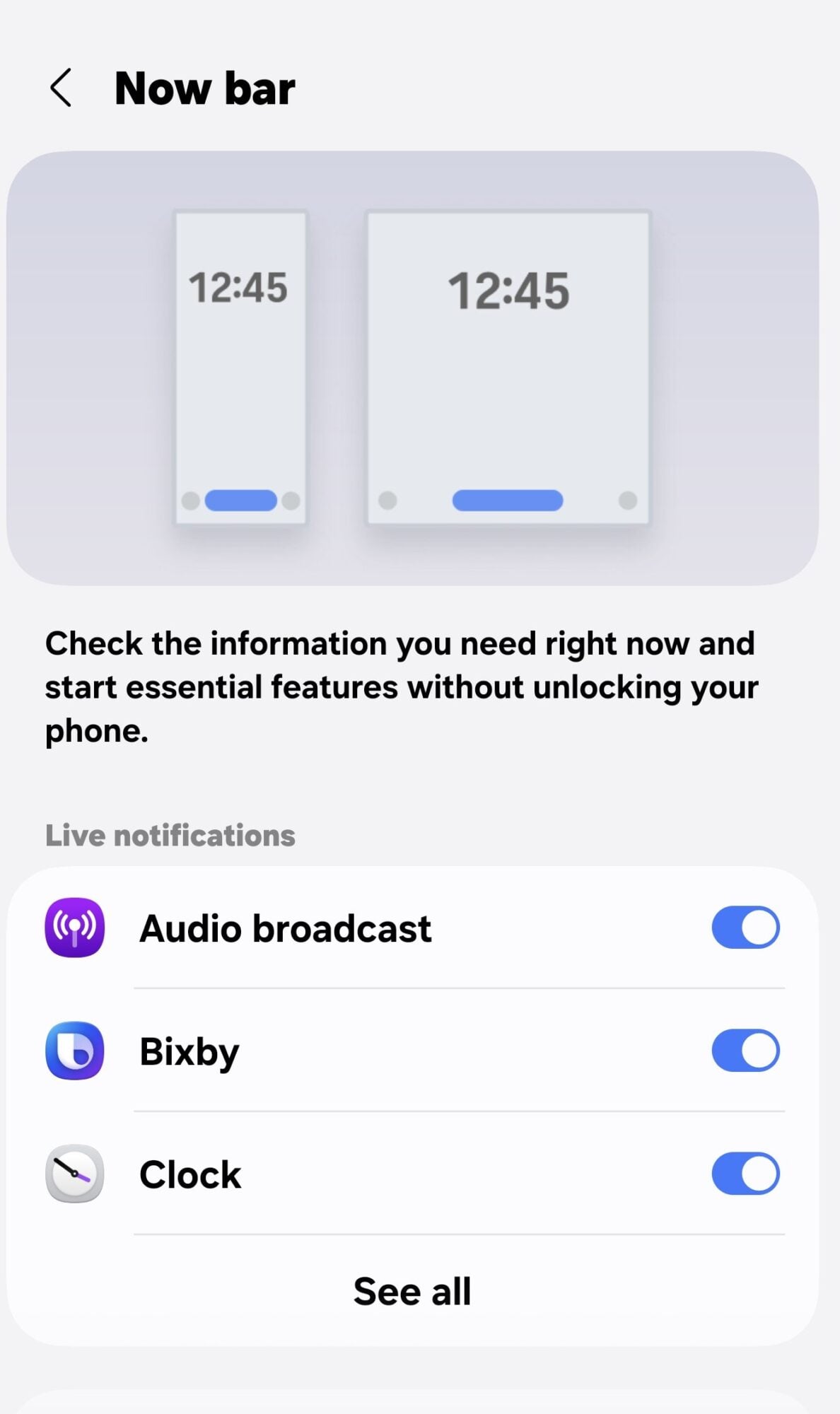
The Now bar is the pill on your lock screen and Always On Display that shows music, timers and other live updates. Left alone, it can turn into a stream of noise from apps you don't care about.
Go to Settings > Lock screen and AOD > Now bar and look under Live notifications. Toggle off anything you don't need, then tap See all for the full list, so only what matters, like timers or navigation, makes it onto the pill.
Bonus: Display Assistant for Good Lock
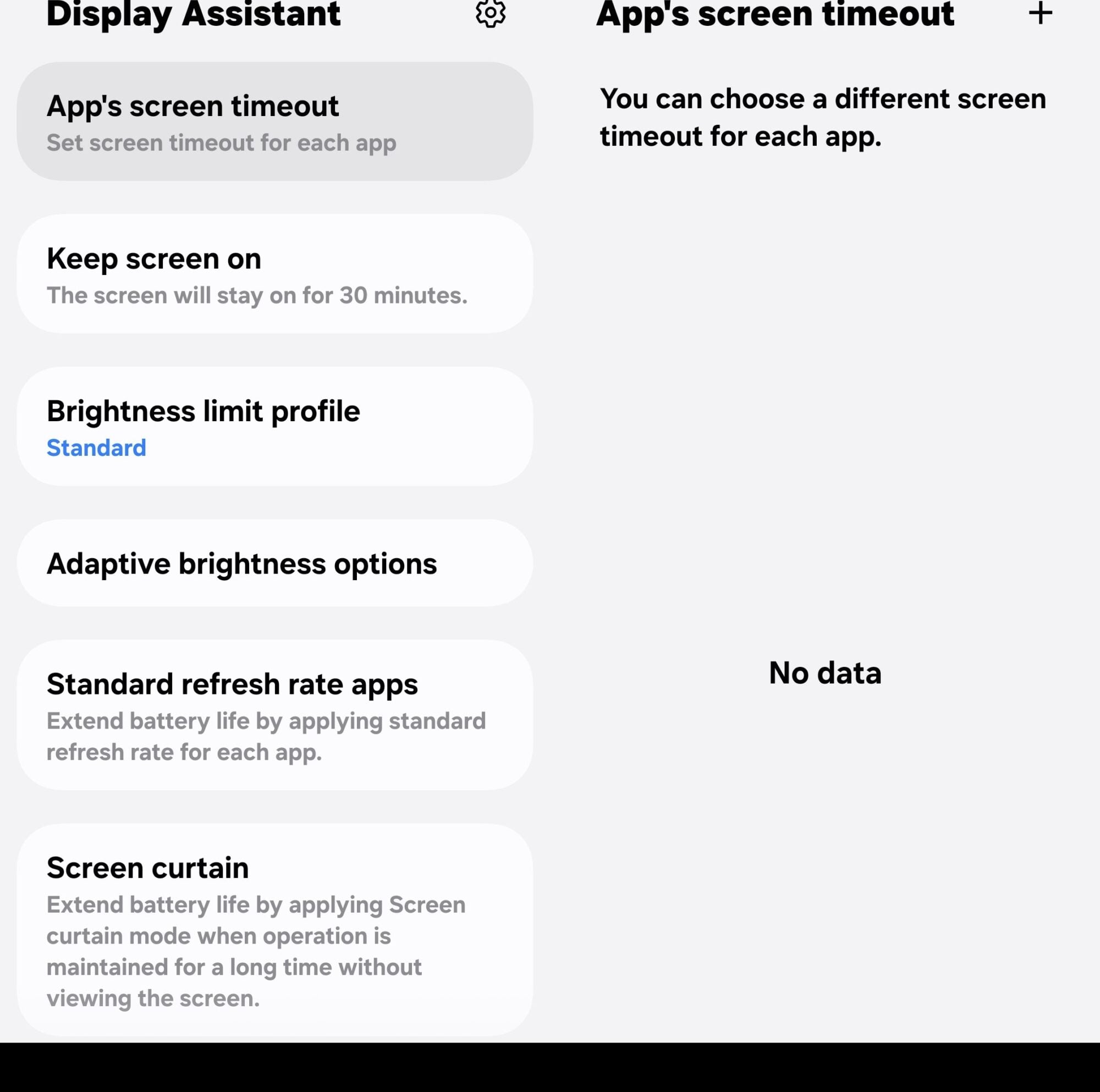
This one isn't built into One UI 9, but it's too useful to leave out. Display Assistant is a module for Samsung's Good Lock app, and it unlocks display controls that the standard Settings menu doesn't offer.
The standout is per-app control. App's screen timeout sets a different timeout for each app, and Standard refresh rate apps drops chosen apps to the standard refresh rate to save battery, without touching Motion smoothness everywhere else. Keep screen on holds the display awake for 30 minutes when you need it.
There's more for battery and brightness nerds too. Screen curtain puts the screen into a doze state while an app keeps running, though Samsung says it won't work during calls, games or on YouTube and YouTube Music. Brightness limit profile lets you choose between Standard, which caps maximum brightness at high temperatures, and Light, which doesn't but lets the phone cool down more slowly, while Adaptive brightness options adjusts how fast brightness changes.
Grab Good Lock from the Galaxy Store or Play Store, add the Display Assistant module, and assign it to the side button's Double press for instant access, which is exactly how mine is set up. Display Assistant is just one of Good Lock's modules, and we'll be digging into the whole app in much more detail in an upcoming guide.
The bottom line
If you only change three things, make them Motion smoothness, per-app Aspect ratio and the Side button. The first makes the whole phone feel quicker, the second fixes the apps that never got the foldable memo, and the third puts the power menu back where your thumb expects it.
Everything else is fine-tuning, so if you're happy with how your Fold looks out of the box, you can safely skip the display tweaks. And if Android Auto stopped cooperating after the update, we've got a fix for that too. Ten minutes in Settings is all it takes to make a phone this expensive feel like it was set up for you.