
Screen Magnification vs. Magnifier App: What’s the Difference?
Before getting into shortcuts like triple-tapping, it’s key to understand two main features. Screen magnification is designed to make text or images already on your phone—menus, web pages, apps—easier to read. Using your camera app to zoom in can work in a pinch, but this just enlarges the whole interface, not just the specific text you want.
Making Printed Text Readable with the Built-In Magnifier
For printed materials, such as user manuals or product inserts with small type, your phone’s native magnifier is the better tool. It uses the camera to zoom in on whatever is in front of the lens. You’ll also have access to controls for lighting, contrast, filters, and the ability to freeze the image, which helps if your hands shake. The text you see is usually much clearer than by simply zooming in with the standard camera app.
How to Enable Magnification Shortcuts
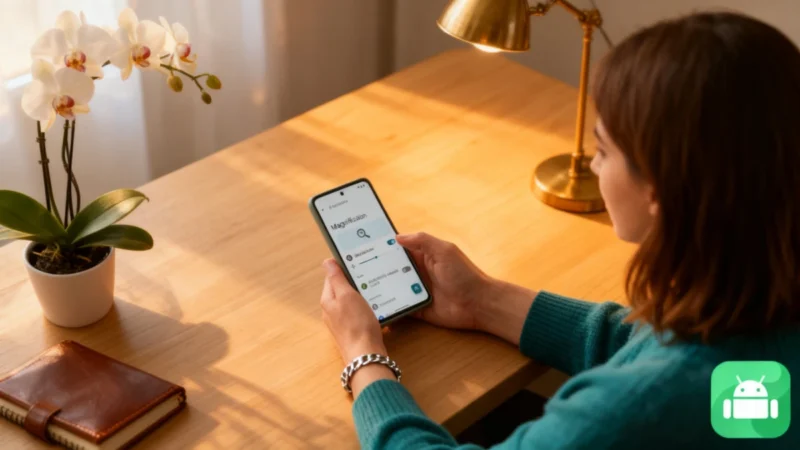
On Android devices, go to Settings > Accessibility > Magnification, and enable the triple-tap gesture if it’s available on your model. Be aware that triple-tapping can cause a slight delay in touch responsiveness, since the system waits to see if a second or third tap is coming.
On iPhones, the Magnifier app acts as a dedicated tool. To set it up for quick access, go to Settings > Accessibility > Accessibility Shortcut and select Magnifier. Then, launching it just takes a triple-click on the side or home button, depending on your iPhone.
Some devices also offer alternative shortcuts to avoid the extra lag from triple-tapping. Recent Pixel and iPhone models let you double-tap the back of the phone, while some Samsung devices allow customization of the side button as a shortcut.
Tips for Reading Tiny Print with Your Phone’s Magnifier
Once you’ve opened the magnifier, legibility depends mainly on how you frame the document and handle lighting. Before turning the zoom all the way up, steady the paper and adjust these settings: improve lighting to cut glare, bump up the contrast if needed, and try different filters based on the paper and ink. Freezing the image can make reading easier if your hands aren’t steady.
Some models go a step further by offering features like text-to-speech, on-screen text search, or content recognition. Still, for most quick reading tasks, the basic magnifier adjustments are usually enough.