

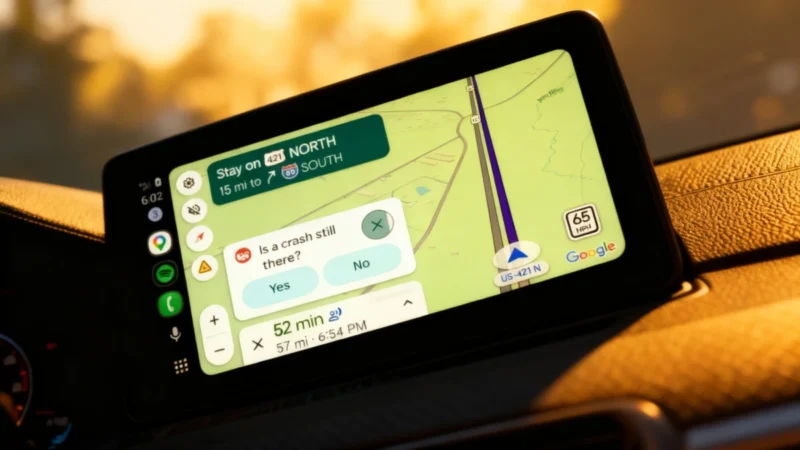
If Android Auto started stuttering or stopped connecting to your car after your Galaxy phone updated to One UI 9, you’re not alone. Owners of several recent Galaxy models have reported the same problem since the update, and Google now says a fix has rolled out. Here’s what’s going on and what to do if your car still won’t cooperate.
In Short
- Some Galaxy owners on One UI 9 report Android Auto stuttering or failing to connect.
- Reports mention the Galaxy S26 Ultra, Galaxy S25 Edge, Galaxy S24 Ultra and Galaxy A55 5G.
- Google says a fix has rolled out, but hasn’t shared a version number.
What’s Going Wrong With Android Auto
The problem shows up in two ways. Either Android Auto stutters once it’s on the car screen, or it never connects at all. Reports point to One UI 9, Samsung’s latest software update, as the trigger, and the issue has been reproduced on a Galaxy S24 Ultra running the new version. Owners of the Galaxy S26 Ultra, Galaxy S25 Edge and Galaxy A55 5G have described the same symptoms.
The frustrating part? The usual tricks didn’t help. Affected users say reconnecting the phone, clearing Android Auto’s data and switching from wireless to a cable changed nothing.
More on This Topic: How to Get the Latest Android Auto Update Instantly and Fix Major Issues
Google Says a Fix Has Rolled Out
Google has now confirmed that “a fix has been rolled out.” The company didn’t say whether it arrives through an Android Auto app update or on its own servers, and it didn’t share a version number. In other words, there’s no specific setting to look for. The best move is to make sure everything on your phone is up to date, then plug in and test.
What to Do if Android Auto Still Won’t Work
If your car still won’t play nice, Samsung’s support page for Android Auto connection problems lists four steps worth trying, in this order:
- Restart your phone.
- Clear the cache for Android Auto in Settings > Apps.
- Check for software updates, for your phone and for the Android Auto app in the Play Store.
- Check your Bluetooth audio settings.
Clearing the cache is a gentler step than clearing the app’s data, so it’s worth trying even if you already wiped Android Auto before the fix arrived. And if you rely on a cable, a quick swap for another one is an easy way to rule out a worn connector.
More on This Topic: Android Auto 18 Is Rolling Out Now and It Hides Code for a Major Redesign
Is Your Galaxy Phone Affected?
The reports so far involve Galaxy phones that are already running One UI 9. If yours connects to your car without hiccups, there’s nothing to do. If the trouble started right after the update, now is a good time to run through the steps above, since the fix should make them more likely to stick.
The Limit
Google hasn’t said which version carries the fix, whether it covers every affected Galaxy model, or how many drivers were hit. If nothing works after a few days, Samsung support is the next stop, and sending a report through the feedback option in Android Auto’s settings helps Google track the cases that remain.
Here’s hoping your next drive comes with maps, music and zero stutters!