


Consider a common data loss case. Alberto uses a 128 GB SD card in his smartphone. The phone memory is small, so he saves most photos and videos on the card. Last Monday morning, he opened the Gallery app. His trip photos were not there. The phone showed a short message: “SD card is blank or has an unsupported file system.”
Nothing unusual had happened. The phone did not fall, and there was no water damage and no crash. The phone worked normally. Only the data on the card was missing. This can happen to anyone.
SD cards are very useful as secondary storage for a smartphone. They give extra space at a low price. Most cards work well for years. Card damage is rare, but it does exist. Sometimes a card also loses data after one wrong tap on Delete or Format. The good news is that the photos are often still on the card and can be recovered. This guide explains why, and how to get them back with a sd card recovery tool.
What is stored on an SD card?
An SD card is a small memory card. It adds extra storage to many Android phones. Most people use it for the below items:
- Photos and videos taken with the phone camera
- Music and voice recordings
- Documents, PDF files and downloads
- Files moved from the phone memory to free some space
Whereas, contacts, text messages and call history are normally stored in the phone memory or in your Google account. They are usually not stored on the SD card. This difference is important, and it is explained again later in this guide.
Why does SD card data go missing?
There are a few common reasons:
- Accidental deletion: One wrong selection in the file manager or the Gallery app removes the files.
- Formatting: The card is formatted by mistake, or the phone asks for a format after an error.
- File system error: The card is removed while the phone is writing data, or the phone switches off suddenly.
- Virus or bad app: Some harmful apps hide or delete files.
- Wear or physical damage: Every card has a limited life. Serious damage is rare, but it can happen.
Can deleted photos come back from an SD card?
Yes! In many cases, your lost or deleted SD card photos can come back. When you delete a photo, the card does not erase it at once. The system only marks that space as free. The photo data stays there until new files are written over it. This is why recovery software can find the photo again.
The key rule is simple. Stop using the card as soon as you see the problem.
What to do first
- Remove the SD card from the phone. Do not take new photos with it.
- Do not format the card, even if the phone asks you to do it.
- Put the card in a card reader and connect it to a Windows or Mac computer. Many laptops also have a built-in SD card slot.
Before you use any software, try two quick checks.
Insert the card again on your Smartphone after cleaning the metal contacts gently with a dry, soft cloth.
Then try to check the SD card on a computer, use a working card reader and USB port.
Important Note: If your photos are visible on the computer, your SD card and data is safe. The smartphone, storage settings or an OS bug might be the problem. Also, sometimes the problem is only a poor or loose connection, so run these necessary checks before concluding a data loss situation.
Method 1: Recover photos with the Best Photo Recovery Tool
Stellar Photo Recovery is a highly popular tool with global recognition, it is made for recovering photos, videos and audio files. The tool works with SD cards from SanDisk, Kingston, Transcend, Lexar, Samsung and other brands. It supports common photo formats such as JPEG and PNG, and also RAW formats such as CR2 and DNG.
The free edition of this tool lets you scan the card, preview the files and recover up to 10 files free. This is enough to test the tool and to save your most important photos first.
- Download Stellar Photo Recovery from the official website and install it on your computer.
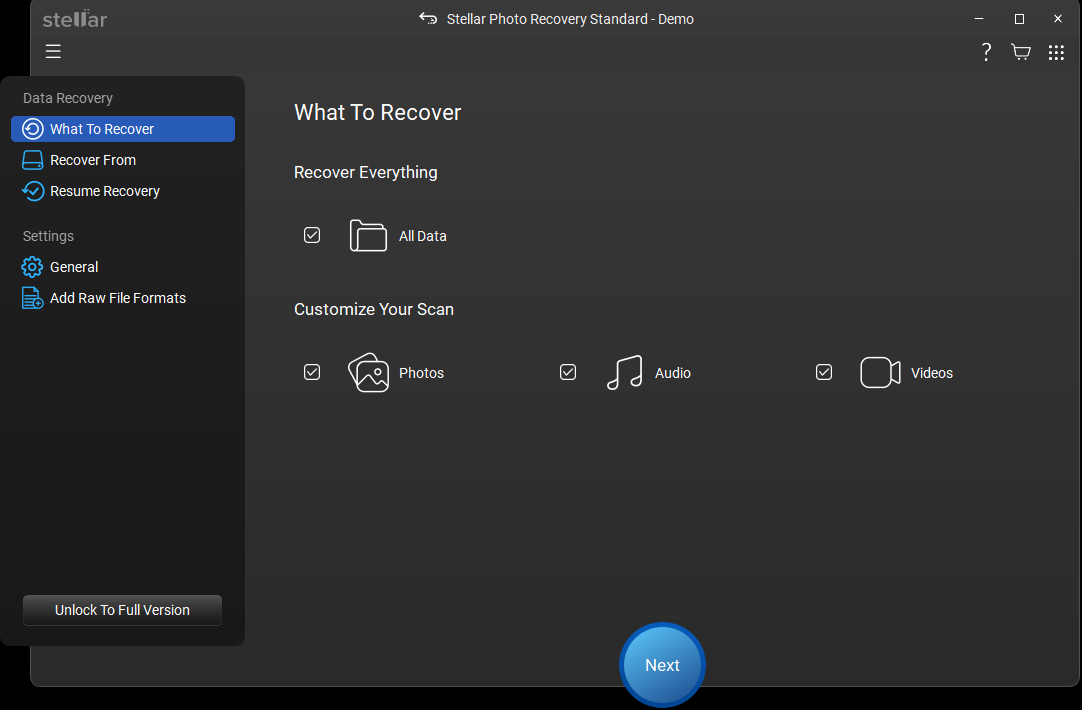
- Open the software. Select Photos, Audio or Video, or select all three. Then click Next.
- The software shows a list of drives. Select your SD card from this list. Check the drive name and size to be sure that it is the correct one.
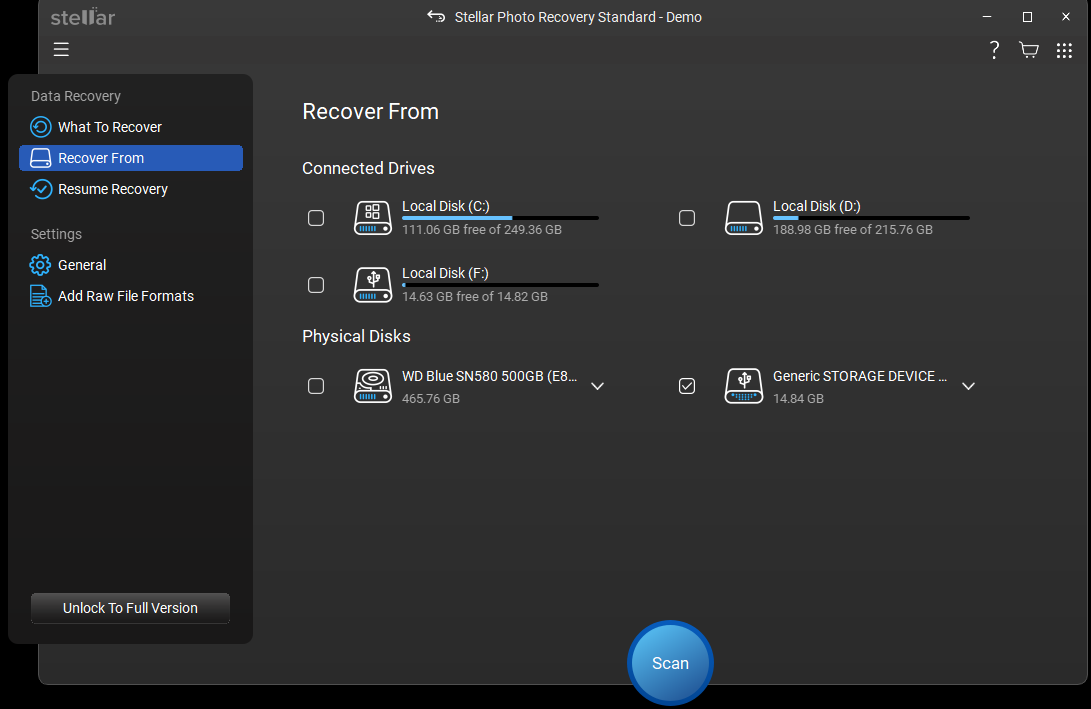
- Start with a normal scan. If the card was formatted or damaged, turn on Deep Scan. It takes more time, but it searches the card more fully.
- You can click to preview each photo even when the scan is in progress. This helps you select only the photos that you need.
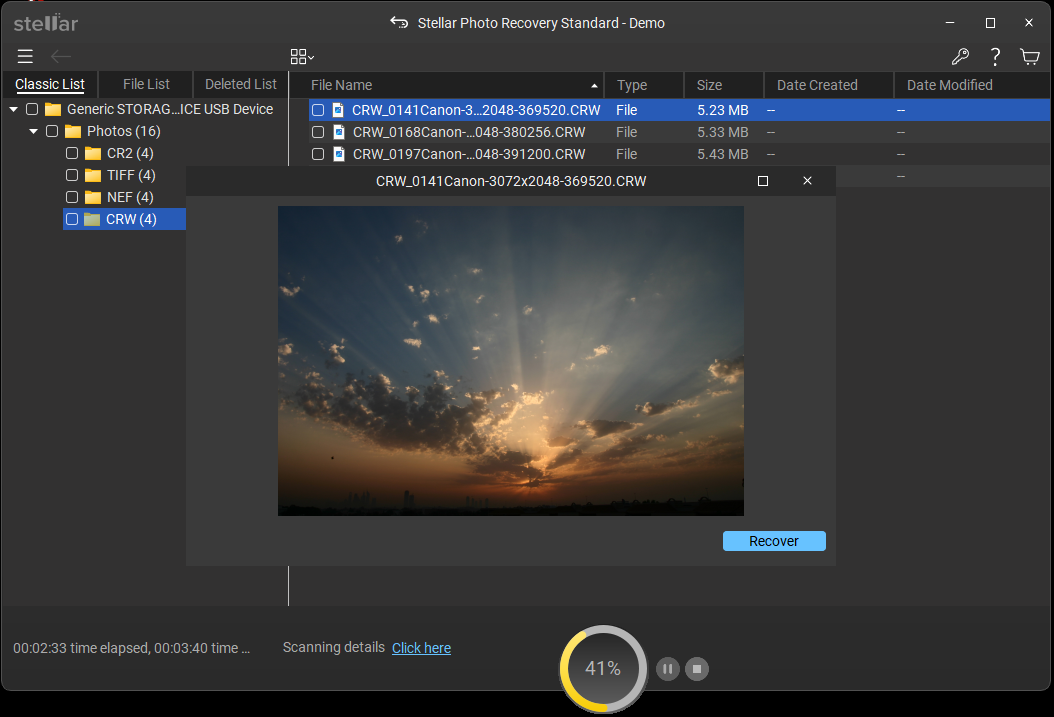
- Select the files and click Recover. Choose a safe location on your computer, not on the same SD card. Saving files on the same card can overwrite the data that you still want to recover.
Why this tool is a good choice
- The process has three simple parts: select, scan and recover.
- Deep Scan can search formatted and corrupted cards.
- You can preview photos before you save them.
- It is available for both Windows and Mac.
- Paid editions have no limit on the number or size of files. The Premium edition can also repair corrupt videos.
Method 2: Recover phone data with Stellar Data Recovery for Android
Some data is not stored on the SD card. If your contacts, messages or WhatsApp chats are missing, the data was probably in the phone memory. In this case, you can use Stellar Data Recovery for Android. Here are the main features:
- Recovers deleted contacts, call history, text messages, photos, videos, audio and documents.
- Recovers WhatsApp chats and attachments.
- Does not need root access on the phone.
- Shows a preview of the recovered items before you save them.
To use it, connect the phone to a Windows computer with a USB cable, enable USB debugging and follow the steps on the screen. A try-before-you-buy edition is available on the Stellar website.
How to protect your SD card data in the future?
- Keep a backup. Copy your photos to a computer or to cloud storage every month.
- Remove the card safely. Unmount the card from the phone settings before you take it out.
- Buy cards from a known brand and from a trusted seller.
- Do not fill the card to 100 percent. Leave some free space.
- Do not use the same card in many different devices.
- Replace a card that shows repeated errors.
End Notes
Finding your SD card suddenly empty can be stressful, but it does not always mean that the photos are gone for good. Stop using the card, do not format it and scan it as soon as possible. Stellar Photo Recovery gives you a free way to check what can be recovered from your phone’s SD card. Stellar Data Recovery for Android can help if the phone memory is also affected. The sooner you act, the better your chances are.