
Old family photos often sit quietly in albums or storage boxes, preserving moments that can only be imagined today. With AI, you can now turn those still images into short moving videos and see familiar faces smile, blink, or move again.
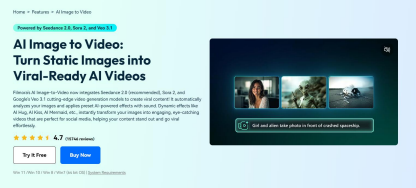
Wondershare Filmora makes this possible with its AI Image to Video feature, allowing you to animate an old photo from a single image and then continue editing the result in the same workspace. This guide walks you through how to animate old photos with AI using Wondershare Filmora, along with tips for writing better prompts and creating more natural-looking results.
How to Animate an Old Photo With AI
The basic process is simple: upload your old photo to an AI image-to-video tool like Wondershare Filmora, describe the movement you want, generate the video, and refine the result if needed.
⮚ Step 1: Upload Your Old Photo to Filmora's AI Image to Video
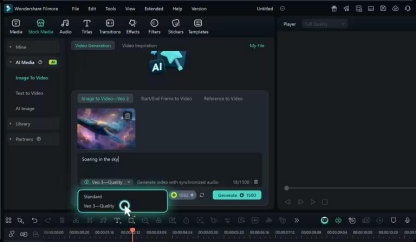
Open Wondershare Filmora and go to its AI Image to Video feature, then upload the old photo you want to animate.
For the best results, start with an image where the main subject is reasonably clear. If your photo is low-resolution, slightly blurry, or affected by noise, you can enhance it in Filmora first. For example, Filmora's AI Image Enhancer can help improve clarity, restore details, and reduce noise before you turn the image into a video.
⮚ Step 2: Tell AI How You Want the Photo to Move
Next, describe what you want to happen in the video. A specific prompt gives the AI clearer
instructions about the subject, action, and style of movement.
When animating old photos, subtle movements are often a good starting point because they can preserve the original character of the image while making it feel more dynamic.
⮚ Step 3: Generate Your AI-Animated Video
Once your image and prompt are ready, generate the video. Wondershare Filmora provides various AI models including Veo 3.1, Seedance 2.0, HappyHorse 1.1, ToMoviee 2.5 Pro, and more. It also provides 35+ exclusive preset templates tailored for photo animation—no need to write complex prompts anymore.
⮚ Step 4: Edit the Generated Video
The generated clip does not have to be the final result. After creating the animation, you can continue editing it in Wondershare Filmora.
You can trim the clip, add music, include captions or dates, and combine multiple animated photos into a longer video. For example, several old family photos can be animated separately and then arranged into a single memory video.
This makes the process more than just photo animation. You can generate movement from a still image and then turn the result into a finished video within the same editing workflow.
What Is the Best Prompt to Animate an Old Photo With AI?
A good AI photo animation prompt should tell the AI who or what should move, what action should happen, and how the movement should look.
A simple structure to follow is:
Subject + movement + style of movement + scene details
For example: The man gently turns his head toward the camera and smiles naturally, with subtle facial movement.
This gives the AI a clear subject, a specific action, and a direction for how the movement should look.
⮚ For Family Photos, try:
The family members gently look at one another and smile, with subtle and natural movement while preserving the original composition.
⮚ For Wedding Photos, try:
The couple gently turns toward each other and smiles, with soft and natural movement while preserving the original wedding setting.
⮚ For Vintage Photos, try:
Create subtle, realistic movement while preserving the vintage appearance, original composition, and atmosphere of the photograph.
The key is to focus on what you want to move, rather than asking the AI to animate everything in the image at once. Specific instructions generally give you more control over the final result.
How Can You Make AI-Animated Old Photos Look More Natural?
The quality of AI generation depends heavily on the source image and the instructions you provide. A few simple adjustments can make the process more predictable.
⮚ Keep the Movement Subtle
Old photographs often work best with gentle movements. A slight head turn, natural smile, blink, or small gesture can make a photo feel alive without significantly changing the original scene.
Asking for several large movements at once can make the generated video look less consistent.
⮚ Use Specific Prompts
Avoid vague instructions such as “animate this photo.” Instead, explain who should move and what they should do.
For example, “the woman slowly turns her head and smiles” gives the AI much more useful information than simply asking it to “make the woman move.”
⮚ Avoid Too Many Actions in One Prompt
If you ask one person to walk, turn around, wave, speak, and change their expression in the same short clip, the AI has to generate significantly more movement from limited visual information.
For old photos, focusing on one or two simple actions can often produce a more believable result.
⮚ Try Different Prompts
There is rarely one perfect prompt for every photo. If the first generation does not produce the movement you expected, adjust the wording and try again.
FAQ: Animating Old Photos With AI
• Can AI really animate old photos?
Yes. Wondershare Filmora’s AI image-to-video can generate movement from a single still photograph. Depending on the image and instructions, the generated video can include movements such as facial expressions, head turns, gestures, or motion within the surrounding scene.
• What prompt should I use to animate an old photo?
A useful prompt should describe the subject, the movement, and how you want the movement to look. For example: “The woman gently turns her head toward the camera and smiles naturally, with subtle and realistic movement.”
• How do I make an AI-animated photo look natural?
Start with a clear image, use specific prompts, and keep the requested movements relatively simple. If the first result looks unnatural, try reducing the number of actions or describing the movement more precisely.
• Do I need animation skills to animate an old photo?
No. AI image-to-video tools can generate the movement automatically. You can then use Wondershare Filmora to refine the generated clip.
Conclusion
AI makes it possible to do more with an old photograph than simply display it as a static image. With Wondershare Filmora, you can take that process a step further—from generating movement with AI Image to Video to editing multiple clips into a finished video. For anyone looking to give old photos a new form without learning traditional animation, it offers a straightforward way to go from a still image to a shareable video.