


You have a brilliant idea for an app, but how do you get it from your head to the screen? Your app's design is its first impression, it's what makes users stick around.
A great app design does more than just look pretty. It guides users, makes the experience intuitive, and builds trust. The good news is you don't need to be a professional designer to create something beautiful. With the right approach and some clever AI tools, you can design an app that works perfectly and looks fantastic.
Let’s walk through how to design a stunning native app and use AI to make your images pop.
First, Let's Talk About AI Design
Before you even think about colors and fonts, start with the feeling. How do you want people to feel when they open your app? Energized? Calm? Productive? This core emotion is the foundation of your design process and will guide every creative decision you make. Once you have that emotional goal in mind, you can scale AI design tools to bring your vision to life more efficiently and effectively.
For example, use AI-powered image generators to create visuals that perfectly align with your intended mood or theme, whether it's serene landscapes for a calming effect or vibrant graphics for an energetic vibe.
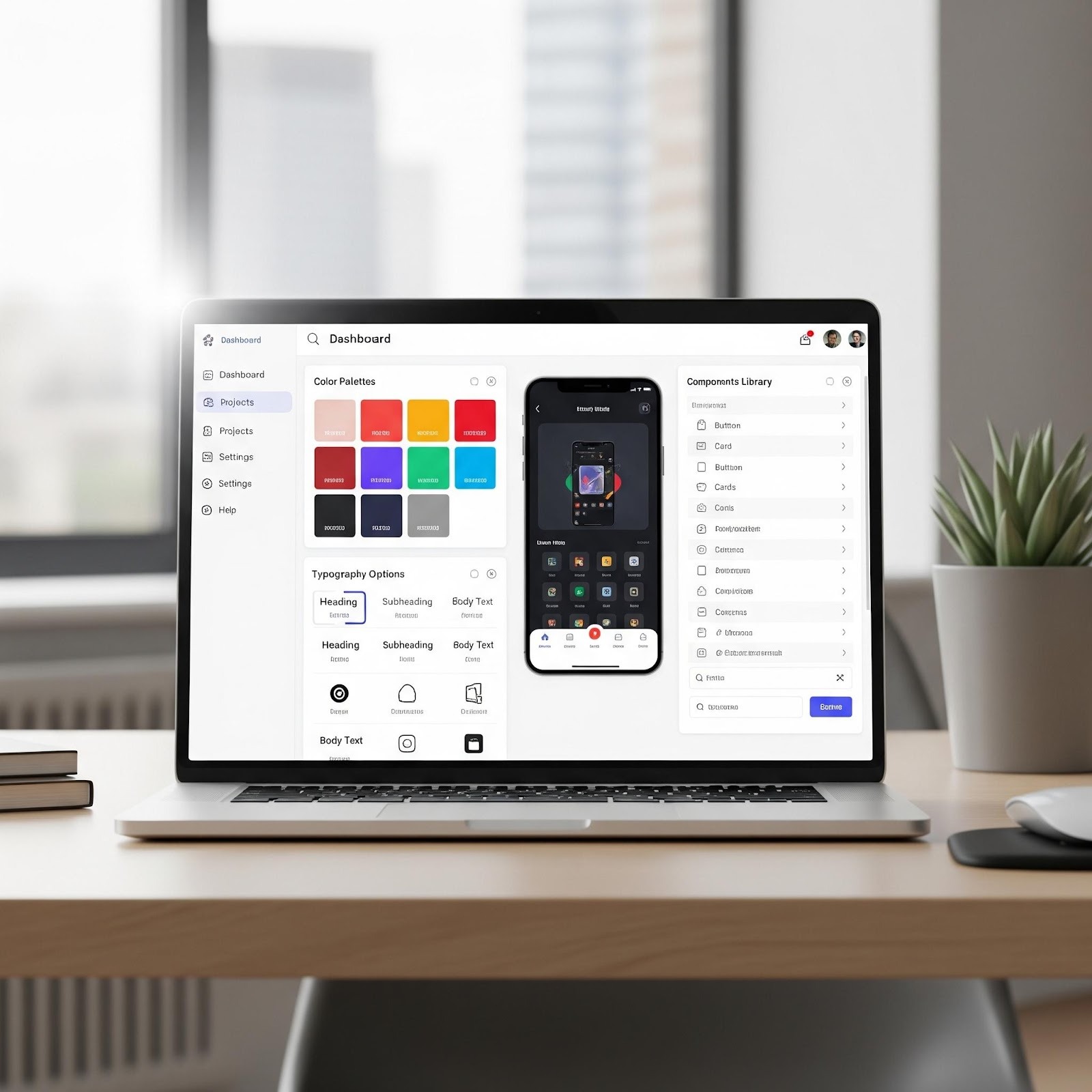
AI Tools like Wixel background remover can help you isolate key imagery, making it easier to remove background from image and incorporate elements seamlessly into your design. AI can also suggest complementary color palettes, typography, and layouts that resonate with your emotional target, ensuring consistency across the app experience. By combining a clear emotional objective with the power of AI tools, you can craft a design that not only looks great but also connects with users on a deeper level.
A well designed app should be:
- Intuitive: Users should be able to figure out how to use it without a manual. The flow should feel natural and predictable.
- Engaging: The design should be visually interesting and make users want to explore.
- Cohesive: All the screens should feel like they belong to the same family. A consistent look and feel makes your app seem polished and professional.
Think about your target audience. Are you designing for busy professionals who need something clean and efficient? Or for creative hobbyists who might appreciate a more playful and artistic design? Your design should speak their language.
The Picture Perfect App: AI Tools for Amazing Images
Images are a huge part of your app's design. They can set the mood, explain a feature, or just add a touch of beauty. But not everyone is a professional photographer or graphic designer. This is where AI tools come in to save the day. They can help you edit, enhance, and even create images from scratch.
AI for Editing and Enhancing Your Photos
You have some photos for your app, but they’re not quite perfect. Maybe the lighting is a bit off, or there’s a distracting object in the background. AI photo editors can fix these issues in seconds.
If you're building your app with a no-code platform, you often get powerful built-in tools. A good photo studio, for example, is a complete editing suite that uses AI to make your life easier. You can automatically remove backgrounds with a single click, which is perfect for creating clean product shots. The AI can also enhance images, adjusting brightness, contrast, and color to make your photos look professional.
AI for Upscaling and Sharpening
You’ve found the perfect image, but it’s too small or a little blurry. In the past, enlarging a low-res image would leave you with a pixelated mess. Luckily, AI upscalers have changed the game.
Like many tools, Gemini AI, can analyze your image and intelligently add new details, sharpening them in the process. You can take a small, low-resolution photo and transform it into a high-quality image that’s ready for your app. Just upload your image and ask the AI to “upscale and sharpen this image, keeping it clear.”
AI for Generating Images from Text
This is where things get truly futuristic and exciting. Imagine describing an image you want, and an AI creates it for you. That’s the magic of AI image generation.
These tools use advanced technology to turn text prompts into stunning, high-quality visuals. Whether it’s “a bright, minimalist illustration of a person watering a monstera plant in a modern apartment” or “a photorealistic image of a custom-designed coffee cup with a retro floral pattern, sitting on a wooden table next to a laptop,” AI can bring your vision to life. Perfect for creating custom icons, illustrations, or unique backgrounds, these tools make it easy to design visuals that match your specific needs and style.
Tips for Using AI to Create Great App Visuals
These tools are powerful, but they work best when you guide them with a clear vision.
- Be Specific with Your Prompts: When using an AI image generator, the more detail you provide, the better the result. Don't just say “a picture of a dog.” Say “a happy golden retriever puppy playing in a field of daisies, cartoon style.”
- Maintain a Consistent Style: Whether you're generating illustrations or editing photos, try to keep a consistent look and feel. This will make your app’s design feel cohesive. You can often tell the AI to use a specific style, like “minimalist line art” or “vintage photo.”
- Start with Good Quality Images: When using AI enhancers or upscalers, you'll get the best results if you start with a decent quality photo. The AI can work wonders, but it can't fix an extremely blurry or tiny image.
- Review and Refine: The first image the AI generates might not be perfect. Don't be afraid to tweak your prompt or run the generation again. Think of it as a collaboration between you and the AI.
Bringing It All Together: Creating an App Yourself
You’ve got your design vision. You know how to create amazing images. Now, how do you actually build the app? This used to be the hardest part, requiring you to hire expensive developers. But today, anyone can build a fully functional, beautiful app themselves.
The rise of no code app builders has completely democratized app creation. These platforms provide you with all the building blocks you need, so you can focus on your idea and your design, not on writing code.
A Quick Look at App Builders
There are a few great options out there, each with its own strengths.
Base44: This platform is known for its simplicity and speed. It offers a range of pre-built templates for different app types, allowing you to get up and running very quickly. It is very user friendly and a great choice for those who want to launch a straightforward app with minimal fuss.
Appzero: Designed for creators who want both flexibility and power, Appzero is a versatile builder that caters to a wide range of needs. Whether you're building for personal use or launching the next big startup, Appzero provides several tools for creators.
Adalo: Adalo is another popular choice that sits somewhere in the middle. It gives you a good amount of design control and is particularly strong at connecting to external data sources and APIs. It’s a solid option too.
Choosing the right platform comes down to your priorities. For maximum creative control and a wide range of features, Base44’s app builder is the way to go.
You’ve Got This!
The tools to build a beautiful, professional app are right at your fingertips. You don't need a formal design education or a background in coding. All you need is your unique idea and the willingness to get creative.
Start by defining the vibe of your app. Then, use the amazing AI tools available to create stunning visuals that bring your vision to life. Finally, choose a no code app builder that gives you the freedom and support you need to build your app your way. The world is waiting to see what you’ll create.