



Introduction
Deleted a photo you actually needed? Yes, that sinking feeling is hard to miss.
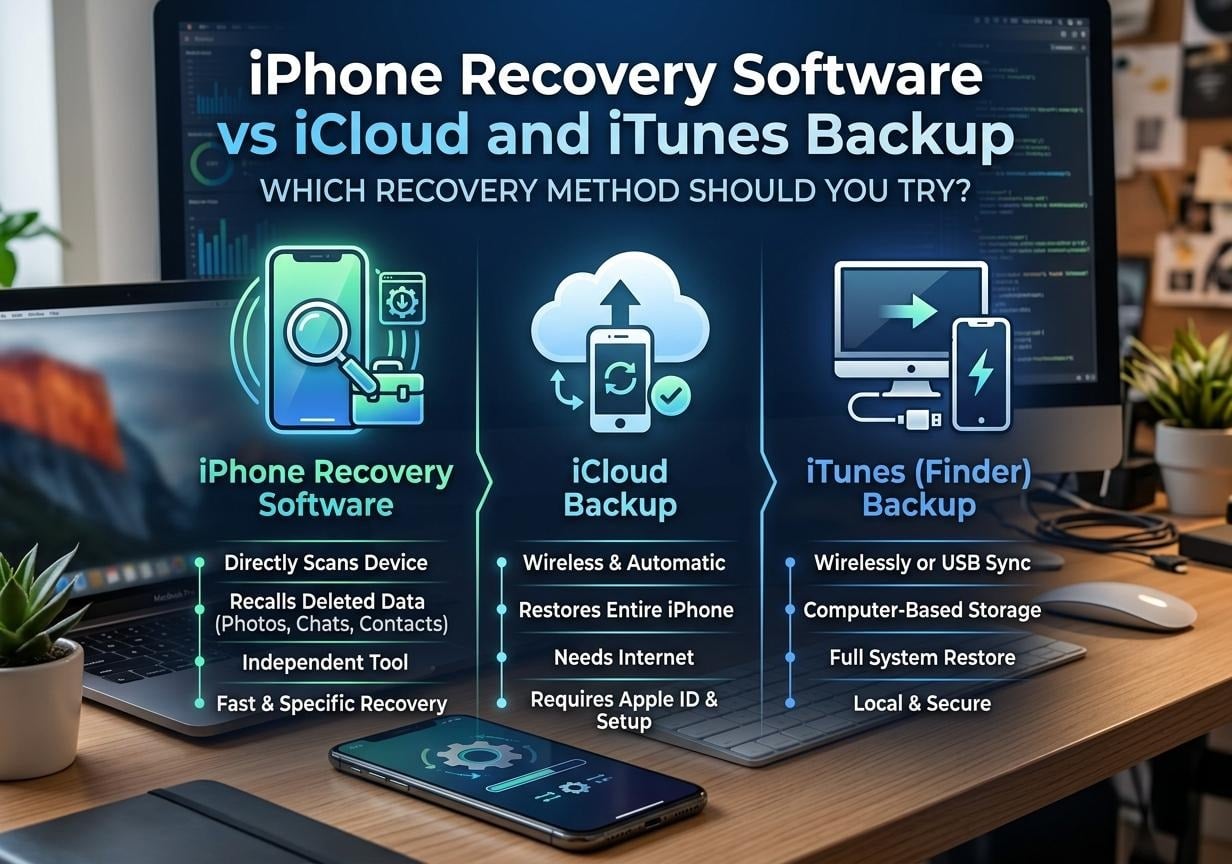
When data on an iPhone is lost, you will normally have several recovery methods available, including restoration via the backup in iCloud, using an iTunes backup, and employing reliable iPhone recovery software.
But all these options differ most in how they perform, and the best option for you mainly depends on the availability of a backup and what has happened to your data.
Through this article, we will provide an overview of the three methods, including reliable iPhone recovery software and help you pick the right one.
Part 1. Recovering Data Directly from an iPhone
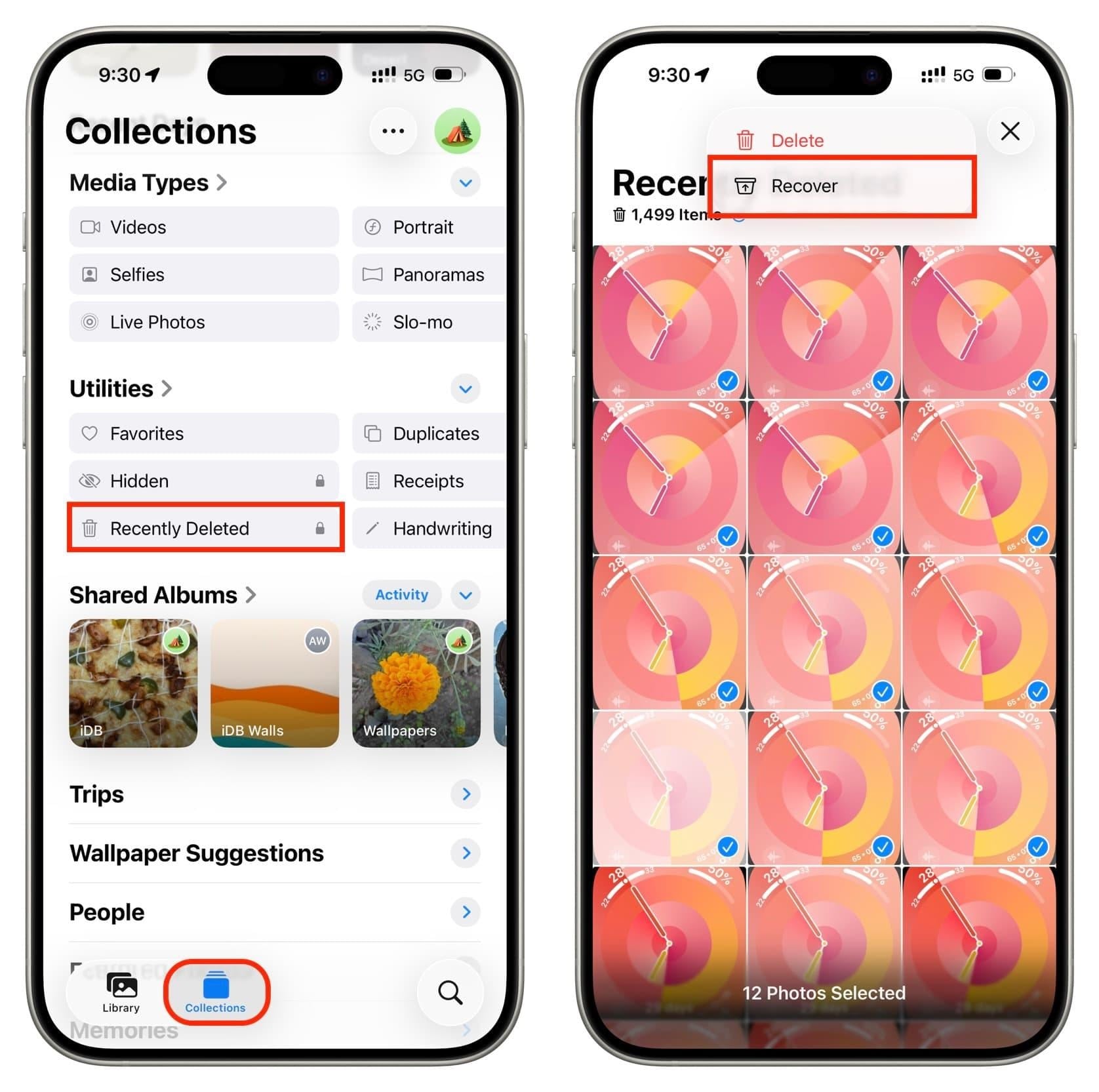
Before turning backup, have a look at the iPhone directly. Apple has built-in recovery options for the recently deleted items such as photos, files, messages, and other data. In case the deleted data is still within time frame, you may be able to recover it without the help of any external software.
Step 1. Find the Files or Photos app and its Recently Deleted folder.
Step 2. Choose a file, picture, or item you'd prefer to revive.
Step 3. Press “Recover” to bring it back to where you found it first.
Step 4. If your files are nowhere to be seen, go ahead and double-check the iCloud or iTunes/Finder backup.
Part 2. Recovering Data from iCloud
If your iPhone can be accessed via an iCloud backup, it may be a solution to recover the missing data, especially without going through recovery software. There are several approaches you can take based on what type of items you lost. Whereas some files can be directly retrieved from iCloud, an iCloud Backup generally means you will have to delete the data currently on the iPhone and then use the backup to set up the iPhone again.
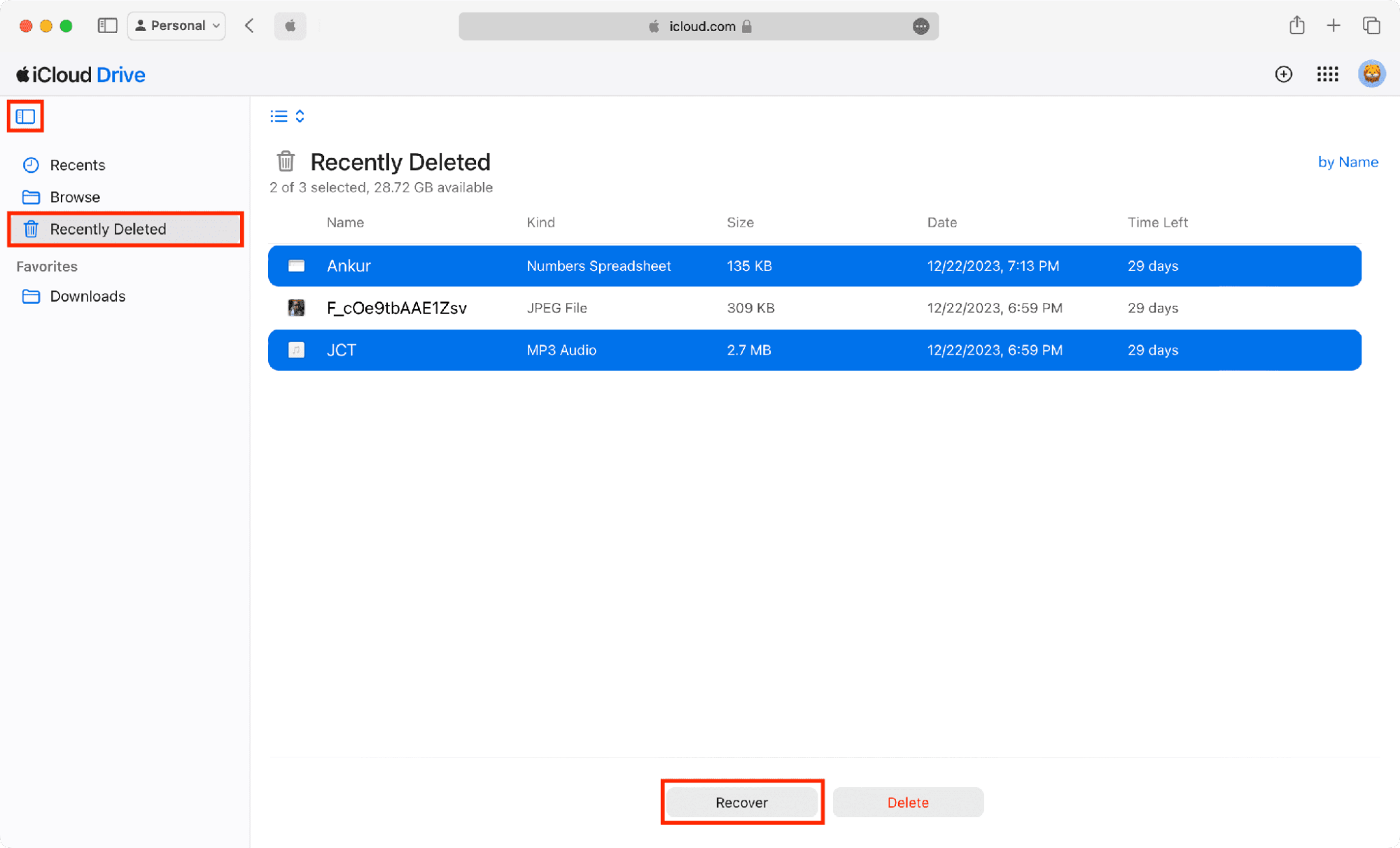
Step 1. Open iCloud.com or the related iPhone app to search for the deleted items like photos, files, contacts, or notes.
For missing contacts, use iCloud.com Data Recovery options to restore an available earlier contacts archive.
Step 2. When the data is found in Recently Deleted, click on it and then press Recover.
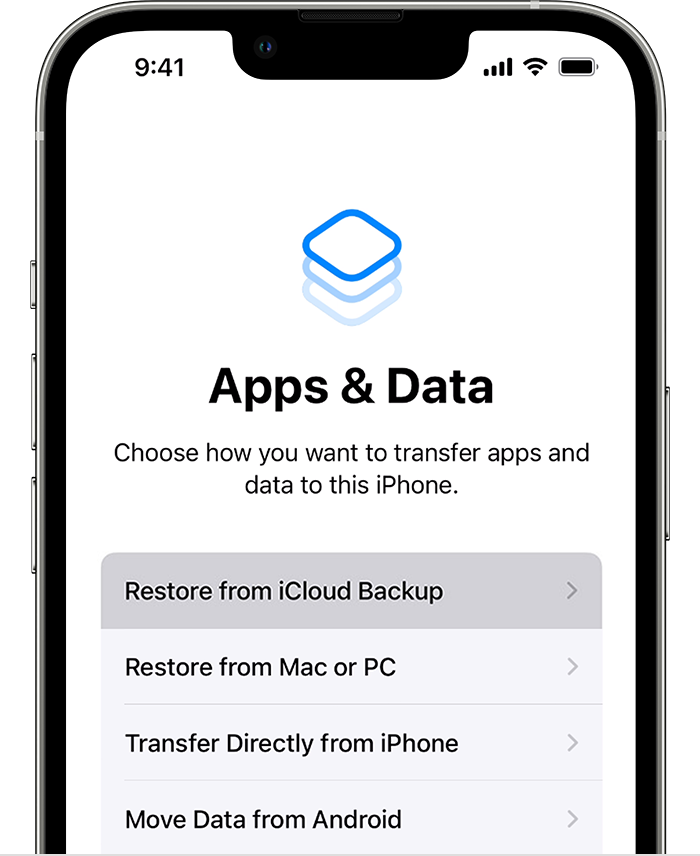
Step 3. Reset your iPhone and during the setup process choose to Restore from iCloud Backup. Then, of course, you must select the required backup.
Note: It erases the current device during setup; check the backup and preserve current data before proceeding
Part 3. When iPhone Recovery Software Adds More Flexibility
Backups are handy, but they probably do not contain the specific files you require. Recovery software could help you to some extent as it may scan, let you preview the files it can retrieve, and instead of restoring everything, it could allow you to select which files you want to restore.
Dr.Fone, Data Recovery (iOS) is capable of recovering data from an iPhone, iCloud Backup, iCloud Drive, iCloud-synced data, and iTunes or local backups. This software can handle 35+ data types, Standard Mode offers a free scan and preview, and activation is required for recovery (you can choose the recovery files you want). Besides, this iPhone data recovery software supports major messaging apps such as WhatsApp, WhatsApp Business, LINE, Viber, Kik, and Snapchat and iCloud Backup recovery can be done without a factory reset.
Recover Data from an iOS Device via iPhone recovery program
Step 1. Open Dr.Fone, go to Toolbox > Data Recovery, select iOS, and choose Recover Data from an iOS Device.
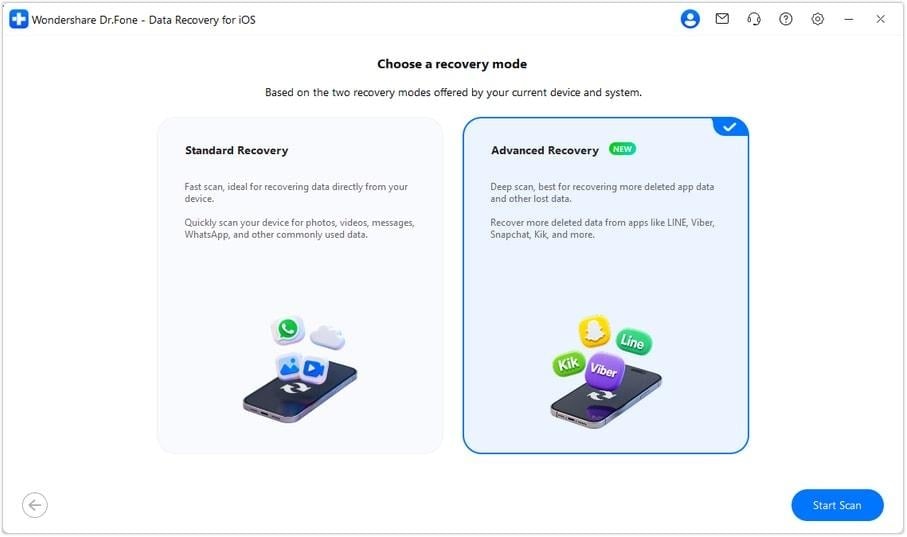
Step 2. Connect your iPhone or iPad and select Standard Recovery or Advanced Recovery.
Standard Recovery for a faster scan of commonly used data and Advanced Recovery for a deeper scan of supported devices and apps.
Advanced Recovery Compatibility: Advanced Recovery supports iPhone 16 series and earlier models running iOS 17.0–18.7.1 or iOS 26.0–26.0.1.
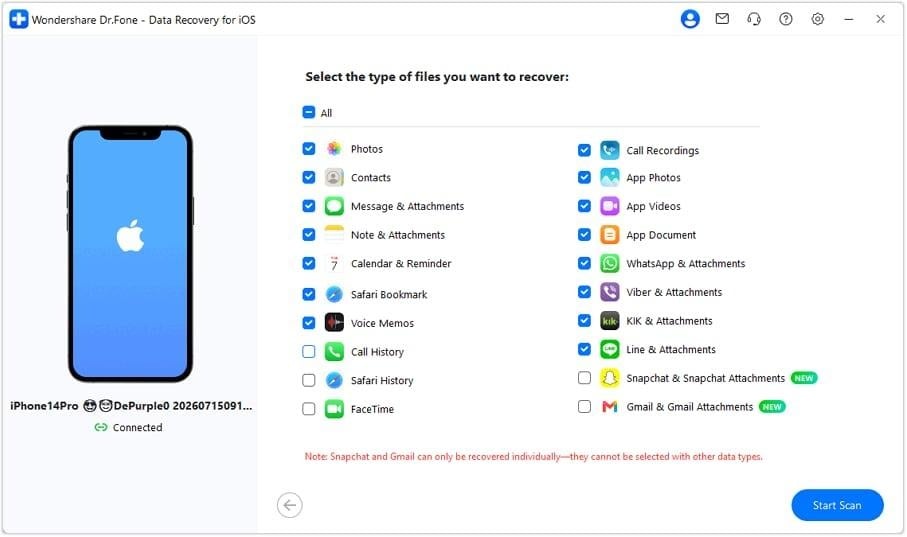
Step 3. Choose the data types you want to recover and click Start Scan.
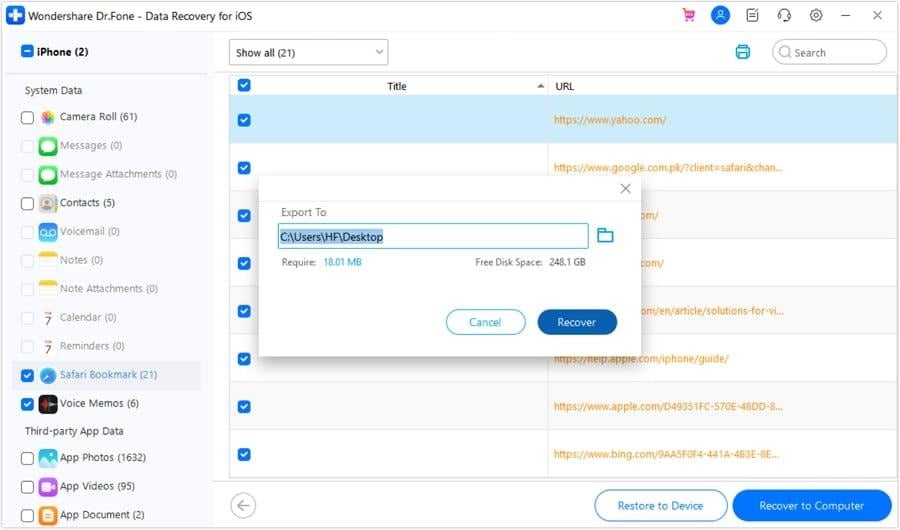
Step 4. Preview the results. Once done, Click Restore to Device to save the supported data to the iOS device. Click Recover to Computer to save the select files locally.
Part 4. How to Choose the Right Recovery Source
The proper recovery technique essentially depends on the cause of data loss. If you just deleted something, you could look first for files in the Recently Deleted folder on your iPhone. Restoration from a recent iCloud or iTunes backup is yet another way of retrieving your old files if you happen to have one.
If you do not have a backup, or rather, if you want to retrieve only certain files and at the same time not wipe out all the stuff on the device with the iPhone recovery, then the recovery software like Dr.Fone can help. It allows you to preview and recover whatever files that are not corrupted and are still available in any device/backup where supported. Files that aren't available on any accessible source cannot be recovered.
Dr.Fone can directly scan the iOS device or work with iCloud and iTunes backups so that users are given the option of seeing previewed data and selectively recovering the supported files.
| Option | What must be available | Best fit / limitation |
| Recently Deleted / iCloud app recovery | The item remains in the relevant app or recoverable archive | Start here for eligible individual items; retention and behavior vary by app. |
| Apple full iCloud backup restore | A suitable existing backup and account access | Restore a previous device state; current setup must be erased. Synced cloud content is handled separately. |
| Finder / Apple Devices / iTunes restore | A suitable computer backup; password if encrypted | Restore a computer backup to the device; preserve current data before replacing it. |
| Recovery software | A supported, accessible device or compatible backup/cloud source | Inspect or export selected supported data; cannot reconstruct data absent from all accessible sources. |
Conclusion
There is no one size that fits all recovery techniques. Firstly, use the built-in iPhone recovery options, then check iCloud and iTunes backups. If these resources can't find what you need, Dr.Fone – Data Recovery (iOS) iPhone recovery program offers an alternative solution by letting you scan, preview, and choose what to recover from the available data.