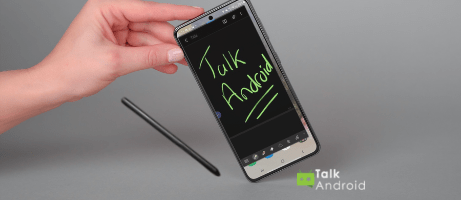


Samsung isn't giving us a new Galaxy Note in 2021, but if you've got one of the previous models or indeed own a stylus-toting Galaxy Tab S6 or Tab S7 or the Galaxy S21 Ultra that supports the S Pen, there's a good chance that you aren't making the most of this most useful accessory. Whether you are creating 2021's equivalent of the Mona Lisa, scribbling notes, cutting and pasting someone's head onto a chicken, or taking selfies with the S Pen, Samsung's stylus is the gift that keeps on giving if you take the time to get to know it. With that in mind, here are a few tips to use the S pen effectively if you fancy trying it out.
Air actions
This is a fun or gimmicky, depending on your viewpoint, action of the S pen on your device. Samsung's S pen can be waved around in the air and control some apps without touching the screen. A bit magic wand-like for you Harry Potterites out there!
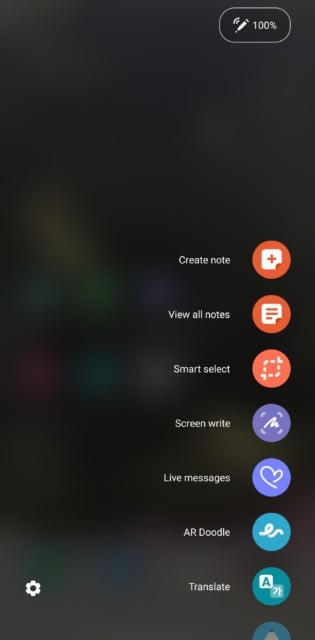
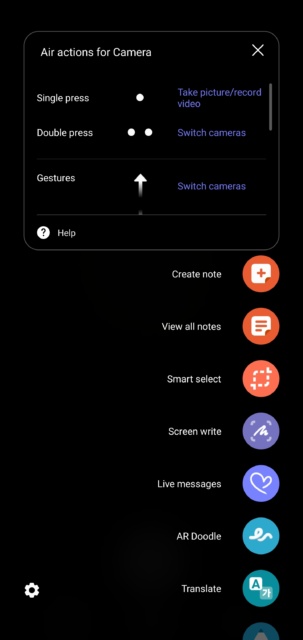
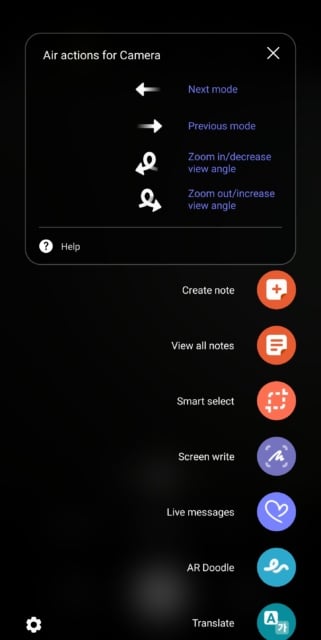
The camera app works well with the air actions of the S pen. You can use the S pen to perform a number of actions if you hold down the button on the pen and swipe in the air. The gestures can switch cameras by swiping up or a double press. You can swipe left or right for the next or previous mode. You can also draw a circle in the air clockwise to zoom in/ decrease angle and anticlockwise to zoom out/ increase the angle.

Converting handwriting to Word or PDF and more
A nifty feature of the S pen is the capacity to take notes with the S pen stylus. This enables you to write quick notes in your own handwriting. This is a great feature but can be a bit problematic if you have messy handwriting such as myself!
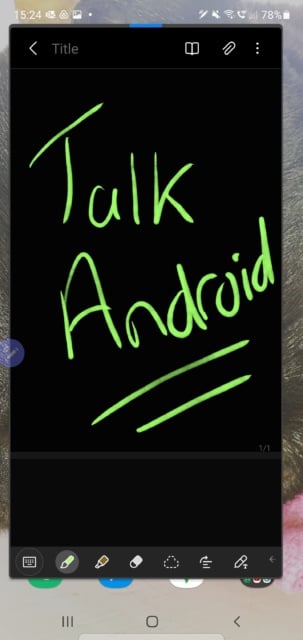
This is where the ability to convert your writing into text comes in very handy. You can convert your writing into a variety of file formats such as Microsoft Word, PDF, and so forth. All you have to do is tap the Share icon on the top right corner and choose the format you want.
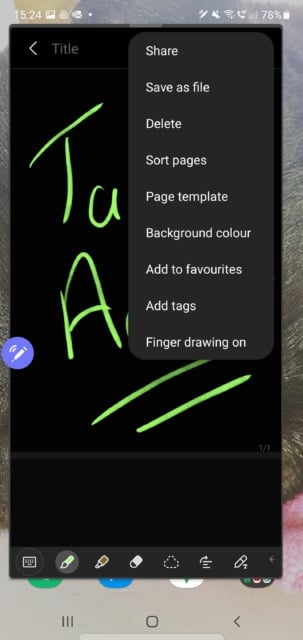
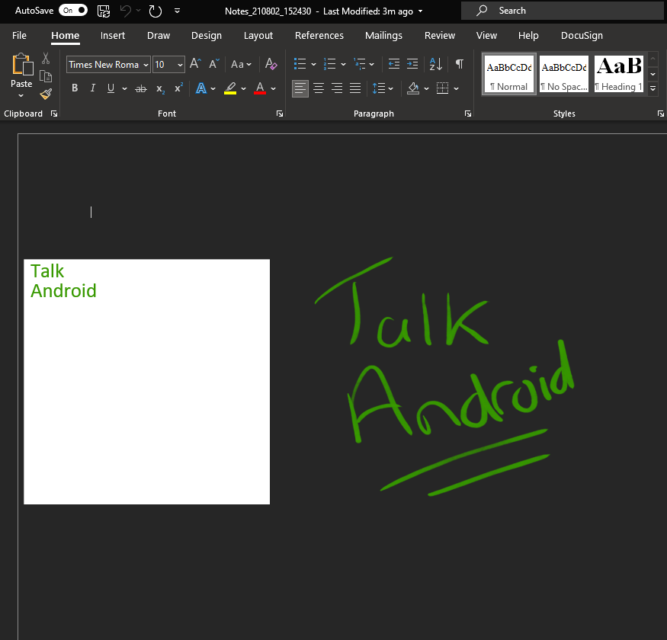
I chose the Microsoft Word file format and converted my messy scribble into a Word document, it even keeps the color you choose when writing, as you can see below with my handwritten version and the Word conversion.
AR Doodle
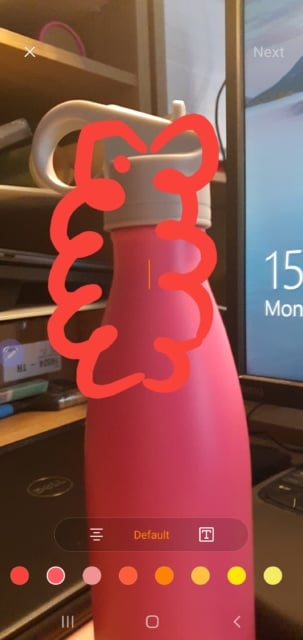
AR doodle may seem a bit gimmicky as well but it's a fun option using your S pen. You can draw on your image or any image you chose and the image will move around as you move, or move the camera around the item. You can choose different colors of ink, different pens and create whatever you imagine – great fun for the kids! You can also send this as a video to someone else. I took a picture of my water bottle and gave it to a strange red cloud creature…
Smart select
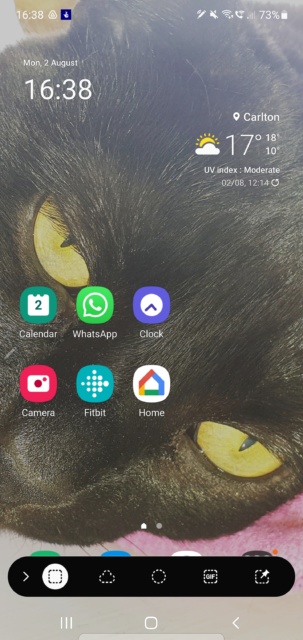
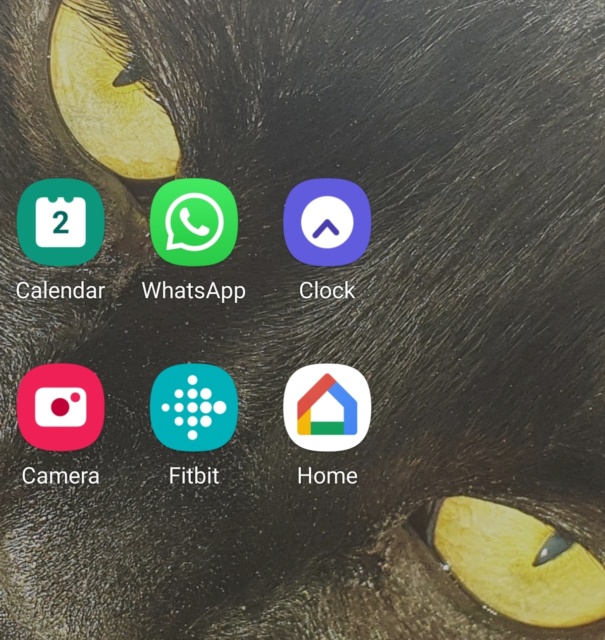
Smart select is a quick and easy option to grab a part of an image, or whole image, of your Samsung Galaxy device's homescreen. You tap on the Smart select icon in your S pen menu and chose what kind of selection you want to take. I took a quick square selection off my home page
Screen write
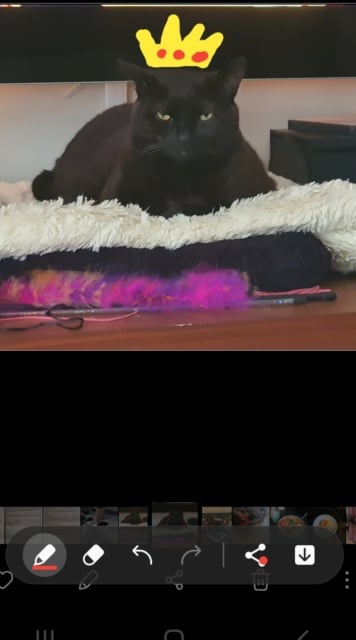
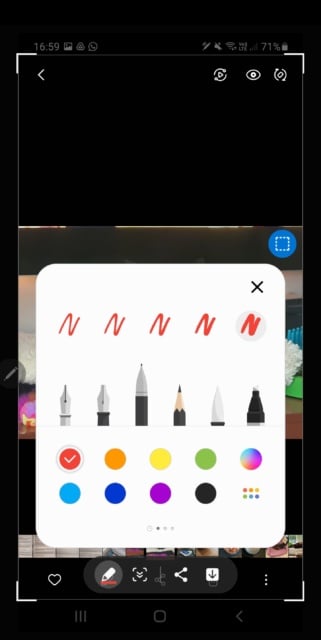
Screen write is another quick option in your S pen menu where you can use the S pen to draw over your screen, a screengrab of images in your gallery. I have taken a quick shot of my cat overlord and drawn in an appropriate crown for him. The Screen write option also enables you to choose colors and types of pen you want to use.
This has been a whirlwind overview of Samsung's S pen and some of its functions. Happy experimenting!