



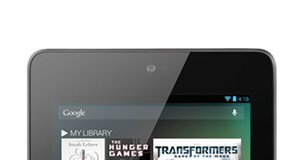


Those of you that pre-ordered your Nexus 7 should be receiving it in the next week or so. If you plan on unlocking and rooting it, you've come to the right place. We have all the instructions and download links to get your Nexus 7 primed and ready for customizing it to your delight. Just hit the break to get started
**These instructions are straight forward and easy, but things can go wrong so we don't take any responsibility.
Requirements
- You must have the sdk installed and able to access and use adb and fastboot.
- You must have debugging enabled on your Nexus 7.
Unlocking the bootloader
- Connect your Nexus 7 to your PC via USB cable.
- Launch Terminal / Command Prompt
- Navigate to the fastboot/adb folder which will be inside the location where Android SDK is installed (On Windows, it should be in C:\program files (x86)\android\android-sdk\platform-tools)
- Enter the following command: adb reboot bootloader
- Enter the following command: fastboot oem unlock **See below if you're having issues here.
- It should say Start in the top right. Hit the power button to reboot.
- Turn on USB debugging again
- Download and place CWM in the fastboot folder (again this location should be C:\program files (x86)\android\android-sdk\platform-tools
- Download and place JB-SuperSU.zip directly under /sdcard on your device
- Enter the following command: adb reboot bootloader
- Enter the following command: fastboot flash recovery CWM-grouper-recovery.img
- Tap the volume down so it shows Recovery Mode in the top right, then hit the power button.
- From the main menu, navigate to install zip from sdcard > choose zip from sdcard > JB-SuperSU.zip
- From main menu, select reboot system now
- After reboot you should see SuperSU in your apps drawer, open it and tap on continue to make sure your installation is successful.
You might find that even though you can access your Nexus 7 via Windows, you might have a problem with the driver not installed correctly from terminal mode. You will know you have this problem because it's stuck on “Waiting for Device.” Just hit Control-C to stop the fastboot command.
First make sure the Google USB drivers are installed from the SDK.
Go to your Control Panel then Device Manager. You should see Android Phone with a Yellow ! mark on it. Right click on it and choose update driver, choose browse my computer, then Let me pick from a list. Select Android ADB Interface. You should be good to go. Return to Step 5 under Unlocking the bootloader.
For more information please visit the source links.
sources: rootzwiki / xda / redmondpie

My Nexus 7 could connect with ADB, as camera drive with a 5m USB extension
cable. etc.. under Ubuntu linux. Though in fastboot mode, it did not
detect the N7 (fastboot devices) . After hours wondering, finally found
out if I plugged the N7 without and USB extension cable fastboot worked
fine and the device was detected.. My Nexus 4 though worked fine under fastboot with the extension
cable! It may be some hardware issue on the N7 using longer USB cables
with fastboot. FYI. Just in case you run into a weird problem like this!
OK. So, this is NOT the simplest or easiest understood method for doing this. I’m a newbie. I’m competent, but I’m terribly afraid of bricking my new Nexus 7. I need something easier to understand if you’ve never done this before.
would this mean that the Nexus Q will be shipped at the same time or wouldl it be shipped later?
Calling Mr. Wug, Wugfresh, how about a Nexus 7 Root toolkit…