



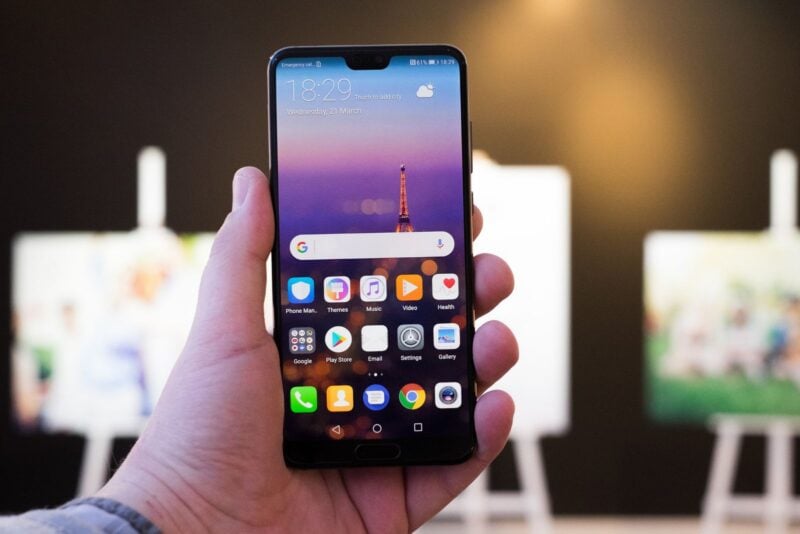
You don't need a flip phone to cut down on screen time. Android already has most of the tools to make your phone a lot less tempting: timers that lock apps, a gray screen, a mode that pauses your most distracting apps and, on some Pixel phones, a feature that interrupts endless scrolling. Here's how to set them up without buying anything new.
Why People Want a Phone That Does Less
The appeal of a simpler phone isn't new, but it's real. In a 2024 Harris Poll run with social psychologist Jonathan Haidt, more than one in five Gen Z adults said they wished smartphones had never been invented, The Washington Times reported. A 2025 study published in PNAS Nexus found that blocking mobile internet on phones for two weeks, while keeping calls and texts, improved people's attention and well-being.
Buying a basic phone is one way to get there. Changing a few settings on the phone you already own is another.
Start With Your Numbers
Before you change anything, find out where your time actually goes. Open Settings, then Digital Wellbeing. The dashboard shows today's screen time for each app, how many times you unlocked your phone and how many notifications you received.
Menu names can differ a little depending on who made your phone, but Digital Wellbeing comes on most Android phones. Pick the two or three apps that eat the most time. Those are the ones to rein in.
Put Your Worst Apps on a Timer
App timers are the closest thing to deleting an app without deleting it. Go to Settings, then Digital Wellbeing, then App timers, and set a daily limit for each app you picked.
When your time runs out, the app closes and its icon is dimmed for the rest of the day. Timers reset at midnight. If you know you'll cheat, Google's help page explains how to add an App limits PIN, a four-digit code that locks your limits so they can't be changed on a whim.
More on This Topic: Google Makes It Easier To Stop Doomscrolling Your Life Away
Turn Your Screen Gray
A colorful screen is part of what makes apps so hard to put down. Android's Bedtime mode can switch your display to grayscale, and you don't have to use it only at night.
- Open Settings, then Digital Wellbeing, then Bedtime mode.
- Set it to run on a schedule, or to turn on while your phone charges.
- Under the screen options, turn on grayscale.
Bedtime mode also has a Quick Settings tile, so you can switch the gray screen on with one tap whenever you want your phone to feel more like a tool.
Pause Your Most Distracting Apps
Focus mode goes further. Go to Settings, then Digital Wellbeing, then Focus mode, and choose the apps to pause. While it's on, those apps can't open and can't send you notifications.
You can turn Focus mode on manually or set a schedule, for example during work hours or after dinner. If you really need one of the paused apps, “Take a break” unpauses them for a set amount of time.
Let Your Phone Interrupt the Scroll
If you have a Pixel, there's a newer option. Pause Point, a Digital Wellbeing feature that first launched as a Pixel 11 exclusive with Android 17, is coming to older Pixel phones through the Android 17 QPR1 update, Android Headlines reported.
Instead of locking you out, Pause Point stops you during a long scrolling session and asks you to choose how much longer you want to keep going. It's a nudge, not a wall.
Strip Down Your Home Screen
The last step is visual. Move social media and video apps off your home screen and into the app drawer, so opening them takes a deliberate search. If you want to go further, minimalist launchers on Google Play replace your home screen with a plain list of the few apps you choose.
None of this turns a smartphone into a flip phone. Your maps, camera and banking apps stay a tap away, which is the whole point of not buying a second device. Start with one or two of these settings for a week and add more if you still find yourself scrolling.