



A new Android phone can look remarkably familiar after setup. Contacts and messages return, familiar apps begin downloading, and several device preferences are already in place. However, Android restoration is selective: data may come through Google’s backup service, direct device transfer or an app developer’s account system, while security credentials, temporary files and hardware-specific settings may require separate attention.
A Backup Is a Collection, Not a Clone
Google’s Android backup can include apps and app data, call history, contacts, device settings, SMS and MMS messages. RCS messages are also covered when Google Messages is used, while photos and videos depend on Google Photos backup. However, Google notes that individual apps may not back up or restore all their settings and data.
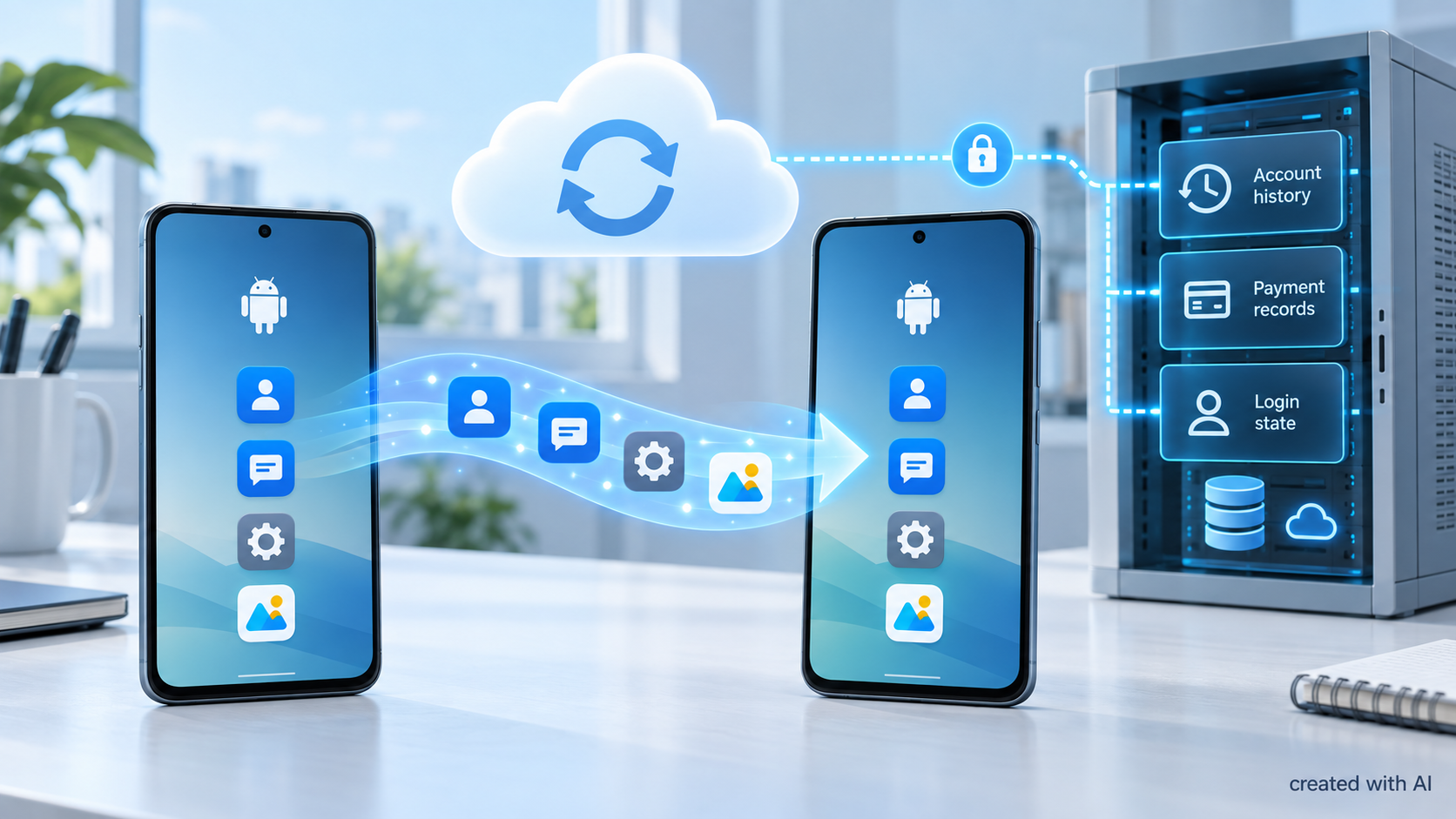
The distinction is particularly clear in an online casino app. The operator normally keeps the verified account status, cash balance, deposit records and completed game rounds in its own account system. The same account-based logic also applies to promotional information available on platforms such as https://pl.polskiesloty.com/80-zl-bez-depozytu/, where bonus conditions are linked to the user account rather than to the device itself. After the app is installed and a secure login is completed, this information can be retrieved again, while selected interface preferences may arrive through Android backup.
The restored phone is therefore assembled using several sources:
- Google Account backup;
- direct device transfer;
- cloud synchronization inside individual apps;
- information retained on company servers;
- files copied manually or stored on removable media.
An icon returning to the home screen only confirms that the app was reinstalled. It does not confirm that every preference, download or active session travelled with it.
What Google Can Bring Back
According to Google’s Android backup documentation, backups are uploaded to Google and encrypted. Some information receives additional end-to-end encryption using the phone’s PIN, pattern or password. A Google Account includes 15GB of storage at no charge, although Google Photos, Drive and other services share that allowance.
The backup screen can be found under Settings > Google services > Backup on current Android versions, although names vary slightly by manufacturer. Its “Backup details” area shows the categories and apps included in the latest saved copy.
| Data category | Likely recovery route |
| Contacts saved to Google | Account synchronization |
| SMS and MMS | Android device backup |
| Photos and videos | Google Photos, when enabled |
| App preferences | Android backup, if supported by the developer |
| Purchases and account history | The app company’s servers |
| Offline media | Fresh download or manual copy |
| Active login sessions | New authentication may be required |
A backup can take up to 24 hours to finish, and restoration may also continue for up to 24 hours. Apps can appear in stages, so an apparently incomplete home screen shortly after setup does not necessarily indicate a failed transfer.
Developers Decide What Their Apps Preserve
Android provides the mechanism, but app developers decide how much local information participates. According to Android’s Auto Backup documentation, eligible apps can receive up to 25MB of backup storage per user. Shared preferences, internal files and certain databases are included by default.
Developers can exclude particular files or disable cloud backup. Temporary cache and code-cache directories are excluded automatically because their contents can be recreated. Sensitive information may also be kept outside the backup and recovered through a protected account after authentication.
This explains why two apps restored during one setup can behave differently. A weather app might remember saved cities and display preferences. A banking app may open as a fresh installation and require account credentials, a one-time code or biometric registration. Both results can represent deliberate app design.
A Restored App May Still Require a Login
An active session is valuable because it permits access without entering credentials again. Copying that session onto a different handset could weaken device checks, especially when the app handles money, health records or private communications.
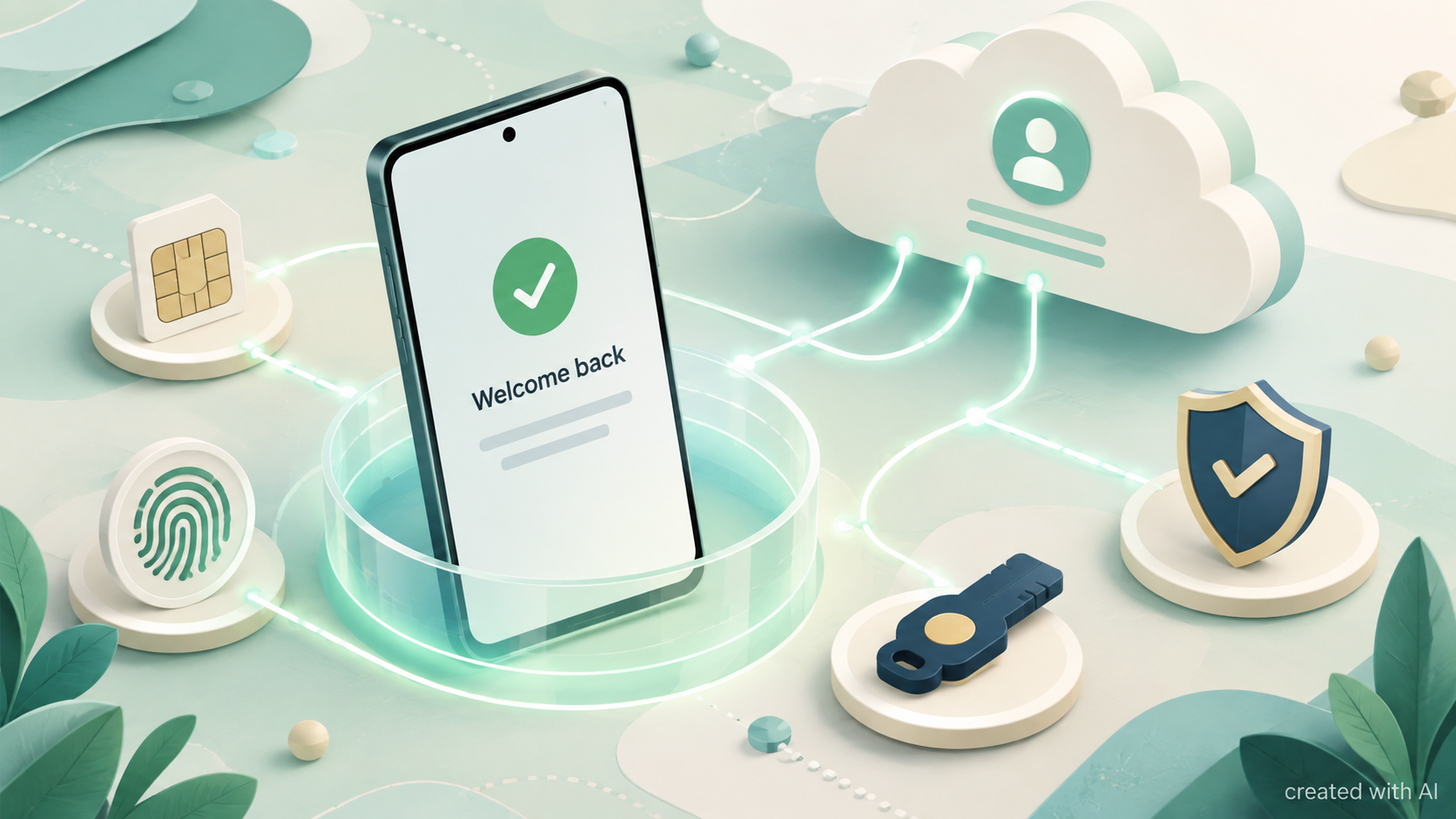
Many services consequently treat the restored installation as a new device. The app package and harmless preferences may return, but the account server still evaluates the new login. Depending on the service, that process can involve:
- entering the account password;
- approving a notification on another device;
- using a passkey or one-time code;
- registering biometrics again;
- confirming recent account activity.
Biometric enrollment belongs to the phone’s secure environment and should be configured on the new handset. An app may remember that biometric login was previously enabled, yet it still needs permission to use the credentials enrolled on the replacement device.
Android Versions Can Affect the Result
Restoration is not equally flexible in every direction. Google states that a backup made on a newer Android version cannot be restored onto a phone running an older version. Moving to a handset with an older operating system may therefore produce an incomplete transfer.
Manufacturer tools add another variable. Samsung Smart Switch and comparable utilities can copy material directly, including files that may not belong to Google’s cloud backup. Their results still depend on device compatibility, permissions and app restrictions.
Work profiles require separate handling as well. Company policies can prevent business information from entering a personal backup, and a managed account may need to be enrolled again by an administrator. This separation is intentional because workplace data remains controlled by the organization.
Checks Worth Making Before Erasing the Old Phone
A successful setup screen should not be the final check. Several details are best confirmed while the previous phone remains available:
- Open Android’s backup details and check the latest backup time.
- Confirm that photos have finished uploading to the intended Google Account.
- Review apps that store files locally, including recorders and media editors.
- Check authentication apps and recovery methods for important accounts.
- Open messaging apps and verify that conversations and attachments are present.
- Test financial, travel and work apps on the replacement device.
- Keep the old phone intact until essential accounts operate correctly.
Android backup is designed to rebuild useful parts of a device, not produce a forensic copy. The most reliable transfer combines Google backup, app-level synchronization and a short manual review. When each source has a clear role, fewer missing details emerge after the old handset has been reset.