



I used to have this nagging anxiety and feeling whenever I turned on my PC, wondering if today would be the day something crashed because of an outdated driver. But setting up Driver Booster to run automatically in the background is what finally put that worry to rest.
The Quiet Anxiety I Didn't Realize I Had
I never thought of myself as a particularly anxious PC user until I noticed a pattern, e.g, every time my screen flickered, my audio cut out, or a game crashed, it triggered my anxiety. My first thought was always the same: is this a driver issue again? Then I'd spend ten minutes second guessing myself instead of just enjoying whatever I was doing.
The worst part was not knowing. I had no visibility into which drivers were current and which ones were quietly falling behind, sometimes for months, until something finally broke.
Why I Wanted a Driver Updater Instead of Manual Checking
Checking drivers manually means visiting each manufacturer's website (which I hate most), matching exact hardware model numbers, and downloading files while hoping you picked the right version. That process is slow, easy to get wrong and I don't want to do it regularly just for peace of mind.
I wanted a proper driver updater that could run checks automatically, tell me the truth about my system's state, and handle the updates safely without me babysitting the process every time.
Driver Booster fit that role well. It automatically scans a system and instantly finds the correct drivers for every device, pulling from a certified database covering more than 1,200 major brands, including Intel, AMD, and NVIDIA. Every driver goes through two layers of verification, WHQL certification from Microsoft and an internal IObit security check, before it ever gets installed. That combination of automation and safety checks is what turned this from a chore into something I could trust to run quietly in the background.
What Actually Gave Me Peace of Mind
A few specific things about how Driver Booster works are what made the anxiety disappear, not just once, but consistently.
Scheduled scanning. I no longer have to remember to check anything. Driver Booster can scan daily, weekly, or every time Windows starts, so it catches outdated drivers before they cause a problem, not after.
Automatic backups. Every time it updates a driver, it backs up the existing version and can create a system restore point first. Knowing there's always a safety net if something goes wrong removed the fear that updates would break something further.
Broad coverage. It supports systems from Windows 11 down to XP, including newer ARM64 devices, and its database covers more than 18 million drivers. I stopped worrying about whether my slightly older hardware would even be supported.
Game component checks. Beyond standard drivers, it also flags outdated gaming components, which used to cause random stutters I could never quite explain.
Once I understood how thoroughly it covered each of these angles, the constant low-level worry about “is something about to break” simply stopped being something I thought about.
How I Set Mine Up for Ongoing Peace of Mind?
Here's exactly how I configured Driver Booster so it runs quietly and keeps everything current without me having to think about it.
Step 1: Download and Install
I went to the official IObit Driver Booster page and downloaded the installer. It's a small file, so it downloaded in seconds. I ran the setup, chose my language on the welcome screen, and clicked the main install button. The install finished in under a minute.
Step 2: Run the Full Scan
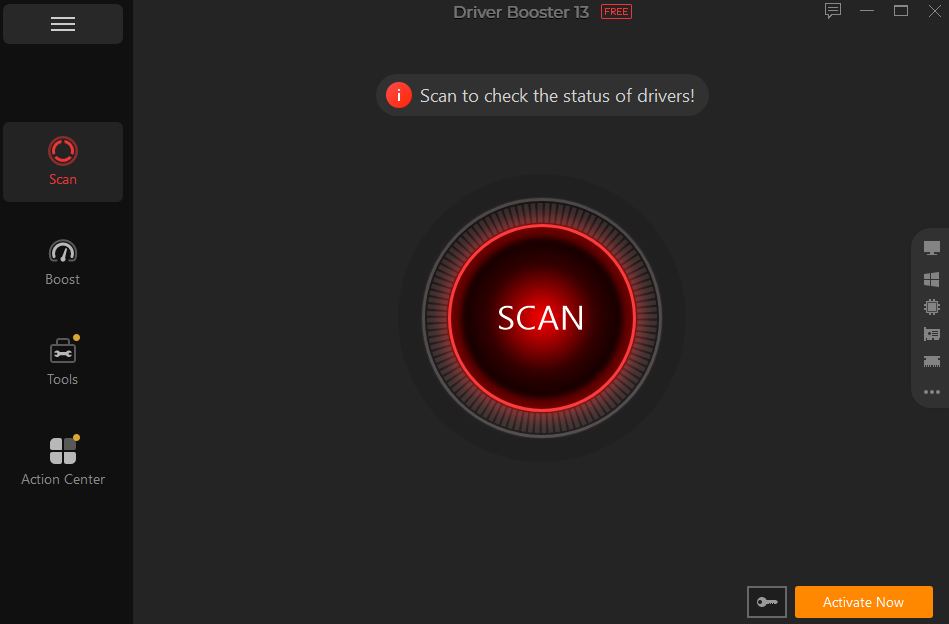
On first launch, I clicked Scan and let it check every connected device. It listed every outdated, missing or incorrect driver, color-coded by severity so I could see exactly where my system stood.
Step 3: Update Everything in One Click
Rather than updating drivers one at a time, I clicked Update Now. Driver Booster automatically backed up my current drivers, then downloaded and installed the correct replacements in sequence. The full batch finished in about five minutes.
Step 4: Check the Game Boost
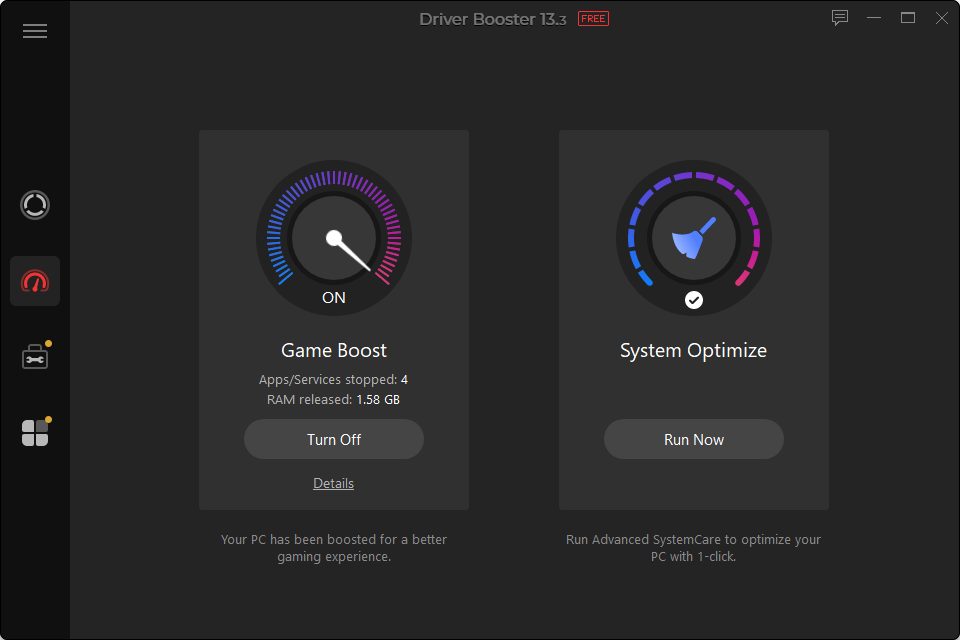
Since I game on this machine too, I opened the Game Boost feature and let it check for outdated gaming-related drivers and components. This magically found a few items the standard scan hadn't specifically flagged for gaming performance.
Step 5: Confirm the Backup and Restore Point
Before moving on, I also confirmed the backup had actually been created. I opened the backup log to verify old driver versions were saved so that I'd have something to roll back to if a new driver ever caused issues.
Step 6: Set a Scan Schedule
I turned on scheduled scanning in the settings and set it to run once a week. That way, Driver Booster can check for new driver updates in the background without me having to remember to open it.
I also enabled scanning when Windows starts up. It feels like a small extra step, but it gives me another layer of coverage without adding anything I have to do manually.
Step 7: Turn On Automatic Notifications
I also switched notifications on so I'll get a quiet alert when Driver Booster finds new updates.
That's much easier than having to remember to open the program every so often just to see whether anything has changed. Once I had the notifications enabled, driver updates became something I could mostly leave alone rather than another maintenance task to remember.
Step 8: Do a Quarterly Manual Review
Even with the automatic features enabled, I still like to check Driver Booster myself every few months.
I'll open it, look through the recent updates and make sure everything seems normal. It usually takes only a couple of minutes, but I find it useful to have that occasional manual check.
The automation handles the routine stuff. The quick review just gives me that extra bit of reassurance.
What Changed in How I Use My PC?
I no longer flinch at small glitches the way I used to. When something minor happens now, I know a scheduled scan already ran recently, and my drivers are current, so my brain doesn't jump straight to worst-case scenarios anymore. The printer, audio and graphics issues that used to pop up sporadically simply haven't returned since I started running regular scans.
That shift, from constantly wondering if my system was quietly falling apart to genuinely trusting it, is the real value I got out of this.
Why I Still Run It Today?
Driver Booster is not something I open in a panic anymore; it just runs in the background, catching problems before I ever notice them. If you've ever had that same low-grade anxiety about your PC's stability, setting up a reliable driver updater on a schedule is a small step that removes a surprising amount of everyday stress. Mine has been running quietly for months now, and honestly, I don't think about driver issues at all anymore, which is exactly the point.