

The Gmail app is glitching on Android tablets and foldables. As spotted by PiunikaWeb, users are reporting flickering screens, disappearing text, and in some cases entirely blank screens. The issue is most widespread on Samsung tablets and foldables, including the Galaxy Tab S9 and Z Fold devices.
Turns out that the culprit is Android System WebView, a popular background component that apps use to display web content. The issue has been escalated to Google, but there's no fix yet.
Samsung's devices are taking the worst hit of Gmail issue
Gmail is Google’s email service that lets people send and receive emails, store messages in the cloud, organize conversations into folders and labels, and sync mail across phones, tablets, and computers.
As aforementioned, it's currently facing an issue hitting Samsung devices the hardest, specifically the Galaxy Tab S9, Tab A11+, and the Galaxy Z Fold series.

On the Z Fold devices, users are reporting that the inner folding screen is particularly affected, with the glitch kicking in specifically when scrolling down a page.
Users are venting on multiple platforms. On X, one user with a Galaxy Tab S9 tagged Gmail directly, saying they had already tried uninstalling updates and clearing cache and data but nothing worked.
On Google's own support forums, a thread titled “Flickering emails” has 31 people saying they have the same problem, with the original poster describing emails becoming completely unreadable when opened.
Even Downdetector has recorded multiple Gmail-related complaints from users, with reports ranging from disappearing emails and flickering inboxes to missing folders and delayed message delivery.
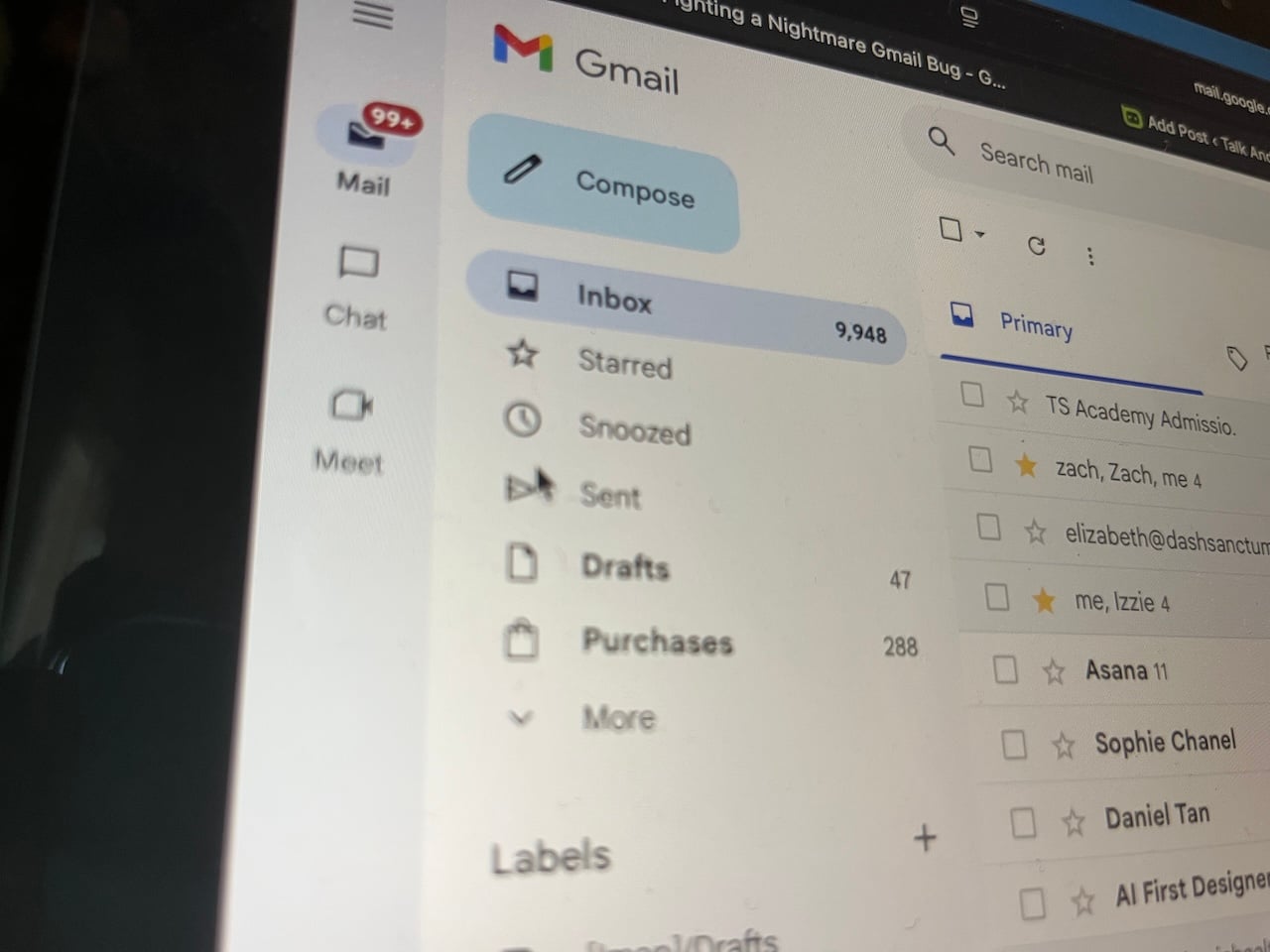
Google product experts have responded on the forums, confirming the issue has been escalated, though there's no timeline for a fix yet. Hopefully, it comes soon, as delayed email delivery affects banking alerts, login codes, work communication, package tracking, and security notifications, among other important things users need immediate access to.
Here's what you can do to fix it
There are three workarounds you can try while waiting for them. Start by rotating your phone from portrait to landscape mode and back again. It temporarily stops the flickering. It's possible the system tears down the current view of the app and rebuilds it entirely for the new orientation, rendering the content fresh.
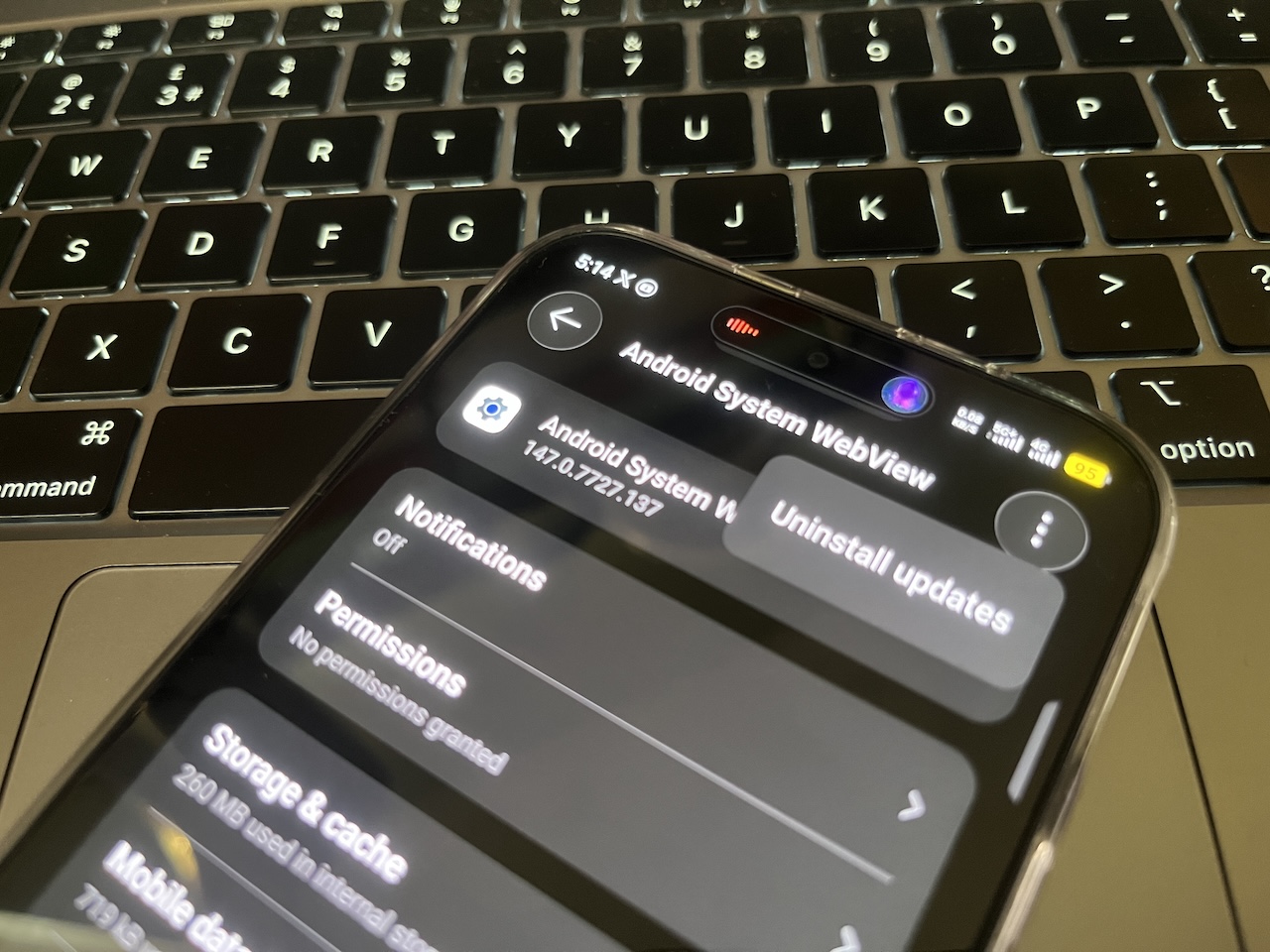
You could also try clearing the cache for Android System WebView. Go to Settings > Apps and find Android System WebView in the list. If you don't see it, tap the three-dot button in the upper right corner and select Show system.
When you've selected Android System WebView, tap Storage, and hit Clear Cache. System WebView stores temporary data in its cache to load content faster, like any other app. It may be corrupted or conflict with a newer version of the service.
Another option is heading into Settings, Apps, Manage Apps, tapping on Gmail, and then selecting before choosing to clear both the cache and data. This worked for TalkAndroid's editor, Peter Holden.
Clearing the cache removes the source of the conflict and stops the issue. It's not a permanent fix because it rebuilds itself over time, and if the underlying bug is still there, the problem will return.
Finally, try uninstalling WebView updates if all else fails. In the same Apps menu, find Android System WebView. Tap the three-dot button at the top right and select Uninstall Updates. This action rolls WebView back to its factory version.