




Introduction
Sharing iPhone videos with Android is not brutal, but it can be a little complicated. There are numerous simple ways to transfer iPhone videos to Android. Whether you have a few or dozens of video files, you can easily find a solution without losing quality.
This article outlines five straightforward methods for transferring high-quality video files. We'll explain each step so you can email your favorite videos to friends, family, or your phone quickly and safely. We offer phone, computer, and cloud options for everyone. Let's begin and discover how to send videos from iPhone to Android easily.
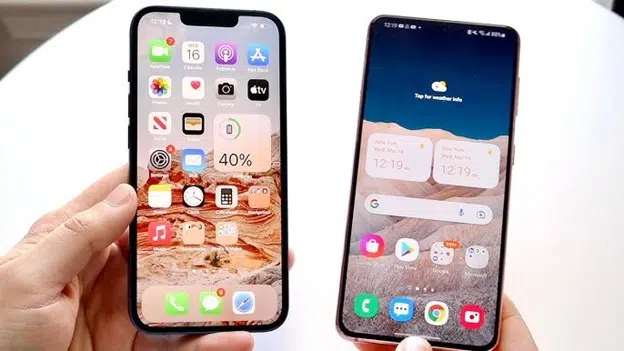
Pre-Transfer Checklist
Check these items before learning how to transfer iPhone video to Android.
1. Free Up Space
Ensure your Android phone has sufficient storage space. Your phone needs twice as much storage as your videos. Without enough space, your Video Transfer may fail. Check your phone first and eliminate unneeded files to make room.
2. Update Apps/OS
Before sending an iPhone video to an Android device, update your phone's operating system. Keep your iOS and Android phones updated. New versions typically correct issues and improve transfer speeds.
3. Organize Videos
Select all videos to send from your iPhone album. Organizing them first speeds up the Video Transfer Process. You won't miss any videos and will find them easy to transfer.
4. Charge Devices
Both phone batteries should be at least 70% charged. Your Video Transfer may be interrupted if your phone runs out of battery. Keep them well-charged initially.
Method 1: Wondershare MobileTrans (1-Click Direct Transfer)
This is a fast and simple video transfer method. It demonstrates iPhone-to-Android video transfer in minutes. It doesn't require computer expertise. Direct phone-to-phone transfer. It works well with 4K video and video clip collections.
This utility transfers video without quality loss. Files are copied bit-for-bit. This implies that your Android phone will display your video in the same way as your iPhone. There's no compression or resolution modification.
It sends over 100 video files in minutes using this program. It saves time if you have several videos. Phone-to-phone connectivity is also available. Nothing has to be uploaded to the Cloud initially, which makes Video Transfer quick and confidential.
Follow these steps to transfer video from iPhone to Android using Wondershare MobileTrans:
Step 1. Select “iPhone to Android” as your transfer direction. Select “Basic data” on both phones.

Step 2. Choose the files to transfer. Choose “Videos” and other folders from the list.
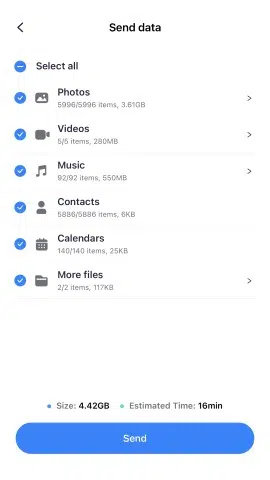
Step 3. Scan a QR code to link the two phones after selecting the files. It connects your phone safely to the other.
Step 4. Connecting your phone starts and finishes the transfer in seconds. Your iPhone videos will transfer to Android without loss in quality.
Method 2: Google Photos
This is a decent wireless video transfer technique. It enables iPhone-to-Android video transfer without the need for a computer. A Google account and Google Photos are sufficient. Google Photos backs up videos first so that you can watch them directly. It's simple for everyone.
To transfer video from iPhone to Android using Google Photos, follow these steps:
Step 1. Install Google Photos for iPhone from the App Store. Launch Google Photos and log in.
Step 2. Tap your corner profile photo. Select “Photos settings.”
Step 3. Look for “Backup quality.” Select “Original quality” to preserve the video's original quality.

Step 4. Back up your video. Make sure the Wi-Fi is strong. Use the same Google account on both Android and iOS. Google Photos instantly loads all your videos.
Limitations:
While beneficial for video transfer, this method has several limitations.
· Free storage is limited to 15GB. A 100GB plan costs $1.99 per month.
· With huge 4K video files, this approach may be sluggish. Backups require a stable internet connection and take time.
· Now, you can use Google Photos to transfer iPhone video to Android. The simple, wireless video transfer is secure and easy.
Method 3: Send Anywhere (Wi-Fi Direct Transfer)
Send Anywhere transfers videos quickly. It transfers iPhone videos to Android phones. Sending an iPhone video to an Android device is easy with it. This approach requires no computer or USB cable. It transfers video securely and fast via your phone's WiFi. For fast and easy video transfers, Send Anywhere is a popular choice. Follow these steps to transfer video from iPhone to Android using Transfer Anywhere:
Step 1. First, install Send Anywhere on both your iPhone and Android device.
Step 2. Launch Send Anywhere on iPhone. Select “Send.”
Step 3. Select the videos to transfer. Tap “Send” again.
Step 4. Send Anywhere displays a 6-digit code.
Image name: how-to-send-video-from-iphone-to-android-03
image alt: send videos and copy the code
Step 5. Launch Send Anywhere on Android. Select “Receive.”
Step 6. Enter iPhone's 6-digit code. Video download begins instantly.
Limitations:
· Send Anywhere offers efficient video transfer, but with certain restrictions.
· For direct transfers, your phone must be nearby.
· Start using the Send Anywhere app on both phones.
Method 4: Cloud Services
For a straightforward approach to transferring videos, consider using cloud services. The Cloud allows wireless video sending. It helps transfer iPhone videos to Android. Cloud Services is helpful if you utilize iCloud Drive, OneDrive, or Dropbox. This is a suitable video transfer method for users of iCloud Drive and OneDrive.
Tools:
· Cloud services include iCloud Drive, OneDrive, and Dropbox.
· These programs transfer iPhone videos to Android.
· It's easy to transfer iPhone video to Android.
Here are simple steps to follow:
Step 1. Upload the video to the Cloud on your iPhone. Turn off “optimize storage” first. You may keep the video original.
Step 2. Install the Cloud app for Android.
· For iCloud, you can use iCloud Drive.
· For OneDrive, you can download the OneDrive app.
· For Dropbox, you can get it from the Play Store.
Step 3. Sign in with the same account to see the video. You may then download it to your Android phone.
Pro tip:
· Consider using OneDrive.
· OneDrive offers 5GB of free storage.
· This fits numerous videos.
· Cloud services simplify and speed up video transfer.
Method 5: PC/Mac File Transfer
When you require a local solution for video transfer, a PC or Mac is ideal. This method utilizes a PC to stream iPhone video to Android devices. This method is helpful for offline mass transfers of numerous videos without an internet connection. USB cords and your desktop PC bridge it. Very simple and safe.
Step 1. Connect the iPhone to your Windows PC using a USB cable (or a USB-C cable). Tap Trust on your iPhone to grant file access if requested.
Step 2. Open “File Explorer,” navigate to “This PC,” and select your iPhone under “Devices.” Browse the “DCIM folder” for your videos.
Step 3. Copy videos from the DCIM folder to a local folder on your PC or Mac to avoid automatic compression.
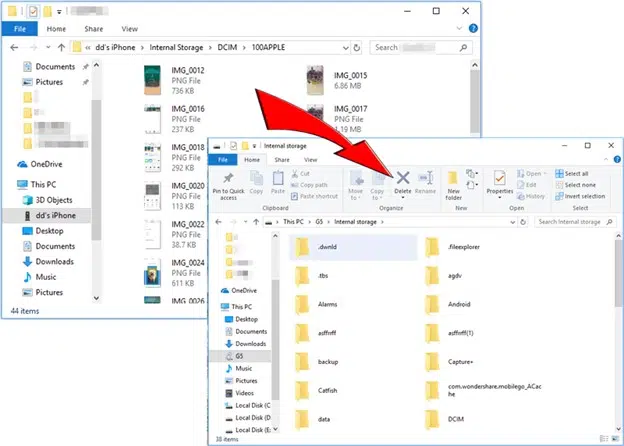
Step 4. Connect Android to transfer files.
· Connect your Android device to your PC running Windows. Tap the USB notification on your Android device and select “File transfer mode” in File Explorer. Drag the video folder from your computer to Android's internal storage.
· On Mac, install and run the free Android File Transfer program, then drag files into your Android device folder.
Step 5. Some Android devices can't play Apple's HEVC.MOV videos. Use a simple PC or Mac HEVC to MP4 converter to check compatibility before transferring.
Comparison: Which Method Preserves Quality Best?
This table compares the top video transfer methods for sending iPhone videos to Android devices with the highest quality.
| Method | Speed | File Size Limit | Ease of Use |
| MobileTrans | Fast (direct phone) | Unlimited | Very easy (1-click) |
| Google Photos | Medium (WiFi upload) | 15GB free, then pay | Easy, automatic backup |
| Send Anywhere | Fast (direct transfer) | Unlimited | Moderate (need code) |
| Cloud Services (iCloud, OneDrive) | Medium (depends on the internet) | 5GB free, then pay | Medium (manual upload & download) |
| PC File Transfer | Fast (USB) | Unlimited | Medium (need PC, USB) |
Troubleshooting Quality Loss
Videos Look Pixelated?
Some movies may look distorted after being transferred. This can happen if your iPhone has “Optimize Storage” activated. To turn this off, navigate to Settings → Photos and disable “Optimize Storage.” Choose “Download and Keep Originals.” Avoid transferring videos via Facebook or WhatsApp. Video files are compressed by these programs, reducing their quality. Instead, send your video immediately using MobileTrans, Send Anywhere, or PC transfer.
Transfer Stuck?
There are ways to fix a stalled transfer. Check your MobileTrans download for the newest version. If outdated, update it. After upgrading, restart your phone and computer to try again. A poor or congested WiFi network might slow down cloud transfer speeds. Those using 5GHz networks may switch to 2.4GHz. 2.4GHz networks are more reliable for big files and have a broader range.
Conclusion
Following these procedures makes transferring videos from iPhone to Android effortless. You may share your video safely and without quality loss via MobileTrans, Google Photos, Share Anywhere, Cloud Services, or PC transfer. Every approach has its advantages. Some enable massive file transfers directly, while others are faster and more comfortable. The key is to pick your best method and follow these easy steps. You can now transfer iPhone video to Android without compromising quality.

