




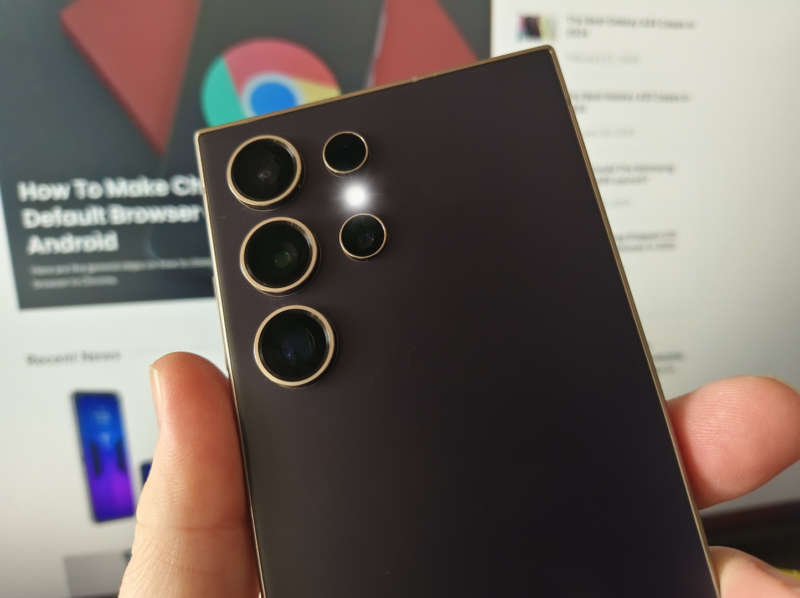
You're in a meeting, your Galaxy S24 is laid face down on the table in silent mode without vibration turned on, and you are waiting for an important message. But you'll almost certainly miss the notification since it doesn't look good to check your phone every two minutes while the boss lays out another new strategy for the company.
No, you aren't, because if you follow our step-by-step guide in video and the written word formats after the break you'll learn how to enable the flash module on the rear panel to light up when you receive a notification. The best part? It only takes a few seconds to enable flash notifications on your Galaxy S24 handset, and you'll never have to miss a notification again (unless you choose to).
The Video
Samsung's One UI 6.1 software is full of helpful features like this, including the ability to organize the app drawer alphabetically, the new Circle to Search function, and returning your power button to actually being a power button instead of opening up the dreaded Bixby assistant. While flash notifications aren't for everyone, it would be helpful if Samsung put the toggle for them in the Quick Settings panel instead of forcing users to dig into the Settings app.
It just takes a few seconds to enable flash notifications on your Galaxy S24, Galaxy S24+, and Galaxy S24 Ultra, so you never miss an alert again. If video tutorials aren't your thing, we have the step-by-step written guide below.
Step One
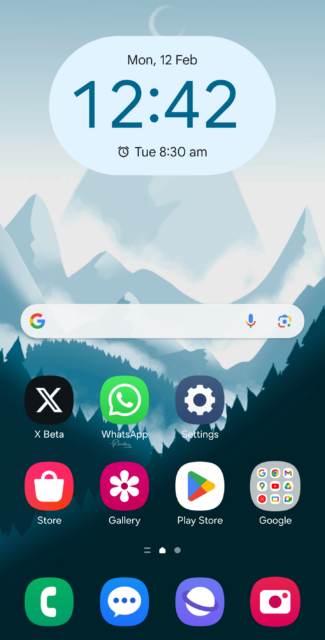
First, open up the Settings app on your Galaxy S24.
Step Two
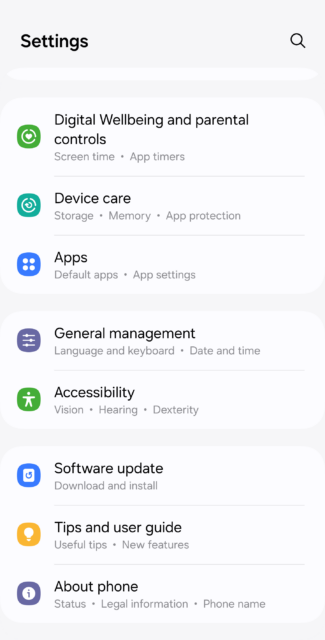
You'll then need to tap on the Accessibility section.
Step Three
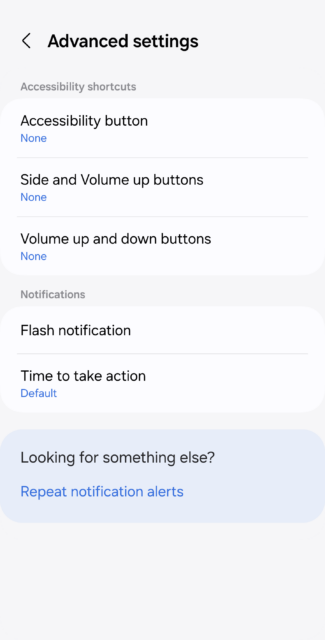
Tap on Flash Notification
Step Four

Press the toggle to enable Camera Flash Notification
Step Five
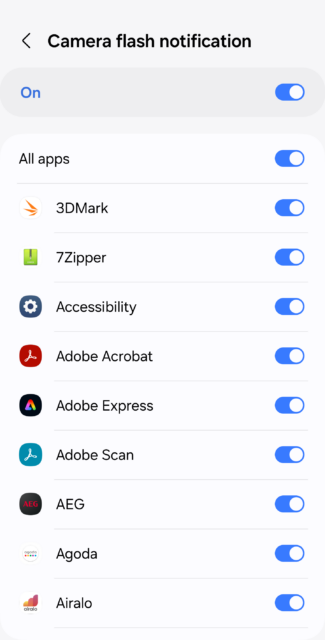
If it's a specific app such as WhatsApp that you are waiting for a message from, you can choose only to receive a flash notification from that one app. Or however many apps as you please.
Bonus Step

As a bonus step, you can also enable Screen Flash notifications, illuminating the display to alert you of a notification. It's a redundant feature, as you'll need to have the display facing upwards, which means you'll see the notification alert on the lock screen anyway. Still, it's perhaps more subtle than having an alert showing you've received a message, particularly if you are under supervision.
And that's how to enable flash notifications on your Galaxy S24 smartphone. As promised, it's really quick and simple to do, and you can even narrow the alerts down to a specific app or number of apps if necessary.
Whether customizing the software experience on your Galaxy S24, protecting it with the best cases available, or even getting a new wireless charger, we've got tips and guides to show you how to make the most of your handset.
We've got more how-to videos lined up for the Galaxy S24 and other handsets in the coming weeks and months, so remember to keep it locked to TalkAndroid.


