

Moving your music library from Spotify to YouTube Music on Android is completely doable, but rarely happens with a single tap. You can move Spotify playlists using Google's built-in transfer tool if you have a paid subscription, or through a standalone playlist transfer tool that links both accounts.
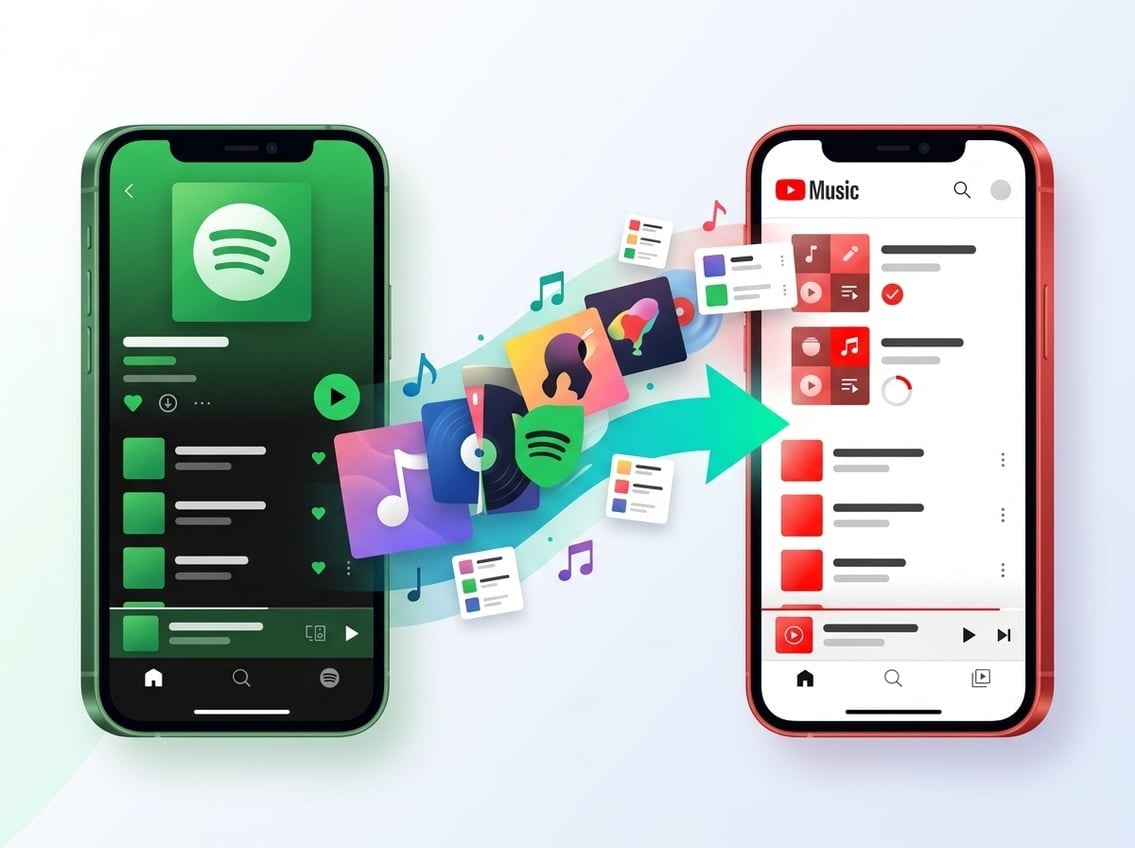
Before canceling anything, take time to weigh the differences between both platforms. Checking how your favorite albums, deep cuts, and live recordings translate to YouTube Music will save you plenty of headaches down the road.
What to Consider Before Leaving Spotify
Switching streaming services makes the most sense when YouTube Music actually matches how you listen every day. A quick pass over pricing, interface quirks, and catalog depth can confirm whether the jump is worth making.
Value, Perks, and Catalog Differences
For many Android users, the biggest draw is bundling. A standard YouTube Premium subscription includes YouTube Music Premium, giving you ad-free YouTube videos and ad-free music under one monthly charge.
YouTube Music also blends official studio releases with user uploads, live sets, and music videos. If you love digging up unreleased tracks, bootlegs, or concert footage on YouTube, that catalog overlap is a massive perk.
Still, catalog differences cut both ways. Before moving, search YouTube Music for essential albums, rare singles, and specific versions you play constantly. Studio recordings, radio edits, and live tracks can share identical titles, so make sure the exact versions you love are actually there.
How to Move Playlists and Liked Songs
You have two main paths for moving music: automated transfers and manual rebuilding. Automated tools handle the bulk of the work, while manual rebuilding gives you full control over every track and running order.
Using YouTube Music's Built-In Transfer Tool
YouTube Music includes a native feature called “Transfer playlists from other apps.” To find it, open YouTube Music on your Android device, tap your profile picture, go to Settings, and select Privacy and data.
From there, pick Spotify as the source, log in to connect your accounts, and choose the playlists you want to bring over. The tool scans your Spotify selections, matches them against the YouTube Music catalog, and adds the matches directly to your library.
Keep in mind that this native option requires an active YouTube Music Premium or YouTube Premium subscription. If you are on a free tier or a plan like Premium Lite, the option will not be available in your settings menu.
Using Standalone Playlist Transfer Tools or Rebuilding Manually
If you don't have a paid subscription yet, standalone playlist transfer tools that connect both accounts can bridge the gap. These web tools sign into both services, map songs across catalogs, and recreate your playlists on the other side.
For shorter or highly curated playlists, rebuilding by hand often works best. Searching for each track directly ensures you get the exact album pressing, live take, or guest remix you want, rather than whatever an algorithm grabs first.
Handling Your Liked Songs Collection
Your Liked Songs on Spotify are not stored as a standard playlist. They live in a separate library collection, so tools that copy a Spotify liked list to a YouTube playlist usually handle it as its own import step.
The simplest workaround is copying your entire Liked Songs collection into a brand-new Spotify playlist before starting. Transfer that custom playlist to YouTube Music, and you will have a clean, easy-to-verify duplicate of your saved library.
What Stays Behind and How to Check Matches
Moving playlists only transfers song entries; it does not clone your Spotify account. Knowing what stays behind helps you set expectations during your first week on the new platform.
Data That Won't Make the Jump
Your Spotify listening history, Wrapped stats, and algorithmic profile stay behind. Years of listening habits don't carry over, so YouTube Music will not immediately know your niche subgenres or late-night habits.
Podcast subscriptions and playback progress also stay on Spotify. You will need to search for your favorite shows on YouTube or dedicated podcast apps and subscribe to them again manually.
Spotting Mismatched and Missing Tracks
Once a transfer finishes, compare the new playlist track counts against your Spotify originals. Gaps usually point to regional licensing restrictions or songs that simply do not exist in the YouTube Music database.
Pay close attention to track variations as well. Automated systems frequently swap out explicit versions for clean edits, or substitute live cuts for original studio tracks. When you spot a mismatch, search the title manually and swap in the right track.
A transfer is a one-time snapshot, not an ongoing link. Keep your Spotify account active through the transition period so you can spot-check running orders and find tracks that failed to import.
Setting Up YouTube Music on Android
Once your music is imported, dial in a few Android app settings to get the best daily experience on your phone.
Configuring Downloads and Offline Playback
If you have YouTube Music Premium, you can download albums, custom playlists, and singles directly to your Android device for offline listening. Open any playlist or album and tap the download arrow beneath the cover art.
Check your phone's storage before downloading entire libraries. You can also turn on Smart Downloads in the settings menu, which automatically saves a rotating selection of your favorite tracks whenever you connect to Wi-Fi.
Tuning Streaming and Download Audio Quality
Head back into YouTube Music's settings to configure your audio bitrates. The app lets you set separate playback quality levels for mobile data and Wi-Fi connections.
If you have a limited data plan, keep mobile streaming set to normal or low, and reserve high quality for Wi-Fi streaming and offline downloads. This prevents unexpected data overages while keeping sound crisp when you are at home.
Training Your New Music Recommendations
YouTube Music needs active input to dial in your Home feed. Take advantage of the thumbs-up and thumbs-down buttons on the now-playing screen whenever a recommended track plays.
Search for your top artists, subscribe to their channel pages, and listen to a few full albums during your first few days. Those early signals help the algorithm replace your old Spotify habits with accurate recommendations.
Final Steps for a Smooth Transition
Switching services takes a little patience, but checking your imported playlists early prevents missing tracks later. Once your playlists match up and your daily settings are locked in, you can safely wind down your Spotify account and enjoy your new library on Android.
Frequently Asked Questions
Is there a free way to transfer Spotify playlists to YouTube Music?
Yes. Standalone playlist transfer tools that connect both accounts often provide free tiers for moving smaller playlists. However, free options may limit how many songs or playlists you can move at one time.
Do you need YouTube Music Premium to transfer playlists?
YouTube Music's built-in transfer option requires a paid YouTube Music Premium or YouTube Premium subscription. Standalone playlist transfer tools do not require a paid plan to move songs into a free YouTube Music account.
Can you transfer Spotify Liked Songs to YouTube Music?
Yes, but you usually need to take an extra step. Because Spotify treats Liked Songs as a special library collection rather than a standard playlist, copy them into a regular playlist first, then transfer that list over.
Why are some songs missing after a transfer?
Songs usually go missing due to catalog differences, region-locked licensing, or slight differences in song metadata. If an automated tool cannot find an exact match, search for the song manually in YouTube Music to find the correct version.