



Random app crashes or unexpected system crashes can interrupt everything from messaging to browsing, sometimes restarting your phone or sending you back to the home screen repeatedly. These symptoms make it difficult to determine whether the problem is limited to one app or affects Android itself. Identifying the root cause is essential because app-related issues and operating system failures require different solutions.
Review this guide to understand why Android keeps crashing and which Android phone fix works best. While you identify the issue and cause, learn why Dr.Fone – System Repair (Android) is the practical choice.
Part 1. App Crash or Full-System Crash?
Before you try to fix Android phone, it's important to know whether the problem is caused by a single app or the Android OS. So, review the symptoms below to determine where the problem starts:
| What You Notice | What It Usually Means | Common Cause |
| One App Closes While the Rest of the Phone Works Normally | The issue is limited to that app. | App bug, outdated version, corrupted app data. |
| The Same App Crashes Repeatedly | The app installation or its stored data may be damaged. | Corrupted app files, failed update. |
| Multiple Unrelated Apps Stop Working | The problem may affect Android or a shared system component. | Corrupted cache, low storage, Android system issue, Google Play Services or Android System WebView problems. |
| Settings, Play Store, Or Other Built-In Apps Freeze | Android system components may be unstable. | Corrupted system files, failed update, Google Play Services issue. |
| The Phone Restarts Without Warning | A system-level or hardware problem is likely. | Firmware issue, overheating, failing battery, hardware fault. |
| Problems Continue in Safe Mode | Third-party apps are unlikely to be the cause. | Android OS corruption, firmware issue, or hardware fault. |
Part 2. What Causes Frequent Android Crashes?
Once you know the issues, you might seek a reliable Android repair or a basic fix. Prior to that, learn about the 5 causes for the vast majority of Android crashes.
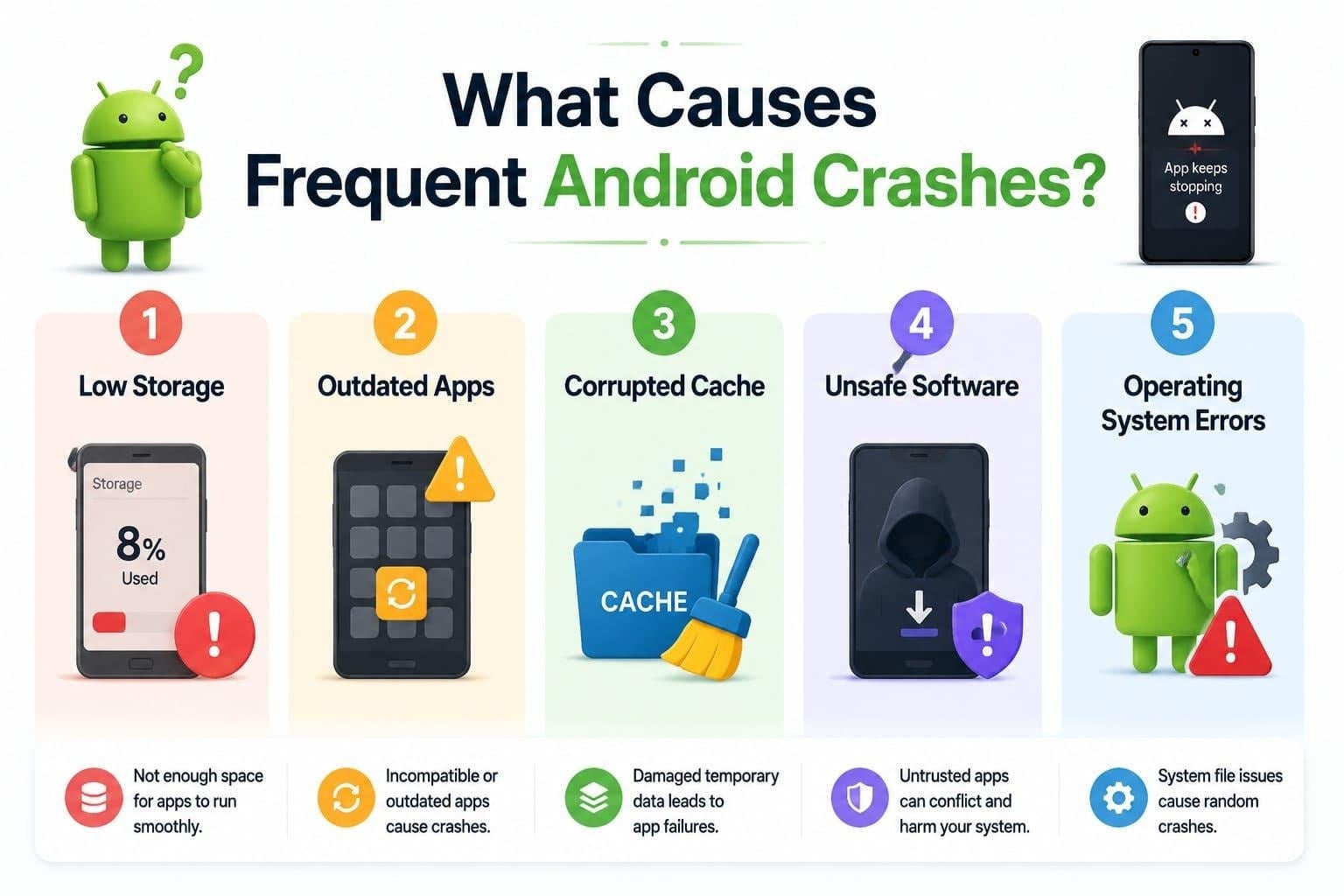
- Low Storage: Android needs free space to write temporary files while apps run. Drop below a gigabyte or two and things start closing on their own.
- Outdated Apps: An app built for an older Android version can fail as the system evolves. Crashes that started after a system update usually mean this.
- Corrupted Cache: Apps store temporary data to load faster, and that data can become corrupted. The app then reads something it can't use and quits.
- Unsafe Software: Apps installed from untrusted sources may contain bugs or malware that cause crashes. Poorly coded or malicious apps can destabilize your phone.
- Operating System Errors: Corrupted system files trigger unpredictable crashes across your whole device. These deep system failures persist beyond basic app-level troubleshooting.
Part 3. How to Fix Everyday Android Instability
To fix an Android phone that keeps crashing, here are 4 simple solutions you can try first:
Fix 1. Update Every App
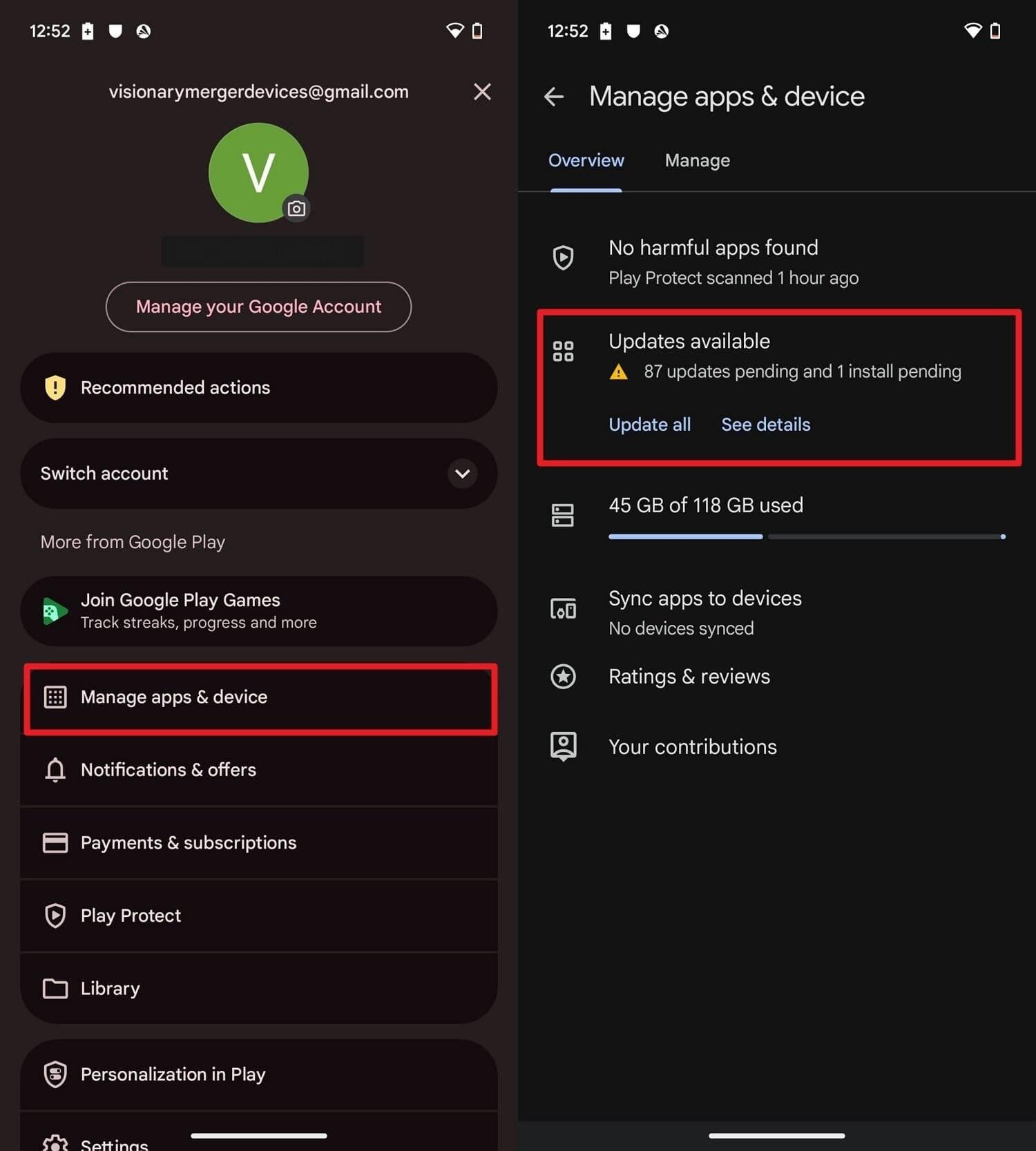
Developers regularly release compatibility fixes, and a crash that started after a system update is usually just an app that hasn't caught up. So, update the app via the steps given below to check if this can be helpful:
Instructions. Tap the “Profile” icon on the Google Play Store and tap on “Manage Apps & Device > Updates Available > Update All.”
Fix 2. Clear the Cache of Your App
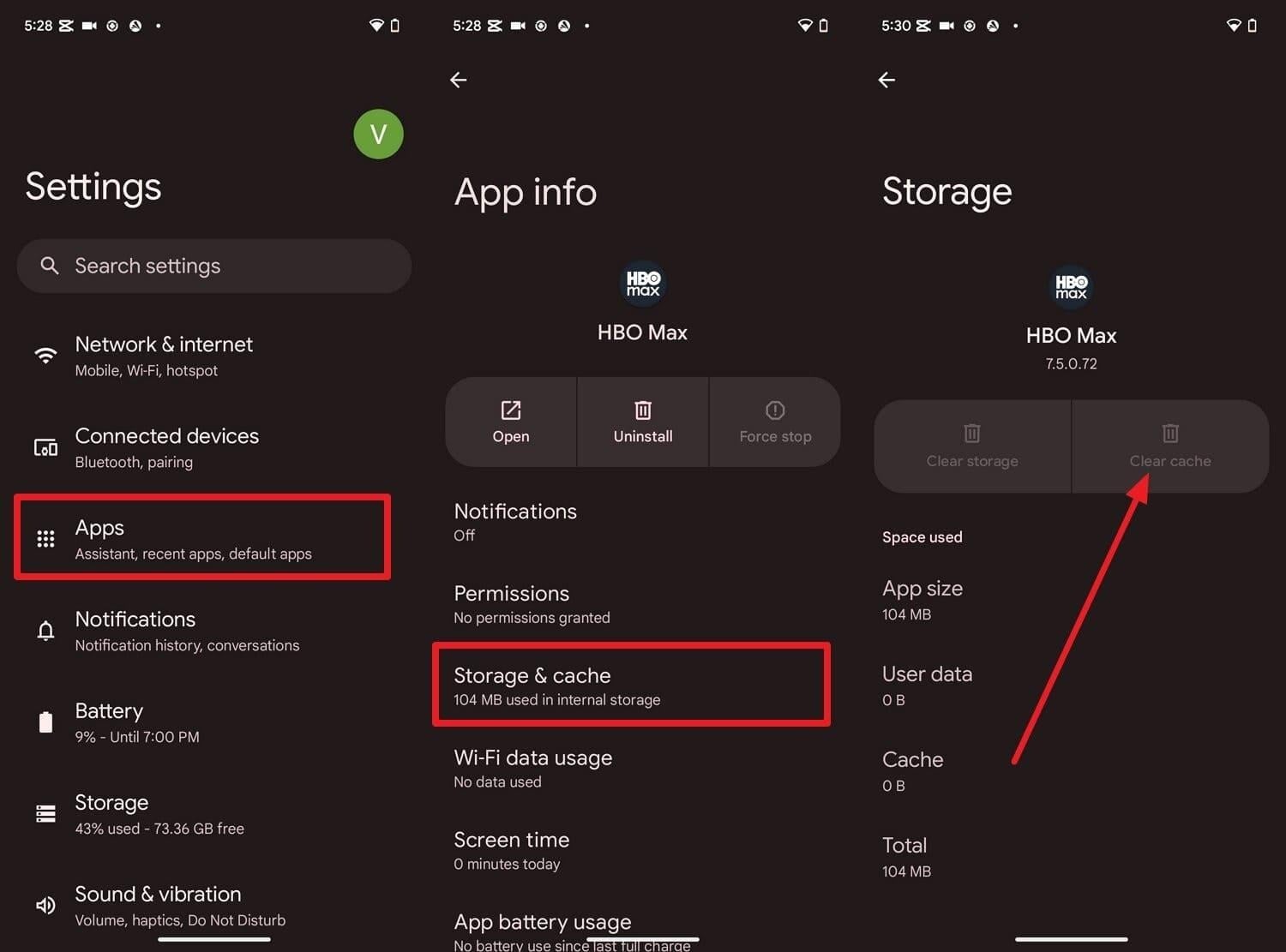
This method wipes the app’s temporary files while leaving your logins and content alone. Only reach for Clear Storage if the cache alone doesn't help, since that one resets the app completely. For the steps, here are the simple directions you can follow to use the Clear Cache option:
Instructions. In the Settings app, go to “Apps > Choose the problematic app > Storage & Cache > Clear Cache.”
Note: When multiple unrelated apps crash at once, Android System WebView or Google Play Services usually causes the issue. Clear their cache to fix several failing apps simultaneously.
Fix 3. Remove Anything Installed Recently
As another Android phone fix, think back to what went on the phone shortly before the crashes started, and uninstall it. Anything you sideloaded from outside the Play Store deserves particular suspicion. If removing something fixes the problem, reinstall it from the Play Store rather than the third-party source.
Fix 4. Get Your Storage Back Under Control
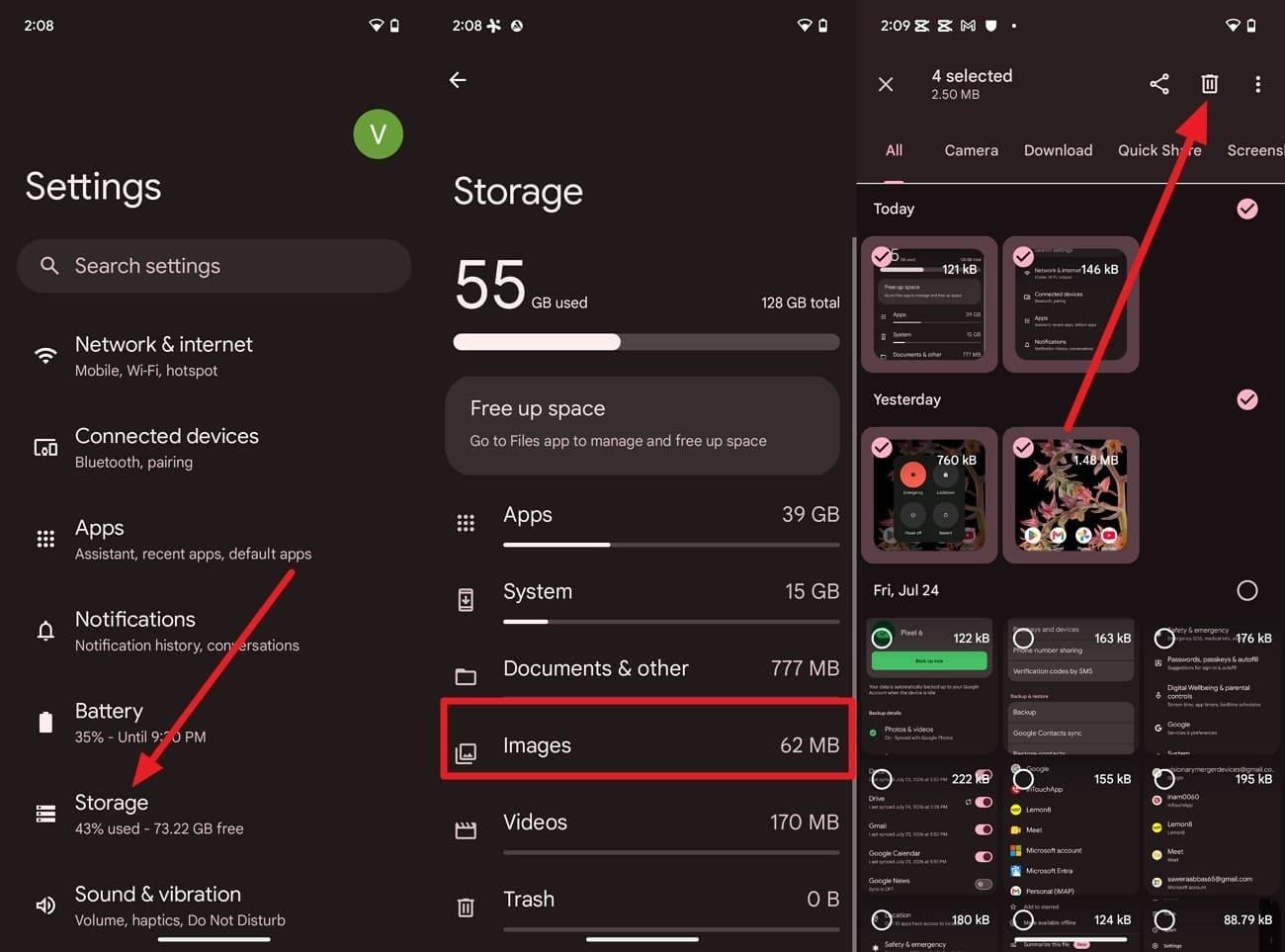
A phone running at capacity will keep crashing, no matter how up to date your apps are. So, make the steps as you follow the simple steps given in this method:
Instructions. Choose “Storage” in the settings > Tap on “Images” > Open in the Files App > Select extra media files > Press “Delete.”
Part 4. When Crashes Point to an OS Problem
Even after you try to fix an Android phone, repeated crashes may indicate an issue with Android itself. Review the given table and learn when a system-level problem is more likely to occur:
| Sign | What It Means |
| The Phone Restarts by Itself | Android or the device hardware may be experiencing a system-level failure. |
| Settings, Play Store, or Other Built-In Apps Freeze | Core Android services or system components may be corrupted or unstable. |
| Multiple Unrelated Apps Crash Together | A shared Android component, system service, or low-level software issue may be causing the crashes. |
| Problems Continue in Safe Mode | Third-party apps are unlikely to be responsible, pointing to an Android system or hardware issue. |
Use Safe Mode to Confirm the Cause
Safe Mode is one of the easiest ways to separate app problems from Android system problems. It starts the phone with downloaded apps temporarily disabled while keeping essential Android services active. If you're using a Samsung Galaxy phone, here's how to enter Safe Mode:
Instructions. Press and hold the “Power” and “Volume Down” buttons at the same time, and hold the “Power Off” option. Next, tap the “Safe Mode” option and restart the device in Safe Mode.
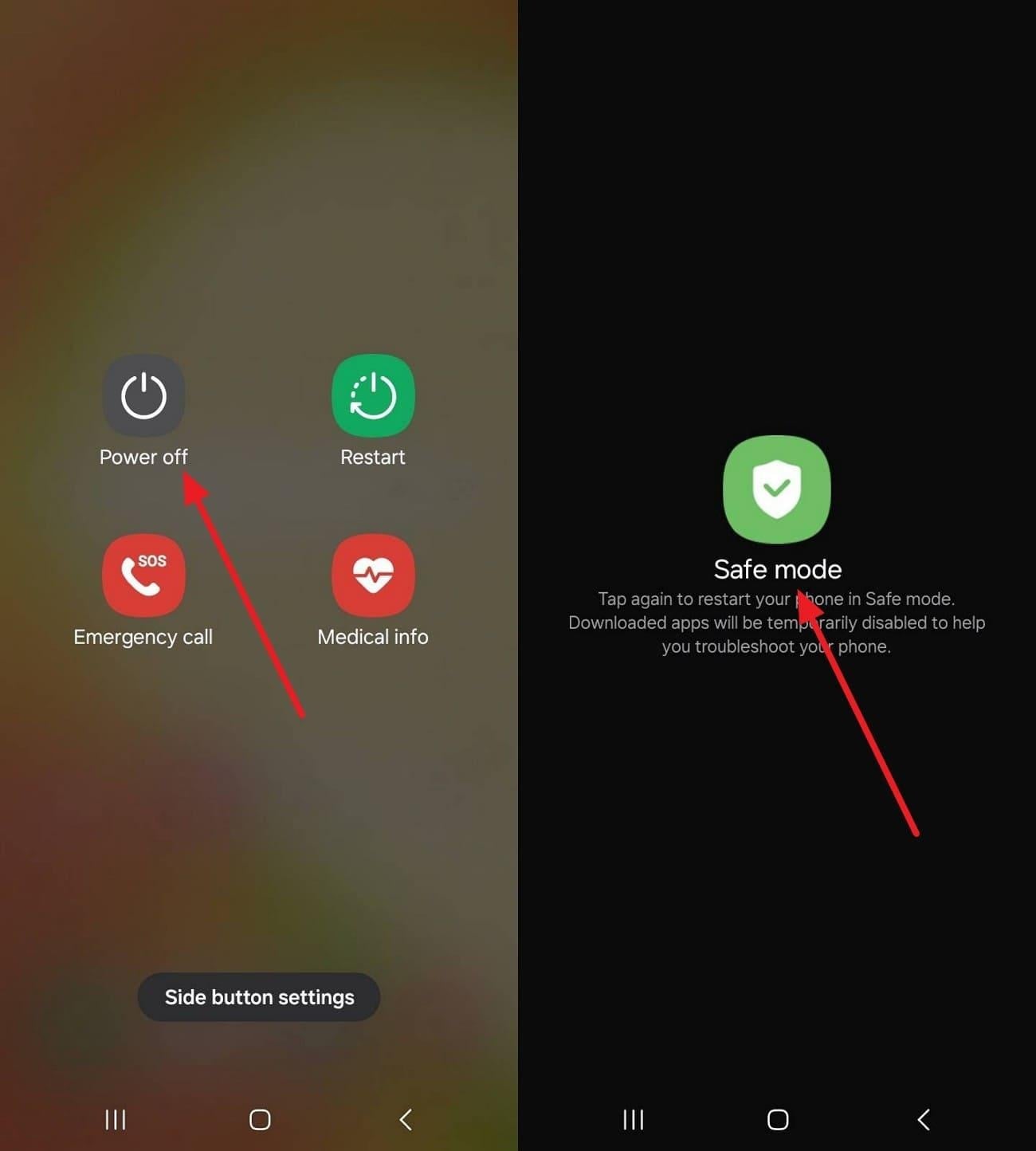
Note: Use the phone normally and check whether crashes continue.
Part 5. Restore Your Phone Stability with Dr.Fone
Once the system itself is the culprit, your options narrow to repairing the Android system. Dr.Fone – System Repair (Android) handles that job as Android repair software. It writes a clean system image over whatever got damaged, so you never have to source firmware or run a flashing tool yourself. Only on Xiaomi, Redmi, and POCO devices, it fixes system issues without any data loss.
Despite that, you can enter Samsung Download Mode/Odin Mode to repair firmware, with a separate guide for each Samsung model. This is done at no cost, which makes Dr.Fone an affordable and intuitive choice. Furthermore, you can enter Android Recovery Mode without key combinations and access Android Fastboot Mode for free.
Key Features
- Free Device Diagnosis: Scans and identifies the fault before you commit to a paid repair.
- Carrier-Matched Firmware: Uses your country and network to fetch the right regional build.
- Smart Repair Process: Guides you through each repair step without requiring technical experience.
- System App Recovery: Restores frozen built-in apps like Settings and the Play Store.
- Odin-Free Flashing: Handles the write without Samsung's own tool or manual firmware files.
Simple Guide to Repair Android OS Errors with Dr.Fone
When all the Android phone fixes fail, learn how this tool can stop Android crashes in just 3 given steps:
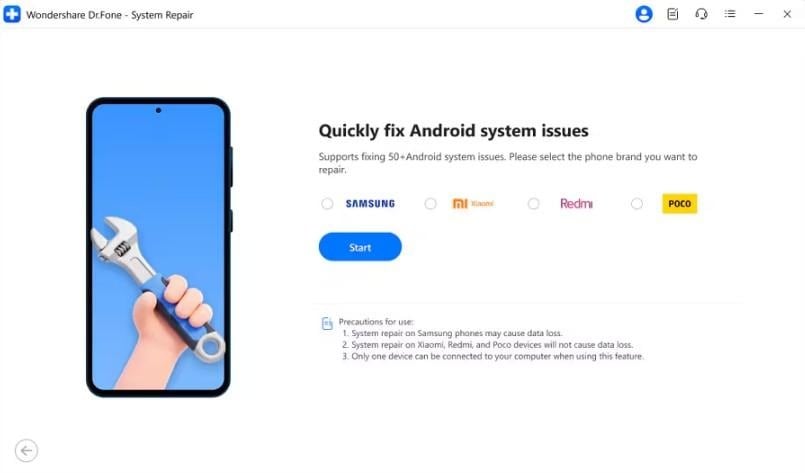
Step 1. Start the Android Repair Tool
Tap “Repair Now” on the “Android Repair’ tool and choose your Android brand, like Xiaomi, to start the system repair process without data loss.
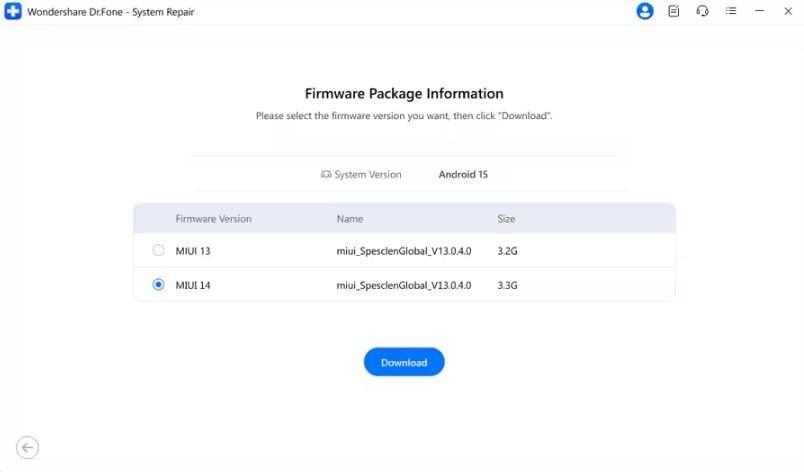
Step 2. Download the Firmware for Android
Dr.Fone will automatically search and present available firmware packages. Select the required one and press the “Download” button to install.
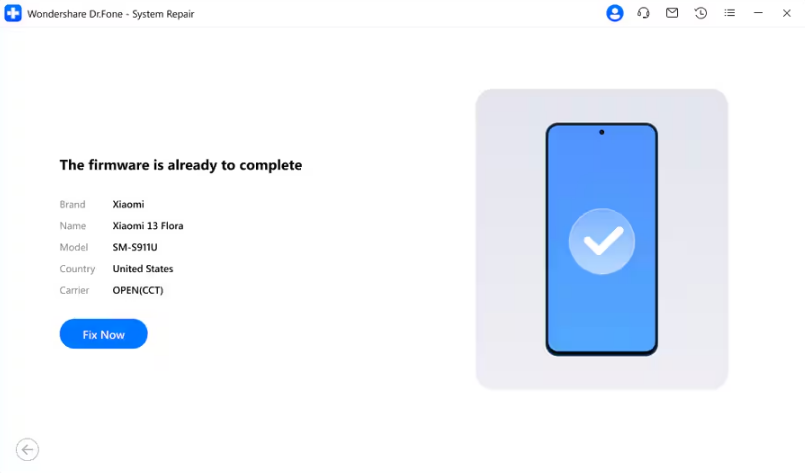
Step 3. Fix Android Crashing Issues in 10 Minutes
Once it's done, click the “Fix Now” button and wait 10 minutes for the Android system issues to resolve.
Conclusion: Keep Android Running Smoothly
Keep a couple of gigabytes free on the phone permanently. That single habit prevents more crashes than anything else on this page, and it costs you nothing beyond deleting videos you've already watched. Reach for Dr.Fone – System Repair (Android) as the practical Android phone fix only once you've confirmed the system is to blame.