

Meet Parth: Android Analyst & Hands-Free Advocate
First, let’s set the stage. Parth is a technology analyst and writer who specializes in reviewing Android devices and exploring their features, especially productivity apps and top hardware from brands like Google Pixel and Samsung. His expert guides help users get more out of their devices, making his advice valuable to anyone aiming to master Android’s advanced features and streamline their digital routines.
The Distractions of the Open Road
Staying focused while driving isn’t just a nice idea—it’s essential. As Parth describes it, driving on unpredictable roads—with cars braking, bikes squeezing through, and unpredictable pedestrians or even animals—means even a quick glance at your phone could be dangerous.
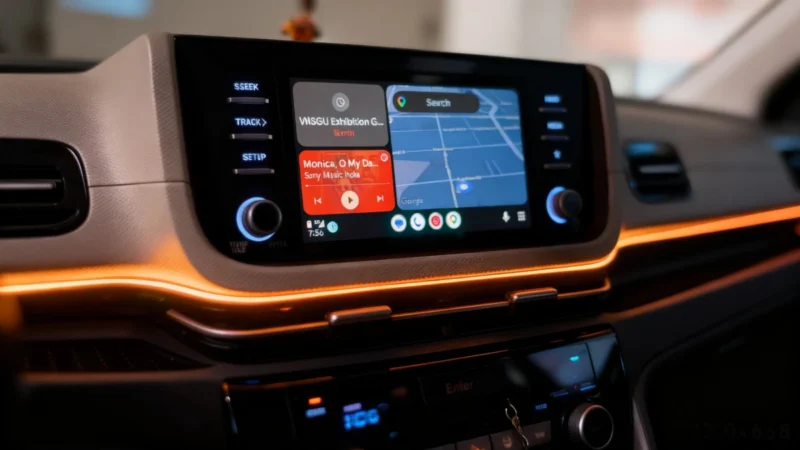
That’s why he decided to cut down on his screen time behind the wheel. But before he could do that, he needed to fine-tune his Android Auto setup for as close to a screen-free experience as possible.
Setting Up for a Hands-Free Ride
Parth started by adjusting settings in Gemini. He went to Personal Intelligence, then Connected Apps, and gave Gemini access to the key services he counts on during drives: Google Maps, Google Workspace, YouTube Music, Messages, WhatsApp, and Gmail. By turning on these integrations, even more manual interaction was removed. Now, whenever he gets into the car and connects his phone, Android Auto is ready—music resumes automatically without any taps.
Letting Voice Commands Take the Wheel
The real change came with voice commands. Parth could ask Gemini to send his arrival time through Google Messages with one command—instead of manually checking Maps, finding the ETA, switching apps, and typing. It worked just as smoothly for music—just say the playlist, artist, or mood, and YouTube Music responded, no scrolling needed.
Going totally screen-free isn’t always possible. Parth notes he still taps the display sometimes, like when jumping to a specific part of a podcast or song, but those moments are exceptions rather than habits.
By leaning on voice controls and thoughtful setup, Parth found himself focusing more on the road and less on the display—an approach he’s not planning to give up anytime soon.