



The Little-Known Video Resolution Setting in Android Auto
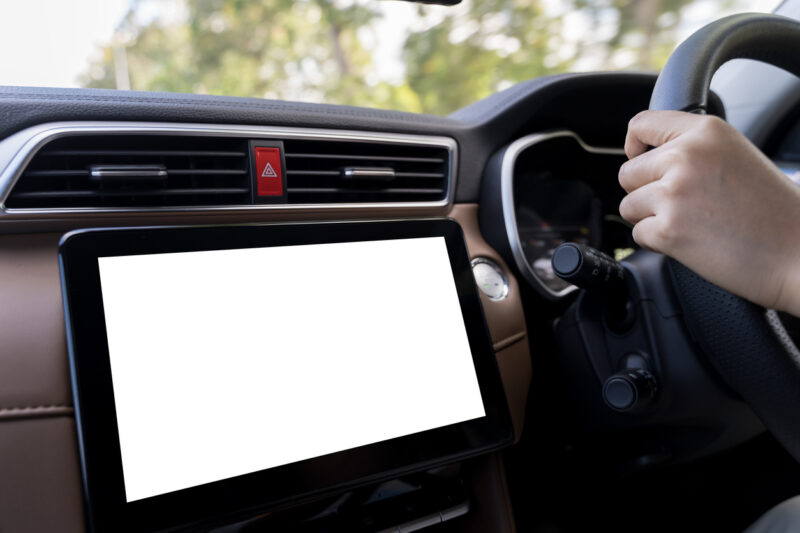
Since its launch in 2015, Android Auto has introduced new features and options with almost every update. But sometimes, the features Google keeps quiet about can have the biggest visual impact. That’s the case with the hidden video resolution setting. You can reveal it with a few taps in the developer options, as various forums have discussed since as early as 2018. Back then, some Honda Accord owners noted that the default display resolution was much lower than their car screens could actually handle. In fact, this problem still affects many vehicles in 2026, especially those with large, high-resolution factory screens. Drivers can end up with oversized icons and too little useful info visible—a waste of dashboard space.
How to Unlock the Setting
This option is found in Android Auto’s developer settings. If you’re using a Samsung phone, open Settings, navigate to Connected Devices, select Android Auto, scroll to the Version field, and tap it several times to unlock developer mode. Then, by tapping the three-dot menu in the top right, you’ll see Developer Settings—this is where you’ll find the video resolution option. If your car’s display has a decent physical resolution (such as a 1080p screen), increasing the setting can make everything much sharper and let you fit more on-screen at once. The difference is especially obvious if Android Auto wasn’t fully using your screen’s capabilities before.
Will It Work for You?
Android Auto sends an encoded display stream from your phone to the car’s system, using either USB or Wi-Fi. How crisp the resulting display is depends on your phone, the connection quality, and how the infotainment unit processes the image. If a car’s screen is limited to, say, 800 × 480 pixels (around 7.9 × 4.7 inches, but the resolution is key), raising the resolution in Android Auto won’t magically improve sharpness. According to testing cited in the original report, some users tried every available resolution and saw no visible improvement—especially on entry-level head units from brands like Sony and Pioneer, which in 2026 still often use 800 × 480 panels. On some older systems or when using Wi-Fi, trying to force a higher resolution could even trigger a blank (black) screen. If that happens, Google recommends lowering the setting back to 720p.
Other Useful Developer Settings
Even if adjusting the resolution doesn’t work for you, Android Auto’s developer menu includes other handy options. For example, you can set manual day/night modes regardless of the car’s sensors, or disable Wi-Fi to force a wired USB connection. Apple’s CarPlay doesn’t currently offer comparable advanced options, so Android users at least get a shot at further customization—even if not every tweak will help on every head unit.

I see this information repeated all over the place, and it is at best misleading, and at worst completely incorrect.
Android auto picks the “best” resolution automatically. on 99% of vehicles you cannot make any improvements with this setting, and only risk making things worse. only the extremely rare case of a misconfigured car gets any benefit this way. this is not like the hidden resolution settings on your phone itself which can make a big difference in day to day use.
correction : Android Auto does not connect via Wi-Fi, it connects via Bluetooth.
Yes that is wireless, but not “wifi ”
You can turn off the wifi on your phone and as long as Bluetooth is switched on you will connect.
That is why you need to pair your phone via Bluetooth to connect wirelessly the first time.
sorry, you’re incorrect. it connects via both. it uses Bluetooth for audio, and Wi-Fi for the display streaming. Bluetooth simply doesn’t have enough bandwidth to do the display streaming. that’s why earlier units required USB.