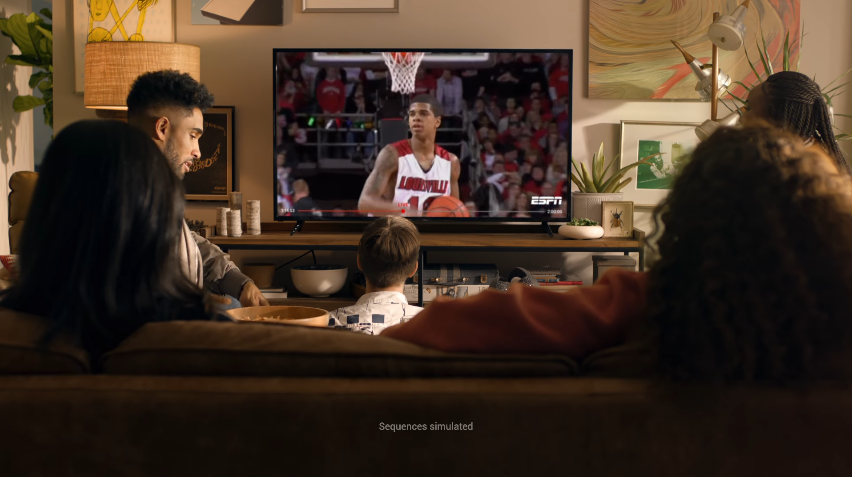

Love playing games but annoyed by the tiny phone screen? You’re not alone – lots of people wish they had a bigger display and easier controls. One good way is to share your Android screen with a PC, which can really level up your experience. It allows you to play on a larger display and use a mouse and keyboard for more accurate moves. However, one big issue is that there's a lag between what you do and when it shows up on screen. Even a tiny delay can mess up fast-paced games. That’s why choosing a method with low latency is so important. In this article, we will show you the 5 best tools for you to share your Android screen to PC for gaming. Read carefully to know more information about them.

Part 1: Why Share Your Android Screen to PC for Gaming
To share your Android screen with a PC, there are many reasons and benefits:
· Comfort and visibility: One most important points of the mirror screen is that you can enjoy a bigger screen to play your games, giving you the ease to spot enemies, read text, and others. It's more comfortable for long gaming sessions.
· Streaming or recording gameplay: To mirror Android to PC, it is also easier for you to record and share your highlight moments on social media or create gaming tutorials for beginners.
· Using keyboard/mouse for control (in some setups): Some mirrorring setups allow you to control your Android games using keyboard hotkeys and mouse. This can be a huge advantage in games that require fast, flexible reactions or precise control, especially shooters and strategy games.
Personal experience: ‘Once I connected my Android phone to my PC using a USB cable, the difference was instantly noticeable – my racing games ran smoother, the controls felt tighter, and the overall experience was so responsive it reminded me of playing on a high-end console. The lag was practically gone, and I could fully enjoy the speed and precision that these games are meant to deliver.'
Part 2: Best Tools to Mirror Android to PC
Ok, now we will give you a detailed introduction to the 4 top-rated tools for mirroring Android devices.
Scrcpy
The first choice is Scrcpy, which is a free and open-source tool. It allows you to mirror your Android screen to a PC without downloading an app on your phone, and then control the gameplay. The connection speed is impressively fast and provides low-latency performance and a high-resolution display, which is praised by many tech enthusiasts. It is lightweight, fast, and doesn’t require root access, making it one of the most efficient solutions for Android-to-PC screen sharing.
Pros
· It is a free and open-source tool with no ads.
· It provides USB and wireless connection methods.
· It supports up to 1080P display resolution.
Cons
· It requires ADB and command-line use, which may be tricky for beginners.
· It doesn't transmit sound by default, which is limited for some people who pursue an immersive game experience.
AnyMP4 Screen Recorder
AnyMP4 Screen Recorder is one of the top-rated tools for mirroring and recording your phone to a PC. With its specific phone mirror feature, you can cast your mobile screen to your Windows PC using Wi-Fi, QR code, or PIN code, providing versatile choices to enjoy a larger display for games. One important point is that it supports real-time audio transmission, which brings you immersive gameplay experience. Moreover, it has a recording feature that is ideal for both gameplay capture and tutorials. In all, this tool is easy to use and has good compatibility with Windows and Mac. Go and have a try!
Pros
· Wi-Fi connection and USB connection for mirroring Android.
· Hotkey features for you to control the screen quickly.
· Intuitive and simple setup for you to easily mirror your Android phones.
· Provides 4K, 1080P resolution for display.
· Offers real-time mirroring, screen recording, and audio sync via USB
Cons
· Wireless mirroring shows noticeable latency, making it less suitable for fast-paced games.
· You need to install an app on Android for the connection.
Warm Tip: For the smoothest gameplay, use the USB connection with tools like Scrcpy or AnyMP4 to minimize lag and maximize responsiveness.
Vysor
Vysor is also a popular screen mirroring tool that allows you to view and control your Android phone for gameplay. With a user-friendly interface, it offers a plug-and-play experience – what you need to do is connect your phone to the PC via USB. Moreover, it also offers wireless mirroring in the pro version, which can meet the different needs of people.
Pros
· Keyboard and mouse control for easy control over your phone.
· Works on Windows, macOS, Linux, and even in Chrome.
· Requires minimal configuration to use this tool for mirroring Android phones to your PC.
Cons
· High-quality mirroring and wireless connection require a paid subscription.
· There are ads in the free version, which are distracting.
Mobizen
Mobizen is a versatile screen mirroring application designed to help you cast their Android screen to a PC or TV with ease. It supports both USB and wireless connections, making it convenient whether you're at home or on the move. With a clean interface and easy configuration, it’s ideal for users who want a plug-and-play solution without technical knowledge.
Pros
· Built-in recording feature, which is good for casual users and content creators.
· Control your Android device from your PC using a mouse and keyboard (USB only).
· Works on most Android devices without needing root access.
Cons
· The free tier includes ads, which influence user experience.
· Advanced features like full HD mirroring is belongs to the premium version.
LetsView
LetsView is a powerful screen mirroring app that enables you to cast your Android screen to a PC with ease. It provides AirPlay and Miracast connection methods, enabling smooth connections over Wi-Fi. Bonusly, it has features like remote mirroring, screen recording, and real-time drawing, which is suitable for both entertainment and creating game tutorials. Moreover, it is commended for its lag-free and high-definition display features.
Pros
· Screen recording, annotation tools, and remote control features to optimize your gameplay experience.
· Stable Wi-Fi connection to share your Android screen to PC without USB cables.
· Mirror both the screen and audio from your Android to PC.
Cons
· It shows occasional lags when playing games.
· It has no USB connection option for mirroring.
Part 3: Step-by-Step Setup Guide (Using AnyMP4 Screen Recorder as Example)
After having an overall understanding of 4 best mirroring tools, let's learn how to share an Android screen to PC for gaming in detail. We will take AnyMP4 Screen Recorder as an example.
Step 1. Access the AnyMP4 official website, download and AnyMP4 Screen Recorder on your PC. Once installed, open the program on your computer.
Step 2. Choose the Phone Recorder in the top left corner. Then, choose Android Recorder as your device type in the new window. It will show the guide to help you connect your Android phone to PC.
Step 3. Connect your Android device either via USB or WiFi.
For USB connection, just use a USB cable to connect your phone and PC.
For wireless mirroring, you’ll need to install the FoneLab Mirror app from the provided download link.
The software will then link to your phone and begin mirroring its screen on your computer.
Step 4. Once connected, you can interact with your Android device directly from your PC – browse apps, navigate your phone, and perform tasks on a larger display.
The above are the complete steps for using AnyMP4 Screen Recorder to share the Android screen to PC for gaming. They are intuitive for even beginners, and what you need to do is follow them. Additionally, use the recording features to capture and create gameplay videos to share with more people.
Part 4: Tips for Lag-Free Gameplay
Bonusly, we will list some useful tips to help ensure lag-free gameplay when mirroring your Android screen to a PC:
Use USB connection: A wired USB connection offers significantly lower latency than wireless mirroring. Prioritize using a USB connection when playing fast-paced games.
Close background apps: Free up your phone and PC system resources can reduce the CPU load, so that it helps maintain a smooth mirroring performance.
Adjust resolution and bitrate: Choose and set a suitable resolution and bitrate in your mirroring tool, which can effectively reduce lag and improve responsiveness, especially on old devices.
Use a stable cable and port: Make sure your USB cable is high quality and securely connected to the port. Faulty or loose connections will cause interruptions or performance drops.
Part 5: FAQs
Can I play Android games with a keyboard/mouse?
Yes, you can. Some tools like Scrcpy and Vysor allow you to control your Android device using your PC’s keyboard and mouse.
Is screen mirroring safe?
Yes, generally it is safe. Screen mirroring is safe when using trusted apps and secure connections.
What’s the best free tool?
Scrcpy is widely considered the best free tool for Android-to-PC mirroring. You can use it to have a try.
Can I mirror wirelessly?
Yes, you can. Many tools, like AnyMP4 Screen Recorder and Vysor, support wireless mirroring via Wi-Fi.
Does it work for all Android phones?
Yes. If your Android phone has USB debugging turned on, it will usually work with most screen mirroring apps.
Conclusion
All in all, we have shared with you the full details about how to share Android screen to PC for gaming. Try them and pick one desired tool for big-screen gaming experiences. For the lowest latency and best performance, you should use a USB connection, often utilizing a lightweight tool like AnyMP4 Screen Recorder.