

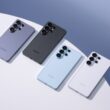
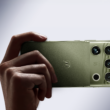


Big phone screens are great for being productive on the go, watching media, and generally just making a pleasant smartphone experience. But there's one thing that older, smaller phones were a little better at: being used with one hand.
Yeah, the 6.8-inch Galaxy S24 Ultra is a fantastic phone with a gorgeous screen, but it's considerably larger than the 5-inch screen on the Galaxy S4 that you've stashed in a drawer for the last few years. The Galaxy S4 was pretty easily used with just one hand, while the S24 is typically going to need a little more concentration or a different grip.
Fortunately, Android is built to give you options on using these modern larger screens without hyperextending your thumbs, and we'll show you how to use the feature, aptly titled one-handed mode.
For this example we're going to use a Galaxy S23+. Your phone might be slightly different, but all phones running Android 12 or newer should have this somewhere in the Settings app.

First up we'll want to head to the settings app. Samsung has included one-handed mode in the “Advanced features” section of OneUI's settings, alongside things like changing your side button, multi-window preferences, and gestures. When you tap on one-handed mode you'll get some options to set up exactly how it works, such as turning it on from a gesture (swiping down in the center on the bottom of your screen, like where the home button would be) or a button press (double tapping the home button). Personally, I think double tapping the home button is the easiest option, but if you've moved on to full gesture navigation for Android, you've got a backup option. On a Pixel, though, you'll have to use gesture navigation or an accessibility button; the options are going to differ slightly depending on your phone and software version.
Starting one-handed mode will give you a few more options, like flipping which side of the screen the window appears on and adjusting just how big the window is. You can shrink it down to about 40% of the available screen space up to about 80%, depending on what's comfortable for you. Again, this will depend on just what your phone offers for its specific one-handed mode operation. Using the Pixel as another example, you can toggle this to quickly pull your notifications down, for instance, instead of pulling half the screen down.

There's really no downside to turning this option and leaving it on, unless you make a bad habit of double tapping your home button or have some other custom gestures set up that would interfere. It'll only start when you specifically call for it, and you never know when you'll need to send a quick text while your other hand is carrying something.

All phones are different, but this is a quick and easy way to customize your Android experience and make it a little more comfortable and tailored exactly to how you want to use your phone. Let us know if you've ever set up these shortcuts on your phones before!


