




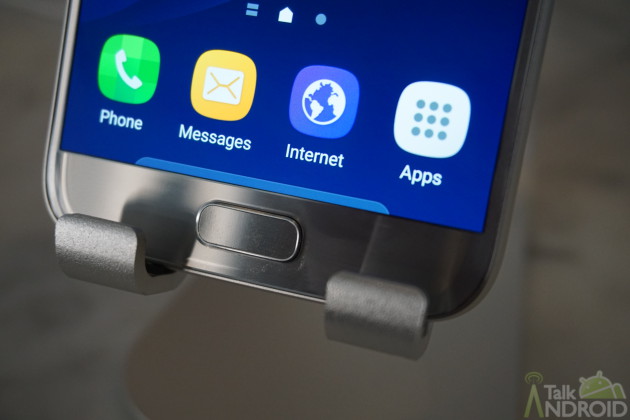
One of the neat features on the Galaxy S7 and Galaxy S7 Edge from Samsung is the fingerprint scanner. Everyone's familiar with this convenient feature, so much so that many are surprised when a device doesn't have it. The fingerprint scanner provides some useful security features and adds some convenience to your general web browsing as well as quick access to certain applications, such as banking or money transfers from PayPal. It really is useful, and it's quick and easy to set up.
Setting up your fingerprint
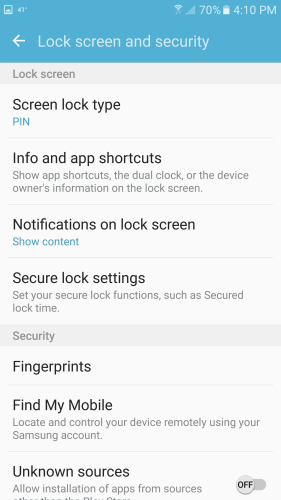
As mentioned earlier, setting up the fingerprint scanner is a breeze. If you didn't set it up when you first initialized your device, you'll need to go into Settings > Lock screen and security > Fingerprints.
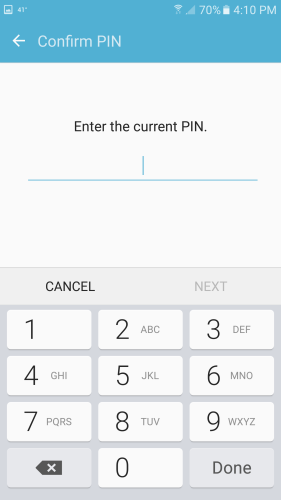
To access your fingerprints, you'll need to enter the PIN or password you set up.
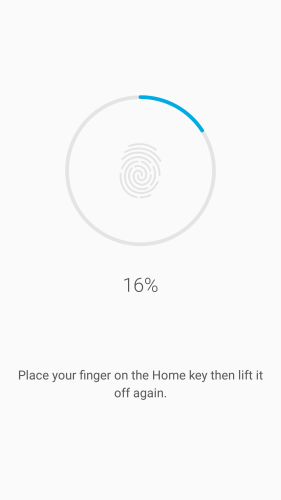
Once entered in, select “Add fingerprint.” Now all you have to do is place your finger on the Home key and follow the setup wizard!
And that's it! You've added your first fingerprint to your Galaxy S7/S7 Edge. You can go through the same process again and add multiple fingerprints in case you want to unlock your device with a different finger or even give a friend or loved one access.
Using your fingerprint as security for your device
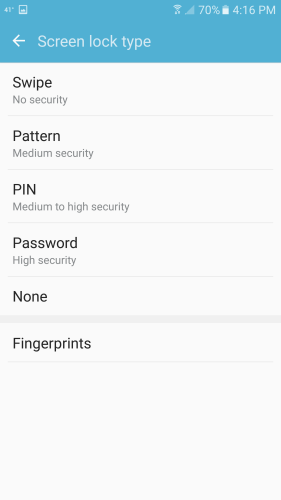
Once you've added your desired fingerprints to your device, you can choose to use your fingerprint as a type of security to enter your device. Go into go into Settings > Lock screen and security > Screen lock type. You'll have to enter your PIN or password to make any alterations to your security preference.
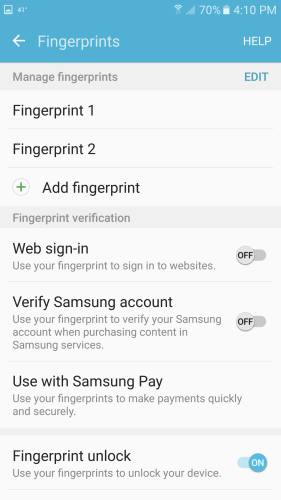
Once entered, select “fingerprints.” The Galaxy S7 and S7 Edge will now allow you to enter your device with your fingerprint, but you'll have to set up a pattern, PIN, or password to protect your fingerprints first. Not only does this protect your fingerprint, but it also gives you an alternate way into your device if, for some reason, the fingerprint reader wasn't recognizing your fingerprint.
Congratulations! You can now bypass your device's security with your fingerprint. But, there's a couple other neat things you can still do with the fingerprint scanner.
Using the fingerprint scanner to sign into websites
Did you know you can use the fingerprint scanner to log into websites? It's just as easy as setting up the fingerprint as security for your device, possibly even easier. Head into Settings > Lock screen and security > Fingerprints.
Enter your PIN or password.
Finally, tap the “Web sign-in” slider. Ta da! You can now sign into select websites with your fingerprint.
You can sign into almost any website you want. However, you have to be using Samsung's Browser app. From there, head into any of your desired websites and log in as usual. A pop-up will appear asking you to enable the Web sign-in feature. Check the box and accept. Now, you can log into that website with your fingerprint.
You'll have to repeat this process for any website you want to use your fingerprint scanner with.
And that's about all there is to it! Unfortunately, Samsung's fingerprint scanner doesn't actually let you log into the device with your fingerprint without hitting the power button first to wake it up. Huawei's Honor 5X and other devices allow you to do that, but Samsung hasn't. It's a small complaint, but would've still been nice to have for the added convenience.

Verizon model can’t use Web sign in with finger prints or what cause that option doesn’t show up on mine
Just got an S7E and im enjoying the extra functionality. Good write up. I find the fingerprint scanner is more hit than miss. I think with proper calibration it should work every time, I have been having 70% success rate however I have not re calibrated my prints since the first scans when i was scared to take the plastic off the glass when opening the box. I also think its a good idea to use both thumbs and rotate and change pitch of your thumb when calibrating. In a perfect world there will be an update that would add successful scans to the existing calibration data base so that the scanner should only get more accurate the more its used. I also have several locations set as a “safe zone” so that the phone should not lock when I’m home. Overall Im good with how the scanner preforms but today It did not work and I was locked out for 30 mins … after that 30 min I tried again and now Im counting down for an hour of being locked out. I hope it works next time or I may be screwed! This phone has amazing features, functions, and user control options. Thanks for this article.
im having the same dam problem right now it normally will default to the pass word after three tries but not now it just lets you try fingerprint once and then adds more time on till next try currently at two hours. This is crap.
It’s OK just wait it out and re calibrate. Do not try and see how mad you can make your phone cause it will keep adding time. Make sure to delete the bad scan entry causing you trouble as well when you get it unlocked again. What I found out after is that you can add multiple fingerprint profiles. So you can even do one thumb twice at different angles. Or you can add a relative. It is best to hold the phone naturally with one hand supporting it with your four fingers. I set one up for each thumb and an index finger in case I loose my thumbs for some silly reason. Your thumbs will likley be sideways in a txt style format (natural position) and not straight up and down this way you can unlock it fastest and one handed with more ease. With an index fingerprint the scan will likely be most natural in a position pointing up to the Samsung logo. With multiple profiles it will open much easier. I haven’t been locked out since setting up more profiles however about one in 10 times I will have to wait 1 second and scan twice. It is a lot more accurate now so I will be keeping this function on. Be sure to set up your safe or secure zones… not sure if it is Samsung or Google setting but when I am home I never need to scan or enter password if location is on… you can set multiple safe zones when you are in these areas just swipe to unlock as a default. Outside these zones the fingerprint or password unlock is required as the default. Good luck and remember to back up your data with samsung…. that way if you loose all your fingers you can still factory reset and get all your information and settings back!
thanks For all the info Tim it had been working great but today i was staining some woodwork and stain had settled into my print. Otherwise it had been working flawlessly everytime. It finally let me back in and i will check out the safe zones settings. THANKS
Fingerprint scanner worked great on Samsung S6 Edge with Android 5 but after updated to Android 6 (where a new mechanism is already included) I often have the issue that the fingerprint is not recognized (scanned finger from all angles). Didn’t behave like this before.
use all parts of the thumb and different angles i find it works best so no matter which way u hold it on home button it wil get a read..
Actually I am really disappointed in the S7e’s fingerprint scanner. I have three times re-programmed the button with both left and right thumbs, always using the central meaty part of the thumbprint, and always using a similar angle, ie slightly less than 90 degrees. OFTEN it does not work at all, and sometimes locks me out for 30 seconds. Really annoying. It seems to be worse when the phone is set to bypass security when connected to my home wifi… but when I pick up the phone, I use the fingerprint scanner anyway since that’s what I’m used to now, it should work all the time, but only works some of the time. I’m considering turning it off.