




.
.
.
Have you had problems getting AllShare to work on your Galaxy S phone? Unfortunately it's not just a matter of right clicking and clicking “share” and there aren't any good sources available on the web for this either, hence this guide was necessary. So let's get started shall we? Oh, this guide is intended for Windows 7 users only.
The secret ingredient to this whole process is Windows Media Player. (You can click any of these screen shots for full-size versions)
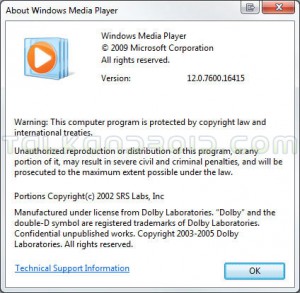
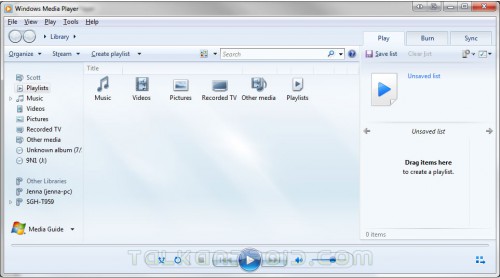
I'm using version 12 of WMP, so I'm going to assume you're a good little computer user and you keep your software up-to-date as well ;) Anyway, once you have WMP open, you need to view your Library. If WMP doesn't take you there by default, just press CTRL+1 and it will take you there.
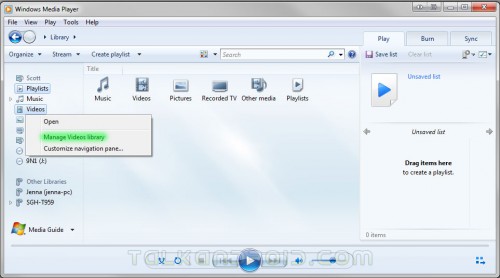
Now that you're in your library, you need to right click on whatever type of media you want to be able to browse on your phone (I'm choosing Videos for this example) and then click Manage Videos Library.
You will then be greeted with the Videos Library Locations box.
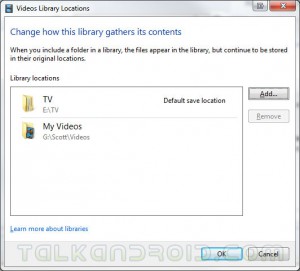
At this point, just click Add, point it to whatever folder you would like to be shared to AllShare, and then click Include Folder. Once you do that, you will be brought back to the Videos Library Locations box, at which point you should see your new folder that you just shared.
That's it! You will now be able to stream videos (and whatever other media type you add the same way in WMP) to your AllShare-equipped Galaxy S device! Pretty simple eh?

I saved the Allshare install program from Sampson and then ran the install program as an XP compatatility program and it works fine.
alll you have to do is share your folders with your home network and put your pin in for your router (but that should be done already). and it will work
Further to my previous post – I did not use WMP, as I allowed it to access Allshare and the whole thing crashed. Could not get Allshare to work at all after that, and nothing in WMP could be viewed on my phone at all!! Dont use WMP, it is useless!!
In the words of Steve Jobs, it just works!! I have W7 and loaded Samsung Allshare program onto the PC and it recognised my Galaxy S, and it just works!!
Just google search
Step by Step Guide on How to Convert and Transfer MOV, MPEG, FLV, MVI, MKV, 3GP and WTV to Various Samsung Galaxy Phones
you will find a simply solution
what if its and older version of wmp and the computer isnt hooked up to the internet to dl new software?
Thank you so much…
The easiest faster and best way to make all share work.
No need of any addituinal PC Share software..
Thank you so much
__
David G.
androidgeeky.weebly.com
Unfortunately it’s not just a matter of right clicking and clicking on the web for this either, hence this guide was necessary. I also have a Logitec Squeezebox Duet on the same wireless and it works perfectly. .
I got AllShare working to stream videos from my windows xp to my galaxy s.
The trick for me was downloading samsung’s pc software called AllShare from
How do i stream to my 360…? I have the galaxy s…
Hopefully this will help some people. When I did this I just was greeted with a constant loading symbol in the corner. Click “Stream” on the top left of your library, go to “More Streaming Options”, Click “Local Networks” and switch it to “All”. At the bottom should be “Unnknown Device” and if, like mine, it’s blocked, just click allow and it should work great!
Just to let you know Jesse (and anyone else) that I’ve not sussed this out but I’ve found an alternative that works perfectly! Download Samsung PC Share to your computer and follow the set up instructions and then you can share everything on your phone just brilliantly. Hope this helps.
I third that but i cant access my computer through my phone but my phone will show up in wmp
allison, i have the same problem. and i don’t know how to solve it.
Can anyone help me get AllShare going on my Vista computer please? When I look at my network map, my Galaxy is at the bottom and a message says “the following discovered device could not be placed on the network map”. I also have the latest WMP and my Galaxy is not shown at all for sharing. The strange thing is though that through AllShare I can actually access the photos on my PC and look at them on my phone. I can also see the music files and video files but when I try to play them I just get the message “Cannot play”, even though they are in the correct format, ie mp3 and avi. Any help would be much appreciated. :)
How to make it work with mac?
How do I play movies that are on my samsung galaxy to my tv?
Marx I have the same problem, same error on Vista. I’m not sure of my WMP version, as I’m at work right now. My PS3 can media share from the same pc with no problem at all. My captivate can see the files, but wont play any of them, and crashes the sharing service on the vista box.
Well I have WMP 11 and I can browse through my media and I can open pictures from my phone. But I can’t play music or videos on my phone. I get something like “Can’t be played” error on my phone. At the same time I get “Windows Media Player Network Sharing Service has stopped working and must be closed” error on my pc.
Does someone know why?
I appreciate the tutorial, however I cannot even get my win 7 pc to see my Captivate or vice versa. I have tried turning off the Mcafee firewall, with no results. I’m not super savy in network speak, so any help anyone can provide would be appreciated.
Control PanelNetwork and InternetNetwork and Sharing CenterAdvanced sharing settings
“Media streaming” — ON
Ok, so now that I’ve succeeded in moving my entertainment from a large laptop screen to my little Epic screen, what is the point of this?
Ok, so now that I’ve succeeded in moving my entertainment from a large laptop screen to my little Epic screen, what is the point of this?
how do u get allshare to work on samsung tvs??
Thanks for the tutorial. I’m having a little bit of an issue. I have my music on an external hard drive. When adding the “location folders” in WMP, I set the default folder to the Music Folder from the external harddrive. But it doesn’t show as a server on my phone. When I leave the default folder set to the “My Music” folder that’s installed on my PC, everything seems to work fine. I’ve been able to stream everything to an Xbox 360 so I know that I have streaming properly enabled. Any tips? Thanks in advance.
make sure you click ‘stream’ at the top in wmp 12 then ‘turn on media streaming’
The best solution in my opinion is Samsung PC Share Manager. It works also with the Galaxy S. Now i can find AND play mp3 files on my pc tru wifi on my Galaxy S.
WMP 11 didn’t work at all and Tversity allowed me to browse through my mp3 files, but not play them.
correct and you have to make sure you’re sharing them in your WMP library as well
After I add the folders I want to share, I press OK, correct?
Oddly enough, it’s still not working. I followed everything you said, added ‘everyone’ to the list of people, and it’s still not showing up.
Well that is odd. I didn’t run into this issue when sharing video. Right click the Music folder you want to share & click properties. Then click the sharing tab, click the Share button. Make sure that “everyone” is in the list of people. If not, click the little down arrow to the left of the add button, click everyone, click add, then hit share. Your music folder will now appear on your device.
It’s odd because it didn’t matter if the folder was shared or not when I was streaming video. But anyway, let me know if the above solution does not work (it should)
Music file
I tested it on both the Captivate and on the Vibrant. What type of file are you trying to play?
This is supposed to work with ALL Galaxy S phones, correct? I’ve tried multiple times and it’s just not working with my phone (Samsung Captivate) Yes, I have Windows 7 and WMP v12.
Solved the problem, i downloaded Tversity and now its working fine. Thanks anyway.
Thanks for your test with XP and WMP 11. Somehow I don’t get Allshare working. My phone (Samsung Galaxy S) doesn’t appear in the Share files box of WMP 11. The box is empty so i can’t Allow anything.
My phone is connected tru wifi to the wireless network, I only have 1 router and as far as I can see all necessary ports of the firewall are open.
I also have a Logitec Squeezebox Duet on the same wireless and it works perfectly. I turned off the Squeezebox server, but dit didnt make any difference.
Do you have any idea’s on what I do wrong?
Got it working after some additional tinkering, this is really cool, plays all files without a problem so far :)
NOTE!! You have to allow the library to update all its new information, otherwise the files you added wont turn up in the list. I had to restart my Galaxy S after my media player had finished its search for all the media files, before I restarted my galaxy it neve refreshed properly.
Ok thanks, because i dont seem to get it working.
I dida little testing with XP and WMP 11 last night. I wouldst get it to work but i will try again tomorrow
Will allshare also work with Windows XP and WMP v11??