




Chances are that you have more apps on your phone than you know what to do with. With over two million apps stretching across different categories, it's hard to pick one or two that's best for you.
Already, your Android device is preinstalled with the essentials: Google Chrome, Gmail, Photos, and more. But sometimes, you want more out of an app. We've compiled the top 10 apps you didn't know you needed on top of that. You'll find them below.
Overview of the best Android apps for you
- Best Navigation and Transit App: Uber.
- Best Messaging App: WhatsApp.
- Best Cloud Storage: Google Drive.
- Best Music Streaming: Spotify.
- Best Movie Streaming: Netflix.
- Best Document Editing App: Google Docs.
- Best Fitness Tracker: Fitbit.
- Best Team Management: Slack.
- Best Photo Editing app: PicsArt.
- Best Generative AI: Gemini.
1. Uber


Uber has since established itself as the go-to app for all things travel and transit. Its services range from solo to group rides. You can even schedule a ride if you have appointments later in the day or week. Payment can be in cash, gift cards, or debit and credit cards. The app also doubles as a delivery service, so you can send a package to customers or loved ones from the comfort of your home. You may even have the riders pick up packages for you.
Mainly, I love sharing my Estimated Time of Arrival (ETA) on Uber. Not only does it give people time to prepare for my arrival, but it also tells loved ones the exact place I am. It's something you want to do if you're as paranoid as I am. You'll need to enable the location feature on your phone to make the most of the app. Although it's not compulsory, it'll help the app find your precise location and match you with a nearby driver.
2. WhatsApp

A key WhatsApp feature is end-to-end encryption, which ensures the privacy of all your messages and calls. When you send a message on WhatsApp, the app encodes it with a key on your device. This key is unique to you and the recipient, so no one outside the conversation gets their grubby hands on your secrets.
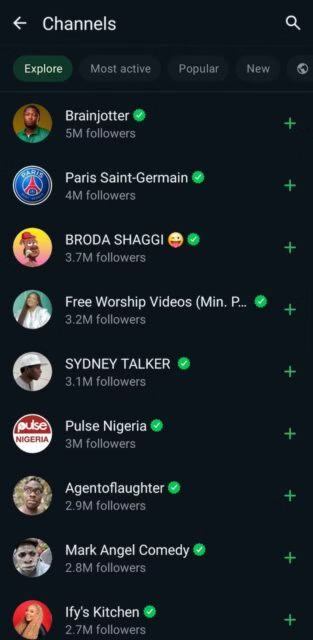
You can also enjoy voice or video calls with mobile data and send messages to yourself. I don't like that WhatsApp is becoming mainstream, with the inclusion of Channels and an upcoming search feature that finds new users. But I love that it remains a simple app for youngsters and seniors to use.
3. Google Drive


Cloud storage has become the most reliable and trusted way to save and backup data. But Google Drive isn't just a simple storage solution. It integrates with Google's workspace apps so that you can store any file from Docs, Sheets, and more. The tech giant has tailored it for individuals and teams, so you can use it personally or share it with colleagues.
When you create a Google account, Drive offers 15GB of storage space. With a Google One subscription, you can increase it to one terabyte. What really stands out for me is the collaboration. Instead of saving heavy files on your device before sending them to third parties, you can create a shareable link to the file in Drive.
4. Spotify


Spotify lets you personalize your feed to your listening taste. Its algorithm learns daily from your picks and searches to create unique playlists, like the iconic Spotify Unwrapped. You can also collaborate on playlists and sing along with on-screen lyrics.
The free plan saves you from unnecessary costs if you don't plan to use the app often. However, it comes with annoying ads. Subscribing for an Individual, Student, Duo, Family, or Prepaid premium plan removes the ads and unlocks access to offline listening, among other features. You can cancel at any time, or switch to alternative music platforms if you end up not liking it.
5. Netflix


Spotify is the crown jewel of music streaming apps, while Netflix is easily the first pick for video streaming. It houses blockbusters, series, documentaries, and reality shows. Also, you can't talk about Netflix without sharing your password. Although it's not what it used to be, you can still share your viewing experience with household members.
Under Netflix’s updated rules, sharing an account is permissible for people living together. You'll need to set a primary location; the app will most likely use your device’s IP address to confirm it. Anyone not residing at the primary location will have to sign up for their own account.
6. Google Docs


Google Docs is cloud-based and allows you to edit documents from any device. You need an internet connection, and your work progress is saved as you go. The web version lets you edit from your computer, and there's also a mobile app if you prefer to edit from a phone or tablet. When you're done, you can save your work in numerous formats, including Word, PDF, and EPUB documents.
Sharing your document's link gives third parties access, and you can set their responsibilities. They can either view only, leave comments only, or have full rights to edit the document. You can change these roles at any time and kick unwanted people off your projects.
7. Fitbit


Fitbit is Google's fitness tracking app. It offers accurate and essential metric monitoring, including steps, distance, and calories burned. Although it works best when you integrate it with your wearables, you can manually log activities and get detailed assessments.
The app's interface is simple and split into three main menus: Today, Coach, and You. Today shows you calories burned, kilometers and steps covered, sleep duration, and more data for the day. Coach provides access to video and audio resources from different coaches to aid your wellness journey. Meanwhile, You is where you'll see your account information, join different communities, and set goals.
8. Slack


Your Slack workspace allows you to create channels to discuss specific projects. Team members can talk about tasks, share files, and brainstorm ideas all in one place. For example, you could create an #app-design channel to discuss your digital products. You may also create a separate #app-launch channel to discuss launch events, deals, and other activities afterward.
You can mention specific people with the @ symbol or address active members, and they'll receive notifications. Emojis also bring life to channel conversations, so it's not all work and no play. Private messaging workspace members allow for more target communication. project management apps, Google Drive, and Dropbox. This allows you to share information and updates from these tools directly within Slack
9. PicsArt


PicsArt is a free-to-download app, although you need to create an account. Otherwise, you can't save your creations. At first glance, it doesn't look like much. But when you begin editing, it's easy to get lost in the features. You can use filters, retouch facial features, and remove your picture's background. There are occasional errors when loading effects, but they're fixable when you troubleshoot the app with cache clearing, force stopping, or restarting.
PicsArt even lets you edit videos and use impressive AI features. My favorite is AI expansion. Sometimes, you have a photo you love, but it doesn't quite fit the format of the platform you want to post it on. The AI tool analyzes your image, stretches the canvas, and generates a new portion that blends with the original image.
10. Gemini


Google Gemini is a new AI assistant that's meant to complement the existing Google Assistant. It's slower compared to ChatGPT and other generative AI models. However, it gives you real-time information in the simplest way possible. You'll find this capability useful if you struggle to understand complex concepts.
Gemini isn't always correct, so you still need to double-check its responses. The base model lets you use text prompts and view your history. With the Advanced subscription, you can use Gemini across Google apps, generate unique images, get up to 2TB of storage space, and video enhancement in Google Meet calls.
The Google Play Store brings endless app selections
From alarm clock apps, mobile games, and e-book readers to Reddit-integrated apps, the Google Play Store makes it possible to download any app safely. Even when you can't download a popular app in your region, you'll find alternative apps. It's worth taking the time to explore the store and find apps that match your needs.

