




Social media can be confusing, and Gen Zs with their lingos are not making it easier to join the experience. If you want a fun way to communicate with loved ones without overwhelming yourself, WhatsApp is a good place to start. For businesses, leveraging tools like a WhatsApp CRM can enhance communication and streamline customer interactions, making the platform even more versatile.
The app isn't necessarily dependent on having younger family members to teach you. Plus, it has a simple user interface that you can understand in minutes. Here's more information on the app and how to use it.
What is WhatsApp, And how does it Work?
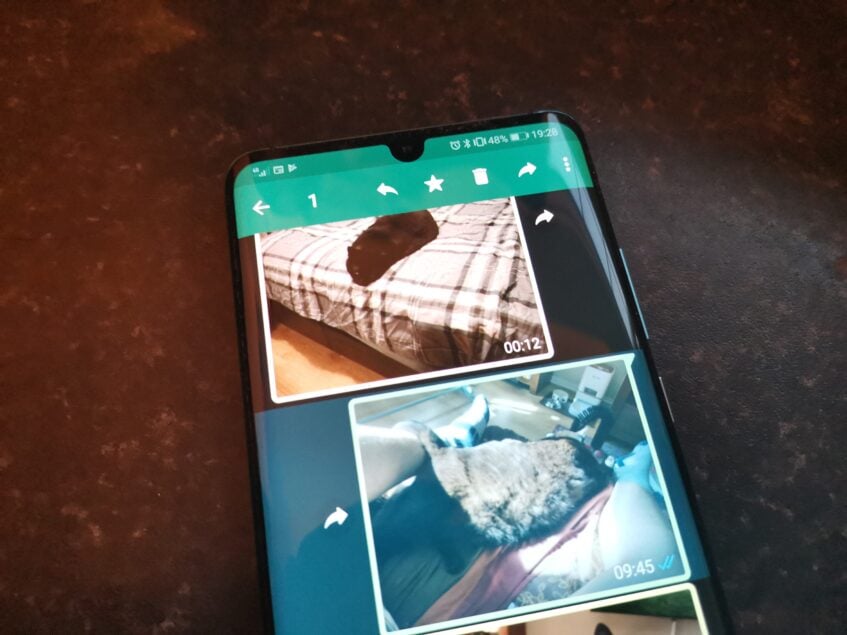
WhatsApp is a free messaging app that Meta (the same company behind Facebook) developed and launched in 2009. It enables you to connect with friends and family without using regular text or phone features. Frankly, it's the better option as it doesn't include carrier charges, especially when making international calls. Plus, you can use WiFi or mobile data for chats, as well as voice and video calls.
WhatsApp has wide multimedia support, where you can share voice notes, stickers, GIFs, photos, and videos among other file types. Also, you'll have access to joining or creating communities, channels, statuses broadcasts, and groups if you want to share content with multiple people at once.
In a nutshell, WhatsApp gives you the freedom to reach people at your own convenience. If anyone's disturbing you, the block and mute features are not far away. It may seem overwhelming, but you'll enjoy using the app once you get the hang of it. But we'll start slow.
Let's begin with installing the app and setting up your profile.
Note: We've used an Android smartphone running the Android 14 OS and One UI 6 for this walkthrough. The steps may vary on your phone's version, especially if you use an iOS or iPadOS device. Also, WhatsApp has a web version, although it has limited features and still requires connection with your phone.
How to install WhatsApp and set up your account
WhatsApp is available for download on the Google Play Store and Apple's App Store. It's a free app, so you don't need to make any payments. If you run into any issues installing it on your Android device, check that the Play Store is up to date.
When you've installed the app, follow the steps below:
- Open WhatsApp. You'll see a welcome message with clickable links to review the app's privacy policy and terms of service. You'll want to take your time and read through those so you know what you're signing up for. Then select your preferred language and tap Agree and continue.
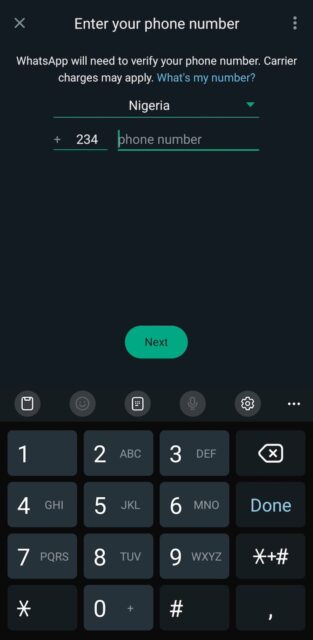
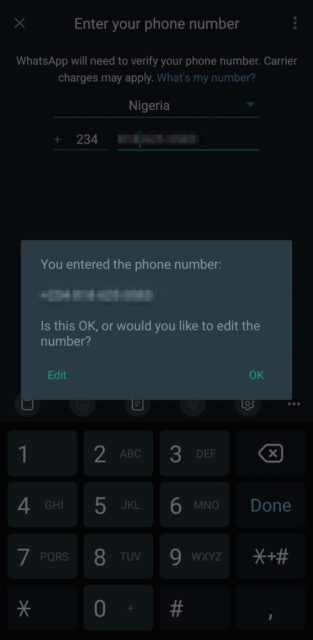
- Select your country and enter your phone number. Then tap Next. WhatsApp will prompt you confirm the number. If it’s correct, tap OK. If not, tap Edit.
- WhatsApp needs to verify that your phone number is active. Typically, an automated call comes through to your phone. You don't have to answer it, as it ends immediately. Tap Continue to allow it. But if you don't like the idea, request for an SMS confirmation instead. Tap Verify another way to see the option.
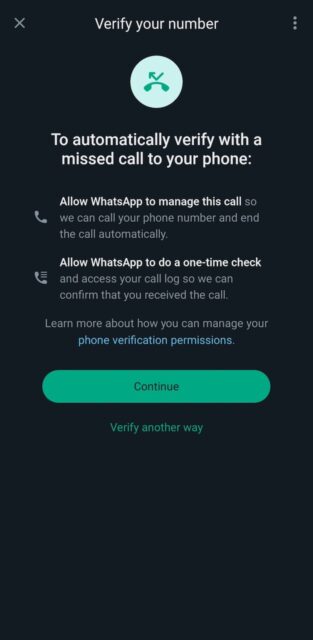
- WhatsApp will request permission to access your phone call logs. Allow it. If you don't, you can't proceed to the next step.
- Enter a name you want people to see when they view your profile or when you appear in groups. It doesn't have to be your real name, and you can add an emoji to it.
- Tap the camera icon to add your profile picture. This part is optional, and you don't have to use your real photo. It can even be a cute cat picture. Tap Next to continue.
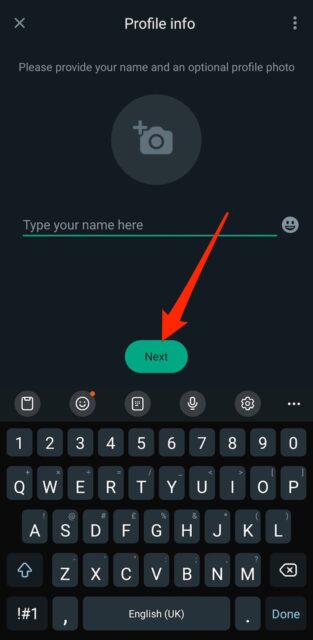
- Create a passkey for an extra layer of security to your account. If you don't want to, tap Skip.
Now you've successfully installed WhatsApp and created your profile. You can begin chatting with people, although you have to add them to your contacts for it to be possible.
How to chat on WhatsApp
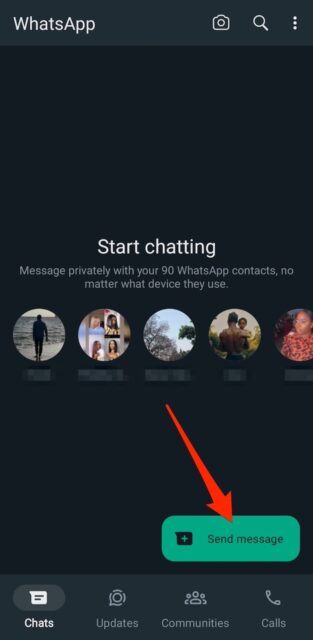
As a new WhatsApp user, your Chats menu is bare until you initiate a conversation with someone. When you send them a message, the menu keeps record of it and you may revisit the discussion at any time. To begin, Follow the steps below:
- Tap the Send a Message button at the bottom right corner. Sometimes, it appears as a chat bubble with a plus inside a green circle.
- Under Contacts on WhatsApp, tap a name to open their chat screen.
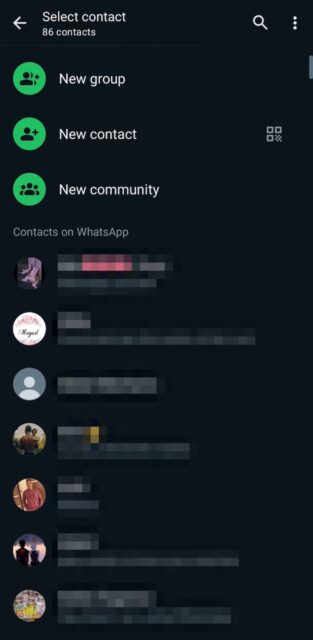
- Tap the text box at the bottom to type your message. The emoji icon on the left side of the box lets you insert emojis with your messages. Use the paperclip icon to send images, videos, documents, polls, and more. The camera icon beside it lets you shoot an instant video or photo and send to that particular user. Tap the recorder icon beside the camera icon to send a voice note.
How to voice and video call people on WhatsApp
WhatsApp primarily uses your mobile data to make calls, but you can also use a WiFi connection. You'll need a strong internet connection, otherwise the quality becomes poor and the app struggles to reconnect the call when it becomes unstable. Use the following steps to start:
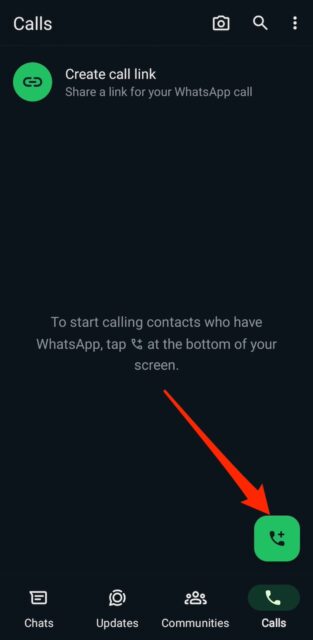
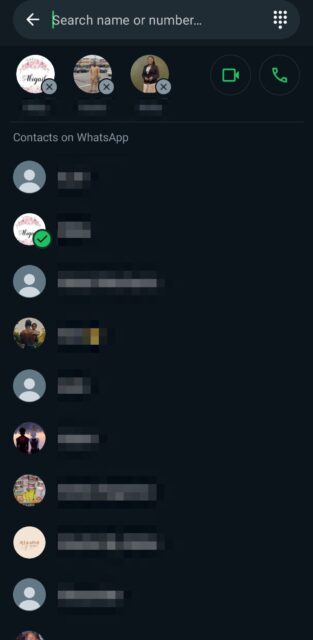
- Tap the Calls tab at the bottom right corner. Then tap the phone icon with +.
- Select a contact (or multiple people), and tap either the phone or camcorder icons in the top right corner to start a voice or video call.
How to share updates on WhatsApp
The Updates menu is where you'll post a status, create a channel, or follow your interests and content from your contacts. A whatsapp status is a temporary update you can share with your contact. It can be short messages, quotes, or a random thought, as well as memorable photos and videos. After 24 hours, your status disappears, similar to Instagram and Facebook.
On the other hand, WhatsApp channels are less personal and are designed for businesses or organizations who want to communicate with a larger audience. It allows you to share information with people who choose to subscribe to your channel. Also, a channel doesn't disappear and retains your post history for as long as the channel is active.
Here's how to create and use both:
Uploading a WhatsApp status
- From the Updates menu, tap the pen button to make a text or voice recorded status. You'll see options to change the background color, font, and add emojis for text statuses. You can only change the background color for voice recorded statuses.
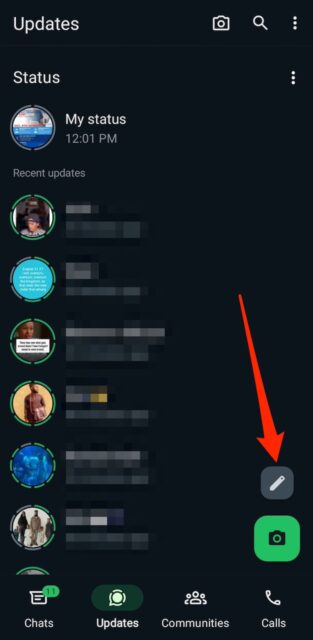
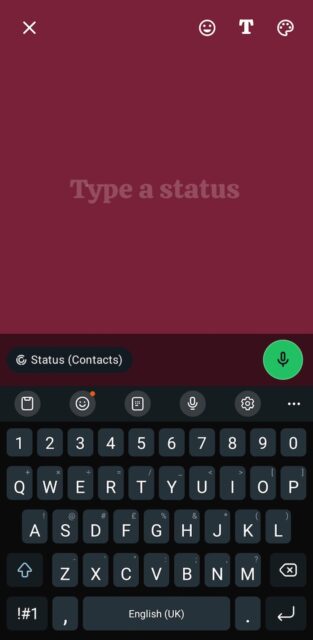
- Use the camera button in the Updates menu to upload videos and photos instead.
Joining a WhatsApp channel
- From the Updates menu, scroll down to Channels. Then tap Explore more to see all available channels.
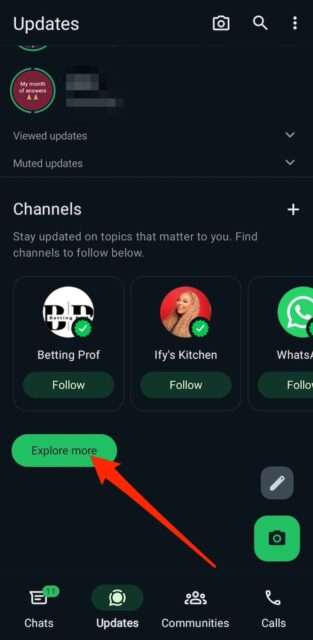
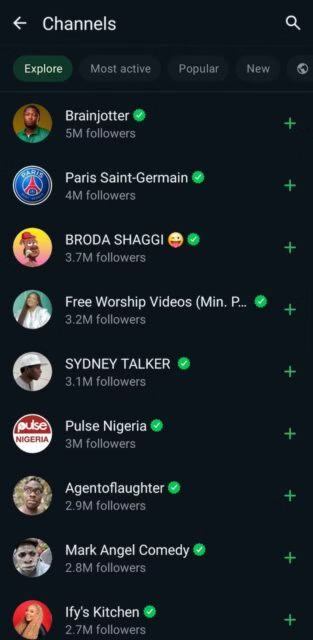
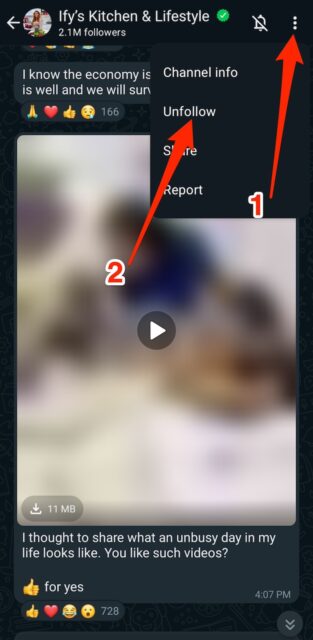
- Tap a channel to open it and see what it's about. Then tap Follow in the top right corner. If you change your mind, tap the three-dot icon. Then select Unfollow.

Creating a WhatsApp channel
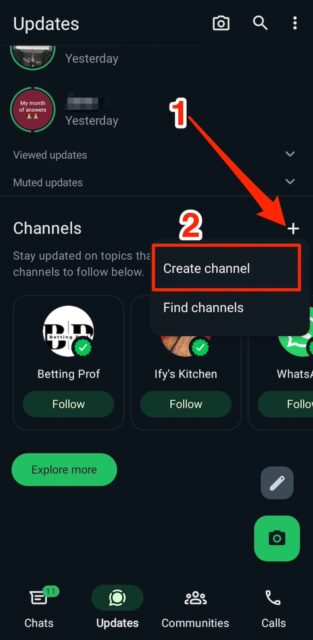
- From the Updates menu, scroll down to Channels and tap +. Then select Create channel and follow the prompts.
How to use WhatsApp groups, communities & broadcasts
WhatsApp groups allow you to add up to 1024 participants in a virtual space and communicate with them. When you have more than that number in mind, communities are the larger option. You can add up to 2000 people into 100 different groups to form a community. Each group will maintain separate discussions, with one announcement group present where you can post updates for everyone.
As an admin on both spaces, you have the power to restrict communication or remove misbehaving members, among other cool perks. If you want to join people's communities and groups, you'll have to wait for an invitation.
Broadcasts are different, in that they're a one-way communication channel. It's like an email list where you'll send an announcement to multiple people at once. The broadcast will appear like group and personal chat spaces, but people will be under the illusion that you're messaging only them and can't see other broadcast members.
Creating WhatsApp groups
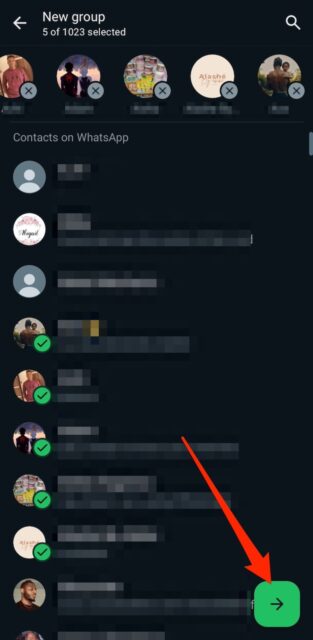
- From the Chats menu, tap the message button in the bottom right corner. Then select New group.
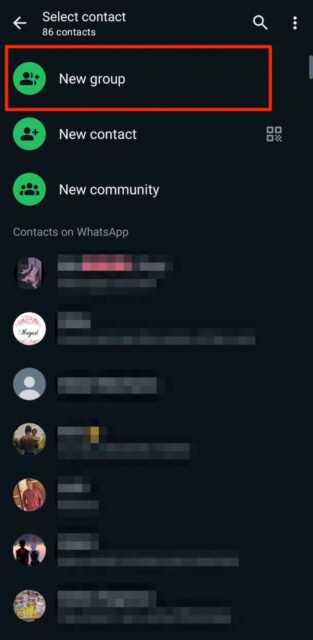
- Tap contacts you want in your group to select them. Then tap the right arrow.
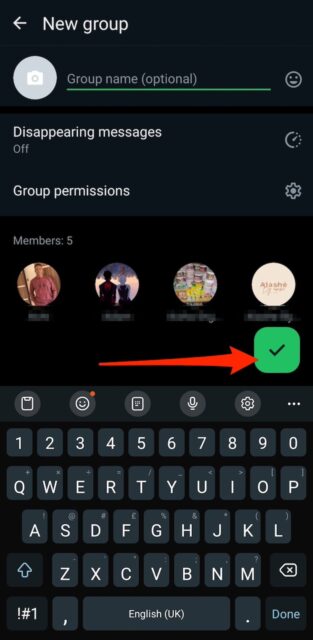
- Give your group a name and set the permissions. Then tap the tick mark.
Creating WhatsApp communities
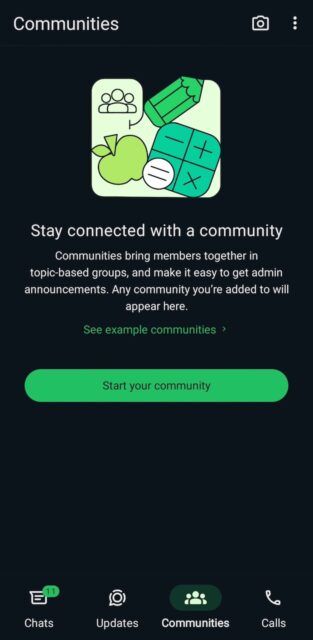
- Tap the Communities tab at the bottom. Then select Start your community > Get started.
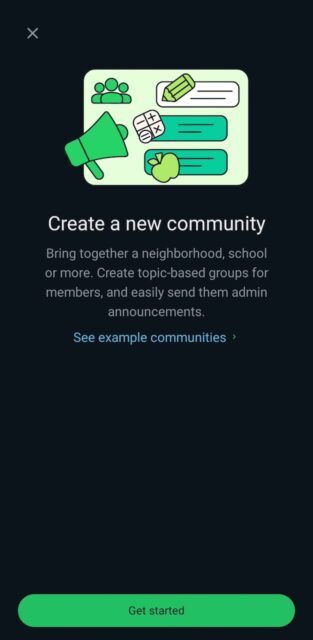
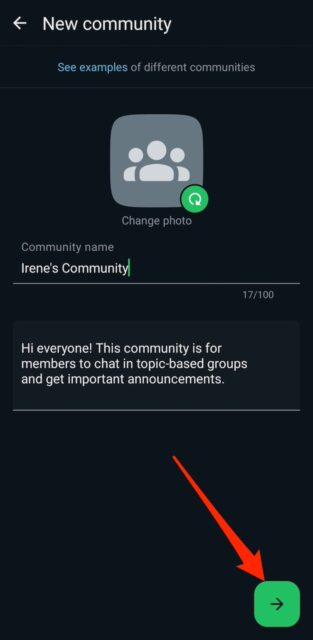
- Enter a name and description for your community. Then tap the right arrow in the bottom right corner.
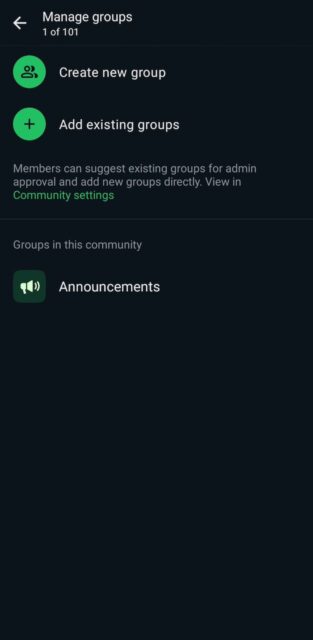
- Tap Add group. Then choose to either create a new group or add existing ones to your community.
Creating a WhatsApp broadcast
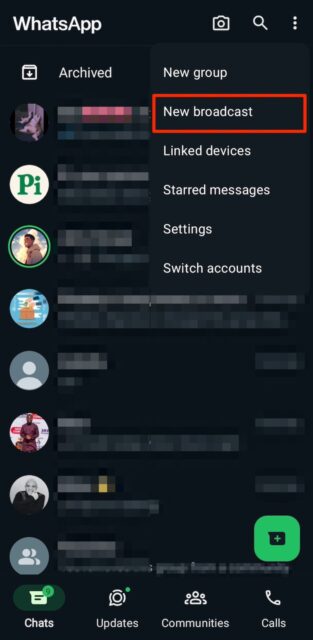
- From the Chats menu, tap the three-dot icon in the top right corner. Then select New broadcast.
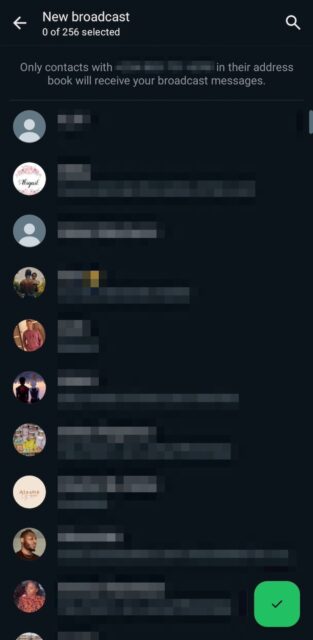
- Select the contacts you want in your broadcast. Then tap the tick mark in the bottom right corner.
WhatsApp has many tricks for you to uncover
Cheers to learning the basics of WhatsApp. There's so much more you can on the app. For one, you can disable the last seen feature so no one monitors your online activity. Also, if you want a quicker way to message your favorite people, you may pin their chats to your homescreen. With future updates on the way, the app will continue to expand its perks so that you don't get bored.