



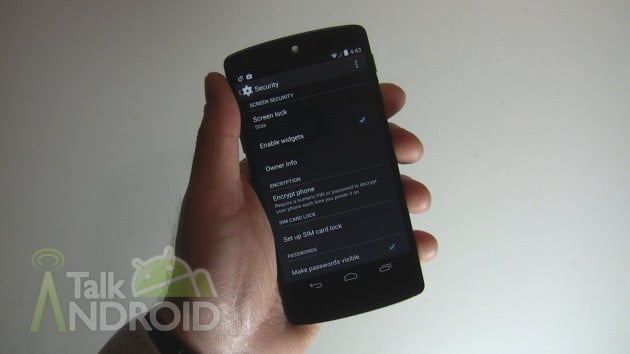
So you just got your shiny new Nexus 5, but there doesn't appear to be a way to add lock screen widgets. Thankfully Google didn't eliminate them, but they did add a setting to turn them on or off, and the default happens to be off. You will find the option in Settings > Security. Just make sure “Enable Widgets” is checked. That's all there is too it.
Now if you later disable it (by unchecking the box), you don't have to worry about losing your widgets. When you re-enable them, the widgets that you already had setup will magically appear. This means Google could disable them by default when upgrading from Jelly Bean to KitKat, but we won't know that for sure until Google releases KitKat to other devices. Hit the break for a quick video showing you how it's done.

It makes perfect sense to include this setting under Security if you think about it. By allowing widgets on your lock screen, you are allowing strangers to see information that could be personal, so it's definitely a security issue. Also, by adding a setting, third party apps such as Tasker might be able to turn them off automatically when you're away from home (or some other criteria), in the event that you lose your phone or tablet.

I have an LG L41C smartphone (TracFone), which uses Android 4.4.2. Go to Settings>Lock screen settings, then tap on Shortcuts. Your smartphone should display a small version of the Lock Screen with 4 spaces for shortcuts to be placed (by default on my phone, they are Phone, Messaging, Email, and Camera). Tap on one to bring up the “Select application” list. Then tap the “Delete shortcut” to delete it, or tap an app to add it in that space on the lock screen.
Unfortunately, on my LG L41C, I can remove the camera icon from the lock screen, but this does NOT disable the camera from coming on while in my pocket if both the Volume Up and Down buttons are depressed somehow! This feature is annoying and I suspect that this has resulted in the burnout of my flash!
There is no such option on kit kat.
exactly,absolutely no option to “enable widgets” under security settings on my kitkat 4.4.2