



Reading Mode reformats text and reads content aloud on Android devices, making it easier for users to consume written material. This is just one of many ways you can use text-to-speech technology.
Reading on your Android device can sometimes be a challenge, especially if you have visual impairments or find the text too small. Reading Mode is thankfully Google’s answer to this, made to simplify reading on your Android device and enable related accessibility features.
Installing and Launching the App
First and foremost, this guide assumes that you are using a fairly modern Android phone that was made in the last five years or so. If not, ensure first that your phone is running at least Android 9.
- After checking OS compatibility, open the Google Play Store app on your device and search for “Reading mode.”

- Select the official Reading Mode app by Google and install it.
- Open the Reading Mode app via the Play Store or the native app icon.

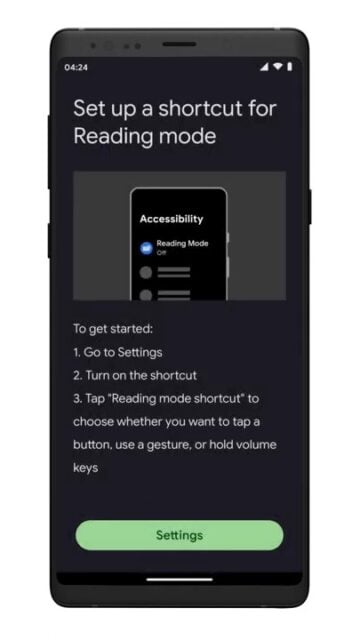
- Follow the tutorial instructions provided within the app. You will be redirected to the Settings menu.


- Tap “Reading Mode”/”Accessibility menu” and turn on the “Reading mode shortcut”/”Accessibility menu shortcut.” A prompt will appear asking you to allow permissions.

- Tap “Allow” to grant Reading Mode the necessary permissions to function properly on your device.
- If your particular unit had “Accessibility menu” instead of “Reading Mode”, you still need to manually turn on specific features. Tap on either “Vision,” “Hearing,” or “Physical” categories to either provide readable text or voice dictation, whichever feature you need.
A Few More Steps
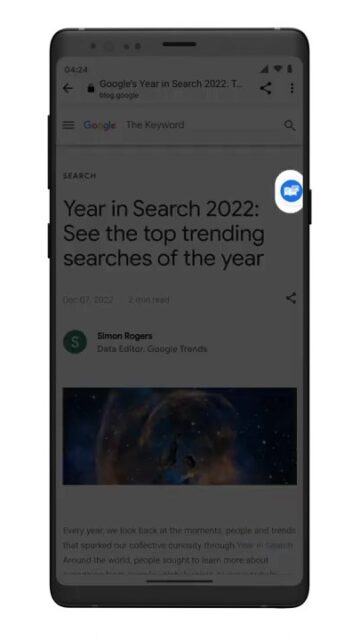
Upon reaching the “Settings”, you can also choose to activate Reading Mode using three methods: via a floating button, volume keys, or a gesture.
The floating button is the default option, which places a button on your screen that you can tap to activate the feature. If you prefer using the volume keys, you can set Reading Mode to activate when you hold down the volume keys for a specific duration. If you don’t prefer the first two, you also can assign a specific gesture, like swiping up with two fingers, to activate Reading Mode.
Effectively Using Reading Mode
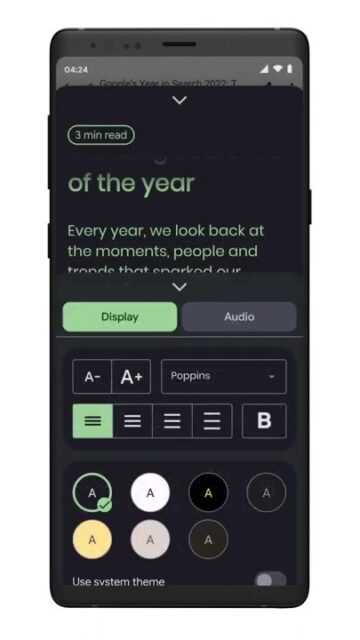
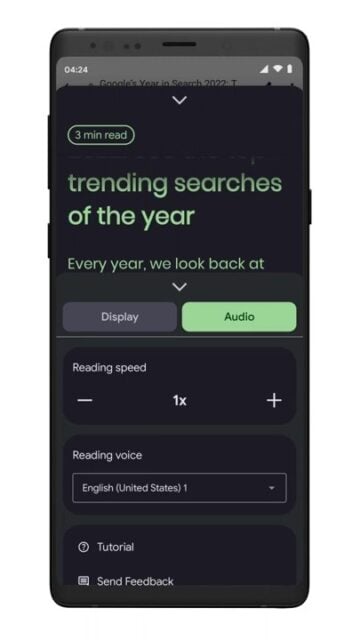
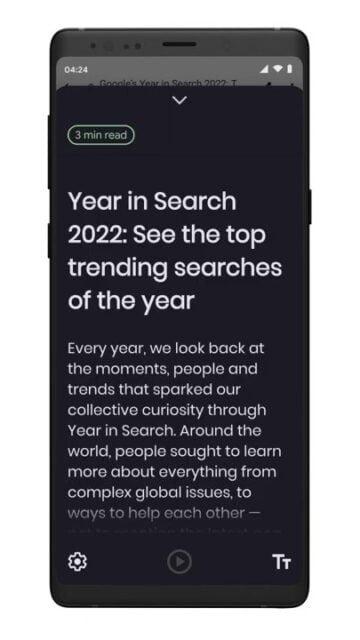
With Reading Mode set up and ready, open any website or app with long articles that you wish to read. Tap the floating button (or use your chosen shortcut) to open Reading Mode. The app will reformat the content to make it more readable by adjusting the contrast, color, and font size, plus other tweaks like bolded text and line spacing.
To let the app read the content aloud for you, tap the play button at the bottom of the screen. For this feature, you also have various options for adjusting reading speed and changing various voice settings, even down to template voice types.
Things to Note
While Reading Mode is easy to use and convenient, it does still have a few caveats. The app doesn’t currently support PDF files, emails, chat messages, and social media feeds. Its primary focus is on websites and apps with long-form articles.
Then, if you use Voice Access and Switch Access, you need to turn them off and on again after installing Reading Mode. This makes sure that accessibility features can work properly in conjunction with the app.
Lastly, you need to have the latest version of Speech Services by Google installed on your device. You can update or install it via the Google Play Store link below