





Have you ever wanted to Google something but didn't know what to search for? Long descriptive searches can sometimes get you enough information to work with, but wouldn't it be nice to show Google an image and let it find whatever that image is? You're in luck; meet Google Lens.
You may have seen Google Lens in some of your other Google apps but haven't entirely understood what it is or how to use it. It's integrated all over the place, with a standalone Google Lens app and shortcuts through Google Photos and Google Search, so it's rarely more than a couple of taps away. We'll show you how it all works.
Using the Google Lens app
The most straightforward way to use Google Lens is with its native app, which is freely available in the Google Play Store and functions almost like the regular Google Search app.
When you open the app, it'll default to trying to search by images. You can use your camera if you're right in front of what you're trying to search, but you can also use screenshots and saved images.

In this example, we used a screenshot of a Backbone One game controller. The controller had analog stick covers and some clutter in the background, but Lens could still immediately tell what it was. It may not be 100% accurate 100% of the time, but it does an excellent job most of the time.
You can also use this to translate text on a sign if you're out and about or to solve homework. Just point it at the text, paper, image, or whatever else and let Google's brain handle all the thinking for you.
Using Google Search
You may have noticed an extra button for Google Lens on Google Search. This effectively folds most of the Lens app's functionality into the search app you were probably already using. Just tap that Lens icon next to the search bar, and you'll see an interface similar to the previous app we worked with.
Everything here works the same, too; upload your image or take a picture, or show Lens a foreign language or a math problem and let it work.
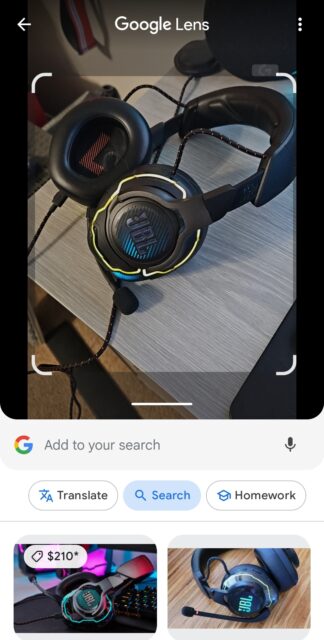
The nice part is that you're one tap away from returning to regular Google Search and potentially doing more research on whatever you've just looked up. All the functionality is here in Google Search, so keep in mind that this might eventually be consolidated with a deprecated standalone Google Lens app.
Using Google Photos
The last two ways to use Google Lens are similar, but Google has one more trick to help you find things online. If you use Google Photos to store and manage your pictures, did you know you're one tap away from instantly searching for a photo with Google Lens?

Yep, if you're looking at one of your images in Google Photos, you'll see a perfectly usable Lens button right in the bottom toolbar. Tapping this immediately uses that image to find similar things online, and it works just as well as it does in the standalone app.
This method is particularly effective if you're browsing back through images from months ago and can't quite remember the specific details of what you took a picture of, whether it was something interesting on vacation or a tough homework problem you forgot was due tomorrow.
Overall, Google Lens is one of the most impressive products in Google's suite of tools, even if they don't mention it as often anymore. It's built into all of the Google apps you're probably already using, so why not give it a try next time you're doing some research online?


