



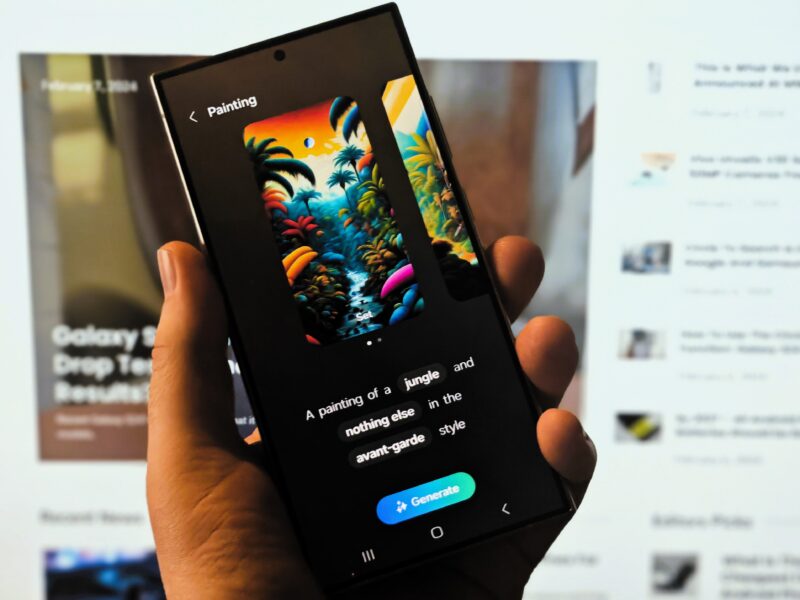
In case you missed it, your Galaxy S24 comes with a ton of AI-powered features that will change the way you use your smartphone. Besides the limelight-hogging Circle to Search function, your Galaxy S24 can create AI-generated wallpapers to give you a unique home or lock screen experience.
Whether it's looking at hot balloons floating next to a cave in a pop art theme or a mineral stone in a baroque style, your Galaxy S24 can generate it for you. It's time to take the decoration of your Galaxy S24 to the next level by utilizing the Galaxy AI that is baked into the device to create a unique wallpaper that is only present on your handset, no one else's. It's a rather simple process, and we've got a step-by-step guide in text and video formats to show you how.
Video Guide

First up is our video guide, which will go through the steps to generate a wallpaper using the Galaxy AI on your Galaxy S24 smartphone. It's an easy-to-follow process; before you know it, you'll generate AI-powered wallpapers whenever you desire. After all, why should all phones use the very same wallpaper? Hopefully, this feature will trickle down to Samsung's other flagship phones, but we'll have to wait and see if that is the case.
Read: How To Use The Circle To Search Function: Galaxy S24 and Pixel 8
Step-by-Step
Needless to say, this feature is currently exclusive to the Galaxy S24 series, and for now, it's unclear if it might trickle down to the Galaxy S23 series down the line.
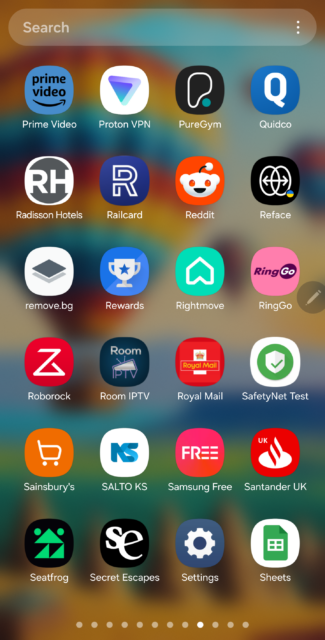
First: Open up the Settings app on your Galaxy S24 handset.
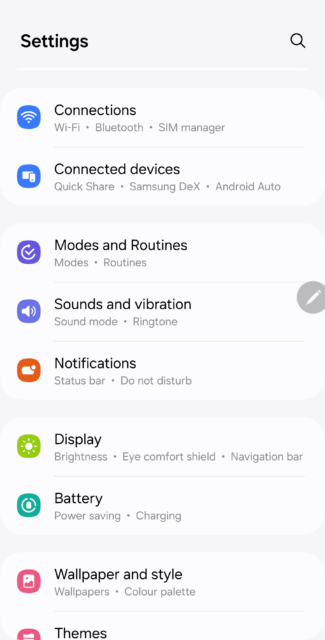
Select the Wallpaper and Style option from within the Settings menu.
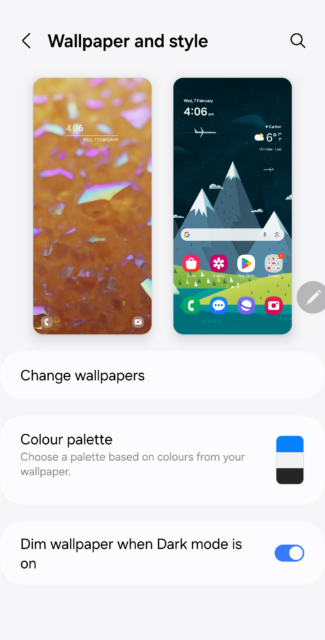
Tap on Change Wallpapers.
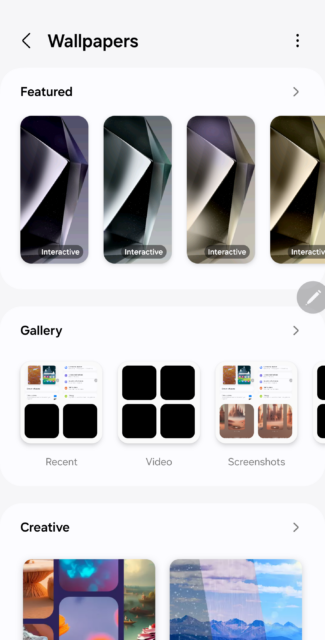
Look for an option labeled Creative and select it.
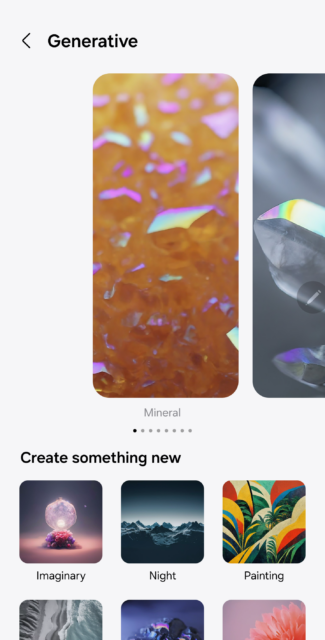
On the next screen, tap the Generative folder.
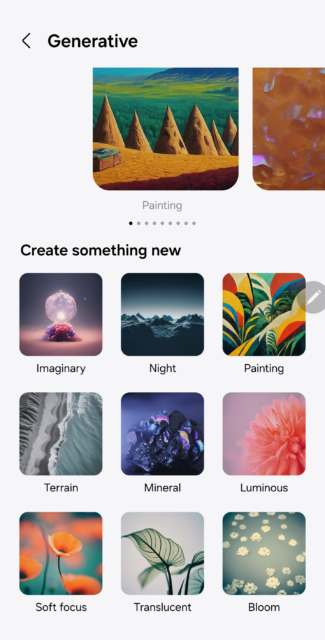
You now have nine styles to choose from. Take a look and choose one.
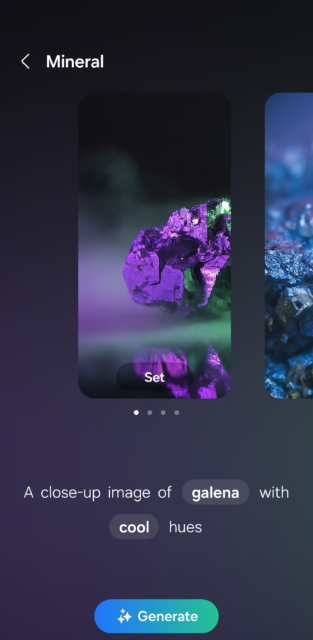
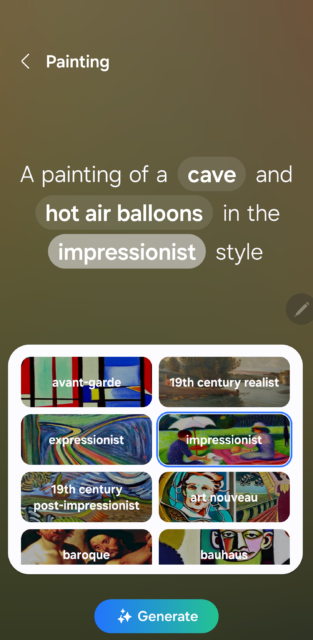
On the next screen, you can tap the highlighted words to choose from different prompts to generate images. When you change a prompt, the image will be generated in a different style and theme.
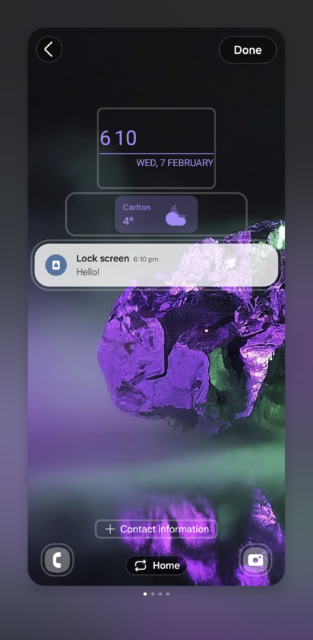
Once you hit Generate, you'll be presented with up to four options to choose from. Sometimes, the AI only generates a single image.
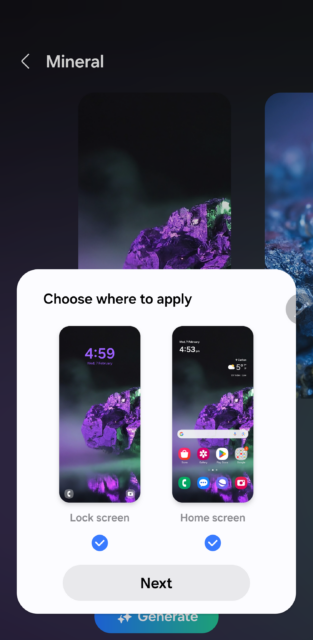
Tap Set on the wallpaper you like for the home screen, lock screen, or both. If you want to create a new wallpaper, change the commands and repeat steps 7-9. Did I say it was simple?
When you get tired of it, you can always generate a new version by tinkering with the prompts or creating an entirely differently-themed wallpaper. The Galaxy S24 is your oyster, so to speak, and you can change the wallpaper as and when you choose to. I must admit; it sure beats searching through troves of downloaded wallpapers to find one that fits the day.
Is generating wallpapers via AI a feature you think you will use on your Galaxy S24? Let us know in the comments below, and if you feel like showing off, post your efforts on X (Twitter) and remember to tag us at @TalkAndroid.