



Introduction
Switching from Android to an iPhone 18 sounds like a good idea, until you realize that there is a ton of data in your old phone. Photos, contacts, messages, WhatsApp… would you really want to transfer them one by one? Luckily, you don’t have to.
The right Android to iPhone transfer method depends on whether your iPhone 18 is new or already set up, how much data you have, and what you want to move.
If you're getting a new iPhone 18, Apple's Move to iOS is the most convenient way. If your iPhone is already in use, other methods of transferring data will be more suited. This guide covers the main ways to move your data, including Apple’s built-in option and dedicated phone-transfer tools. Let’s find out how to transfer data from Android to iPhone:
What Data Can You Transfer from Android to iPhone 18?
| Data Type | Transferable? | What to Know |
| Contacts | Yes | Can be transferred or synced with an account. |
| Photos | Yes | Several transfer methods are available. |
| Videos | Yes | Large libraries may take longer to transfer. |
| Messages | Yes | Transfer depends on the migration method. |
| Yes | Requires a supported migration process. | |
| Calendars | Yes | Can usually be synced with a supported account. |
| Mail accounts | Yes | Accounts can be added to the iPhone. |
| Files | Yes | The method depends on where the files are stored. |
| Apps | Partially | Compatible apps may need to be downloaded again from the App Store. |
| App data | Varies | Transfer depends on the individual app and its backup system. |
| Music | Varies | Depends on where and how the music is stored. |
| Android settings | No | iPhone uses its own settings and system structure. |
What Won't Transfer Directly
Not everything on Android has an iPhone equivalent. Some things will need to be set up again after the transfer.
- Android-only apps — You may need to find and download the iOS version, if available.
- Android-specific settings — These do not carry over to iOS.
- Some app data — Transfer depends on how each app stores and backs up its data.
- Platform-specific content — Some files or content may need to be moved manually.
- Some DRM-protected content — Transfer can depend on the service and how the content was purchased or stored.
Before You Transfer Data to iPhone 18
- Back Up Your Android Phone: Make a copy of all important data before moving, contacts, photos, files, and WhatsApp where possible. Don't take the Android phone with you until everything is transferred.
- Free Up iOS Space: The iPhone should have enough free memory for what you plan to transfer. Delete any unnecessary files if it's a problem.
- Charge Both Phones: It is better if you start with phones fully charged.
- Upgrade Both Phones: Carry out updates for both phones if required, i.e., system update and apps update as well. If applicable, also update Move to iOS or other transfer solutions you plan to use.
Choose the Right Android-to-iPhone 18 Transfer Method
The best approach will likely depend on the condition of your new iPhone device, as well as the amount of data that you need to carry over to it.
- Is your iPhone 18 Brand New? In this case, Apple provides an option to migrate your data from Android by just following the migration prompt in the Setup Assistant.
- Your iPhone 18 Was Already Set Up? In this situation, a cloud-based migration, a transfer made with a PC, or using any specialized file-sharing apps or hardware devices will work well.
If you want an overview of the different ways to move your information to Apple's latest iPhone, this guide on how to transfer data to iPhone 18 covers the main approaches and their requirements.
Method 1: Transfer Data from Android to iPhone 18 With Move to iOS
If your new iPhone 18 is still new, the Move to iOS method is probably the easiest way for you to get going. It enables you to transfer supported data while still setting up the iPhone.
When to Use Move to iOS
- The Move to iOS is designed to transfer supported data from Android while setting up a new iPhone.
- If you've already finished setting up the iPhone, you may need to erase it to use this method.
Prepare Your Android Phone
- Keep both phones connected to a stable Wi-Fi network.
- Download the app from Google Play and keep it ready.
- Make sure both devices have enough battery, and the iPhone has sufficient storage.
How to Use Move to iOS to Transfer Data
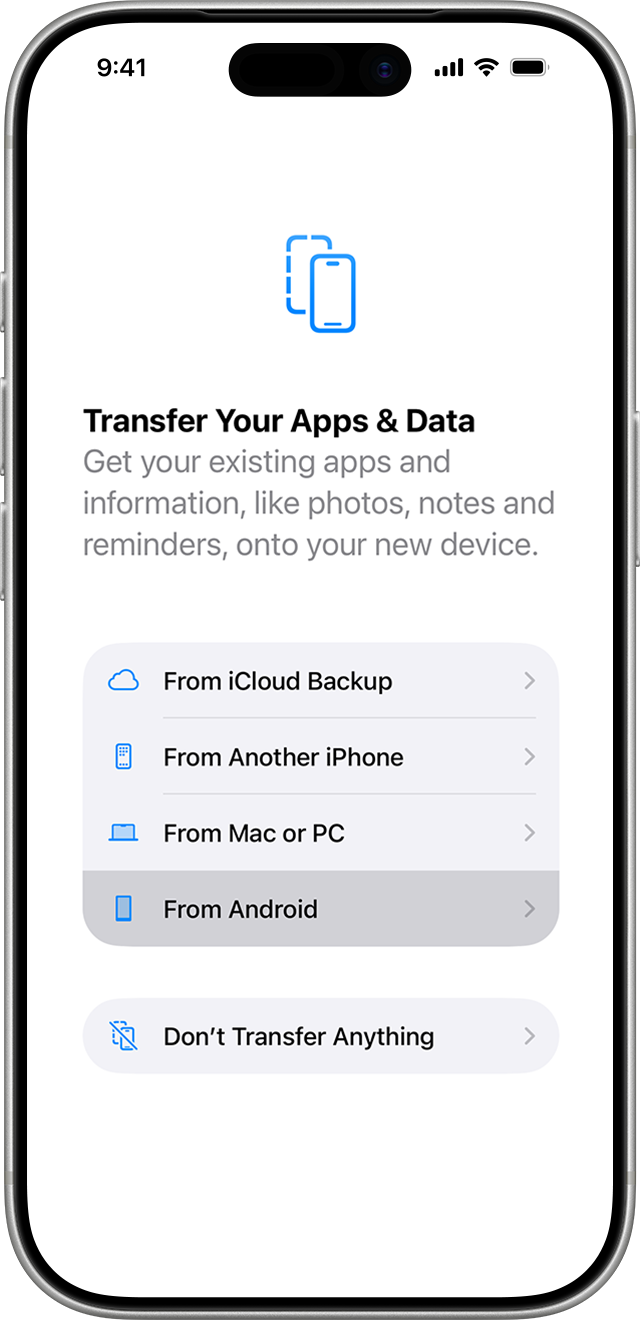
Step 1: Power on an iPhone 18 and proceed to the setup until you find the Transfer Your Apps & Data then choose From Android.
Step 2: Open Move to iOS on Android, enter the code shown on your iPhone, and follow the prompts to connect both devices.
Step 3: Check the boxes against the data that you wish to transfer, click Continue to start the process, and leave both smartphones aside until the transfer is completed.
Method 2: Transfer Data to iPhone 18 With MobileTrans
Finished setting up your iPhone 18? Or perhaps you don't want to wipe everything but just a part of your phone data instead?
With Wondershare MobileTrans, you can easily transfer data from one mobile phone to another one. You can pick certain types of data for transferring from Android to iPhone, like contacts, media files, texts, and WhatsApp.
Key Features
- Cross-platform transfer: Move supported data between Android and iPhone.
- 18 types of data: Transfer contacts, messages, photos, videos, and more.
- WhatsApp transfer: Move WhatsApp and WhatsApp Business data between Android and iPhone.
- 6,000+ devices: Supports a wide range of Android and iPhone devices.
- Selective transfer: Choose specific data types instead of moving everything.
- Post-setup transfers: Transfer supported data even after setting up the iPhone 18.
How to Transfer Data to iPhone 18 With MobileTrans
Step 1: Connect both phones
Install and launch MobileTrans on your PC. Navigate to Phone Transfer > Phone to Phone.
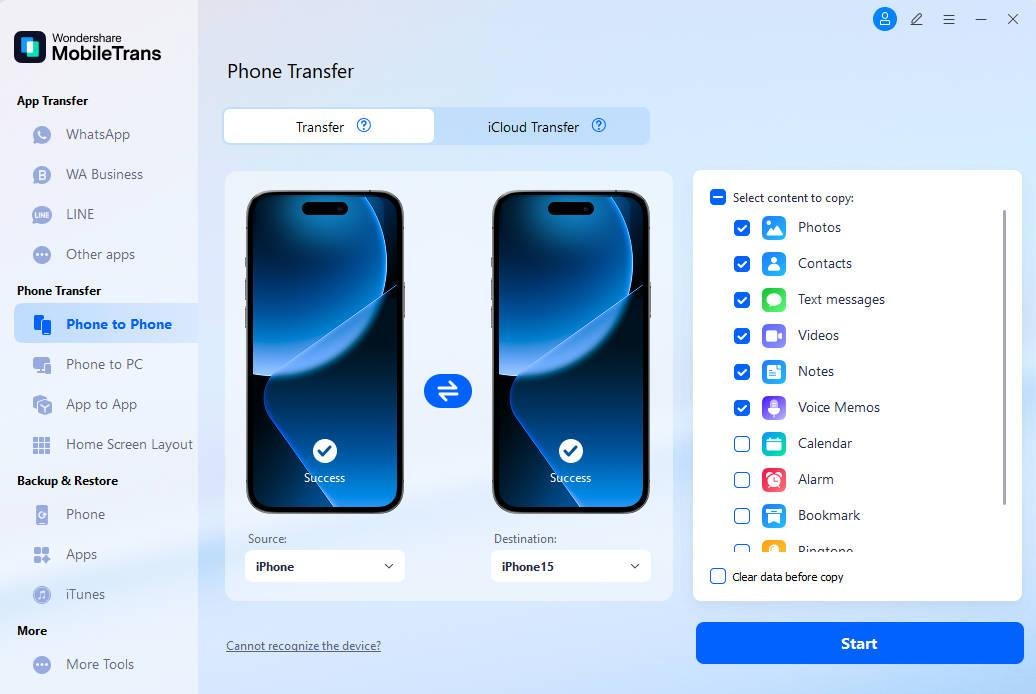
Select Android in “Source” and the iPhone 18 in “Destination”.
Step 2: Data selection
Tick off the types of data you want to transfer and click on “Start.” Do not disconnect your devices during the transfer.
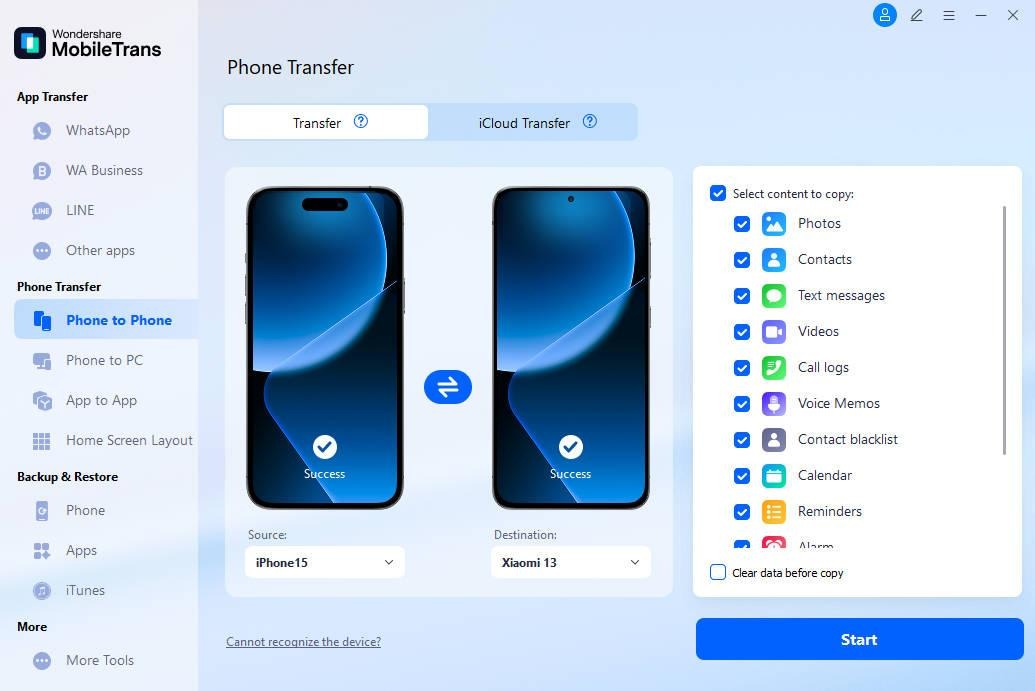
Step 3: Transfer Completed
Wait for the transfer to be completed, disconnect the devices, and verify that your chosen data is now on the iPhone 18.
When is MobileTrans Worth It
- You have already set up your iPhone 18, and you just want to transfer your existing data.
- You want one transfer interface: Manage different supported data types in one place.
Supported Data & Capabilities
Mobile Trans data transfer can transfer 18 types of data between 6000+ models of Android and iOS, including contacts, messages, photos, videos and the original supported data. Also, it has a specific WhatsApp data transfer from iPhone to Android and vice versa with data selection transfer features.
How to Transfer Specific Data from Android to iPhone 18
How to Transfer Contacts from Android to iPhone 18
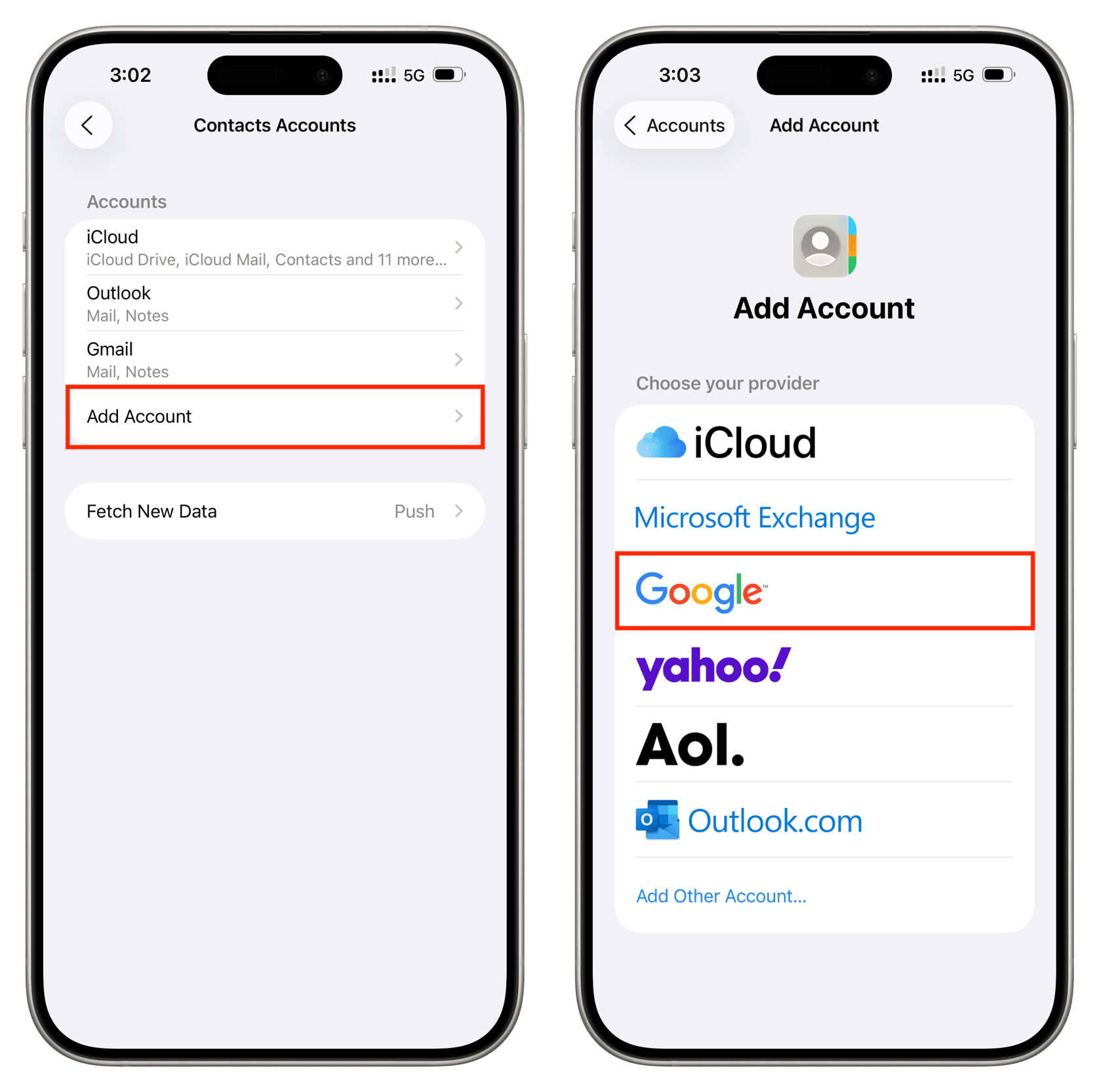
Sync your Google account to automatically move contact numbers from there to the phone. Alternatively, you can export contacts manually and import them later or just copy and paste them.
Sync contacts on Android: Go to Settings > Accounts > Google > [your account] > Account Sync and turn on Contacts.
Add an account on iPhone: Go to Settings > Apps > Contacts > Contacts Accounts > Add Account > Google and sign in.
How to Transfer Photos and Videos
Use Move to iOS, Google Photos, a computer, or a dedicated transfer tool. Check the original files and quality afterward.
Back up photos: Open Google Photos > Profile picture > Photos settings > Backup and turn on Backup on Android.
Install Google Photos: Download Google Photos on your iPhone 18 and sign in with the same Google account.
How to Transfer WhatsApp from Android to iPhone 18
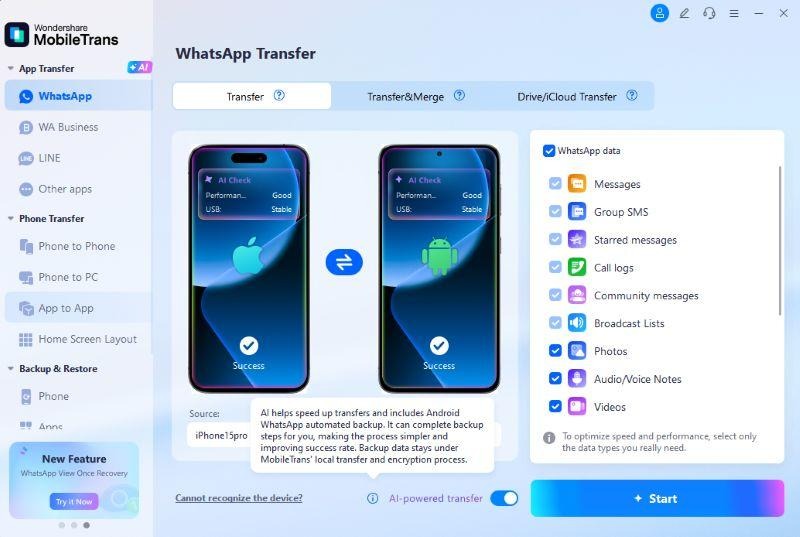
MobileTrans is a great tool for moving WhatsApp data independently. It can move messages, pics, videos, stickers, files, contacts, and other data from Android to iPhone.
Connect both phones: Open MobileTrans on your computer and select WhatsApp Transfer. Connect your Android phone and iPhone 18.
Choose the transfer: Select WhatsApp data and follow on-screen instructions.
How to Transfer Messages from Android to iPhone 18
Moving to a new device, you can use the migration feature (e.g., “Move to iOS”) in the messages transfer. Also, keep an eye on essential chats after the data transfer.
How to Transfer Files and Documents from Android to iPhone 18
Google Drive, OneDrive, a computer, or dedicated transfer software can move files to your iPhone.
Upload your file: Go to Android, open Google Drive, click +, then Upload, and select your documents and other items.
Opening Drive on iPhone: To find your uploaded files, get Google Drive, sign in with your account, and use it.
Save files locally: Open a file > ⋮ > Open in > Save to Files to store it on your iPhone.
How to Transfer Data If Your iPhone 18 Is Already Set Up
Got your iPhone 18 ready? If so, there are still several ways you can get your data onto your new phone without having to go through setup process again. Below are a few viable options
Try Cloud Storage
Utilizing cloud services, such as Google Photos, Google Drive, and OneDrive, you can retrieve your data from an Android phone on your iPhone.
Move Via Computer
Get photos, videos, and documents from Android to computer, then send compatible files to your iPhone.
Use phone transfer tool
In case your iPhone is already set up, it's still possible to move supported data from Android phone to iPhone using the tool like MobileTrans.
How Long Does It Take to Transfer Data from Android to iPhone 18?
Transferring your data from one place to another is determined by many factors such as data size, file type, connection method, Wi-Fi quality, and the performance of your devices.
Factors That Influence the Time of Data Transfer
- Data size: More the data, the longer time.
- File types: Big videos transfer more slowly compared to a little file.
- Connection: A quick and stable internet will shorten your time in uploading or downloading files.
- Storage: Having space in storage might help your transfer process.
Android to iPhone 18 Transfer Not Working? Try These Fixes
- Check the battery: Throughout the transfer keep both phones powered or plugged in
- Check available iPhone storage: Be sure the iPhone still has enough available space to accommodate the incoming data.
- Wi-Fi signal strength: Ensure both phones are situated near each other and staying on one network only.
- Transfer smaller batches: If a large transfer fails, move data into smaller groups.
Android to iPhone 18 Transfer Methods Compared
| Method | Best For | Main Consideration | Fits Your Situation |
| Move to iOS | New iPhone 18 setup | Best used during setup | New iPhone |
| Cloud storage | Photos and files | Requires uploads and downloads | Already configured |
| Computer transfer | Large file collections | More manual | Large migration |
| Dedicated transfer software | Cross-platform migration | Features vary by supported devices/data | Already configured or specific data |
Conclusion
Moving from Android to iPhone 18 doesn’t have to mean leaving your important data behind. If the iPhone is new, the Move to iOS is a simple starting point. If it’s already set up, cloud storage, computer transfers, or MobileTrans can help move supported data without resetting the phone.
Before you start, check your storage, charge both devices, and keep your Android phone untouched until you’ve confirmed that everything you need is safely on the iPhone.