



Instagram gives you no built-in way to save a video to your device, so the moment you want to keep a Reel, a Story, or a feed post, you are stuck looking for a workaround. That is exactly why an instagram video downloader exists in the first place: to fill the gap Instagram left open. This guide walks through four practical methods for getting an Instagram video onto your device as a standard MP4 file, plus a quick reference on the resolutions Instagram actually uses, so the file you end up with looks right on every screen you play it on.
Why Save Instagram to MP4?
A few common reasons come up again and again. Some people want a personal archive of content they do not want to lose if a video gets taken down or an account gets deleted. Creators often save clips as reference material, studying pacing, framing, or editing choices before filming something similar. Others simply want a reliable backup, since account restrictions or hacks can happen without warning, and having local copies means nothing is permanently lost.
MP4 specifically matters because it is the format most devices, editors, and players already support without extra plugins or codecs. A file saved as MOV or a proprietary format might play fine on the device that recorded it, but MP4 with an H.264 codec plays reliably across phones, laptops, smart TVs, and most editing software, which is why nearly every instagram downloader defaults to it as the output.
Option 1: Convert Instagram to Video Online
For most people, an online tool is the fastest route, since there is nothing to install and no software update to manage. Snapgram works as an Instagram downloader that runs entirely in the browser: paste the video link, preview the content, and save it directly as an MP4 file. The output keeps the original resolution and bitrate rather than recompressing the file, so quality does not take a hit compared to the source video.
The process breaks down into three steps:
- Copy the link to the public Reel, Story, or post from Instagram.
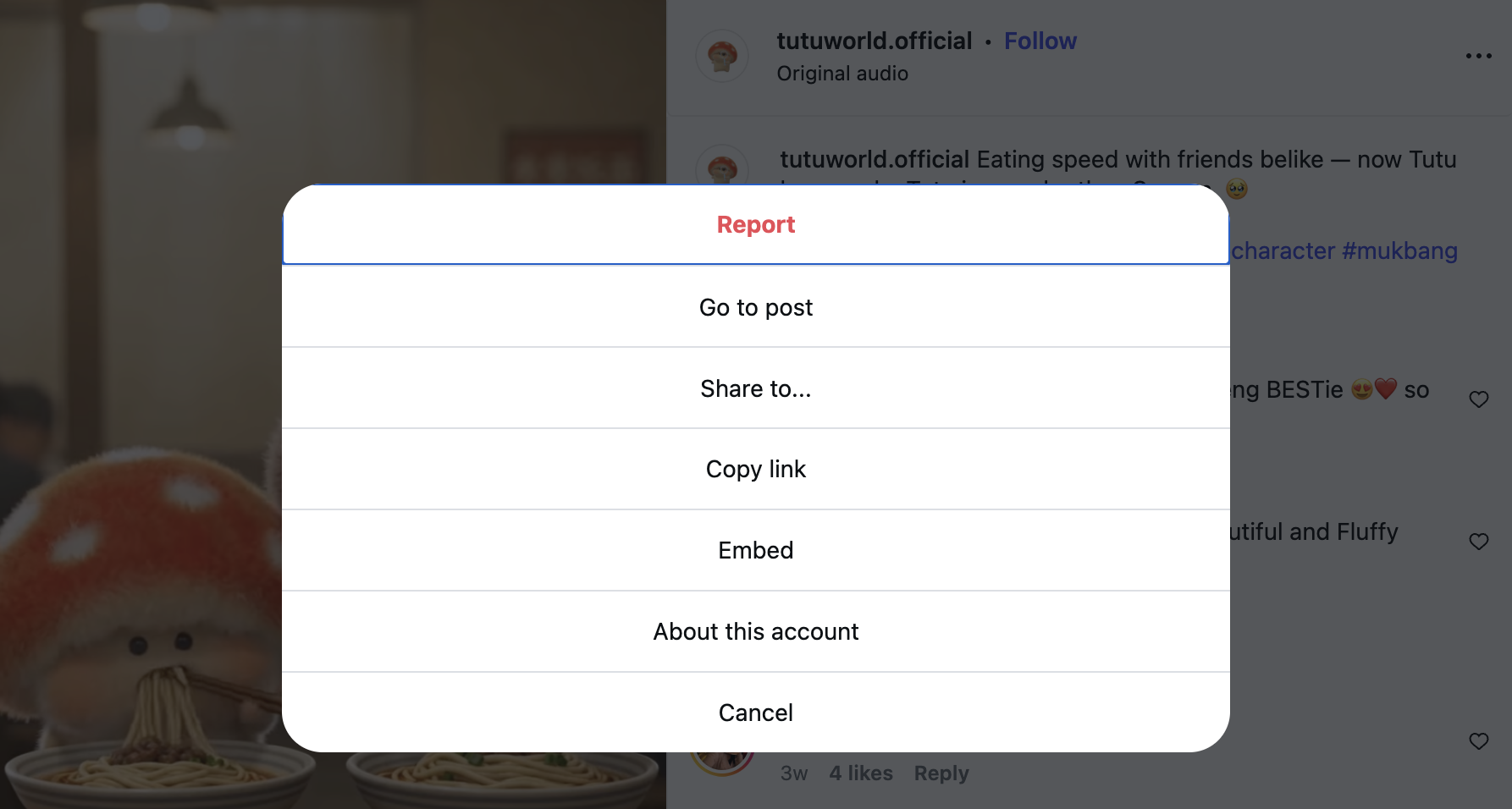
- Paste the link into the tool and let it process the video.
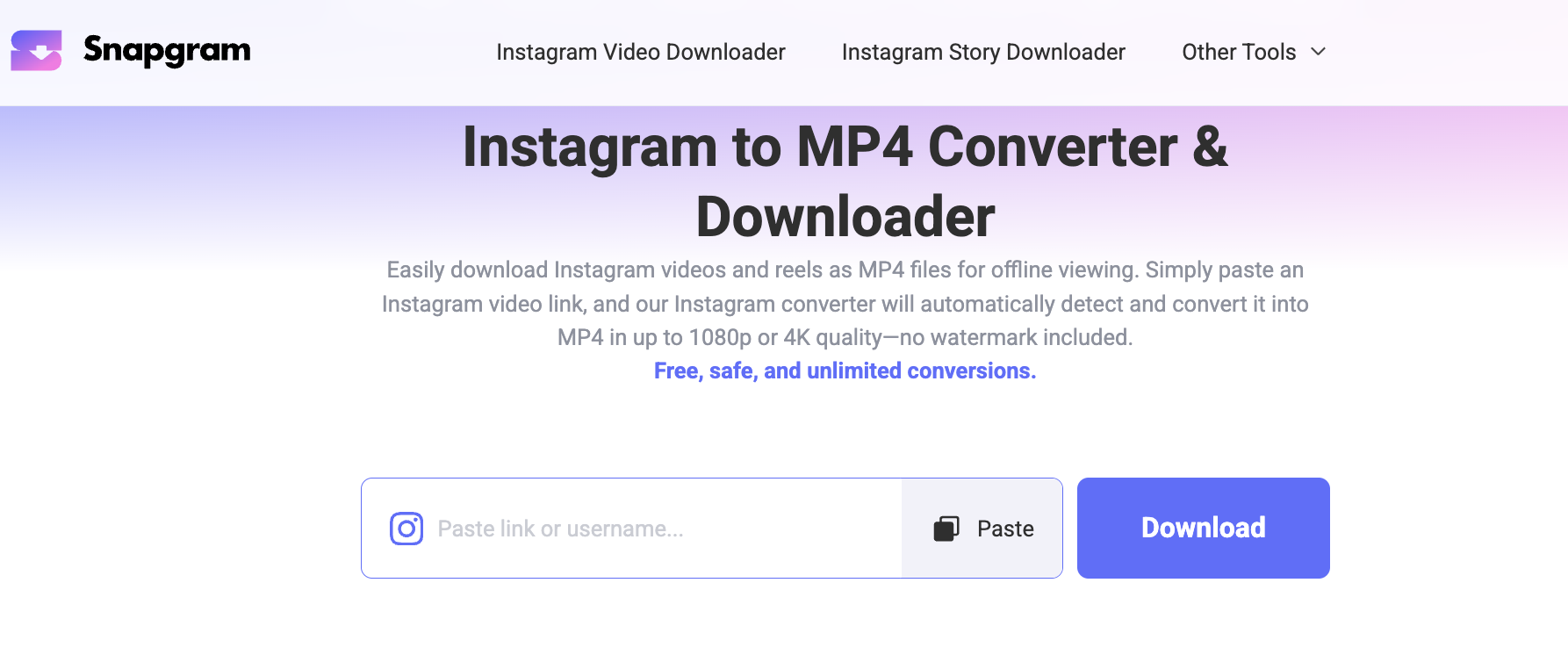
- Download the result as an HD MP4 file to your phone or computer.
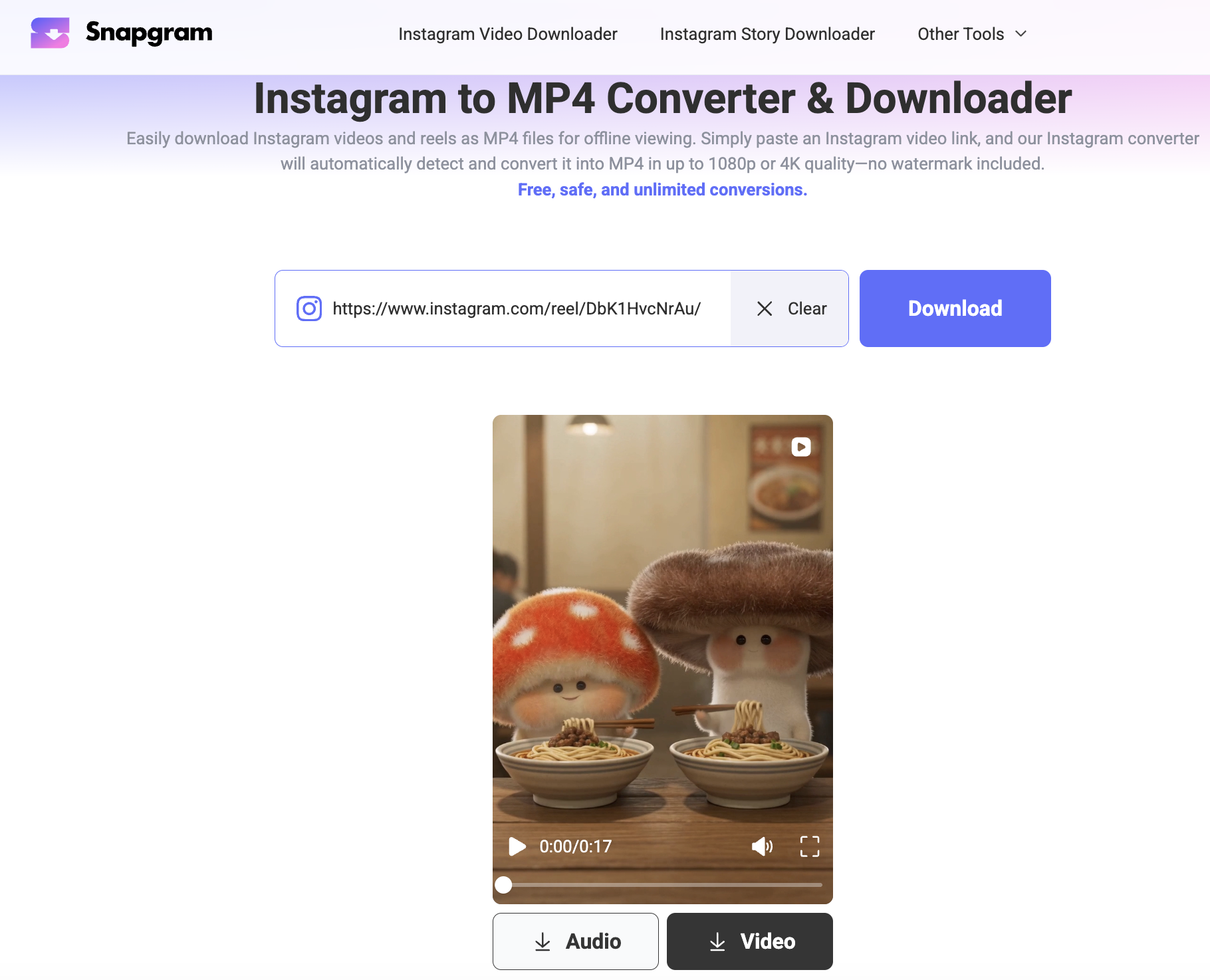
This is essentially what people mean when they search for an Instagram to mp4 solution: a direct path from a link to a playable file, without opening a separate video editor or running a manual format conversion afterward. Since Instagram itself serves videos in formats that already lean on MP4 style encoding, a good downloader does not need to re-encode anything, which is also why the process finishes in seconds rather than the minutes a full conversion would take.
Option 2: Save Instagram as MP4 with Mobile Apps
If you prefer using your phone, dedicated mobile apps such as Snaptube offer the same functionality through a slightly different interface. Typically, you copy an Instagram link, paste it into the app, select MP4 as the output format, and save the file to your camera roll or Downloads folder.
Some apps bundle in extra features like basic trimming or compression, which can be useful if you are trying to fit a file under a specific size limit before sharing it elsewhere. The tradeoff is that app based tools need an install and occasional updates, unlike a browser based option that stays current automatically.
One thing worth checking before installing any app: look at what permissions it asks for. A video downloader has no legitimate reason to request access to your contacts, messages, or location, and an app asking for far more than it needs is a reasonable signal to look for a different option instead.
Option 3: Convert Instagram Video with Screen Recording
When a video will not save through a link based tool, for example if the post has been deleted since you last saw it but is still open on your screen, screen recording is the fallback that always works. On iPhone, add the Screen Recording control from Settings, then swipe down to start it before playing the video, and stop it from Control Center when finished. On Android, the process is similar: pull down the notification shade, tap Screen Record, choose whether to include audio, and play the video while recording. Either way, mute your phone's own notification sounds first, since anything that pops up during the recording will end up in the final file.
The output from screen recording is already an MP4 or similar standard video file on most phones, so there is no extra conversion step needed afterward. The main downside is quality: you are recapturing whatever resolution your screen renders the video at, not the original file Instagram stored, so a Reel that looked sharp in the app can come out slightly softer once it has been screen recorded and re-encoded.
Option 4: Desktop Instagram to MP4 Software
Desktop video converter software is worth considering if you are regularly saving and editing Instagram content rather than doing it occasionally. These tools typically let you import a downloaded video file, then convert it between formats, adjust resolution, or trim clips before exporting. Because they run locally rather than through a server, processing large batches of files tends to be faster, and you are not dependent on an internet connection once the source file is already on your computer. The extra setup only pays off if you are doing this often enough to justify installing and learning a full application.
Desktop tools also tend to expose more granular export settings than mobile apps or online converters, things like target bitrate, frame rate, and codec selection. That level of control matters if you are preparing a batch of clips for a specific platform elsewhere with its own format requirements, rather than just keeping a personal copy.
What You Need to Know about Instagram Video Resolution
Knowing Instagram's actual video specs helps you judge whether a downloaded or converted file matches what was originally posted, rather than getting stretched, cropped, or unnecessarily recompressed.
- Reels: 1080 x 1920 pixels, a 9:16 vertical ratio, running between 3 seconds and 90 seconds, encoded as MP4 or MOV with an H.264 video codec and AAC audio, capped at 1 GB in file size. Instagram recommends a bitrate of at least 3,500 kbps for the cleanest result after its own compression.
- Stories: the same 1080 x 1920, 9:16 resolution as Reels, but limited to 60 seconds per clip. Longer source videos get automatically split into multiple 60 second segments when uploaded.
- Feed videos: more flexible, supporting portrait at 1080 x 1350 (4:5), square at 1080 x 1080 (1:1), and landscape at roughly 1080 x 608 (1.91:1), with a much longer runtime allowance than Reels or Stories.
If a converted file looks noticeably softer than the original post, the source resolution is usually the reason rather than the conversion tool itself. A Reel downloaded at its native 1080 x 1920 should look sharp; a video that was uploaded small to begin with will not gain quality just because you converted it to MP4.
It also helps to know why Instagram enforces these limits in the first place. The 90 second cap on Reels and 60 second cap per Story clip exist to keep files small enough for fast mobile playback across a wide range of connection speeds, which is also why Instagram automatically splits a longer uploaded video into multiple Story segments rather than rejecting it outright. When you download and convert that content, keeping it in its original segments (rather than trying to force it back into one continuous file) usually produces a cleaner result.
Frequently Asked Questions
- Do I need an Instagram account to download an MP4 video?
No, as long as the account posting the content is public, a link based downloader works without any login of your own.
- Can I download videos from private accounts?
No. Private content is restricted on Instagram's servers, so no downloader can pull it without the uploader's permission, regardless of what a website claims.
- Will the downloaded file have a watermark?
A properly built downloader delivers the original file without adding a new watermark on top of it.
- Does the method I choose affect video quality?
Yes. Online converters and desktop software that pull the original file preserve quality best, while screen recording re-encodes the video and can introduce a small quality loss, especially at lower device resolutions.
- Can I convert a downloaded video to a different aspect ratio afterward?
Yes, using desktop software or basic mobile editing apps, though cropping a 9:16 Reel down to a square or landscape frame usually means losing part of the original shot.
The Bottom Line
For most people, an online Instagram converter is the easiest starting point since it needs no install and keeps the original quality intact. Mobile apps are a solid alternative if you want built-in trimming without opening a second tool, screen recording covers the rare case where nothing else works, and desktop software makes sense once you are converting and editing Instagram videos often enough to justify the extra setup. Whichever method you pick, checking the resolution guide above helps set the right expectations for how sharp the final file should actually look.