



Mobile Legends lag is two problems. Network lag means your packets reach the server late. FPS lag means your phone cannot draw frames fast enough, usually because it overheated and throttled itself. They need opposite fixes, so diagnose first.
The Four Kinds of Lag
- High ping: everything happens late, but the game looks smooth.
- Jitter: ping jumps from 45ms to 180ms inside one fight, causing rubberbanding.
- Packet loss: data never arrives. Enemies flicker, freeze or teleport through walls while ping looks fine.
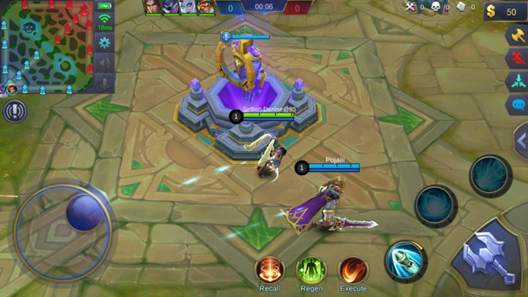
- FPS lag: the picture stutters even when nothing is happening. If panning the camera alone in base stutters, your phone is the problem.
How Overheating Becomes Lag
With no fan, a hot phone cuts its own clock speeds. Android's thermal mitigation framework defines escalating severity levels, and the severe stage is explicitly linked to display stuttering. On budget and mid-range phones, frames hold for about four minutes and drop 20 to 30 percent by minute twelve, right when matches are decided. Steady ping with falling frames means heat, and no router fix touches it.
60-Second Diagnosis
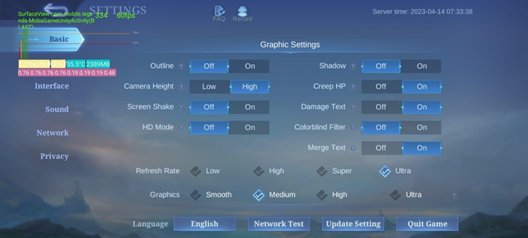
Enable the ping and FPS display (Settings, Basic tab), check both at minute three and twelve, and feel the back of the phone.
- Ping spikes, FPS flat: network.
- Ping steady, FPS falls, phone hot: heat.
- Both degrade together: usually heat, or a background download.
- Both bad from the start, phone cold: background download or server issue.
Under 30ms is excellent, 30 to 60ms very good, 60 to 100ms playable, over 120ms unplayable competitively. A steady 90ms beats a 40ms that spikes to 200ms.
MLBB needs about 1Mbps but stable latency, so ignore speed-test download figures. A continuous ping that is fine when idle and bad while someone streams video points at the router, not your ISP.
Fix High Ping
Change one thing at a time.
- Wi-Fi vs mobile data: stable 4G often beats congested evening Wi-Fi. Test a match on each.
- Use 5GHz: 2.4GHz is crowded and causes jitter. Give the bands separate network names in your router settings, join 5GHz, and play near the router.
- Router: power off for a full minute, update firmware, then enable QoS, gaming mode or Smart Queue Management with your phone as priority. This stops bufferbloat, where someone's download spikes your ping while speed tests look fine.
- Mobile data: turn Data Saver off. Toggle airplane mode for ten seconds in the lobby, never mid-match, to rebuild the tower connection. In weak coverage, lock to 4G LTE, since 5G handovers spike latency. Reset APN settings after a carrier change.
- DNS: 1.1.1.1 or 8.8.8.8 speeds up connecting but cannot lower in-match ping.
- VPNs and ping boosters: a VPN adds 30 to 60ms and only helps when your ISP routes traffic badly; test over two matches. Most boosters are VPNs with a gaming skin, and tools that modify the client risk a permanent ban.
- In-game toggles: Speed Mode prioritizes stability, Connectivity Enhancer recovers from packet loss, Network Boost combines Wi-Fi and cellular (costly on capped plans).
- Server-side lag: if everyone in the match is lagging and your ping is fine elsewhere, check official MLBB channels. Distance sets a floor: 20 to 30ms in-country, 60 to 100ms regional, 120ms+ cross-region.
Fix FPS Lag and Frame Drops
A locked frame rate beats a fluctuating higher one. Pick your row:
| Device | Graphics | Frame rate | HD Mode | Target |
| Budget, 2-3GB RAM | Smooth | Medium | Off | Flat 30fps |
| Mid-range, 6-8GB RAM | Balanced | High (60fps) | Off | Flat 60fps |
| Flagship, 12GB+ | High | Ultra (120fps) | On | 120fps early, 90fps late |
Shadows off below flagship; auto-adjust graphics off.
- Background apps: close browsers, streaming, screen recorders, and overlays. On Xiaomi, OPPO, and vivo, disable auto-start and background data for the worst offenders, since swiped apps relaunch.
- Cache and storage: clear the in-game resource cache or the app cache in Android's app info (not “clear data”). Keep a few gigabytes free.
- Game mode: Samsung Game Booster, Xiaomi Game Turbo, OPPO/realme Game Space, OnePlus Pro Gaming Mode, Pixel Game Dashboard. Set each to prioritize performance.
- Battery: battery saver off while playing; set MLBB to Unrestricted or No restrictions in per-app battery settings.
- Updates: finish every in-client resource download before queueing, and set Play Store auto-updates to Wi-Fi only or manual; a background update wrecks ping and frames at once.
Stop the Phone Overheating
- Never play while charging. Charge to full first or between games. If you must, use the slowest charger.
- Take the case off. Hold the phone with the upper back exposed, point a fan at it, and avoid hot rooms and direct sun.
- Lower brightness and disable auto-brightness. If you target 60fps, cap the display at 60Hz.
- Rest the phone. Five minutes with the screen off every two or three matches. If it is painful to hold, the screen dims by itself, charging pauses, or a temperature warning appears, stop.
Low-End Phones and When to Upgrade
On 2 to 3GB RAM phones, also set Developer Options animation scales to 0.5x, disable always-on display and live wallpapers, and restart before a ranked session.
If the game crashes on load, cannot hold 30fps in an empty lane, or is hot within three minutes, no setting will help. Bind your account to two login methods before switching phones. Some players buy a ready-made account from marketplaces like igitems, which also list in-game currency and top-ups, rather than rebuilding a hero pool; others weigh the grind against ranked accounts for MLBB. On a throttling phone, the chipset sets the ceiling.