



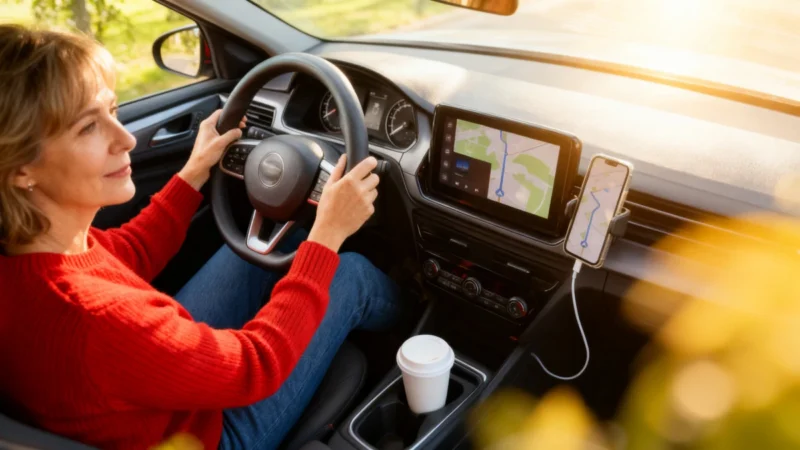
For millions of drivers, the smartphone has become the default co-pilot: navigation, playlists, phone calls, and messages all run through it. But handling your phone while driving is not only illegal—it’s dangerous. Luckily, Android Auto for Android devices and Apple CarPlay for iPhones offer a free solution: both systems project essential apps onto your car's screen, with large buttons and voice control so you keep your hands on the wheel and focus on the road. Here’s how to activate and make the most of them.
How Android Auto and CarPlay Bring Your Phone to Your Dashboard
Android Auto and CarPlay both display a simplified version of your phone on the car’s touchscreen. You get navigation via Google Maps, Waze, or Apple Maps, music and podcasts from apps like Spotify, Deezer, and Apple Music, and your calls and text messages—read aloud and dictated by voice, so you never need to touch your device. The core principle is the same for both: your phone runs the apps, while the car serves as the screen and speaker. Voice commands are central. You just say “Hey Siri” on iPhone or “Hey Google” on Android to launch navigation, change music, or respond to a message with your eyes on the road. Google, for its part, has continued adding new features, for example, even offering a 3D Google Maps display in some regions like France.
Requirements and How to Connect
First, you’ll need a compatible vehicle. Most cars sold since the mid-2010s include Android Auto and CarPlay as standard or optional, sometimes both. You can check your car’s manual or the central display settings to confirm. For older vehicles, a compatible aftermarket stereo can also enable these features.
For the phone: CarPlay requires an iPhone (model 5 or newer), while Android Auto needs a recent Android phone. You can connect in two ways. The universal method is a standard USB cable. Newer models also support wireless connection, which requires a car that offers this feature—along with Bluetooth, Wi-Fi, and a recent phone. A mobile data plan is important because navigation and streaming use Internet data. Make sure your plan has enough gigabytes for your needs.
First Connection and Troubleshooting
Your first setup almost always involves a cable. Start your car, unlock your phone, and connect it to the car’s USB port with a good-quality cable. The vehicle’s screen should prompt you to start Android Auto or CarPlay; just accept the permissions, and the interface appears within seconds.
The steps are quite similar for Apple: connect the iPhone by cable, or activate CarPlay wirelessly by holding down the voice command button on your steering wheel and selecting your car in your phone’s settings. Once your vehicle is recognized, CarPlay starts automatically on future trips.
If nothing appears on screen, check your cable—a low-quality charging cord might not transfer data. Make sure you’ve selected the correct port, and verify in settings that CarPlay or Android Auto are allowed. Restarting your phone often fixes most connection issues.
Legal Reminders: Use Hands-Free Safely
Projecting your phone to the car’s display doesn’t mean you can ignore traffic laws. In many countries, using a phone in your hand while driving is banned. In France, for example, the fine is €135 (about $145.00) and includes a 3-point penalty on your driver’s license. Local laws may differ; always check your region’s regulations. Both CarPlay and Android Auto are designed for hands-free operation. The best practice is to set your destination, music, and driving mode before you start driving. On the road, rely on voice commands—avoid touching the screen. If you’re traveling through spots with weak cell coverage or going abroad, downloading offline maps beforehand will help you avoid losing navigation if you lose data access.
When set up correctly, Android Auto and CarPlay turn your phone into a safer on-board dashboard. Navigation and music are easy to control by voice, and you can keep both hands on the wheel. It’s a good opportunity to check if your data plan matches your driving needs. If you’re worried about language barriers during travel, consider using a translation app to help with conversations or reading road signs in real time.


Any recommendations for a quality USB-A to USB-C cable for Android Auto m