



Android productivity in 2026 is less about one perfect app and more about a reliable stack. A strong setup should cover documents, notes, tasks, calendars, storage, scanning, file sharing, offline access, and mobile security without forcing every workflow into one tool.
Document and File Apps
Android users who work with contracts, invoices, forms, reports, and shared PDFs need apps that handle quick edits, secure storage, and cross-device access. When a user needs to modify PDF text and images without software during a mobile workflow, browser-based editing helps reduce reliance on desktop tools while keeping document work close to the phone.
Google Drive
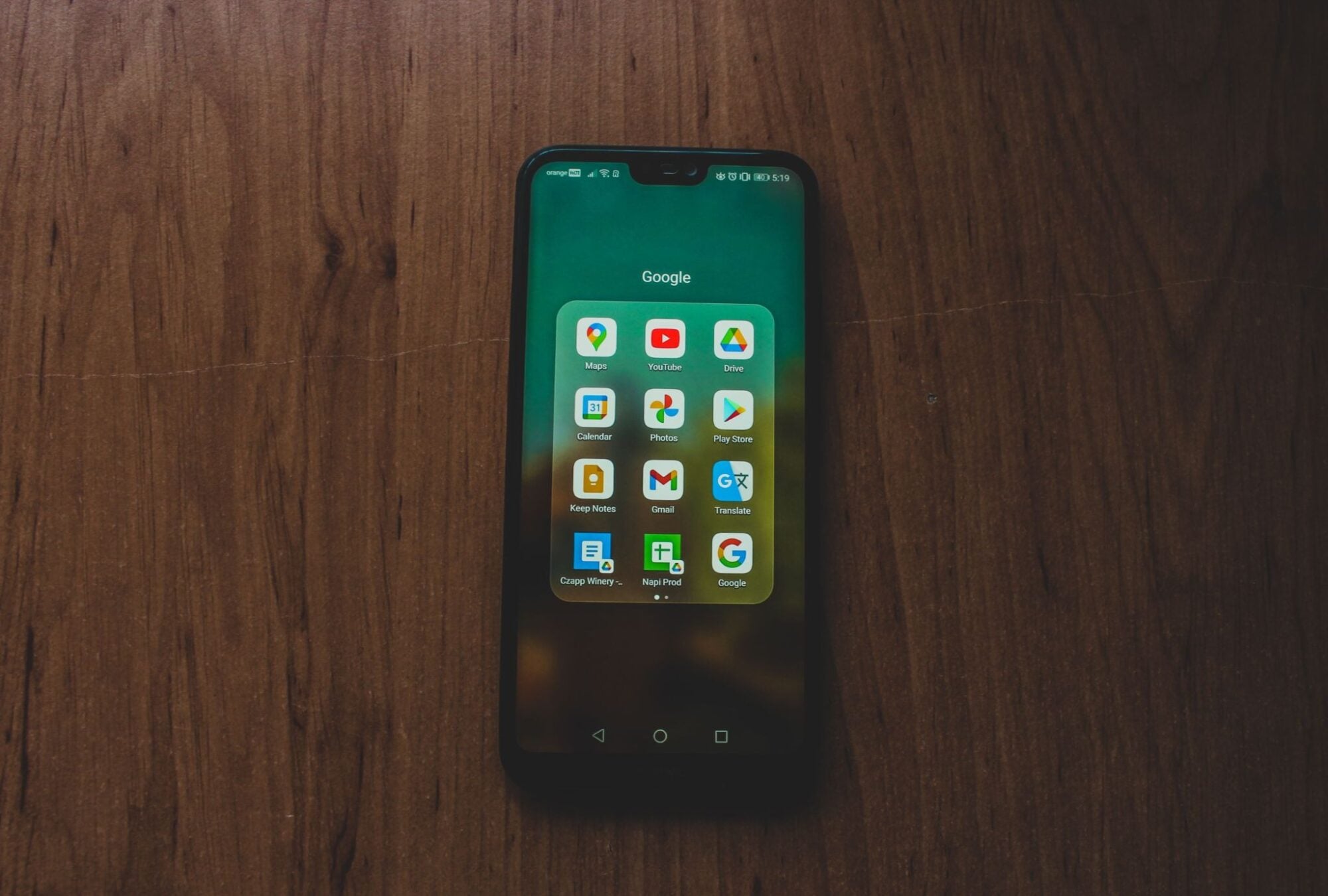
Google Drive remains a practical base for Android file storage because it connects cloud folders, Docs, Sheets, Slides, PDFs, images, and shared links. The Android app supports file organization, sharing, search, comments, and access from other devices tied to the same Google account.
Drive is useful for teams that already use Gmail, Google Calendar, and Google Workspace. Its value comes from keeping meeting notes, proposals, spreadsheets, and PDFs in one shared place. Offline availability also matters for travel, field work, and weak mobile connections.
Microsoft 365
Microsoft 365 fits users who rely on Word, Excel, PowerPoint, OneDrive, and Outlook. The Android app supports document reading, editing, scanning, and text recognition workflows. Microsoft also documents OCR functions in OneDrive mobile, where scanned PDFs become selectable after text recognition.
A scanned page becomes easier to search, copy, share, and store with related work files. Android users in corporate environments also benefit from Microsoft account controls and shared business storage.
PDF Editors
PDF tools are necessary when a document is final but still needs small changes. Common tasks include adding text, replacing an image, signing a form, highlighting a clause, commenting on a page, or compressing a file before upload. Browser-based PDF editors suit users who do not want a separate desktop program.
PDF workflows on Android should support practical document tasks:
- Text correction on forms, quotes, invoices, and proposals.
- Image replacement for product screenshots or ID uploads.
- Signature fields for approvals, waivers, and HR records.
- Annotation and highlighting for review before sharing.
PDF editing has limits on mobile screens. A phone works well for small fixes and signatures, while complex layout changes, long reports, and detailed tables are easier on a tablet, Chromebook, or desktop browser.
Tasks and Note-Taking Apps
Task managers and calendars give Android users structure when documents, messages, and meetings multiply. Todoist, TickTick, Google Tasks, Google Calendar, Microsoft To Do, and Notion all serve different work styles. Todoist lists Google Calendar integration, which helps users see tasks and events in one planning view. TickTick adds task lists, reminders, habits, and calendar-style planning for users who prefer one app for personal organization.
Note-taking apps serve a different need. Google Keep works well for fast notes, checklists, voice notes, and image notes tied to a Google account. Notion is stronger for databases, project pages, meeting notes, and knowledge bases. Microsoft OneNote suits users who prefer notebook-style sections, free-form pages, and Office integration across devices.
Security and Sync Choices
A productivity stack needs security and syncing because Android phones carry business documents, client files, passwords, and meeting data. The best apps combine account protection, offline access, cloud backup, access permissions, and recovery options.
Offline Access
Offline access keeps work moving when a user is on a flight, in a client building, or outside reliable coverage. It matters most for files needed during meetings, field visits, inspections, travel, and sales calls.
Offline planning should focus on daily work files:
- Current PDFs, decks, and spreadsheets needed for meetings.
- Notes and checklists used during field or client work.
- Calendar details and task lists for the active week.
- Scanned receipts or forms waiting for upload.
- Key reference files stored before travel.
Offline files also need cleanup. Old local copies increase clutter and expose sensitive data if a phone is lost. Users should remove expired documents after projects, audits, trips, or approvals are finished.
Mobile Security
Mobile security protects the productivity stack from account takeover and data loss. Android users should combine screen locks, biometric unlock, app updates, trusted app sources, password managers, and multi-factor authentication. Business users also need clear rules for shared devices and lost phone responses.
Security controls should match the sensitivity of the work:
- MFA for email, storage, task, and document accounts.
- Password manager use for unique credentials.
- App updates from Google Play or approved work profiles.
File sharing also needs care. View-only links, expiration dates, restricted folders, and permission reviews help prevent old documents from staying open to the wrong people.
Building a Secure Android Productivity Stack
A good Android productivity setup in 2026 connects document editing, cloud storage, scanning, tasks, notes, calendars, offline access, and security. Google Drive, Microsoft 365, OneDrive, Todoist, TickTick, Google Calendar, Keep, Notion, and browser-based PDF tools each cover a specific part of the workflow. The strongest setup is the one that keeps files accurate and protected from unnecessary access.