



Think of purchasing a second-hand Android phone and then powering it on to be instantly confronted by a Google verification page that you haven't seen before. The unexpected lock you are experiencing is indeed FRP (Factory Reset Protection), a security feature that hardly anybody comes to know of until they get stuck.
The main purpose of FRP is to secure your device and data in case someone factory resets your phone. However, knowing the mechanics of FRP also enables you to figure out what actions to take when FRP is blocking your way. This article will briefly explain what FRP stands for, how it operates, when it triggers, and the alternatives you have if you get denied access.
What Is Factory Reset Protection (FRP)?
Factory Reset Protection (FRP) is a safety feature that Google introduced in Android 5.1 Lollipop. It helps to prevent someone from using your phone after a factory reset without permission. It connects your smartphone to the last Google Account logged in, so no matter if the phone is erased, it won't be unlocked without the account details – which is also why many people search for an FRP bypass when they're unintentionally locked out!
How FRP Is Activated
Factory Reset Protection (FRP) is triggered automatically if the device is reset to factory settings without first logging out of the Google Account. The security token linked with Google Account remains on the device even after a reset, if the account is continuously signed in.
In other words, the steps for the basic activation look like this:
· An account of Google is created on the device.
· The device is reset via recovery, bootloader, or settings without deleting that account.
· FRP considers the reset as an unauthorized action and blocks the setup process.
What Happens When FRP Is Triggered
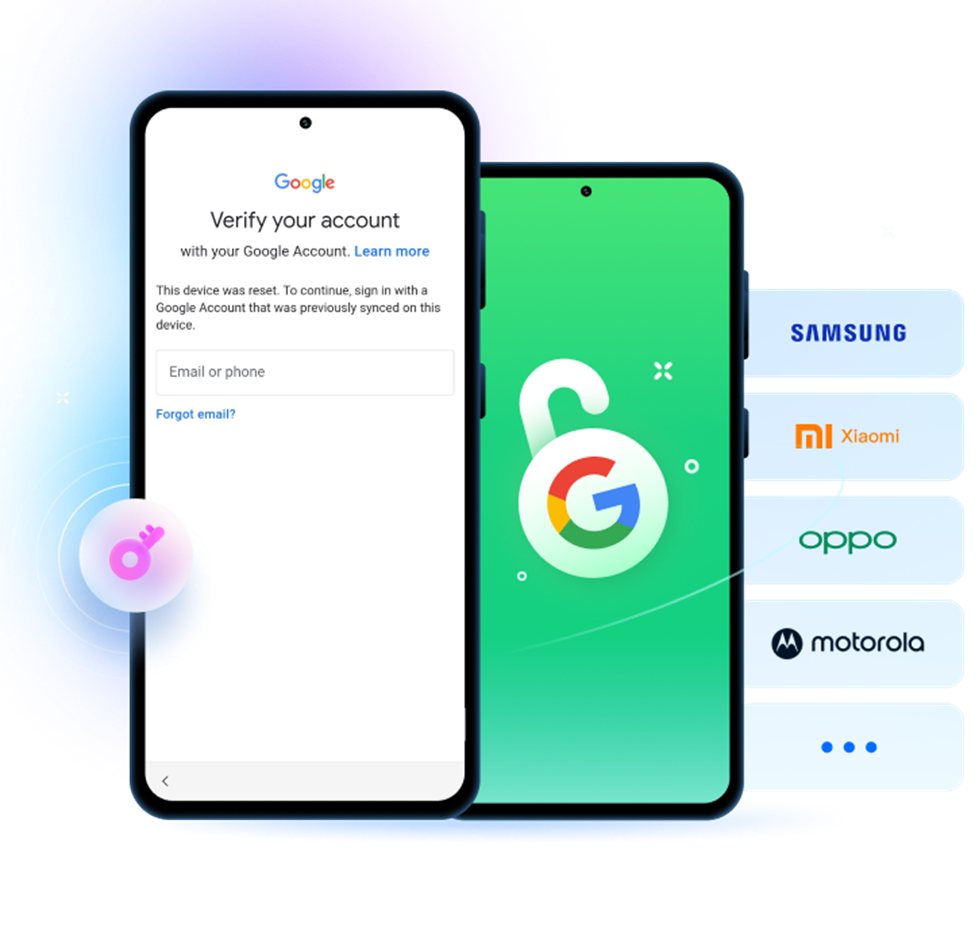
Following the restart, the smartphone turns on and displays the standard ‘Verify your account' page. To move on, the individual must input the same Google email and password that were previously synchronized on the device; no other Google Account will be able to unlock it, which is the main reason why a lot of people look up an FRP bypass tool.
Android might increase the time a user is locked out after a series of unsuccessful attempts, during which one will be required to wait before trying again.
Throughout the different versions of Android, starting from Android 6 and going up to Android 16, FRP essentially behaves the same way, although the newer versions have enhanced security, closed loopholes, and made it more difficult for unauthorized bypass methods to be carried out.
Why FRP Is a Strong Anti-Theft Measure
FRP significantly lowers the resale value of stolen Android phones by essentially locking out the setup process unless the original Google Account credentials are entered. A thief can change a SIM card or install a new ROM, but in most cases, FRP will be the one to lock the phone and prevent access during the setup. It is a very close copy of Apple's Activation Lock, providing almost the same level of protection though Apple's solution is a bit more restrictive and is still very much intertwined with iCloud.
When FRP Becomes a Problem for Legitimate Users
Besides being a thief deterrent, FRP locks out real owners too in very normal situations. These problems are way more common than many users think.
Typical instances when rightful users are locked out:
· The previous owner doesn't remove their Google Account when selling a second-hand phone.
· Forgetting the Google Account details that were used on the device.
· Getting a device from a deceased family member, without having their login information.
· IT departments resetting multiple devices at once but forgetting to remove accounts or using the right MDM procedures.
Such scenarios occur quite often, especially with second-hand phone sales and device recycling. The dilemma is always the same: you are locked out of a phone that you legally own and at the same time you are frustrated with a security feature that allegedly offers protection, yet it is blocking you.
The Official Way to Get Past FRP: Google Account Recovery
Recovering the Google Account that was originally synced to the device is the only valid way to unlock an FRP-locked device. At accounts.google.com, Google offers native recovery tools through which you can attempt to access your account using your email, phone number, or other recovery options.
Here is how official recovery usually happens:
· Verification of trusted device: Google might send a prompt to another device where you are already logged in.
· Phone number or email based recovery: To reset your password, you can get a code through SMS or an alternate email.
When Official Methods Aren't Enough: Dr.Fone – Screen Unlock
In those situations where Google's official recovery options fail, especially if you bought a second-hand device, don't remember the synced account, or the account was never yours, Dr.Fone – Screen Unlock (Android) is a feasible and trustworthy alternative. This is a dedicated tool that can remove locked screens and do FRP bypass safely even on the latest Android 16 and Samsung S26/S25 devices.
Key features of Dr.Fone – Screen Unlock (Android)
- Bypass FRP on Android & Samsung devices (supports Android OS 16 and below)
- AI-powered FRP bypass for Samsung S26/S25 and latest Snapdragon models
- 100% FRP removal success on Samsung Snapdragon & MTK devices (via EDL cable)
- Online FRP bypass—remove Samsung FRP using IMEI, no PC required
- Unlock any screen lock: PIN, pattern, password, fingerprint, and face unlock
- Works with 30+ brands including Samsung, Xiaomi, OPPO, Vivo, Huawei, Motorola, OnePlus, Realme, and more
Steps to bypass Samsung FRP with Dr.Fone
Step 1: Launch the Screen Unlock tool
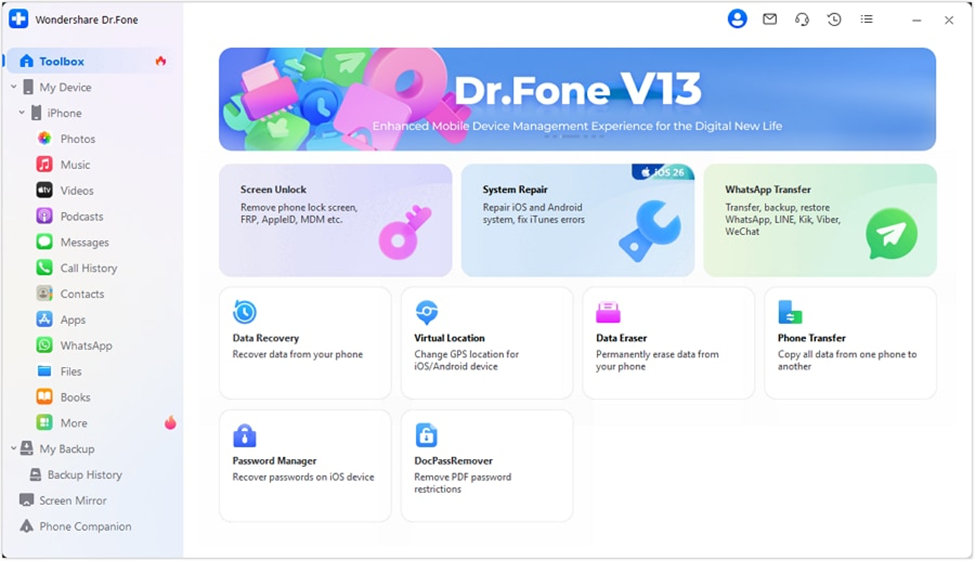
Start Wondershare Dr.Fone on your PC and link your Samsung mobile or tablet. Navigate to Toolbox > Screen Unlock to open the unlocking interface.
Step 2: Pick the FRP removal option
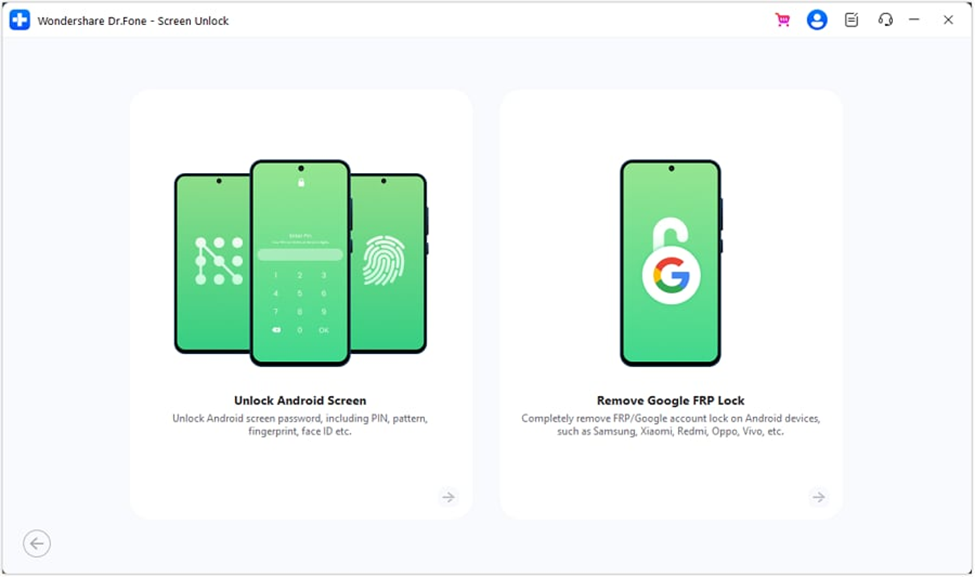
First, select Android option and then click on Remove Google FRP Lock. From the device list, pick Samsung and press Start to proceed.
Step 3: Hit “All Android versions (One‑Click Removal)”
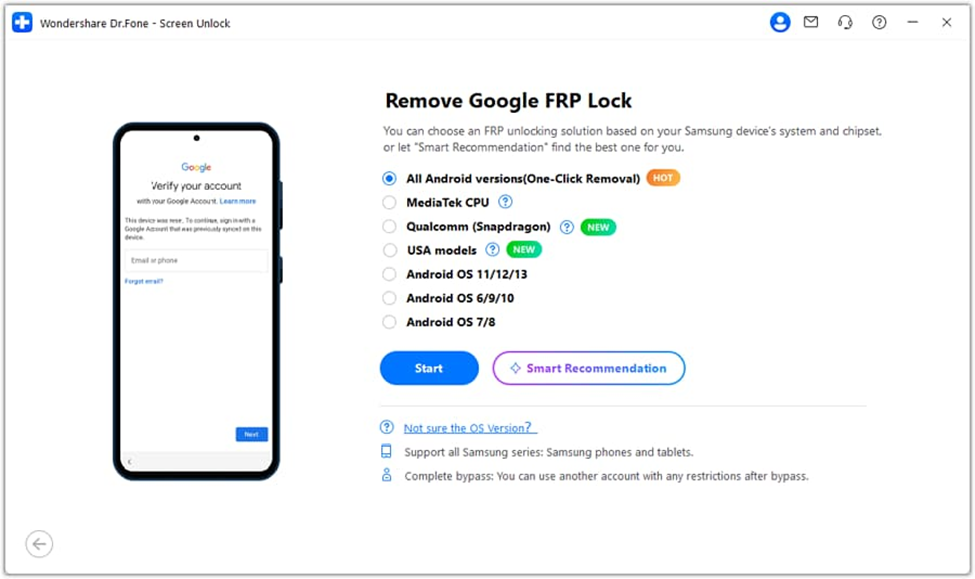
If you are not sure about the Android version of the device or want to try the fastest method, click on All Android versions (One‑Click Removal) and hit Start.
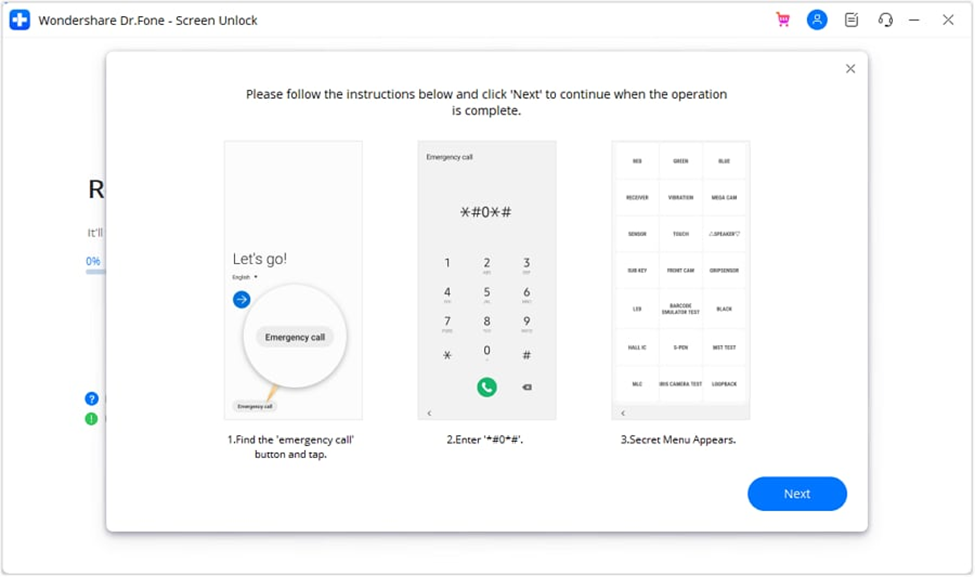
Step 4: Follow the instructions on the device screen
You will be required to tap on Emergency Call on your Samsung phone and dial *#0*# to reveal the service menu. Then, press Next on the PC software.
Step 5: Finalize the FRP removal
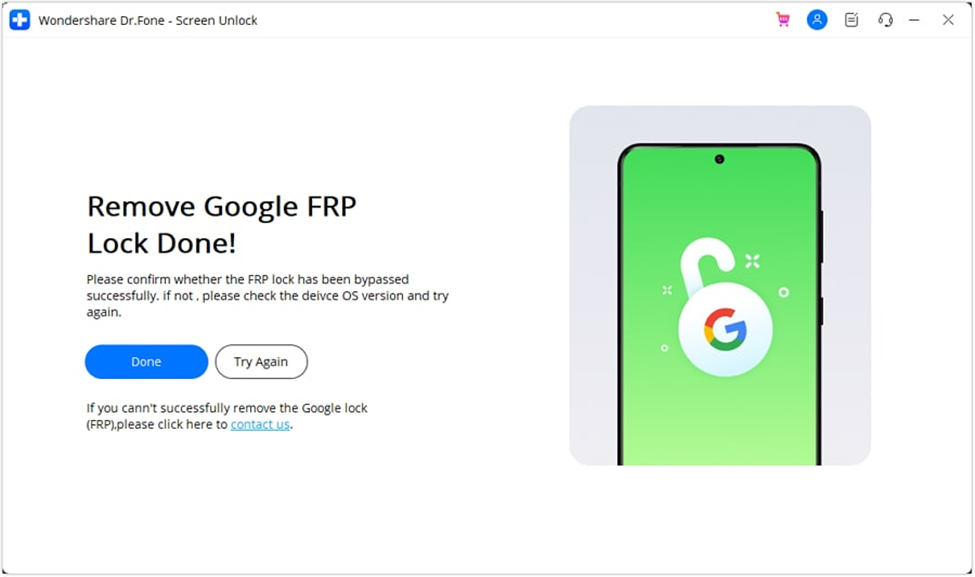
The tool will carry out the FRP removal independently. You will be notified of successful completion by a message. To close the window, click Done; if you want to do the steps once more, click Try Again.
Conclusion
Factory Reset Protection is a very useful feature in securing Android devices. It also leads to a situation where the rightful users who lose access may be locked out. Hence, it is of utmost importance to understand the working of the FRP mechanism. Safe solutions, such as Google Account Recovery or tools like Dr.Fone, can help you. If used correctly, you will be able to unlock your device without any worries.