


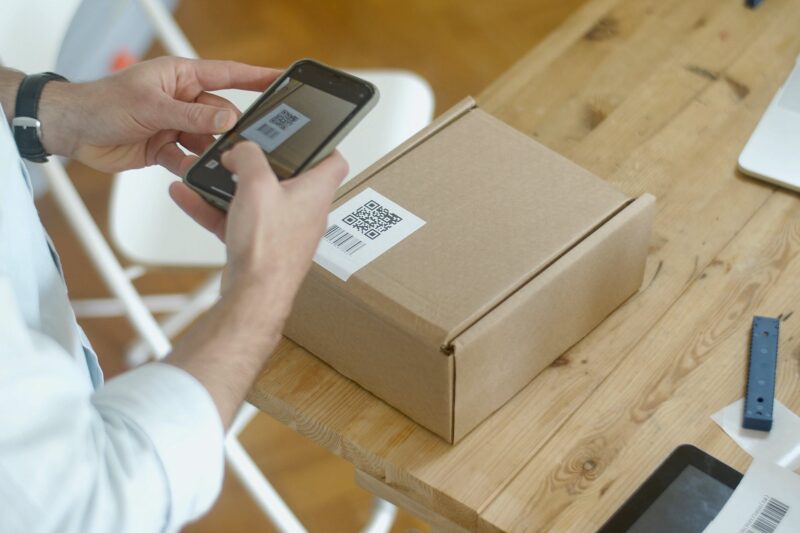
QR codes provide a convenient way to direct people to specific websites. In fact, over the past decade, it has experienced a surge in popularity, becoming ubiquitous in many public settings like restaurants, bus stops, and even bookstores, among other places. Businesses often rely on a QR code generator to quickly create custom codes that link customers to menus, promotions, apps, or contact information. Due to this universal utility, it's essential to understand how to scan them on smartphones, especially on Android devices.
Scanning QR Codes Step-by-Step
For standard QR code scanning, users can employ the native Camera app or utilize the Google Lens feature within the Google Search app. After accessing these apps, you can then follow these step-by-step instructions:
Using the Camera App
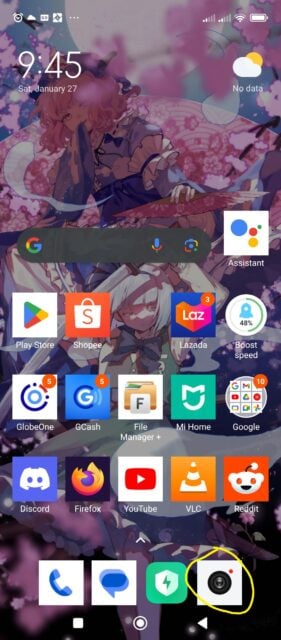
Open the Camera app on your Android Device
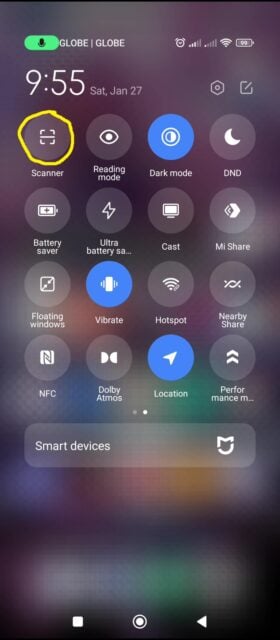
Alternatively, open the respective “Quick Settings” menu on your device, and see if there is a “Scan QR code” button. Tap on that function instead.

Position the QR code within the frame, ensuring the entire code is visible.
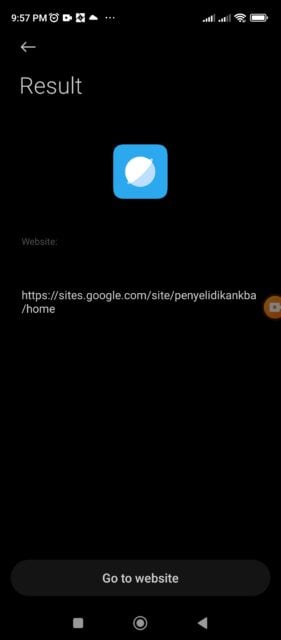
If successful, the code's URL will appear at the bottom of the frame or on the following link page. Tap it to open the website.
Using Google Lens in the Google Search App
Open the Google Search app on your Android device.
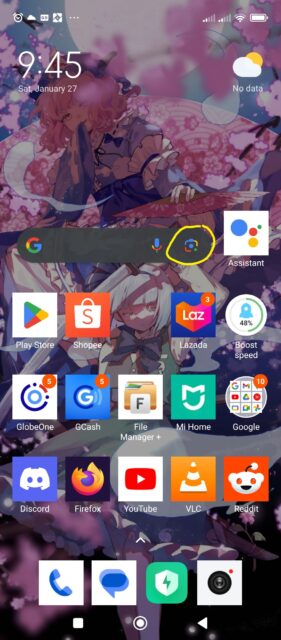
Tap the camera icon in the search bar to access Google Lens.
Allow Google Lens access to your camera.
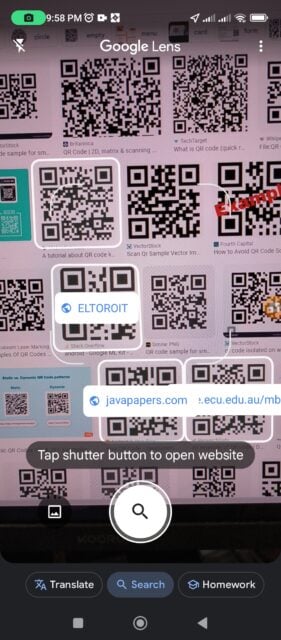
Position your camera to capture the QR code.
If the URL doesn't appear automatically, tap the shutter button to search the web.
Options such as opening the URL, copying it to the clipboard, or sharing it will be available.
For devices with Google Lens built into the camera app, users can find it by tapping on “Modes” and selecting “Lens.”
Third-Party QR Code Reader Apps

While native camera apps and Google Lens cover most scanning needs, users can explore third-party apps for additional features, if somehow the native features/apps don’t work well on your particular model. Recommended apps include “QR Code Reader,” “Lightning QR Scanner,” and “QR & Barcode Scanner (Plus).”
Popular Apps with QR Functions

Many popular apps even integrate QR code scanning features for various purposes. Here are some noteworthy social-media ones:
- Instagram – Instagram users can scan Nametags, a form of QR code, to quickly follow someone.
- Facebook – The Facebook app uses QR codes for friend requests and event check-ins.
- Microsoft Authenticator – Sets up two-factor authentication by scanning QR codes presented by websites or services.
- Snapchat – Snapchat lets users scan Snapcodes, a type of QR code unique to the platform, to add friends quickly.
- Twitter – Twitter's QR codes make it easy to search, and then follow other users.
Common Issues and Their Solutions
Inadequate lighting, for instance, can hinder the camera's ability to detect QR codes. Holding the phone steadily and avoiding tilting or shaking (at least for a brief moment) is also necessary to get a clean read. You need to maintain optimal distance from the QR code as well, so that the autofocus feature can latch onto the image much better.