


Keeping track of your passwords and log-in details for the slew of websites you visit can be daunting, especially if you follow the sound advice of using a different password for each account. Google's Password Manager is already a great option (and free) for keeping your passwords secure on the Chrome browser, and now its gaining a bunch of new features that promise to make the experience more secure and user-friendly. We've got the details of these new features for you after the break.
1. Access a dedicated space and shortcut on desktop
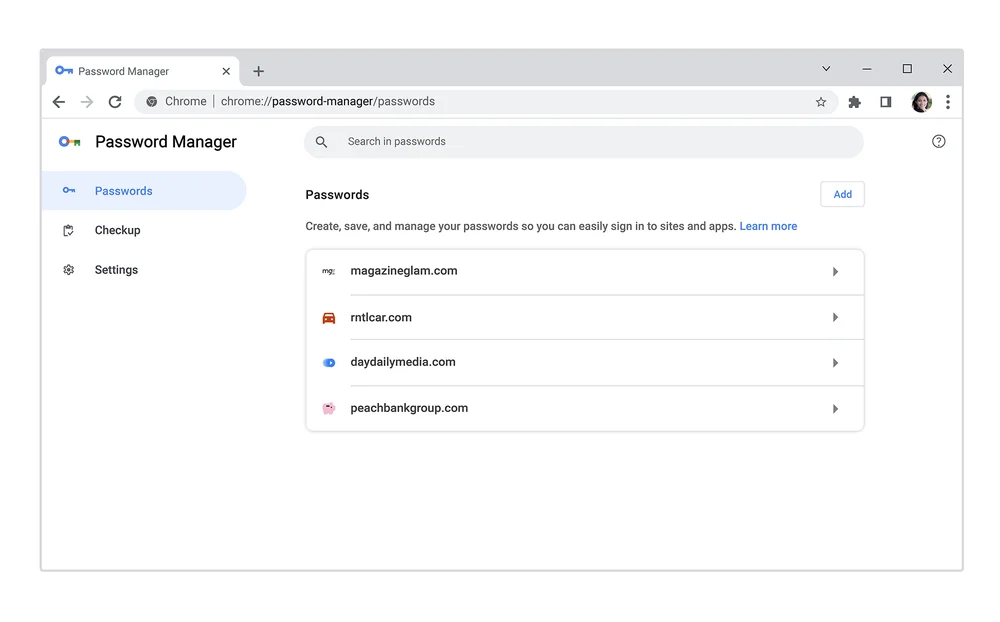
Google Password Manager now has a dedicated home in Chrome on desktop, making it easier to review all your saved online credentials or change your password settings. Check it out by clicking “Password Manager” in your Chrome menu or “Manage passwords” when Chrome prompts you to autofill a saved password. For even quicker access, you can now create a desktop shortcut for Google Password Manager, too.
2. Add more authentication methods on desktop
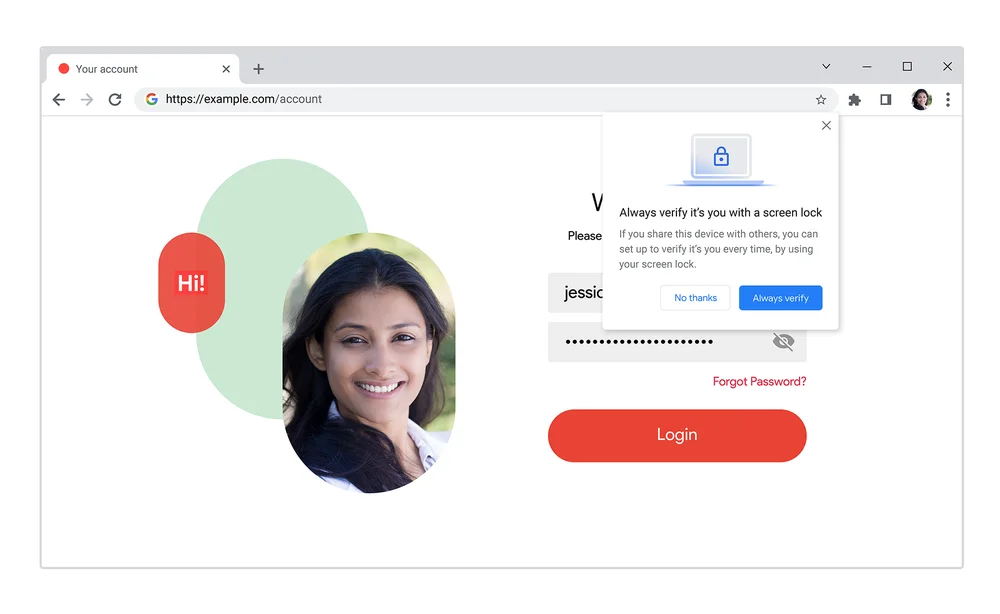
Previously only available on mobile, biometric authentication is coming soon to desktop. If you enable this feature, you can require an additional layer of security before Chrome autofills your password, like fingerprint recognition, facial recognition or other methods supported by your computer’s operating system.
3. Save notes about your accounts
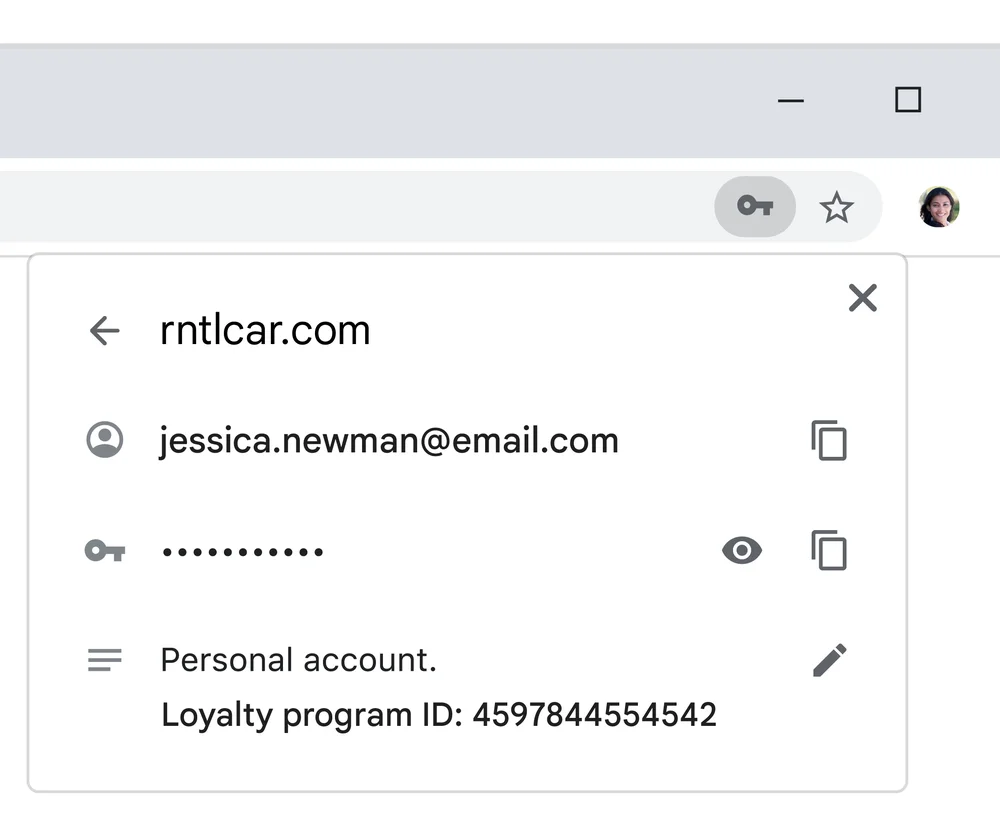
Have multiple logins for one website? Need to remember a pin number that goes with your password? You can now add notes to the credentials you save in Google Password Manager so all your important login details are in one place. On your computer, click the key icon when you're logging into a website to easily review the notes you've saved for each account.
4. Import from other password managers
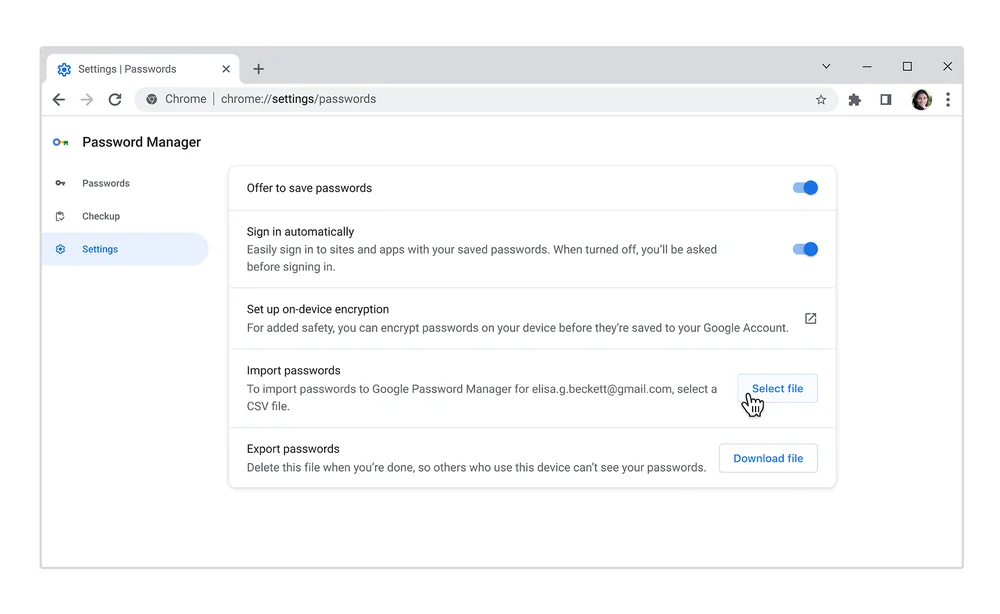
If you want to give Google Password Manager a try or you’re ready to make the switch, it’s now easy to upload your passwords from other password managers. Just export your passwords as a .csv file and import them directly into Chrome on your computer.
5. Find reused and weak passwords on iOS
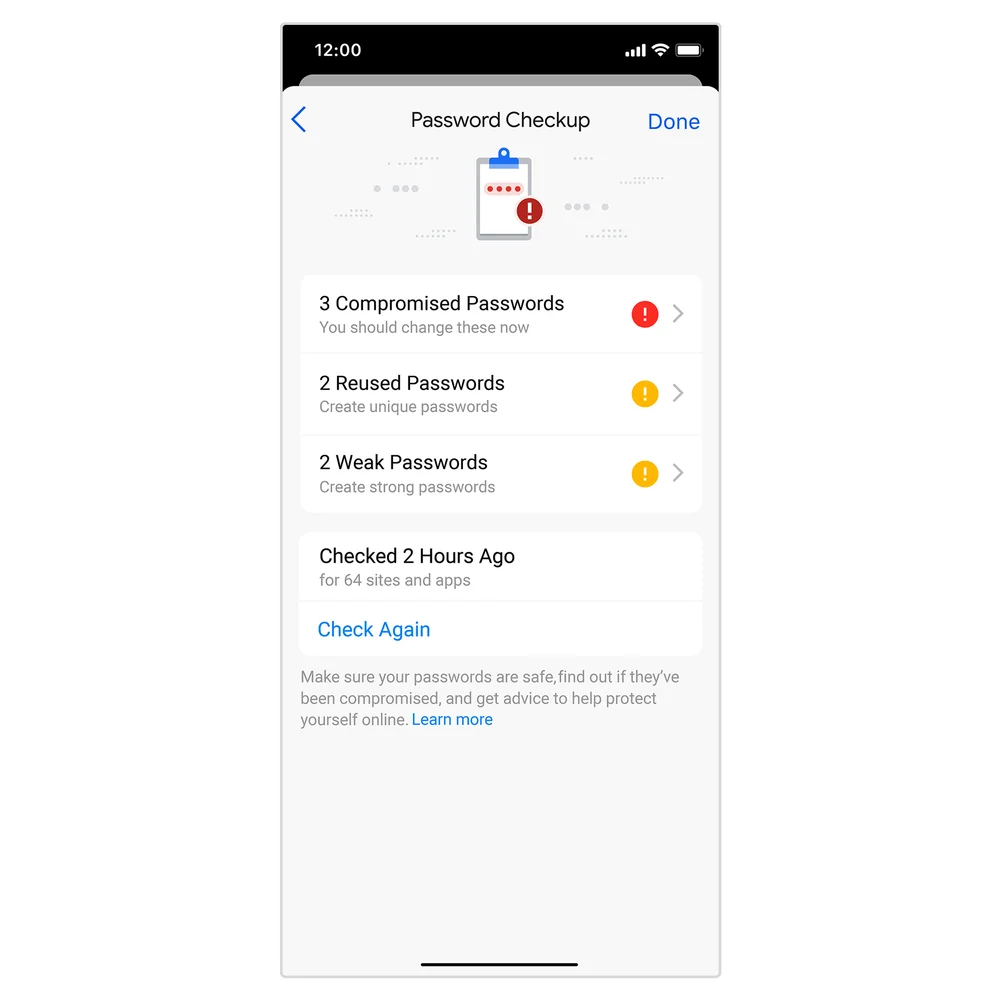
In addition to flagging compromised passwords, Password Checkup on iOS will flag weak and reused passwords, too. Look out for this update in the coming months.
It’s also getting easier to sign into websites and view passwords with Google Password Manager on iOS. When you navigate to a log-in page in Chrome, you’ll see a larger, more tappable prompt to autofill your passwords. And when you review your saved credentials in Chrome, multiple saved accounts for one website will be conveniently grouped together.