



We all know how productive Chromebooks can be but in the weeks and months ahead Google is adding a bunch of features in August that will round out the experience. Whether you've been waiting for the addition of light or dark themes, the ability to edit PDFs in the Gallery app, or perhaps just better Calendar integration, Google has you covered and more. Join us after the break for what you can expect to roll out to your ChromeBook in the near future.
Google Photos Editor
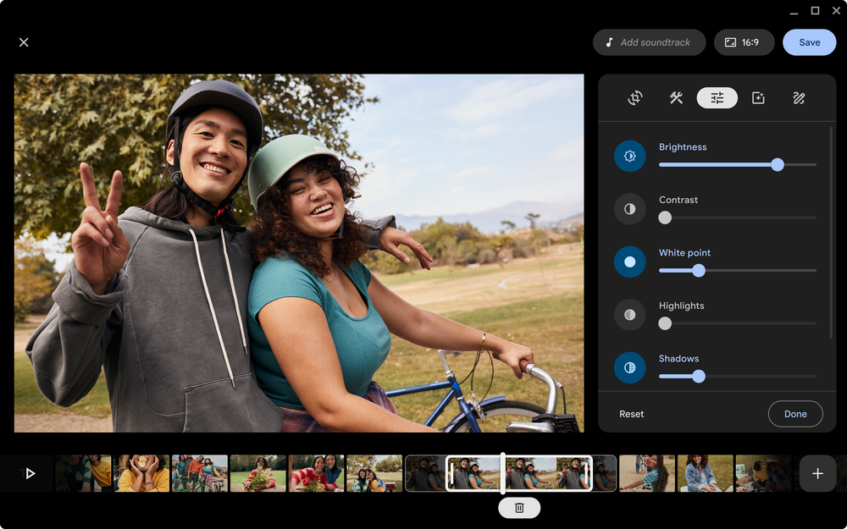
Being able to edit videos natively on Chromebooks has long been something that has been missing but Google is bringing the ability to do just that sometime in August. The new video editor will be part of Google Photos and will let users edit videos by choosing from suggested themes. Google Photos will take the work out of making the video when you choose the theme and which people or pets you'd like to star in the production. It will then select the most meaningful moments from your long videos. If you want more creative control you can start the project from scratch, searching on Google Photos for specific images before arranging them and any clips in your preferred order. You'll be able to tweak adjust brightness, tone, contrast and more as well as adding music and title cards to your project to give it that unique touch.
Google Photos will integrate with the Gallery and Files apps on your Chromebook which means you'll be able to start editing a video in the Gallery app and continue in the Photos app seamlessly.
And if that's not quite the level of sophistication you need, the LumaFusion app is coming to Chromebooks soon and will add professional-grade video editing. The multitrack editor gives you the ability to add graphics, visual effects, transitions, distortions, audio tracks, sound effects, narration, the all-important color-grading feature, and more.
Other features coming to Chromebooks:
- Gallery app. We’re introducing new PDF editing features to Gallery, Chomebook’s default media app, so you can fill out forms, highlight text, sign documents and add text annotations. No more printing and scanning just to sign a form. You’ll start to see this roll out next week.
- Screencast app. Anyone can now use Screencast to record, view and share transcribed videos and presentations, whether it’s a virtual lesson or a how-to video or demo.
- Cursive app. Capture, edit and organize handwritten notes on stylus-enabled Chromebooks. When it's time to share, you can quickly copy and paste your notes into another app or send as a PDF.
- Light & Dark themes. As you might expect, the “light” theme keeps the desktop bright and airy while the “dark” theme dims the brightness so that it's easier to read at night or in low-light conditions. You'll able to switch manually or trust Chrome OS to switch automatically. There are also some new wallpapers that are specifically tailored to both themes.
- Google Photos wallpapers. You will be able to set wallpapers from a Google Photos album and even choose to have it automatically switch each day. They can also be used as the screensaver image.
- Virtual Desktop saving. Arriving in September, you'll be able to save entire desktops, including windows and apps, and then reopen (or close) them with a simple tap.
- Calendar Integration. The Chromebook shelf will show a calendar bar on the side of the screen which, when a date is selected, will show your events and reminders with a simple tap, removing the need to open up a dedicated app or window.
- Cursive app. If you've got a Chromebook with a touchscreen display and have a USI stylus handy, the new Cursive app will let you capture, edit, and even organize hand-written notes. It also brings the ability to send notes to other apps.
Chromebooks are set to become even more capable in the next couple of months, but which feature would you like Google to add next?
