





 Phones and their features get more complicated every year, with gestures for this, squeezes for that, and multiple swipes and taps needed for numerous other functions. You may have just spent the mortgage money on your new Pixel 4 or Pixel 4 XL, but are you making the most of your handset, or have you barely scratched the surface of your new phone's potential? The combination of Android 10 and Google's latest Pixel phones means that there are a ton of new features to discover, so why not make it easy on yourself and join us after the break for these twenty essential tips and tricks for the Pixel 4 and Pixel 4 XL.
Enable Dark Mode
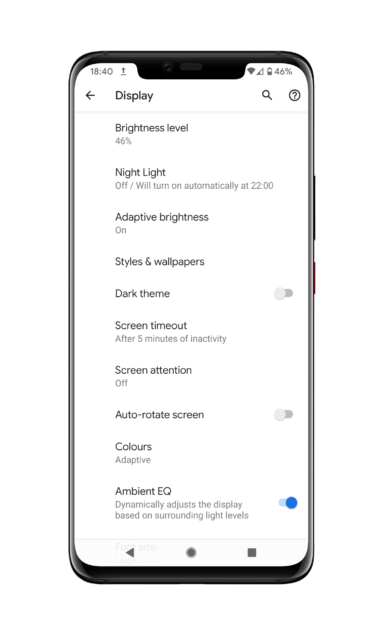
Possibly the most requested feature for Stock Android in the past 18 months is Dark Mode, which is finally a system-wide setting in Android 10. Now there is no need to be blinded at night when looking at the shiny brightness of Material Design.
- Open up Settings
- Tap on Display
- Toggle Dark Theme on or off
Enable Developer Options
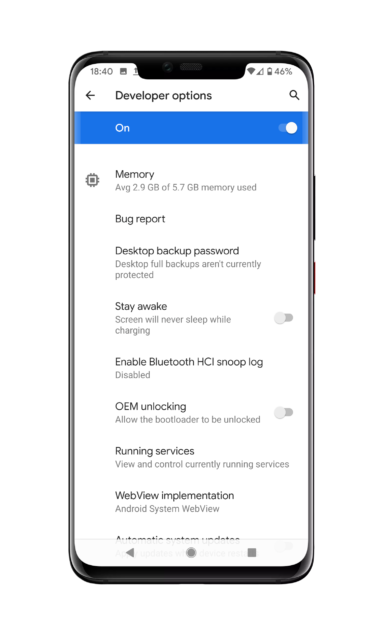
There are some features and options that you can only access by enabling Developer Options, so we've included the steps to do so below. It's important to remember that enabling or disabling any of the settings could cause issues, so be warned. If you do choose to enable the Developer Options, always take note of the option you are altering so that you can quickly return to the default setting if things don't go as planned. If you are absolutely sure, you can follow the directions below
- Open up Settings and select System
- Tap on About Phone
- Scroll down to Build Number and tap it seven times
- You'll be asked to enter your PIN to continue (If you've already set one up)
- You are now a developer! (No, not really)
- Return to Settings and select System
- Tap on Advanced, and the Developer Options tab will show just about System Update
Force Dark Mode everywhere and on everything
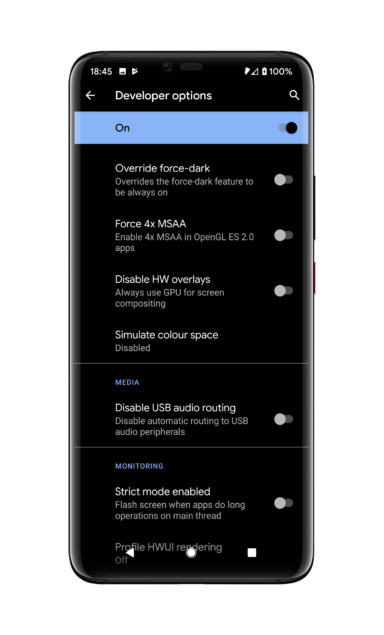
This is a brute force setting for those of us that want everything everywhere to switch to dark mode, whether the app supports it or not. Be warned; it can have unintended consequences with some apps appearing a little unusual. You will need to enable the Developer Options to access the function.
- Open up Settings
- Scroll down and select System
- Tap on Advanced and then Developer Options
- Scroll down to Hardware Accelerated Rending
- Tap on Override Force-Dark
Disable Motion Sense
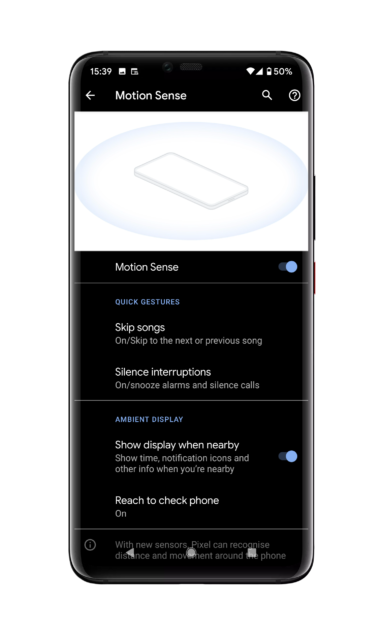
Motion Sense is a great feature that turns on the display every time your hand goes near the phone. While it's fun wafting your hand in the air to change songs for a while, it's a gimmick you may want to disable after a while. Disabling it also helps to save battery life.
- Head to Settings
- Tap on System
- Select Motion Sense
- Choose whether to disable the functions one-by-one or Motion Sense as a whole
Set-up Face Unlock
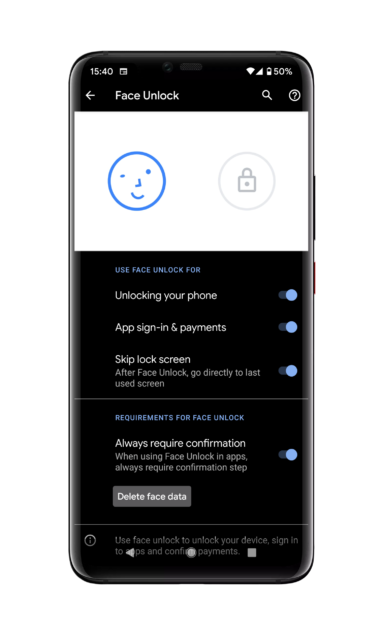
Seeing as Google chose to eschew the addition of a fingerprint reader on the Pixel 4 series, your options when it comes to securing your handset and unlocking it are limited to entering PINs, patterns, and Face Unlock. Setting up Face Unlock is relatively easy; all you need to do is follow the steps below:
- Open up Settings and select Security
- Tap on Face Unlock
- Select Set up Face Unlock
- Read the guidelines and press Next
- Tap on Start and then fit your face in the inner frame
- Rotate your face, capturing all the angles of your face by removing the tiles in the frame
- Press Done when complete
Change from Gestures to 3-button navigation
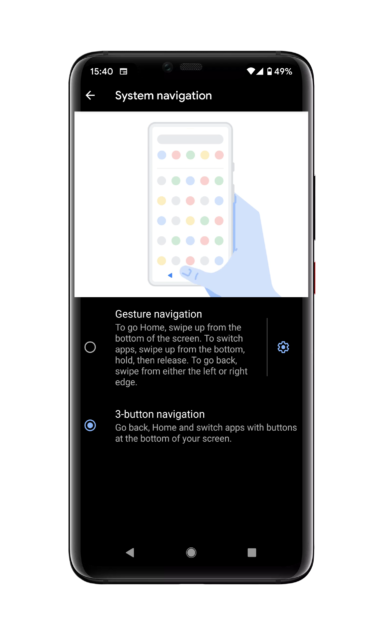
If controlling the Pixel 4 with the gestures found in Android 10 isn't to your liking, switching back to the legacy 3-button setup of Back, Home, and Recent is a simple process.
- Open up Settings
- Scroll down and select System
- Tap on Gestures
- Select System Navigation
- Choose between Gesture navigation or 3-Button navigation
Disable Active Edge
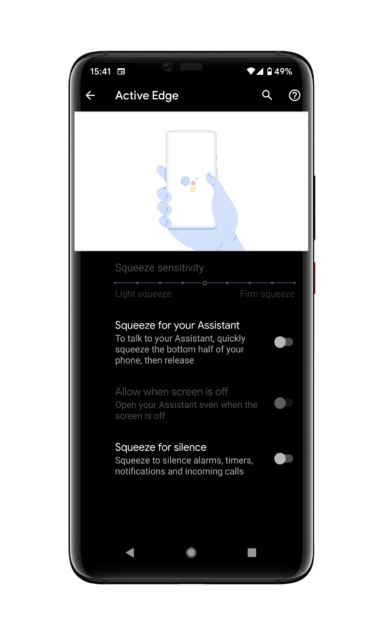
First seen on the HTC U11, Active Edge is one of those features that you will use all the time or not at all. Follow the steps below to customize the Active Edge functions and the squeeze sensitivity or to disable it altogether.
- Open up Settings and select System
- Tap on Gestures and then Active Edge
- Adjust the squeeze sensitivity to your liking
- Toggle the Allow when the Screen is Off and Squeeze for Silence functions
- Choose to disable Active Edge by toggling all functions to the off position
Enable Jump to Camera
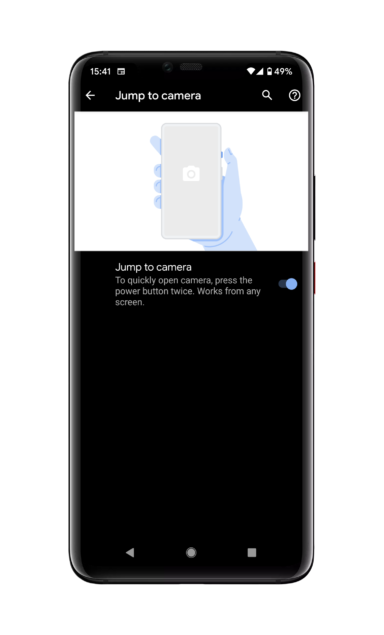
When your phone is in your pocket, and you need to take a photo of the memory unfolding in front of you, you don't always have time to unlock the Pixel 4 and open up the Camera app manually. Luckily, you can open the camera in a split second by pressing the Power button twice in quick succession.
- Open up Settings and select System
- Tap on Gestures and then Jump to Camera
- Toggle the Jump to Camera function on or off
Schedule Do Not Disturb
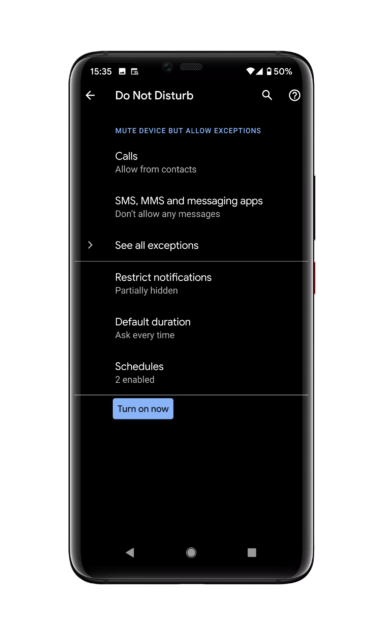
Whether you are in an important meeting or want some peace and quiet, the Do Not Disturb function is handy, ensuring that your phone doesn't make unwanted sounds or vibrations at inconvenient times.
- Head to Settings and tap on Sound
- Select Do Not Disturb
- Choose whether or not to accept calls from a specific group of people or no one
- Choose to allow calls, texts, and messaging apps from contacts starred contacts, or no one at all
- Choose whether to restrict just sound and visual notifications
- Tap on Custom to further customize the Do Not Disturb function
- Select Default Duration to enable Do Not Disturb indefinitely or for a specific time
- Click on Schedules to set Do Not Disturb to turn on and off at particular times on particular days
Schedule Night Light to turn on
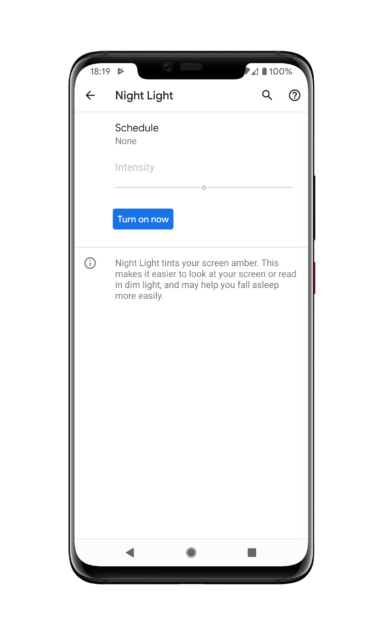
Looking at displays in dim light can strain your eyes, but you can ease the effect by enabling Night Light, which will tint your screen amber. You can turn it on or off or adjust the intensity of the effect to suit your liking.
- Open up Settings and tap on Display
- Click on Night Light
- Choose to turn it on and adjust the intensity
- Click on the Schedule button to turn Night Light on automatically from sunset to sunrise or at specific times of the day
Set a bedtime schedule with Wind Down
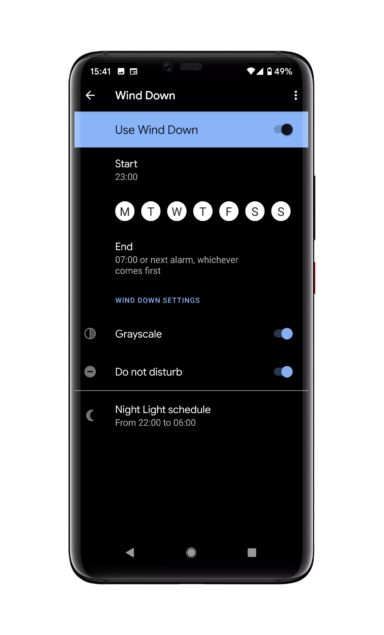
Sometimes it's challenging to pull yourself away from the smartphone. Still, if you think you need help to move your attention away from your new Pixel 4 gradually, then the new Wind Down feature will help you disconnect from the handset and avoid interruptions while you sleep.
- Head to Settings and select Digital Wellbeing
- Click on Wind Down
- Toggle Wind Down on
- Choose what time and which days you want Wind Down to activate and when to end
- Choose to enable Grayscale and Do Not Disturb
- Coordinate Wind Down with your Night Light schedule (if you've set one up)
Stop app icons being added to the Home Screen
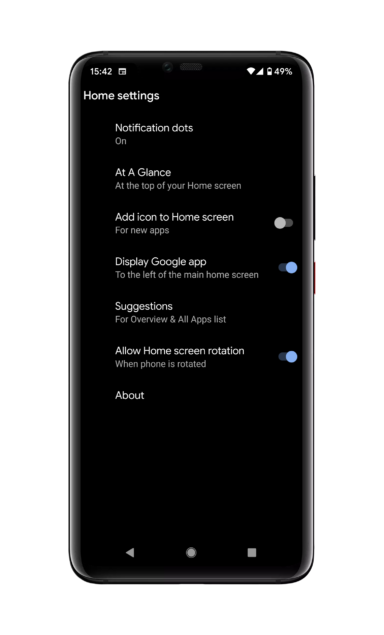
When you first download an app from the Play Store, your Pixel 4 is set to automatically place the app icons on the home screen, which can look a little messy. Follow the directions below to ensure that app icons are no longer added to the home screen.
- Long-press in an empty area of the home screen
- Choose Home Settings
- Toggle the Add icon to Home Screen option off
- You'll need to manually remove any app icons that have been added to the home screen
Enable Screen Attention
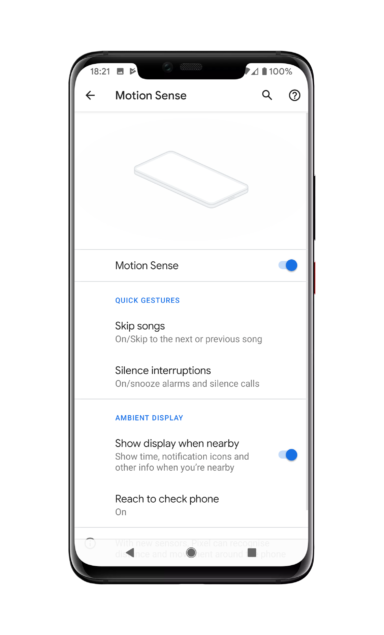
If you hate your phone's display going to sleep at inopportune times, then you'll need to enable the Screen Attention feature that will prevent the display turning off if the front camera detects that you are looking at the phone.
- Open Settings and tap on Display
- Click on Screen Attention
- Tap the toggle to turn the feature on
Enable Smooth Display
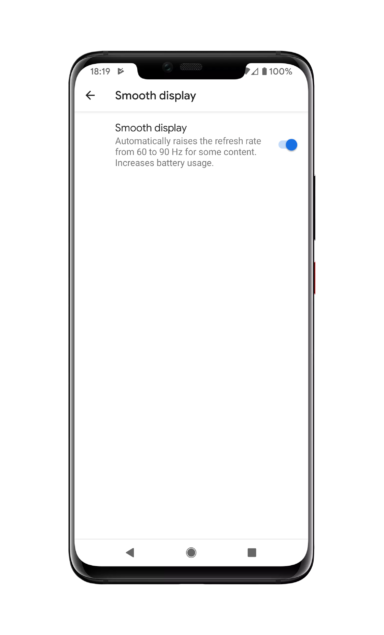
While enabling Smooth Display to boost the refresh rate up to 90Hz means that battery life will take a small hit, the slick user experience it provides should not be understated. For the moment, at least, though, enabling the feature will only affect selected content.
- Head to Settings and tap on Display
- Click on Smooth Display
- Toggle the feature on
Show LockDown option on Power Menu

Security is a serious topic, and if you ever find yourself in a situation where you need to lock your phone down in a split-second, then having the option to on the power menu is going to be extremely useful.
- Open up Settings and select Security
- Tap the gear icon on Screen Lock
- Click on the Power Button Instantly Locks toggle
Turn on Now Playing
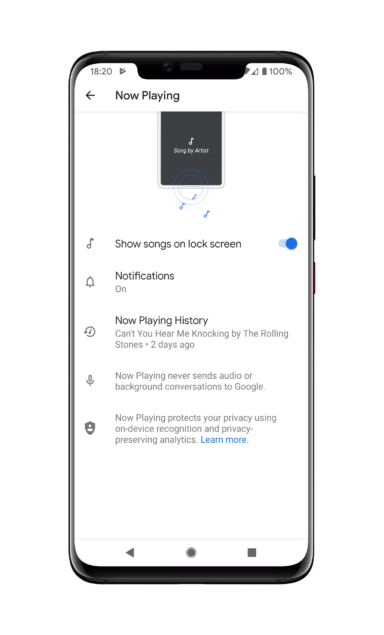
Not knowing who created the awesome song that is playing in the coffee shop can be frustrating, but not when you have the Now Playing feature enabled on the Pixel 4 that shows the song title and band details.
- Head to Settings and click on Display
- Scroll down and tap on Lock Screen Display
- Click on Now Playing
- Choose to display the song details on the lock screen
- Choose to show the details in the notifications shade
Turn on Flip to Shhh
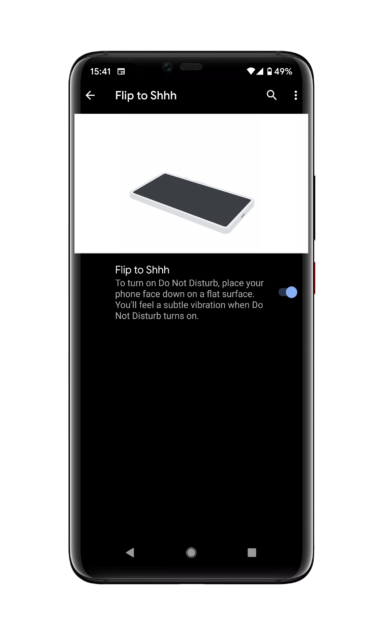
If you don't want to take a call in a meeting and forgot to enable Do Not Disturb, have no worries because you can choose to turn the phone face down on a flat surface to mute the incoming call.
- Open Settings and tap on System
- Click on Gestures
- Tap on Flip to Shhh
- Click the toggle to enable the feature
Enable Live Caption
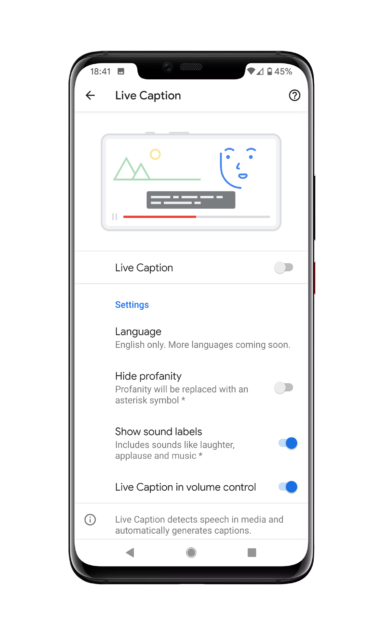
Live Caption is one of those features that you'll wonder how you lived without, especially if you are in the habit of forgetting to charge your headphones for those YouTube videos on the commute to work or when you can't listen to a voice message. Live Caption will automatically create captions for the media playing on your Pixel 4, including podcasts, videos, and audio messages.
- Open up the Settings app
- Click on Sound and then Live Capture
- Choose to enable Live Capture
- Select whether to show profanities, to show sound labels such as applause or laughter
- Choose to display the Live Capture icon in the volume controls
Turn on Data Saver
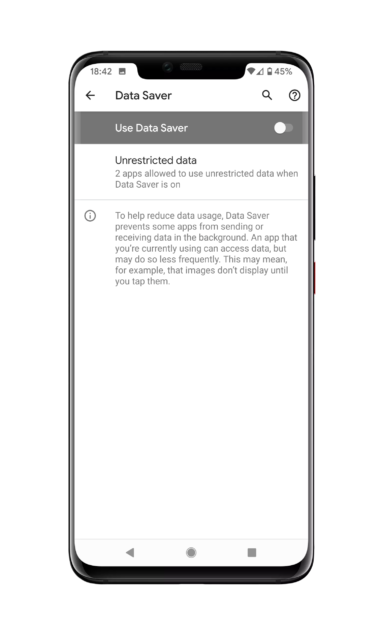
If you are in the habit of running out of data before your allowance refreshes, you may want to activate the Data Saver option on the Pixel 4 that will prevent some apps from sending or receiving data in the background.
- Open Settings and click on Network & Internet
- Tap on Data Saver
- Toggle Data Saver on
- Click on Unrestricted Data to choose specific apps to exclude from being restricted
Force 90Hz refresh everywhere
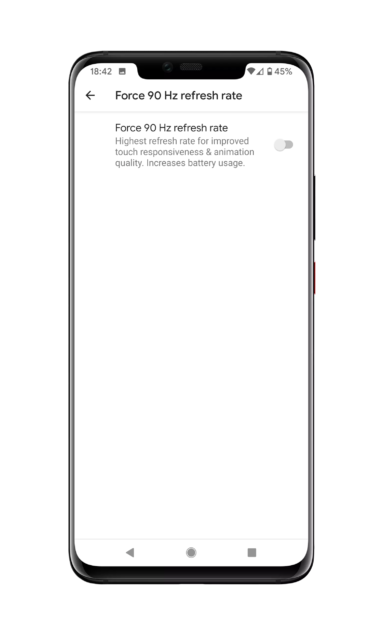
If, after enabling Smooth Display, you were disappointed that you weren't getting the full 90Hz experience in every single app, you can choose to force the higher refresh rate by digging around in Developer Options. Again, it should be noted that fiddling with Developer Options can result in the Pixel 4 experiencing issues, so be absolutely sure that you want to enable 90Hz and also that you are tapping on the correct setting.
- Open Settings and select System
- Tap on Advanced
- Click on Developer Options
- Scroll to Debugging and toggle the Force 90Hz Refresh Rate on
Google Pixel 3a review: The affordable Pixel champion
What’s the difference between Google’s Pixel 4 and Pixel 4 XL?
Here’s how to watch Disney+ right now, and how much it’ll cost you
