




Working late at night and tired of blinding white screens ruining your eyes? Fortunately most applications have some kind of dark mode these days, and it's usually very simple to toggle it on and off or set up a schedule that works for you, and Google Chrome is no exception. If you're trying to figure out how to set up dark mode on Chrome on your Windows PC, don't worry; we'll show you how.
It's only a few steps, don't worry.
Open Google Chrome's settings
Like most application changes, you'll need to access Chrome's settings page to turn dark mode on and off. The easiest way to do this is to click the three-dot menu at the top right of your browser bar, right next to the search bar and your account profile picture.
This menu shows a lot of different things, but we're interested in the settings menu towards the bottom of the list.
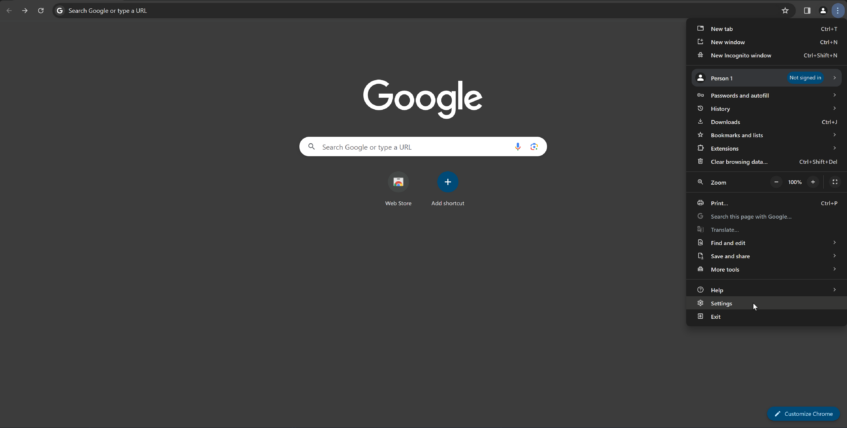
The settings menu shows you a ton of things you can change about Google Chrome. You can control sync options, saved passwords, performance changes, and all kinds of tweaks here, but we're only interested in setting up dark mode. Click on the Appearance entry on the left side to proceed.
Once again, we've got a few options for changing how Chrome looks, like hiding the home button, changing the default fonts and zoom sizes, and more. But in the middle of those changes is the option to control dark and light mode, simply titled “Mode” on this settings page. Clicking the dropdown will give you three options: light, dark, and device.
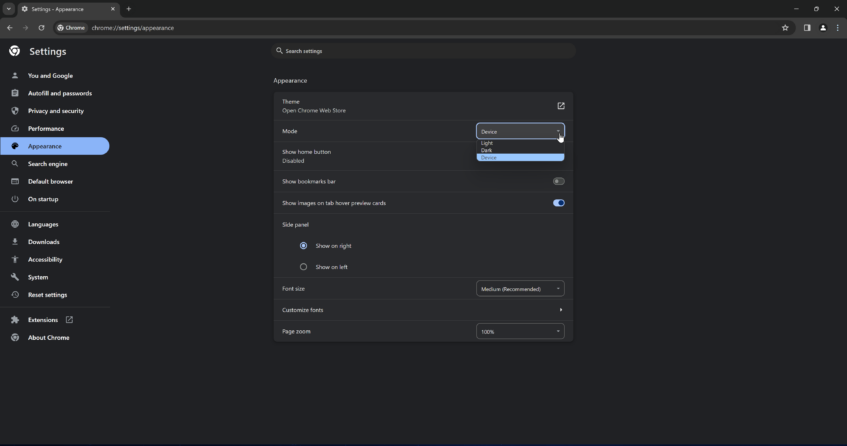
Light will set Chrome to light mode, while dark will set it to dark mode, getting rid of the bright white pages everywhere and attempting to use dark mode anywhere it's available. If you always want dark mode on Chrome, you'd set this option and leave it.
Sync Chrome with Windows dark mode
The last entry, called Device, makes Chrome sync with your Windows settings. So when Windows switches to light mode, Chrome will go to light mode, and when Windows turns on dark mode, so will Chrome. This option is better for consistency if you happen to use both modes on your PC. We'll also show you how to change Windows' behavior here.
We need to access Windows' settings menu, which can be done by clicking your Windows key and searching “Settings.” This will open the Settings app, although you can also manually find it in your start menu.
Microsoft makes this very easy by default. One of the boxes on the first page of the Windows settings menu is Personalization, which has a dropdown to change between light and dark mode; Windows calls this “color mode.”
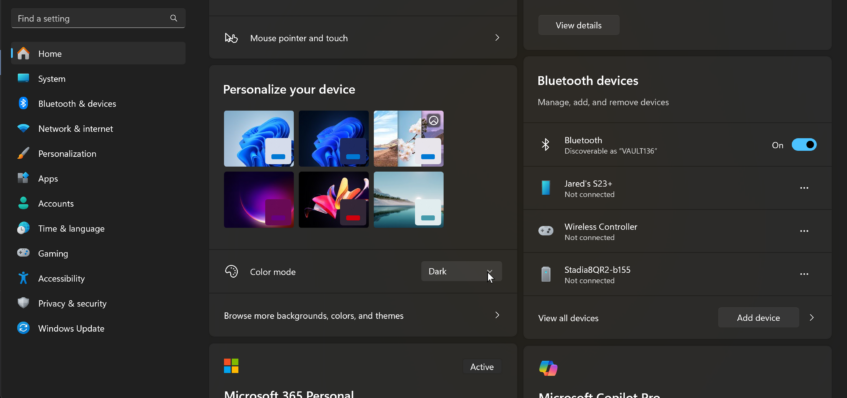
If Chrome is set to the device in that previous dropdown, it'll mirror whatever you pick here, keeping your experience consistent across programs. Pretty useful!
Fortunately, this is a pretty easy setting to get back to in case you want to change things up in the future.