


Every Android phone quietly collects audio it cannot play everywhere. WhatsApp saves voice notes as .opus, Telegram ships them as .ogg, and the screen recorder leaves you with an MP4 when all you wanted was the sound. Convertio lets you convert opus to mp3 straight from the phone's browser, re-encoding a voice note into a file that a car stereo, an old iPod or a podcast app will open without complaint. We went through the service page by page to see how it handles the three formats Android users ask us about most.
The same upload box covers Telegram's format too. The ogg to mp3 converter on Convertio transcodes Vorbis or Opus audio inside an OGG container into MP3 at a bitrate you pick, anywhere from a 45 kbps voice setting up to a 320 kbps constant rate. Below, we cover what the service does, which settings matter, where the free tier stops, and how the paid plans stack up.
Why your phone is full of OPUS and OGG files
Messaging apps picked Opus for a reason. The codec was standardized by the IETF in 2012 and was built to sound good at very low bitrates with almost no delay, which is exactly what a voice note or a video call needs. Wikipedia's entry on Opus lists bitrates from 6 kbps to 510 kbps and a frame size as small as 2.5 ms, and every modern browser ships a decoder because WebRTC requires one.
The catch is everything outside the browser. Car head units, cheap MP3 players, older smart speakers and plenty of desktop editing software still expect MP3, a format that has been an international standard since 1993. So the file your friend recorded in two seconds becomes a chore the moment you want to keep it, edit it or play it in the car.
- WhatsApp voice notes are saved as
.opusfiles. - Telegram voice messages arrive as
.ogg(Opus audio in an Ogg container). - Game assets, older music rips and open-source audio are often OGG Vorbis.
- Screen recordings and downloaded clips are MP4, with the audio locked inside a video stream.
What Convertio does, in number
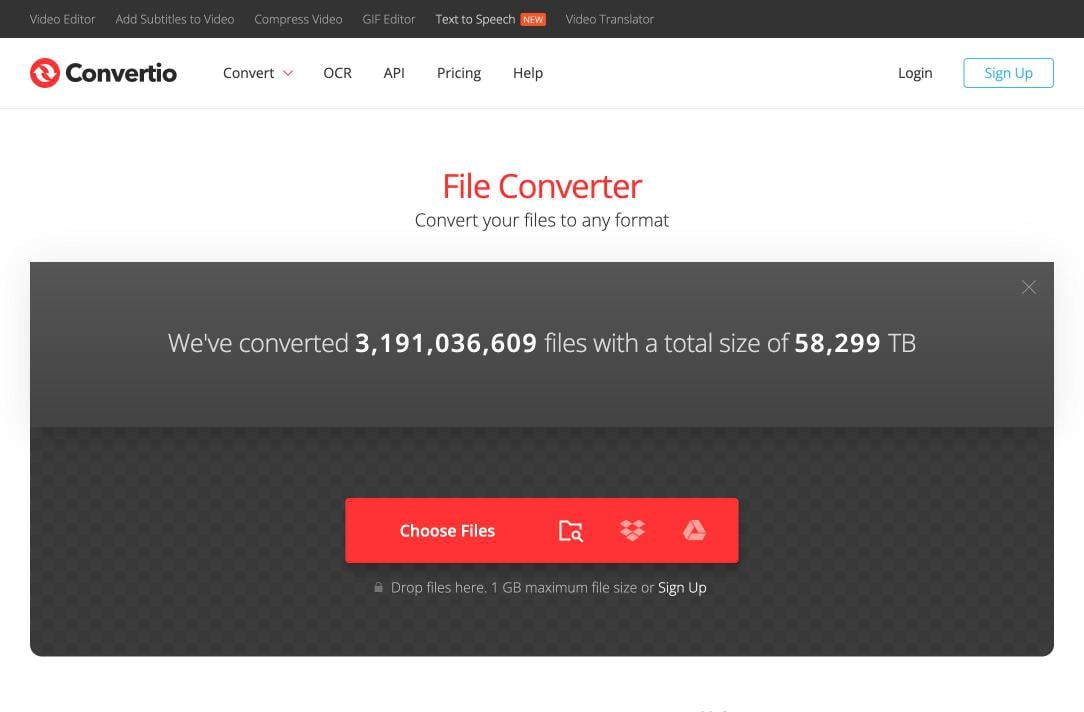
Convertio is a browser-based converter run by Convertio Ltd, which has been operating since 2014 and hosts its infrastructure in Germany. Nothing installs on the phone; you upload a file, pick an output format, and the conversion runs on the company's servers. The numbers it publishes are large enough to be worth repeating.
| Claim | Figure (from convertio.co, October 2026) |
|---|---|
| Supported formats | More than 300, across audio, video, image, document, ebook, archive, font, vector and CAD |
| Conversion pairs | More than 25,600 |
| Files converted to date | 3.19 billion, totalling 58,299 TB |
| User quality rating | 4.6 out of 5 from 31.8 million votes |
| Target conversion time | Under 1–2 minutes for most jobs |
| Audio formats listed | More than 60, from mainstream AAC, FLAC and WAV to oddities like Amiga 8SVX and Yamaha TX16W sampler files |
Why this matters on Android Many Play Store converter apps bundle ads, ask for storage permissions they do not need, or lock higher bitrates behind an in-app purchase. A browser-based service sidesteps all three. The trade-off is upload time: a 40 MB MP4 on a slow mobile connection will take longer to send than to convert.
Step by step: OPUS or OGG to MP3 on a phone
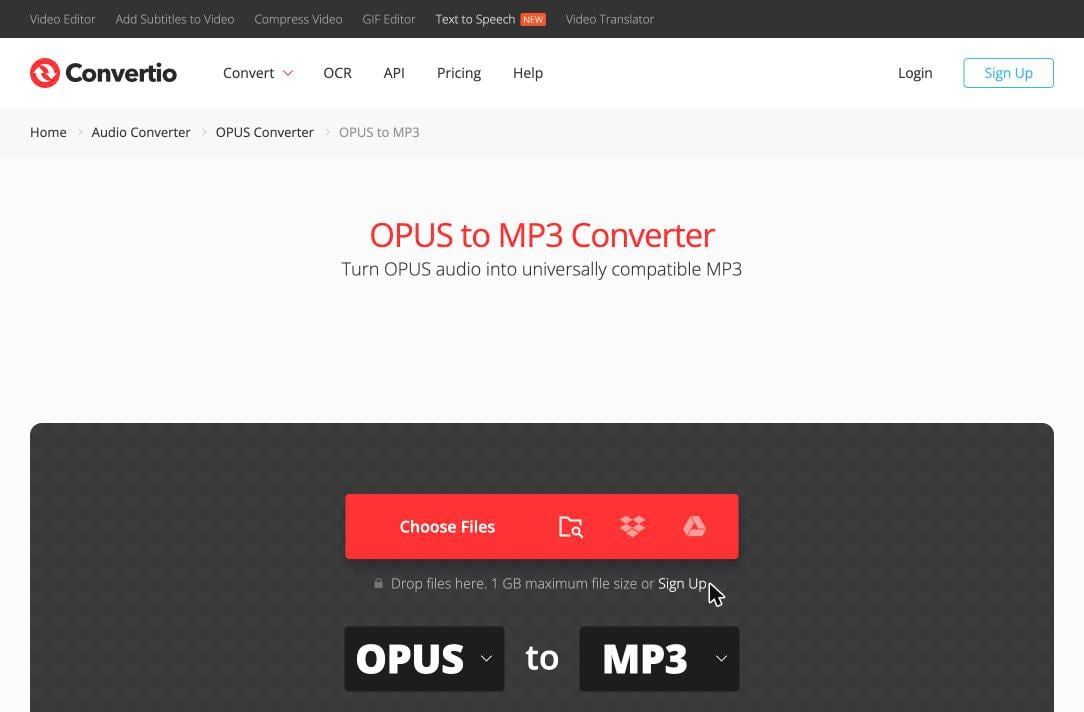
The process is the same whether you start from a WhatsApp note or a Telegram message, and the page works the same way in Chrome on a phone as on a desktop, with the format pickers simply stacking vertically on a narrow screen.
- Find the file. In WhatsApp, long-press the voice note and use the share option to save it to Files or send it straight to the browser. Telegram lets you save a voice message to the phone from the message's long-press menu.
- Open the converter page for your format: OPUS to MP3 or OGG to MP3. Convertio pre-selects both ends of the conversion.
- Tap Choose Files. Pick the file from local storage, or use the Dropbox and Google Drive icons if the note lives in the cloud already. Multiple files can be queued at once.
- Optionally open Settings and set the bitrate and channels (see the next section).
- Tap Convert. Convertio says it aims to finish most jobs in under one to two minutes; a short voice note is a few seconds of work.
- Download the MP3. The output file stays available under My Files for 24 hours, so you can grab it again from another device if needed.
Tip: batch the whole conversation Convertio accepts several files in one upload, so if you are archiving a week of voice notes, select them all. The free tier allows ten simultaneous conversions, and each short audio file uses a single conversion credit.
The three settings worth touching
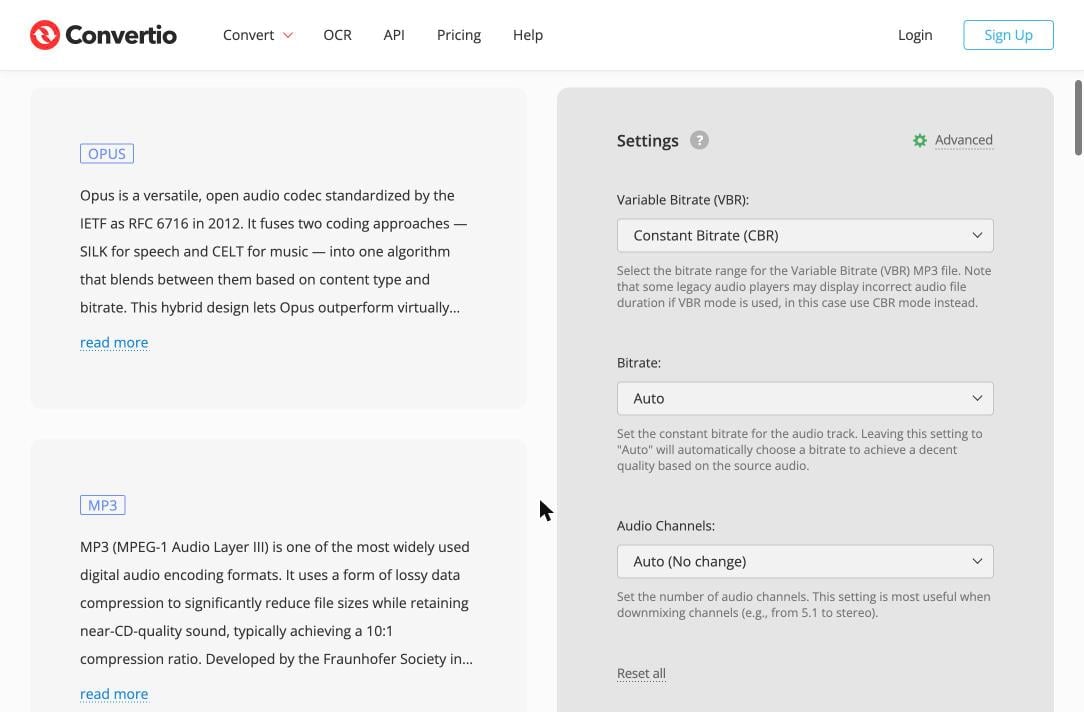
Most people will never open the Settings panel, and the defaults produce a usable MP3. But a voice note and a music track deserve different treatment, and three drop-downs cover almost every case.
| Setting | Options | Our recommendation |
|---|---|---|
| Variable Bitrate (VBR) | Ten quality bands from 45–85 kbps up to 220–260 kbps, or Constant Bitrate (CBR) | Leave CBR for voice notes destined for a car stereo. Convertio warns that some legacy players show the wrong duration on VBR files. |
| Bitrate (CBR mode) | Very low, Low, Middle, High, Very high, Custom (up to 1000) or Auto | Auto for speech. Very high or a custom 256–320 kbps for music, since both Opus and MP3 are lossy and you are re-encoding. |
| Audio Channels | Mono, Stereo, or Auto (no change) | Mono for voice notes halves the file size with no audible loss. Keep Auto for music. |
You cannot add quality that is not there A WhatsApp note is encoded at a low Opus bitrate to begin with. Converting it to a 320 kbps MP3 produces a much larger file that sounds exactly the same. Convertio's FAQ for this conversion suggests 256–320 kbps to preserve the most quality, which is sound advice for music and wasted space for a voice note.
Pulling the audio out of an MP4
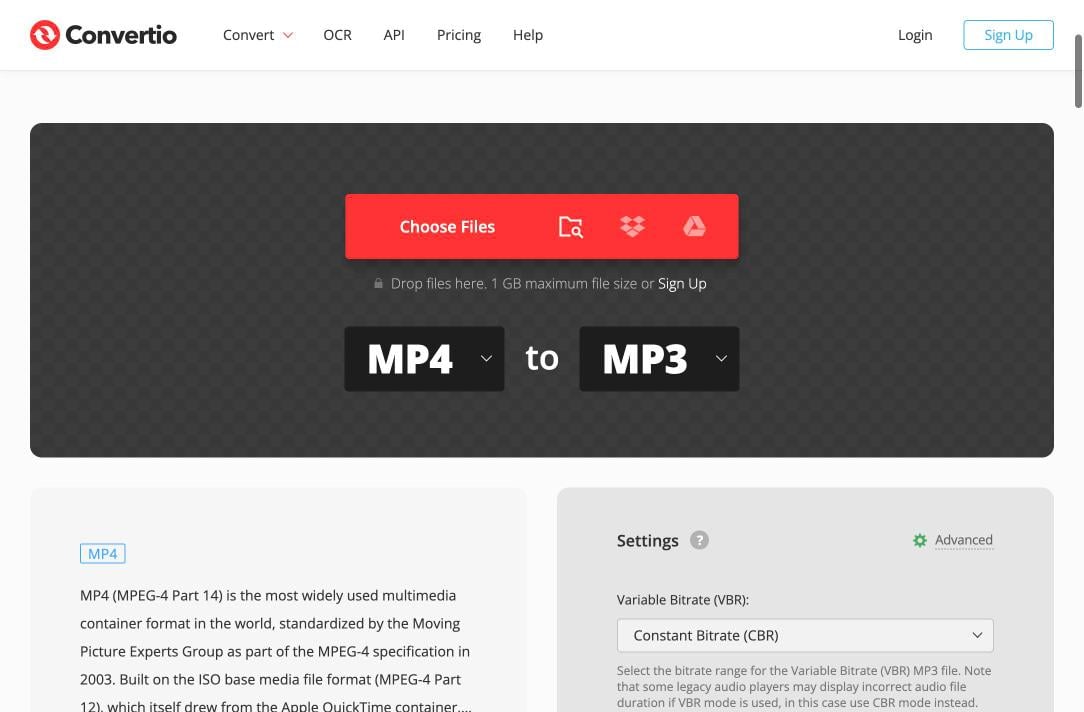
Screen recordings, lecture captures and downloaded clips all end up as MP4, and most of the time the audio is the only part worth keeping. Convertio earns its place as the best mp4 to mp3 converter for Android users by extracting the audio track from a video in the cloud and handing back a plain MP3, with no app install and no need to keep the phone awake while a local encoder grinds through the file. The settings panel is identical to the audio pages, so the same bitrate and channel advice applies.
Two things to know before uploading video:
- Size counts against the 1 GB free limit per file. A 1080p screen recording at 60 fps can hit 1 GB in under fifteen minutes, so trim it on the phone first.
- Video costs more credits. Convertio's pricing FAQ says photo and document conversions use one credit, while “larger files or more complex codecs require additional credits.” On the free tier's ten-credit daily allowance, that means a handful of long videos, not dozens.
Free tier limits and paid plans
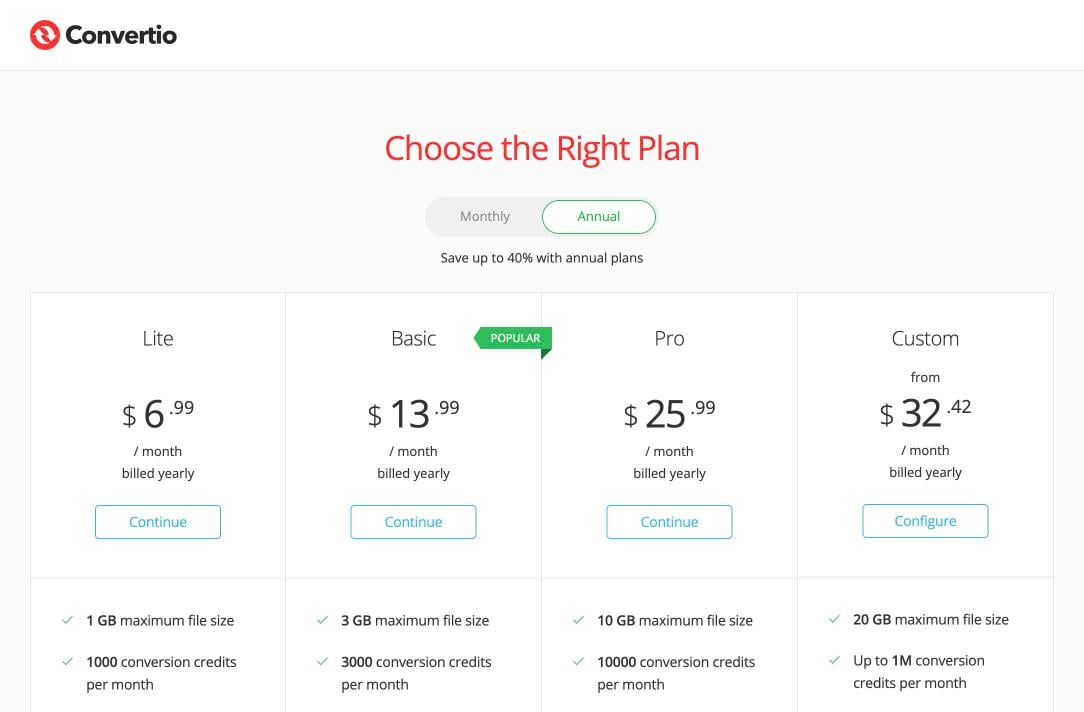
You do not need an account to use the service. The free tier, as documented in Convertio's help center, allows files up to 1 GB, ten conversion credits per 24 hours and ten concurrent conversions, with no other restrictions. That is enough for a week's worth of voice notes. Heavy users, or anyone converting video regularly, will run into the credit cap and see a prompt to upgrade.
| Plan | Monthly | Annual (per month) | Max file size | Credits per month | Concurrent jobs |
|---|---|---|---|---|---|
| Free | $0 | $0 | 1 GB | 10 per 24 hours | 10 |
| Lite | $11.99 | $6.99 | 1 GB | 1,000 | 50 |
| Basic | $22.99 | $13.99 | 3 GB | 3,000 | 100 |
| Pro | $44.99 | $25.99 | 10 GB | 10,000 | Unlimited |
| Custom | from $54 | from $32.42 | 20 GB | Up to 1,000,000 | Unlimited |
All paid plans remove ads and lift the conversion-time limits. Payment options include major cards, PayPal, wire transfer and regional methods such as iDEAL and Sofort.
No refunds on subscriptions Convertio's pricing page states plainly that it does not issue refunds once you upgrade, on the grounds that the free tier exists for testing. Try your actual files on the free plan before paying, especially if you need an unusual format pair.
What happens to your files
Voice notes are personal, so the retention policy matters more here than for a batch of product photos. Convertio's security page makes a few specific commitments:
- Uploaded source files and temporary files are deleted immediately after conversion.
- Converted output is deleted after 24 hours, or sooner if you remove it manually under My Files.
- Each conversion runs in a separate sandboxed environment, and the company says its own staff cannot access user files.
- Downloads are bound to the IP address that started the conversion.
- Infrastructure is hosted in Germany under GDPR, in data centers certified to ISO 27001, with TLS and HSTS on every connection.
None of that changes the basic rule of cloud converters: you are sending the file to someone else's server. For a voice note from a friend, that is a reasonable trade. For a recorded medical consultation or a legal meeting, a local converter is the safer choice, even if it is slower and uglier.
Verdict
The MP3 format is three decades old and shows no sign of retiring, so the need to get modern codecs into it is not going away. For the specific Android problem of voice notes, Telegram clips and screen recordings, Convertio does the job without an app, without a watermark and without asking for an email address. The free allowance of ten credits a day is tight for video but generous for audio, and the settings panel offers real control rather than a single “quality” slider.
| Good | Less good |
|---|---|
| No install, works in any Android browser 1 GB per file on the free tier Real bitrate and channel controls Files purged quickly, EU hosting Batch uploads and cloud-storage pickers | Ten credits per day runs out fast with video Ads on the free tier No refunds once you subscribe Upload time on slow mobile data Some format pairs only convert one way |
If you only ever need to rescue the occasional WhatsApp note, bookmark the OPUS to MP3 page and never think about it again. If you are archiving a podcast's worth of recordings every week, the Lite plan at $6.99 a month on annual billing is the one to look at.