



How to take charge: Data Saver mode
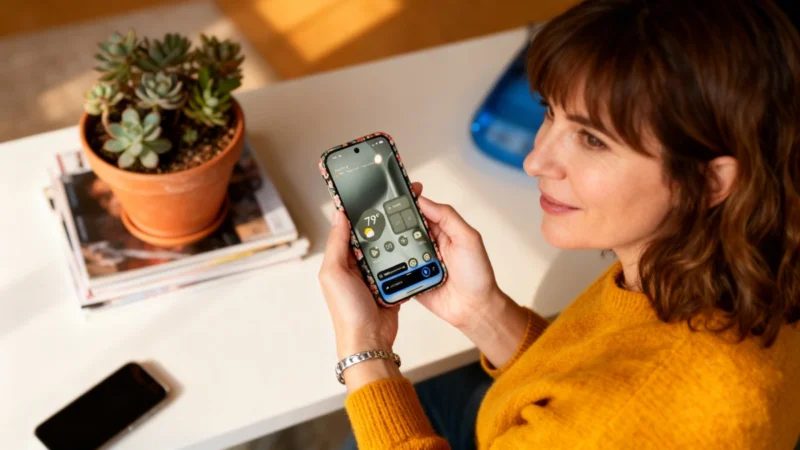
The first step is turning on Data Saver mode. This setting stops certain apps from sending or receiving data in the background. With Data Saver activated, images on websites won’t load automatically—instead, you’ll have to tap them. The same goes for videos and audio—they won’t start playing unless you choose, which can help lower data use quickly.
How to enable Data Saver on Android
Here’s how to turn it on: pull down your Android notification panel twice to see the full quick settings menu, then tap the gear-shaped Settings icon in the bottom right corner. Or just open your app drawer, type “Settings,” and select it.
In the Settings menu, head to Network & Internet. Look for “Data Saver” and tap it. On some phones, this feature is found in Settings > Mobile Network. On the next screen, use the switch to turn Data Saver on. Once it’s enabled, Android will limit background data usage for all apps.
Managing exceptions for important apps
Here’s something to keep in mind: With Data Saver on, every app on your phone faces these new data limits. While this is great for your wallet, some apps might start behaving unusually or not update as often. If you need a certain app to always have full access, you can allow it to bypass Data Saver. Just scroll through your list of installed apps, find the one you want, and flip the switch to let it use unrestricted data in Data Saver mode. That way, you get continuous updates for must-have apps while the rest stay in check.
Security reminder: Watch out for malware
A noteworthy security update: one year after its initial detection, the SparkCat trojan resurfaced in an updated form. According to Kaspersky, it has been identified on both the App Store and Google Play, hiding inside legitimate-looking apps to steal cryptocurrency wallet recovery phrases. Make sure to be cautious and always verify downloads from official stores.
Google has also updated its image editor with improved facial retouching features. The goal is to help users enhance their portrait photos quickly and easily, without needing extra specialized software.
Legal notice | Terms of use | Personal data protection policy | Cookies | FAQ – Your choices regarding cookie use | Manage cookies | Copyright © 2025 ZDNET
ZDNET France is operated by CUP Interactive SAS (France) under license from Ziff Davis.