



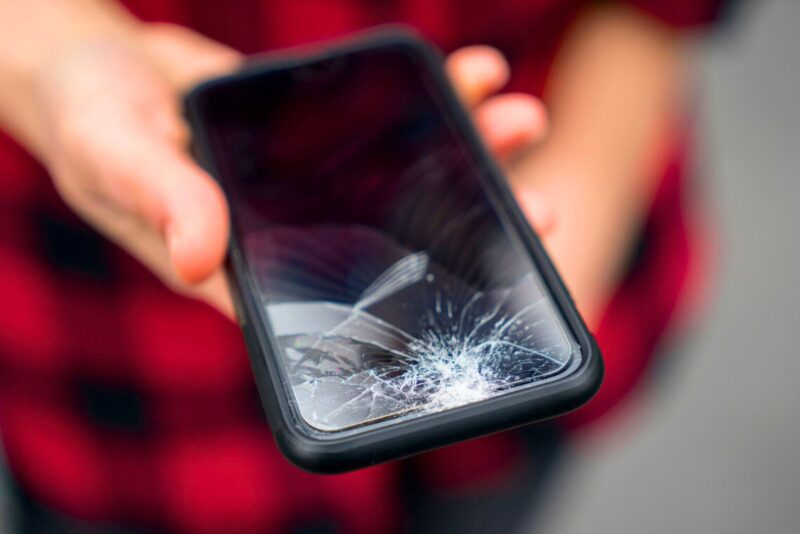
Dropping your phone is almost a rite of passage. One slip from your pocket, and suddenly you’re staring at a spiderweb of cracks—or worse, a completely black display. But don’t panic: a shattered screen doesn’t always mean your data is lost. If your Android device still powers on, there’s a reliable way to recover files, photos, and contacts before sending it in for repair or upgrading to a new model.
What you’ll need to get started
The method is surprisingly simple and doesn’t require any shady apps or complicated coding. All you need is:
- A recent Android phone with a USB-C port
- A USB-C hub that includes video output (HDMI, VGA, or DVI)
- A monitor or external display
- A keyboard and mouse (wired or wireless)
- A charging cable to keep your device powered during the process
Once everything’s set up, the idea is to mirror your phone’s display to an external screen. That way, even if your phone’s display is unreadable, you can still navigate the system using a keyboard and mouse.
Step-by-step: Accessing your phone with a broken screen
- Connect your monitor, keyboard, and mouse to the USB-C hub, and plug the hub into your phone.
- Power up your phone and wait about a minute for it to boot fully (you might notice a vibration, even if the screen stays dark).
- If connected correctly, your monitor should display a clock and a small lock icon.
- Use your keyboard to press Enter, then type in your PIN or password to unlock your device.
- Once unlocked, your whole interface should appear on the monitor, allowing you to navigate using your mouse and keyboard.
If you use a pattern unlock instead of a PIN, things get trickier—you may have to draw it blindly on your phone’s cracked screen until it registers.
Back up your data with Google
Once you’ve regained control, the quickest way to secure your files is by using Google’s built-in backup tools:
- Open Settings on your phone.
- Go to System > Backup (or search for “Backup” in the settings menu).
- Tap Back up now to sync your apps, photos, and contacts to Google Drive.
- On your new phone, log in with your Google account, and your latest backup will restore automatically during setup.
It’s seamless, but be prepared to wait while all your apps and files download.
Prefer local storage? Here’s how
If you prefer to avoid the cloud, you can connect an external hard drive or USB drive to the hub. With any basic file manager app, you can transfer your files directly to external storage, then plug that drive into your new phone later to restore your data.
Avoid the headache next time
The easiest way to save yourself from stress is with regular backups. Google Photos, Google Drive, and automatic contact sync are built into Android for a reason. For extra security, consider keeping a USB-C flash drive handy and making occasional manual backups, especially before trips or major updates.
Because while cracked screens happen to the best of us, losing your precious photos and documents doesn’t have to.

