




Transferring WhatsApp Business from Android to iPhone can be risky. One wrong move can result in the deletion of chats, client contacts, or business settings. Keeping business records secure is critical. Customers want quick replies, saved chats, and business catalogs. A failed WhatsApp Business move from Android to iOS can damage your reputation. It could potentially cause delays in daily activities.
Google Drive backups do not work on iPhones. The Move to iOS app does not support WhatsApp Transfer Business from Android to iPhone. Many users fail to notice this until it is too late. Furthermore, untrustworthy third-party tools can corrupt data.
To successfully transfer WhatsApp Business from Android to iPhone, you'll need a dependable solution. This article discusses seven mistakes that people make and how to avoid them. You'll also learn to securely transfer all business data without losing any information.
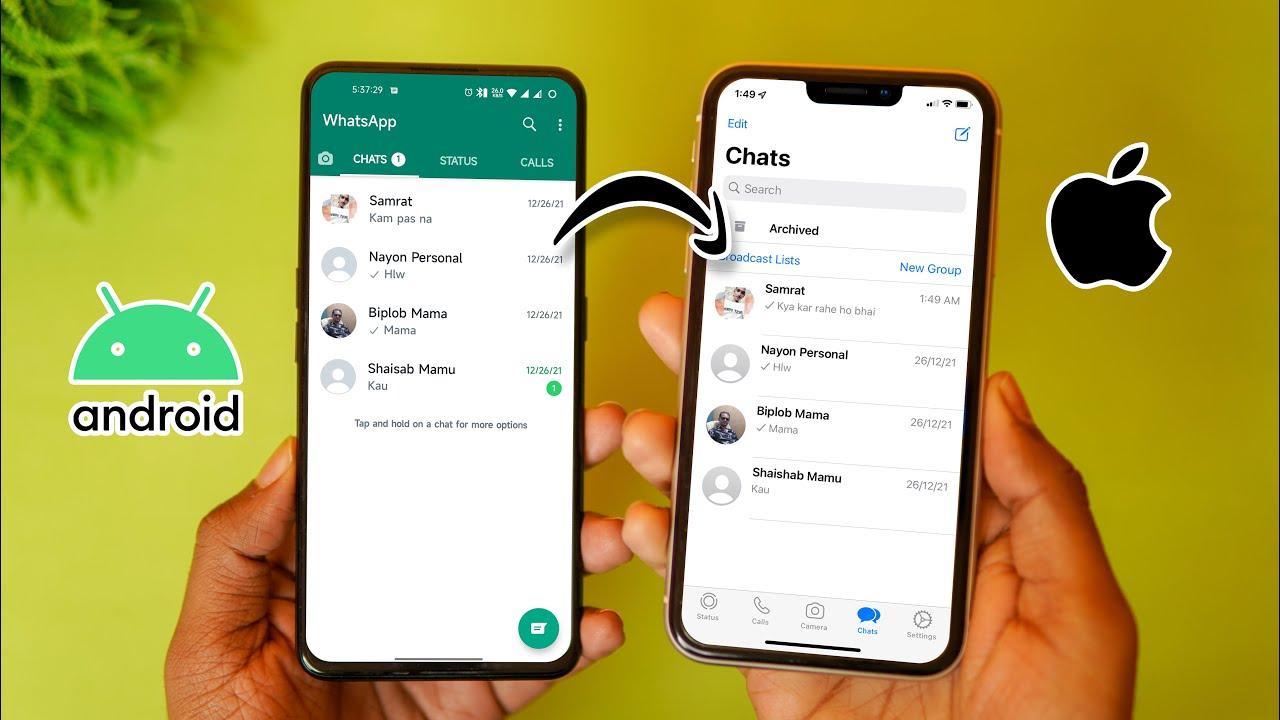
Part 1. 7 Critical Mistakes to Avoid (+ Solutions)
Transferring WhatsApp Business from Android to iPhone can be challenging. Many people make blunders, resulting in lost conversations, missing media, or faulty settings. These issues can disrupt your workflow and cost you valuable client engagements.
To avoid issues, you must plan carefully. Here are seven typical mistakes people make and how to avoid them. Follow these recommendations to ensure a stress-free WhatsApp Business transition from Android to iOS.
Mistake 1: Skipping Local Backups
Why It's Bad:
- Google Drive backups will not work on iPhones.
- You may lose valuable chat history and media files.
Fix:
- Create a local backup for your Android device.
- Use MobileTrans to transfer data across platforms securely.
- Ensure that your backup includes business settings, emails, and attachments.
Mistake 2: Using Outdated or Untrusted Tools.
Why It's Bad:
- Some tools may cause data corruption during the transfer process.
- Untrusted apps can expose your company's information to security risks.
Fix:
- Use a trusted tool, such as MobileTrans.
- Make sure the program can move WhatsApp Business from Android to iPhone.
- Check for updates before beginning the transfer procedure.
Mistake 3: Ignoring iPhone Reset Requirements
Why It's Bad:
- Existing data on the iPhone may cause transfer issues.
- Some files may not restore correctly.
Fix:
- Before you transfer data, reset your iPhone.
- Replace your gadget with a new one or reset it for a fresh start.
- To avoid errors, follow the necessary set-up instructions.
Mistake 4: Not verifying business data after transfer.
Why It's Bad:
- Some data could be missing, such as:
- Business catalogues
- Quick responses.
- Labels and customer details
Fix:
- Use MobileTrans, which can handle business-specific data.
- Double-check that all chats, settings, and media have been recovered.
- Send messages to ensure that everything works.
Mistake 5: Relying on ‘Move to iOS' for business accounts.
Why It's Bad:
- WhatsApp's official tool does not support WhatsApp Business transfers from Android to iOS.
- Some chats and media files may not transfer.
Fix:
- Don't use Move to iOS for business transfers.
- Choose a specialist tool, such as MobileTrans.
- Follow the required steps to ensure a complete migration.
Mistake 6: Overlooking iCloud Storage Limits.
Why It's Bad:
- iCloud may not have enough space for your backups.
- Large multimedia files may fail to recover.
Fix:
- Before transferring, check your accessible iCloud storage.
- Remove unneeded files to clear up space.
- To avoid relying on iCloud, use MobileTrans to transfer data directly.
Mistake 7: Transferring Without Testing
Why It's Bad:
- Hidden errors can disrupt your business workflow.
- Lost data can affect customer communication.
Fix:
- Perform a test transfer with non-critical data first.
- Check that all messages, business settings, and media are intact.
- Please contact support if anything goes wrong during the procedure.
Part 2. How to Transfer WhatsApp Business from Android to iPhone Using MobileTrans
Why Choose MobileTrans?
MobileTrans allows you to move WhatsApp Business from Android to iPhone easily. It supports all WhatsApp Business-specific data, resulting in a seamless transfer.
Key features:
- Full WhatsApp Business Migration: Transfer messages, contacts, media, catalogs, and rapid answers.
- No Data Loss: Transfer all your business discussions while keeping them intact.
- Secure and Private: Encrypted transfer keeps your data safe.
- No Reset Required: There is no need to delete your iPhone before transferring.
- Merge Old and New Data: Combine chats from both devices smoothly.
- Compatibility: It supports over 6000 devices and is compatible with Android and iOS.
- Restore Google Drive Backups: Transfer your WhatsApp Business backup from Google Drive to your iPhone.
- One-Click Transfer: Easy, quick, and dependable WhatsApp transfer.
How to Move WhatsApp Business from Android to iPhone Using MobileTrans
Follow these four simple steps to migrate WhatsApp Business from Android to iPhone without losing data.
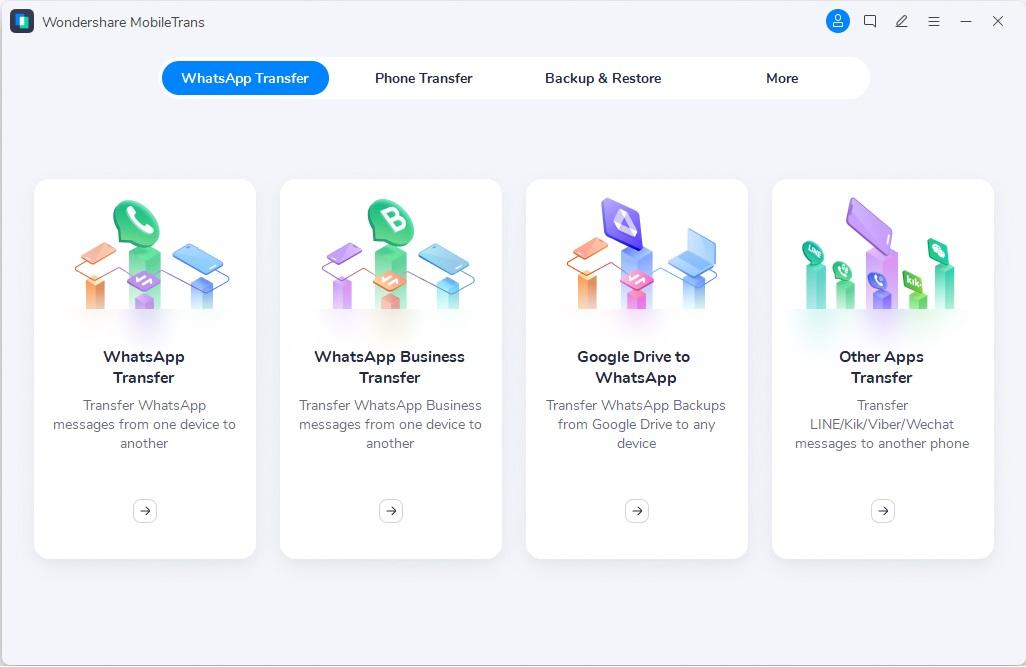
Step 1: Download and install MobileTrans.
Get MobileTrans from the official website. Install it on your Mac or Windows PC. Open the app and select “WhatsApp Business Transfer.”
Step 2: Connect your devices.
Connect Android and iPhone to your PC via USB connections. Ensure that Android is the source device and iPhone is the destination. If they are not in the correct order, click “Flip.”
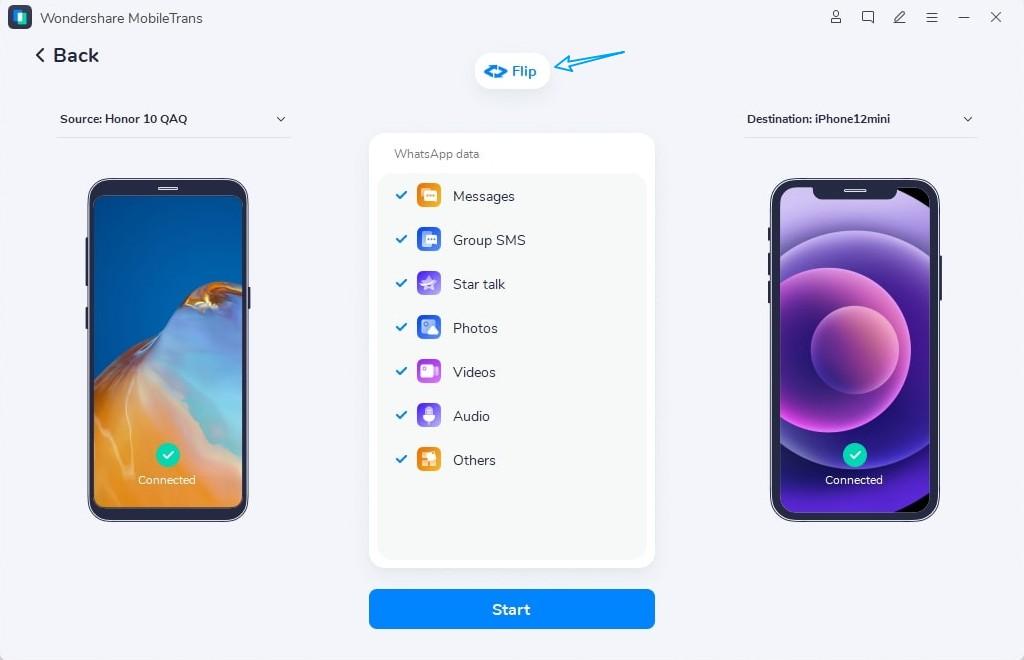
Step 3: Select Transfer Devices
Select “Android to iOS.” To begin the process, press “Start”.
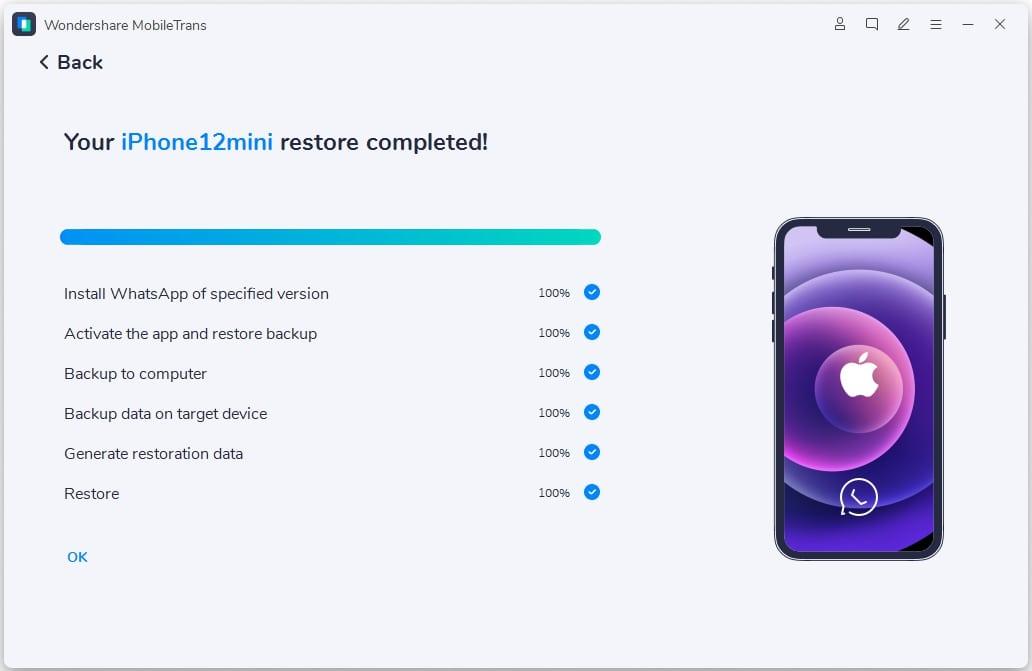
Step 4: Complete the transfer.
Wait for the transfer to complete. It may take a few minutes. Once done, launch WhatsApp Business on your iPhone. Verify your phone number and restore your chats.
Why MobileTrans over other methods?
Most methods, including Move to iOS, do not permit WhatsApp Business transfers from Android to iOS. MobileTrans offers a comprehensive solution that keeps your business chats, contacts, and settings intact.
WhatsApp Business can be transferred quickly and securely from Android to iPhone with MobileTrans. Follow the steps below, and your chats will be ready on your new iPhone in minutes. Download MobileTrans today for a hassle-free WhatsApp Business transfer.
Part 3. WhatsApp Business Transfer FAQs: Android to iPhone Edition
Switching to a new iPhone? You may have questions about WhatsApp Transfer. Here are solutions to typical questions about transferring WhatsApp Business from Android to iPhone.
FAQ 1: Can I use Google Drive backups to restore an iPhone?
No, iPhones do not support Google Drive backups. iPhones use iCloud for backup and restoration. To transfer WhatsApp Business from Android to iPhone, use official solutions such as Move to iOS or third-party apps.
FAQ 2: Why are my media files missing after the transfer?
Media files may not move automatically. Ensure your WhatsApp Business transfers from Android to iOS contain chats and media. Check if your material has been preserved in the Photos app, or try redownloading it from your conversations.
FAQ 3: Can I keep using both phones after transferring?
No, WhatsApp Business only works with one phone per number. When you migrate WhatsApp Business from Android to iPhone, you must authenticate your phone number on the new device. The old phone will log off.
FAQ 4: Will My Clients Know I Switched Devices?
No, your contacts will not be alerted. Your communications and business information will remain the same. Only you know you've finished the WhatsApp Business transition from Android to iOS.
FAQ 5: How to Restore Business Catalogs/Quick Replies?
Business services such as catalogs and quick responses may not migrate. Before you transfer WhatsApp Business from Android to iPhone, make sure to save them manually. You can also re-enter them after configuring your new phone.
FAQ 6: What If My Transfer Fails Midway?
If the transfer fails, check your internet connection and phone storage. Restart the procedure or utilize a reputable third-party tool such as MobileTrans to transfer WhatsApp Business from Android to iPhone safely.
FAQ 7: Is it safe to use third-party transfer tools?
Yes, but use reliable tools. Some third-party apps offer WhatsApp Business migration from Android to iOS with additional security protections. Always check reviews and make sure the tool does not save your information.
Conclusion
Transferring WhatsApp Business from Android to iPhone is difficult, but the appropriate tool simplifies it. Since iPhones don't allow Google Drive backups, you need a dependable method. Safe and speedy WhatsApp transfers are ideal with MobileTrans.
To use MobileTrans, first install it on your PC. Connect both phones using USB cords. Start WhatsApp Business Transfer from Android to iOS. Once done, your iPhone will have all your communications and media.
MobileTrans protects messages, media, and corporate data. It guarantees risk-free WhatsApp transfer from Android to iPhone. It protects your data, unlike other tools. This is the safest way to move WhatsApp Business from Android to iPhone. Transfer today and continue business without worry!

