





Call recordings are great to have for many reasons. As a “multitasker”, I find myself doing chores and struggling to pay attention with the phone cradled between my shoulder and ears. Other times, I just want something I can listen to when I miss my loved ones — or want to nab someone who's lying.
If you're like me, or have other reasons to keep a call recording on your Samsung phone, here's how it works and how to get started.
How to make and keep call recordings on Samsung phones
A call recording is a digital copy of an audio conversation between you and another party that you store on your device. If you own any of Samsung's phones, you may record the conversation with the in-built feature. But it doesn't work everywhere as some countries have state laws that ban such activities. In addition, be sure to check out the guide on how to repair corrupted Android videos.
That's why most manufacturers disable similar features before distributing them to different markets. If you’re unable to locate the call recording option or get it to work, your device isn't faulty. You're most likely in a region that doesn't support it.
Typically, you can record phone calls manually or automatically. The manual method gives you the freedom to be selective and store only calls you find important. On the other hand, the automatic method makes the process hands-free and captures moments you could easily miss. Here's how both methods work on most Samsung phones.
Manually recording calls on Samsung phones
1. Open the Phone app on your device. Then dial or search the number you want to call with the keypad or Recents and Contacts menus.

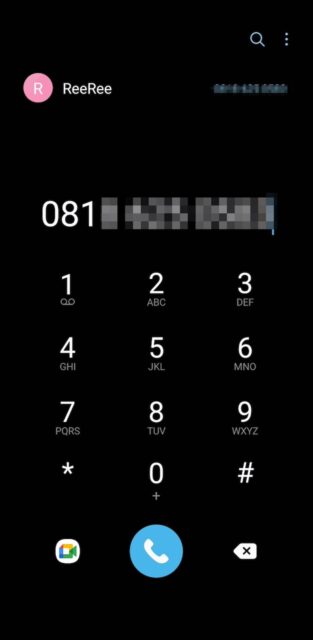
2. You need to be on active call for the recording feature to appear. When the other party has accepted your call, tap the three-dot icon in the top right corner. Select Record call.
3. Accept Samsung's terms and conditions to continue. Then your Samsung phone begins recording the call without informing the other person.
4. To find and listen to recordings, return to the Phone app and tap the three-dot icon in the top right corner of any menu. Then select Settings.

5. Go to Record calls > Recorded calls and play any recording you want.
Automatically record calls on Samsung phones
1. Open the Phone app and tap the three-dot icon in the top right corner of any menu. Then select Settings.
2. Tap Record calls, then tap the toggle switch beside Auto record calls to enable the feature.
3. Tap Auto record calls to enter the menu and choose whether to record all calls, calls from unsaved numbers, and those from specific numbers.
Never miss the juicy bits of a call again
Recording people's calls on Samsung phones is interesting, particularly because the feature doesn't notify the other person like Google's Phone app. That said, consent is important and you should tell them what you're doing beforehand. This way, you don't violate their privacy and any laws. If you're wondering what other cool related features you can use, artificial intelligence on your Galaxy S24 phone lets you make live translations when speaking with foreigners.

