




The Google Play Store is your one-stop to get apps officially on your Android device. It's a vast library of over three million free and paid apps. You can also update apps, manage subscriptions, track purchases, and set parental controls.
Usually, the Play Store updates itself automatically and doesn't require manual efforts. But if you have doubts about its vulnerabilities and security, it's the best practice to check for an available update. In this guide, we'll show you how to do it.
How To Update Google Play Store To The Latest Version
It's quite self-referential that the app you use to update other apps also updates itself. But rather than having an information page like the rest of the apps, you'll find the update option in its settings menu. Here's how to get there:


- Open the Google Play Store app on your Android phone or tablet. At the top right corner, tap your profile icon. Then go to Settings > About.
- Under Play Store version, tap Update Play Store.


- A message will pop up telling you that the Play Store is up to date. If it's not, the message informs you that a new version will be automatically installed for you.
What To Do When Google Play Store Won't Auto-update
When the Google Play Store app refuses to update automatically, there are numerous causes. For one, you may have battery optimization settings enabled. The feature conserves your battery, but not without restricting background activity and putting apps to sleep. You can turn it off for the store alone.
Sometimes, the problem is your connection; you'll want to switch to a stronger Wi-Fi or mobile data connection. Another reason is that your phone's time and date settings are incorrect. If your phone's clock is set to Eastern Standard Time (EST) while you're in Greenwich Mean Time (GMT), the Play Store may not recognize the correct time frame and authorize the installation process.
If you've checked these factors and still can't update the app, you'll want to clear the cache or force-stop it to remove any corrupted data. A more drastic solution is to uninstall the updates completely. This action strips the Play Store of all the latest versions and forces it to reinstall them automatically. Here's how to perform these troubleshooting methods:
Disabling Battery Optimization On Android

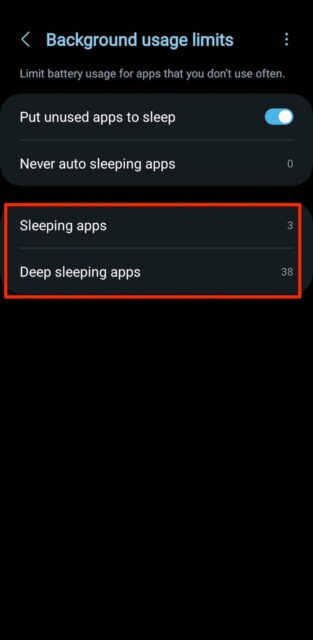
- Open your phone's settings menu. Go to Battery > Background usage limit. Then, check under the Sleeping Apps or Deep Sleeping Apps menus for the Google Play Store.
- When you find it, tap the three-dot icon in the top right corner. Then tap Remove.
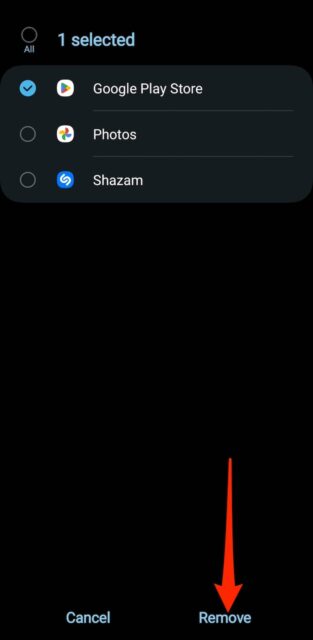
- Tap the circle beside the store to select it. Then tap Remove in the bottom right corner.
Check Your Date & Time Settings
- Open your phone's settings menu. Then go to General Management > Date and time.

- Disable Automatic date and time. Then set your date and time manually. Repeat the process for the Automatic time zone section.
Other Google Play Store Troubleshooting Methods
- From your phone's app gallery, long-press the Google Play Store icon. Then tap the information icon. It appears as a small letter i in a circle.
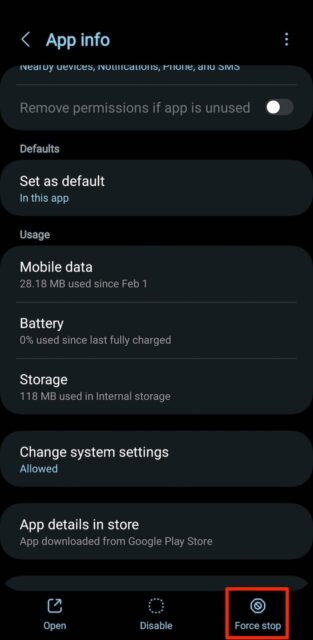
- In the App info page, tap Force-Stop in the bottom right corner.

- To uninstall the app's updates, tap the three-dot icon in the top right corner. Then tap Uninstall updates.

- To clear the app's cache, tap Storage. Then select Clear cache. You can also clear the app's data, but you may lose any card payment methods you've saved.
Stay Updated And Secure With Google Play Store
The steps above should help you update and troubleshoot the Google Play Store app. But you'll want to contact Google's Support team if it proves stubborn. Sometimes, the issue is widespread and may require advanced assistance from their end. You may also check online communities where other users share similar problems and learn how they fixed theirs.