


You know how when you tap pretty much anything on the Galaxy S the whole phone vibrates? Well this is called haptic feedback. Some people like it, some hate it. We've received a few emails asking how to get rid of it, so we decided to make this guide to answer the question. It's pretty simple.
From your home screen, tap the Menu button

From here tap settings:
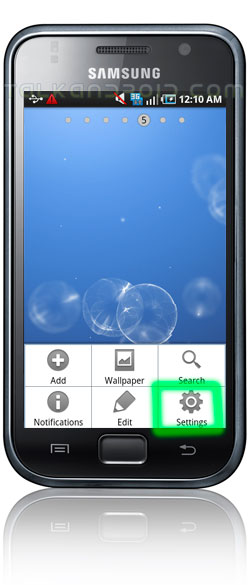
Once you're in the settings menu, you're going to want to tap Sound and Display:

Once you tap sound and display, scroll down to where you see Haptic Feedback, and tap the checked box to disable haptic feedback.

And that's it! Your phone will no longer vibrate when you tap soft keys and different UI interactions. (It'll still vibrate for things like notifications and everything else, just not when you physically interact with it) Note right under haptic feedback you have the ability to control how strong the feedback intensity is. So if you like the haptic feedback, just not how strong it is, you can reduce that too.
Hope you all learned something!

How to control the heptic power
how can i disable it in jb.. :/
Hey there!
How can i enable haptic feedback on Samsung GT-s5570 (Samsung POP). Thanks in advance
Hey David,
my galaxy s is also on tmobile and was greyed out. My phone was on silent! Once I turned my phone off silent the button became enabled and I could switch it off!
I hope this helps :)
Under my galaxy s on tmobile the button to disabled is greyed out. how can I disable haptic feedback? Thanks
Blue Sea. It’s a live wallpaper
Great tips, thanks!
What is the (live?) wallpaper you’re using? :)