




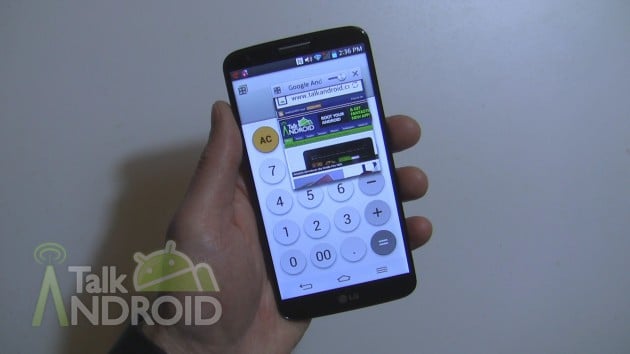
If you're a hardcore multitasker and you own an LG G2, you will want to check out Q Slide apps. Just swipe your finger down to reveal your notification panel. You should see “QSlide apps” just below the Quick Settings bar. If you don't, tap on “QSlide” within the Quick Settings bar and it will appear.
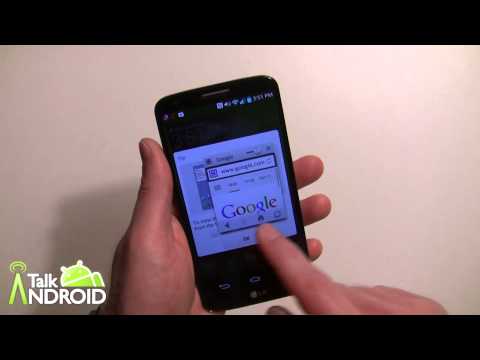
You can choose from 10 different apps that can be floated over your screen. You can change the size and transparency so you can continue to work on whatever else is open. You can even view multiple QSlide apps on the screen at the same time. Apps are limited to the Video Player, Browser, Phone, Messaging, Calendar, Email, Memo, Voice Mate, File Manager, and Calculator. Hit the break for a quick video showing you how it all works, and be sure to check out our other LG G2 guides.

Browser and messaging are not available on my qslide menu. Is there a way to change the apps on the menu?
Great video. Your QSlide menu had messaging within it. Mine doesn’t. Do you know how to add messaging to this menu?