


Planning a long flight or heading somewhere with unreliable Wi-Fi? Downloading your favorite Netflix movies and shows before leaving sounds like the obvious solution. Unfortunately, things aren't quite that simple if you're using a Windows laptop.
Netflix no longer supports offline downloads through its Windows app, leaving PC users without an official way to save shows for later viewing. Fortunately, there are still options worth exploring.
Here's what you need to know about watching Netflix offline on Windows.
Can You Download Netflix Movies on Windows?
Not anymore, at least not through the official Netflix app.
Netflix removed download support from its updated Windows application in 2024. While you can still stream movies and TV shows on your PC, you need an internet connection to watch them.
Official downloads remain available on supported devices, including Android phones and tablets, iPhones, iPads, Amazon Fire tablets, and compatible Chromebooks.
Even on those devices, downloads come with restrictions:
- Expiration dates: Downloaded titles may expire after a certain period.
- Download limits: The number of downloads depends on your subscription plan.
- Device restrictions: Downloads remain accessible only through the Netflix app on the device where they were saved.
- Content availability: Not every movie or episode is available for offline viewing.
These limitations are especially frustrating if you prefer watching on a laptop instead of a smaller mobile screen.
How to Watch Netflix Offline on Windows With Keeprix
One option for Windows users is Keeprix Video Downloader, a desktop application designed to save supported streaming videos as local MP4 or MKV files.
Unlike Netflix's official download feature, which keeps content inside its app, Keeprix offers a file-based approach to offline viewing.
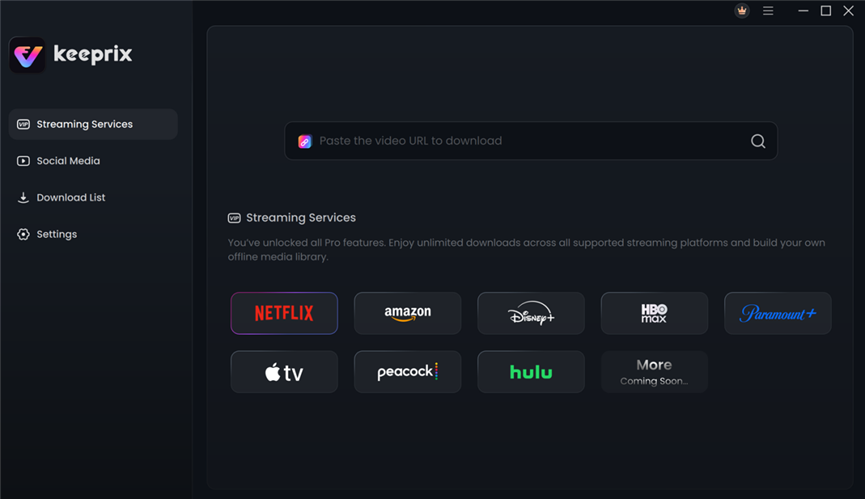
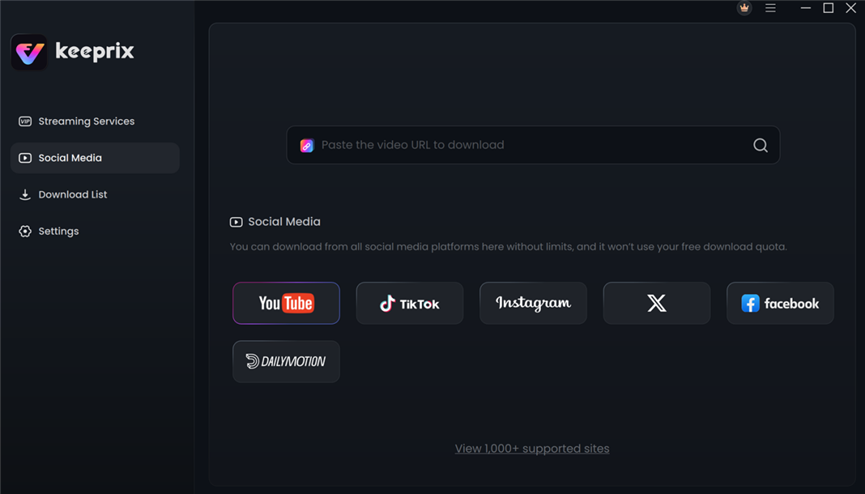
The software supports Windows and macOS and works with several streaming platforms, including Netflix, Disney+, Amazon Prime Video, Hulu, and Max.
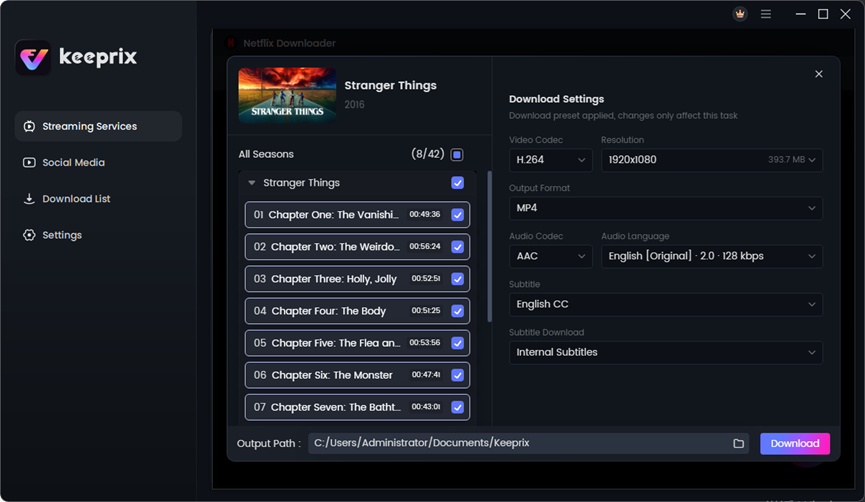
For Netflix downloads, users can select available video quality up to 1080p, choose supported audio and subtitle tracks, and queue multiple episodes.
This approach may be useful for travelers who want to prepare a collection of videos on their laptops before heading somewhere without reliable internet access.
How to Download Netflix Videos for Offline Viewing
Getting started with Keeprix involves a few straightforward steps.
Step 1: Install Keeprix
Download and install Keeprix Video Downloader on your Windows PC. Launch the application and select Netflix from the supported streaming services.
Step 2: Sign In to Netflix
Use the built-in browser to access Netflix and sign in with your account. Find the movie or TV episode you want to save.
Step 3: Choose Download Settings
Select your preferred output format, MP4 or MKV, along with the available resolution, audio language, and subtitle options.
Step 4: Start Downloading
Click the download button to begin saving the selected video. You can also add multiple episodes to the queue if you're preparing for a longer trip.
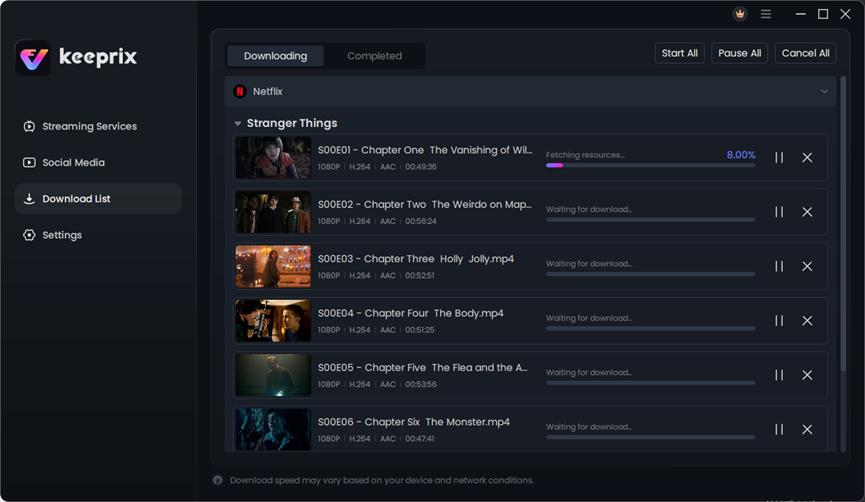
Step 5: Watch Offline
Once the download finishes, locate the video in your output folder and open it with a compatible media player.
Keep in mind that downloading videos through third-party tools may be subject to copyright laws and Netflix's terms of use. Only download content you are authorized to access.
Tips for a Better Offline Viewing Experience
Before taking your laptop on a flight or road trip, a little preparation can prevent unnecessary frustration.
Check your storage space. High-definition movies and full TV seasons can occupy several gigabytes, so make sure your computer has enough available storage.
Choose the right video format. MP4 generally offers broad compatibility with Windows media players, making it a practical option for offline viewing.
Check subtitles and audio. If you're watching international shows, select your preferred language tracks before downloading.
Test your files before traveling. Disconnect from Wi-Fi and open a downloaded video to make sure everything plays correctly.
These simple checks can help you avoid technical surprises when you're away from a reliable connection.
Final Thoughts
Watching Netflix offline on a Windows PC isn't as straightforward as it once was. With official downloads no longer supported on Windows, subscribers must rely on compatible mobile devices for Netflix's built-in offline feature.
For users who want to explore local MP4 or MKV playback on a laptop, desktop tools such as Keeprix provide another option for supported content.
Whatever method you choose, preparing your watchlist ahead of time is the easiest way to avoid buffering and enjoy your favorite shows when an internet connection isn't available.