




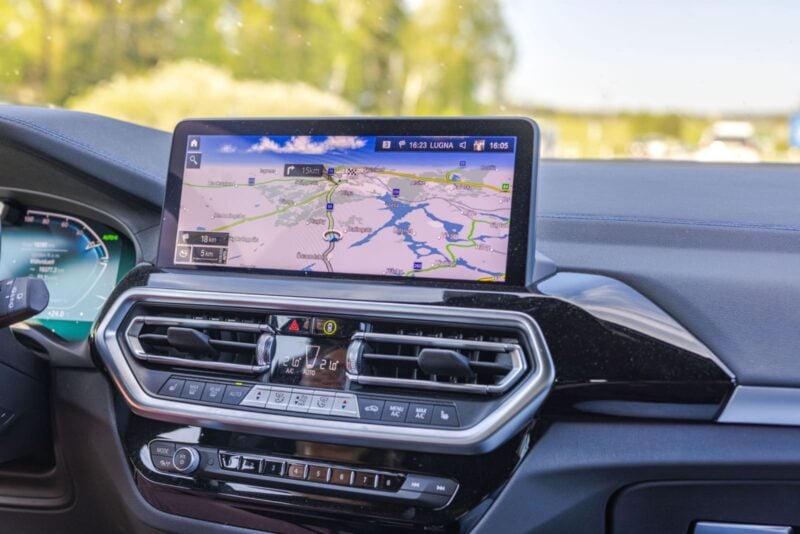
Sideloading: Expanding What Android Auto Can Do
Sideloading means installing unofficial apps from outside the official Play Store. These apps can significantly broaden Android Auto’s capabilities, and the setup process is fairly straightforward.
For example, my own car is a 2018 model, with a smaller infotainment screen than newer vehicles. Still, adding these apps has completely changed how I use Android Auto, making tasks like playing videos and browsing the web possible—even on a modest display.
How to Set Up Unofficial Apps with Android Auto
To get started, follow a few essential steps. After completing the setup, you’ll use these apps just like any other Android Auto tool.
- Enable Developer Mode on your phone: Go to Settings, tap About Phone, and then tap Build Number seven times.
- Enable Developer Mode in Android Auto: In Settings, find Android Auto, select it, then choose Additional Settings in the app. Scroll to Version and tap it ten times. In settings, locate Unknown Sources and enable it.
Once both developer modes are active, download the Android Auto Apps Downloader (AAAD). About midway down the official page, tap “Go to Download.” After downloading the .apk file, install it to access AAAD—it works much like an unofficial Play Store for Android Auto. The free version allows one app download every 30 days; there’s a Pro option available for about $4.00.
Top Unofficial Android Auto Apps
YouTube: An official YouTube app for Android Auto was announced for compatible cars from BMW, Ford, Hyundai, Kia, Mercedes-Benz, Renault, and Volvo, reportedly launching later in 2026. If you want YouTube right now, your best option is CarStream. CarStream functions much like YouTube on a phone: search for videos, access your channel subscriptions, and even watch vertical-format Shorts. The interface is clean, easy to use, and you can type searches using your phone’s keyboard. It even works while the car is moving, making it a useful option for passengers, though you should never use video apps while driving. For watching content in the car, I often prefer the CarStream experience to the phone app.
AA Browser: Since Android Auto doesn’t offer a web browser by default, this app gives you direct internet access on your car display. While you might ask why not just use your phone's browser, AA Browser has some advantages—especially for streaming services and specific sites that offer greater functionality in their web versions. I’ve used it to access Netflix for my kids, or to open portals that work better in a browser than as mobile apps.
Fermata Auto: If you only try one unofficial app, Fermata Auto might be the pick. It’s an all-in-one multimedia toolkit: play videos and music stored on your device, screen mirror your phone, or watch live TV through IPTV links. Dedicated tabs for YouTube and web browsing perform just as well—or sometimes even better—than standalone apps. Accessing music or video files on your phone is simple, and even streaming IPTV links has worked smoothly in my experience. Instead of switching between different apps, Fermata brings everything together in one place.

If you want to be a distracted driver, and pay more attention to your screen, rather than watching the friggin’ road, here’s how you can guarantee putting other’s lives in danger. FFS, just watch your crap when you get to your destination.
a link would have been nice
Fermata Auto has a horrible rating. Have you tried it?